> ## Documentation Index
> Fetch the complete documentation index at: https://bigbluebutton.com/docs/llms.txt
> Use this file to discover all available pages before exploring further.
# Connection Status
> Use Connection Status to track the stability of your connection
The connection status icon is in the upper right-hand of the client.
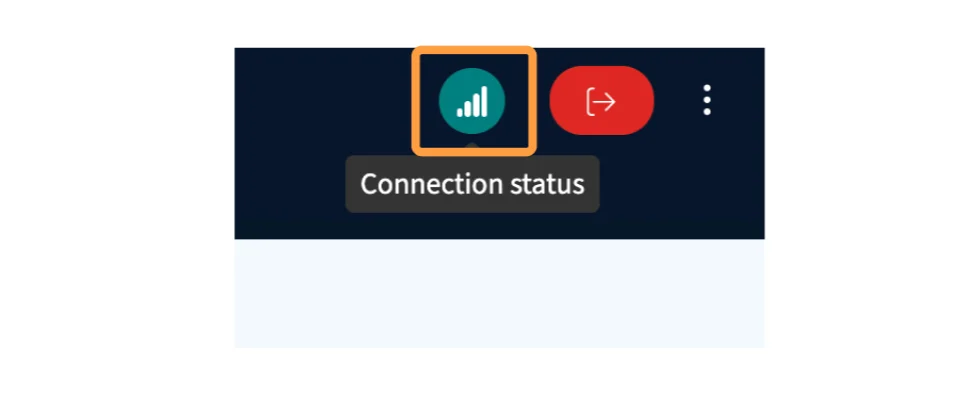 The icon changes based on the strength of your connection.
* Green - a good connection
* Purple - weakened connection -- you may experience some delays in audio and video
* Red - no connection
Clicking on the icon will provide more details regarding your connection.
The icon changes based on the strength of your connection.
* Green - a good connection
* Purple - weakened connection -- you may experience some delays in audio and video
* Red - no connection
Clicking on the icon will provide more details regarding your connection.
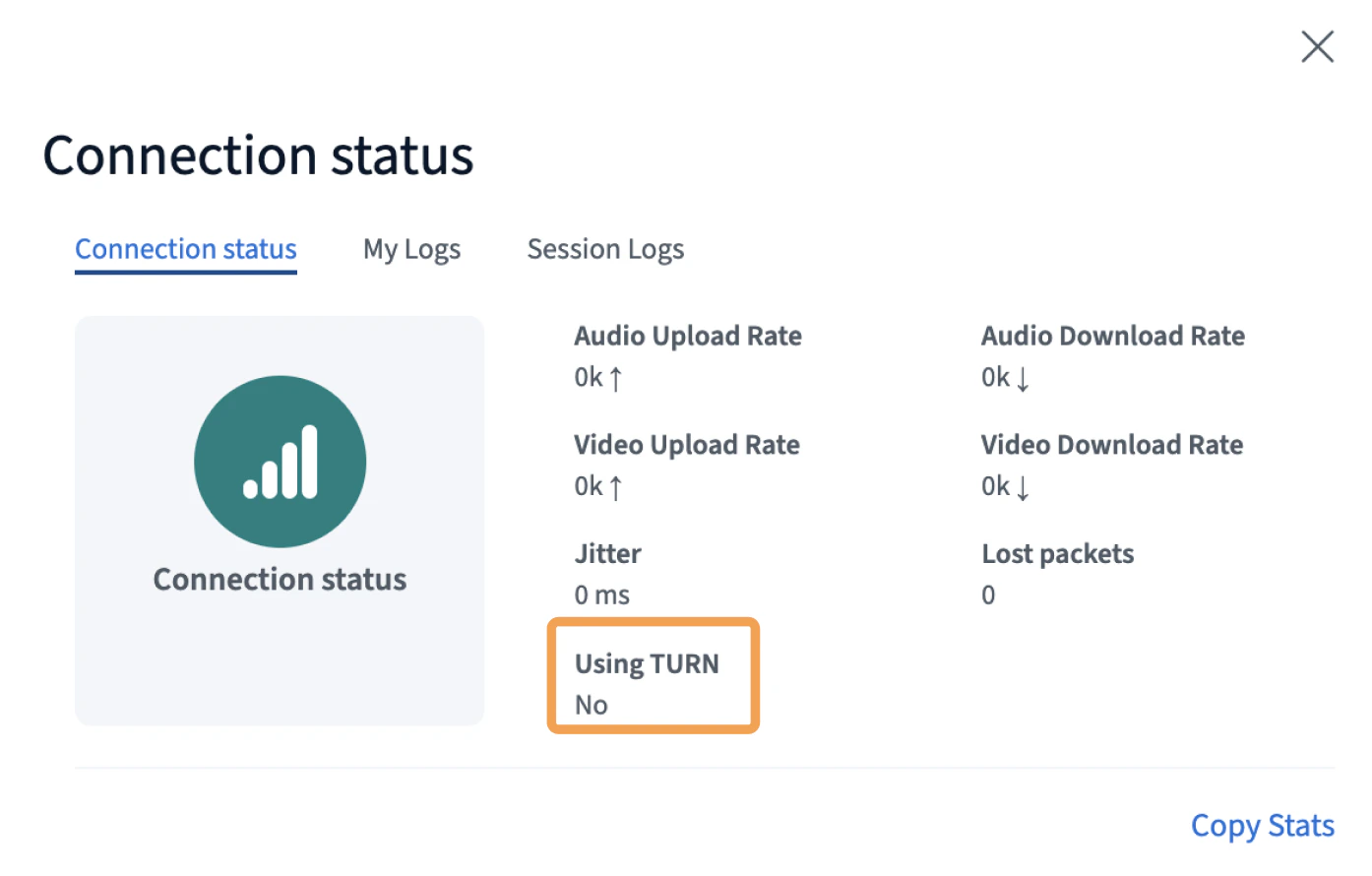 Under the first tab of the connection status page, you will see details regarding your audio upload/download rates, video upload/download rates, Jitter, Lost packets, and if you are using a TURN server for your connection.
On a direct connection, you'll see **Using TURN: No**. If you see 'Yes', it means the client needs to connect to an intermediate server, which also may introduce delays in audio and video. If you see 'Yes', switch to another network if possible.
Under the first tab of the connection status page, you will see details regarding your audio upload/download rates, video upload/download rates, Jitter, Lost packets, and if you are using a TURN server for your connection.
You can copy the connection status stats by using the Copy Stats button in the bottom right-hand corner.
This will copy the details of the meeting and user connection information into a text format that is useful for troubeshooting. Below is an example of the copied stats.
```json theme={null}
{
"ready": true,
"user": {
"time": "2026-05-23T19:50:26.098Z",
"meeting_name": "Demo Meeting",
"meeting_id": "106453fe2abf5ee2268ad6b79d355bb873293ec8-1779565806159",
"user_id": "w_eikz6atyjr4u",
"extern_user_id": "gl-demo-1a1d39b65e9e"
},
"audio": {
"audioCurrentUploadRate": 94,
"audioCurrentDownloadRate": 0,
"jitter": 1,
"packetsLost": 0,
"transportStats": {
"isUsingTurn": false
}
},
"video": {
"videoCurrentUploadRate": 0,
"videoCurrentDownloadRate": 0
}
}
```
All users will see the **My Logs** tab. This shows the last state of your connection (green, purple, and red).
Under the first tab of the connection status page, you will see details regarding your audio upload/download rates, video upload/download rates, Jitter, Lost packets, and if you are using a TURN server for your connection.
On a direct connection, you'll see **Using TURN: No**. If you see 'Yes', it means the client needs to connect to an intermediate server, which also may introduce delays in audio and video. If you see 'Yes', switch to another network if possible.
Under the first tab of the connection status page, you will see details regarding your audio upload/download rates, video upload/download rates, Jitter, Lost packets, and if you are using a TURN server for your connection.
You can copy the connection status stats by using the Copy Stats button in the bottom right-hand corner.
This will copy the details of the meeting and user connection information into a text format that is useful for troubeshooting. Below is an example of the copied stats.
```json theme={null}
{
"ready": true,
"user": {
"time": "2026-05-23T19:50:26.098Z",
"meeting_name": "Demo Meeting",
"meeting_id": "106453fe2abf5ee2268ad6b79d355bb873293ec8-1779565806159",
"user_id": "w_eikz6atyjr4u",
"extern_user_id": "gl-demo-1a1d39b65e9e"
},
"audio": {
"audioCurrentUploadRate": 94,
"audioCurrentDownloadRate": 0,
"jitter": 1,
"packetsLost": 0,
"transportStats": {
"isUsingTurn": false
}
},
"video": {
"videoCurrentUploadRate": 0,
"videoCurrentDownloadRate": 0
}
}
```
All users will see the **My Logs** tab. This shows the last state of your connection (green, purple, and red).
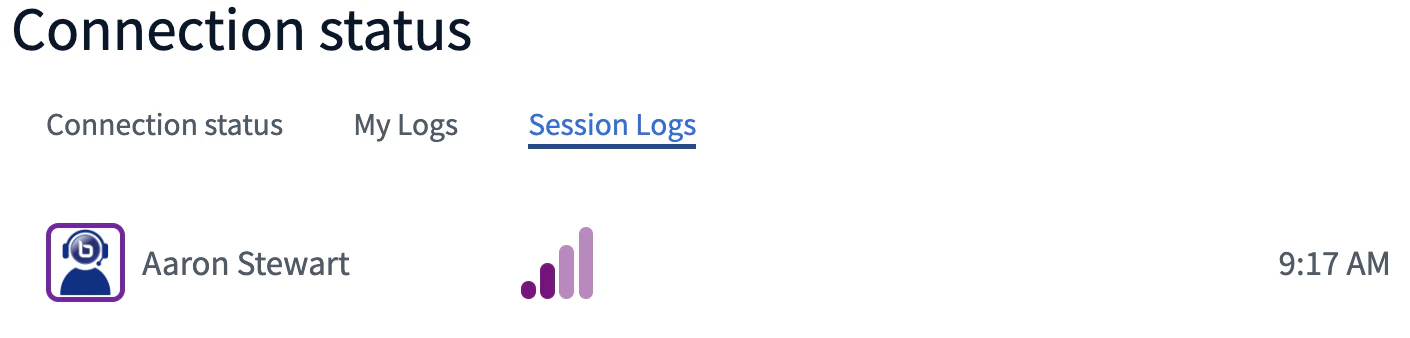
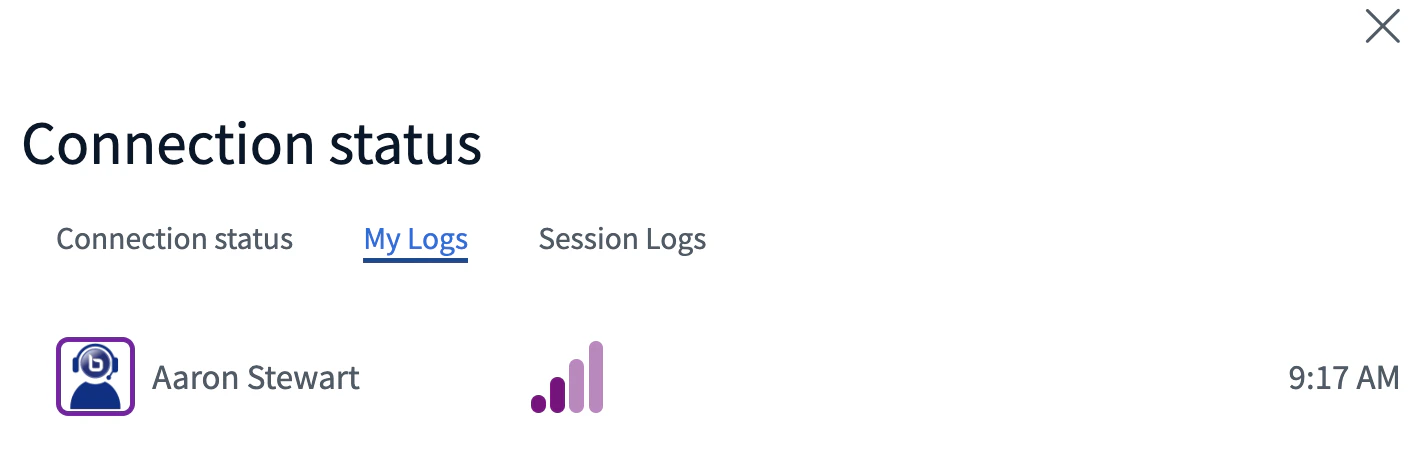 Moderators will additionaly see **Session Logs** tab, which shows the last connection status for all users. If a particular user in the session indicates they are having troubles with audio or video, for example, chaeck the **Session Logs** tab to see if their client has reported issues with the connection.
 ### Adjusting Your Connection Settings
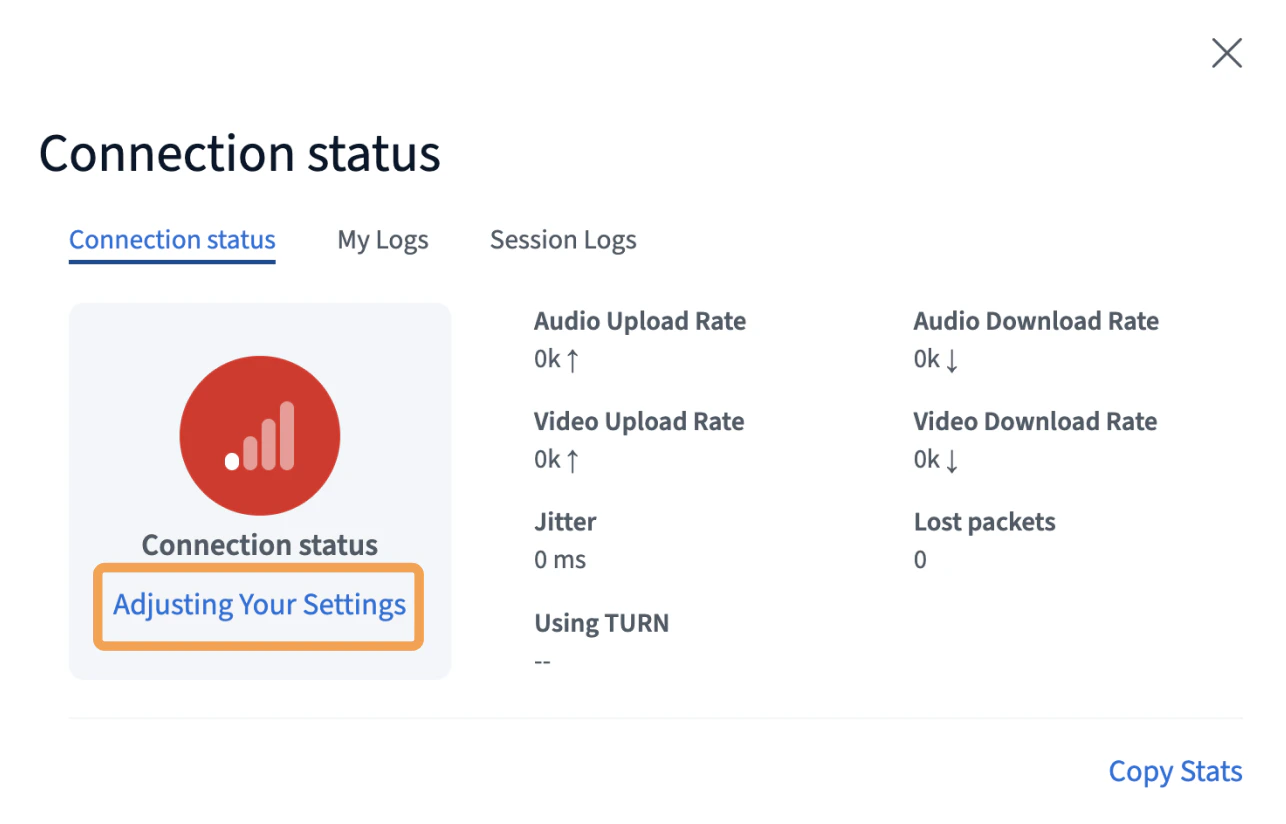
When you lose connection to your session, the connection status will turn red, and you can change your **Data Saving** options by selecting [**Adjusting Your Settings**](/docs/help/user-guide/access-the-options-menu).
### Adjusting Your Connection Settings
When you lose connection to your session, the connection status will turn red, and you can change your **Data Saving** options by selecting [**Adjusting Your Settings**](/docs/help/user-guide/access-the-options-menu).