> ## Documentation Index
> Fetch the complete documentation index at: https://bigbluebutton.com/docs/llms.txt
> Use this file to discover all available pages before exploring further.
# Using Closed Captioning
> Enable automatic browser-based closed captions in BigBlueButton, with captions also embedded in the recording as subtitles.
BigBlueButton can automatically generate closed captions in Chrome and Safari. When the feature is enabled, each user can choose to have their own audio captioned, and any user can view the captions in the session and the recording.
## Enable captions for your audio
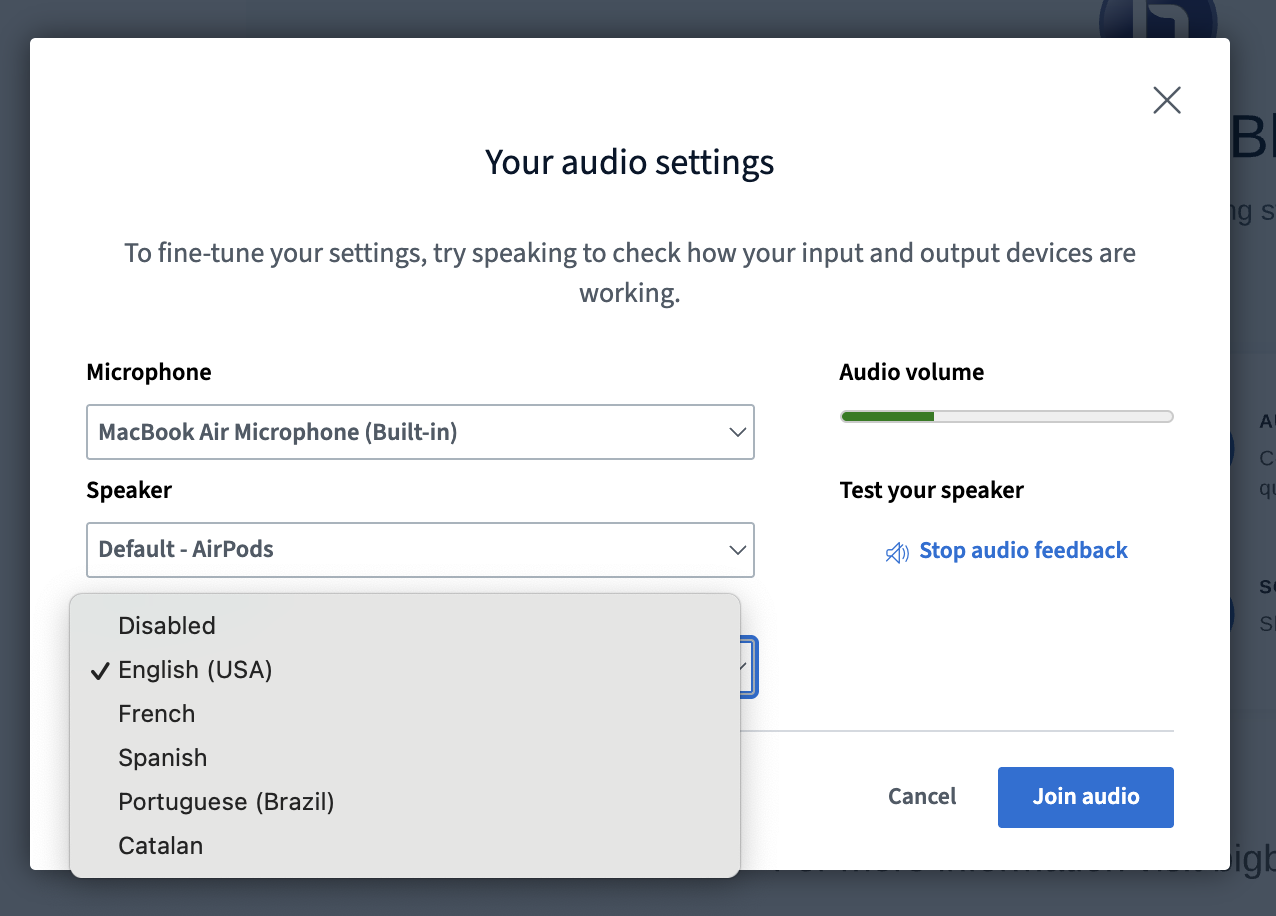
Once enabled, each user has the option to caption their audio when joining. In a class, typically the educator captions their own voice.
 ## View captions during the session
As soon as one user has captions enabled, a **CC** button appears at the bottom of the screen for everyone.
## View captions during the session
As soon as one user has captions enabled, a **CC** button appears at the bottom of the screen for everyone.
 To view captions for every speaker who has enabled captions, select the **CC** button.
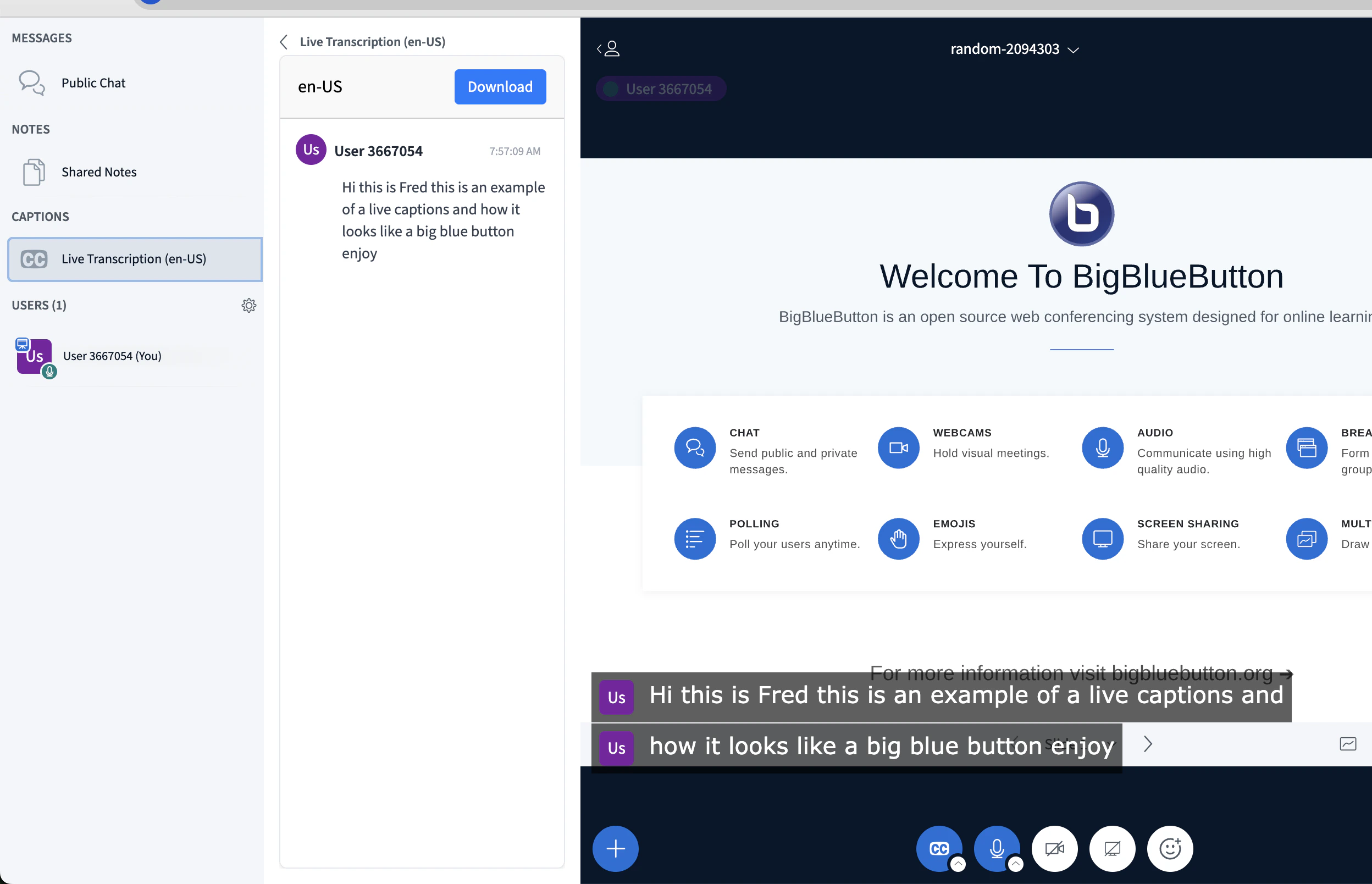 To open the full transcript panel, select **Live Transcript** on the left-hand side. You can download the transcript anytime by selecting the **Download** button.
 When using [Blindside Networks](/docs/help/about-us) hosting of BigBlueButton, this feature is available for enabling on your account.
## Captions in the recording
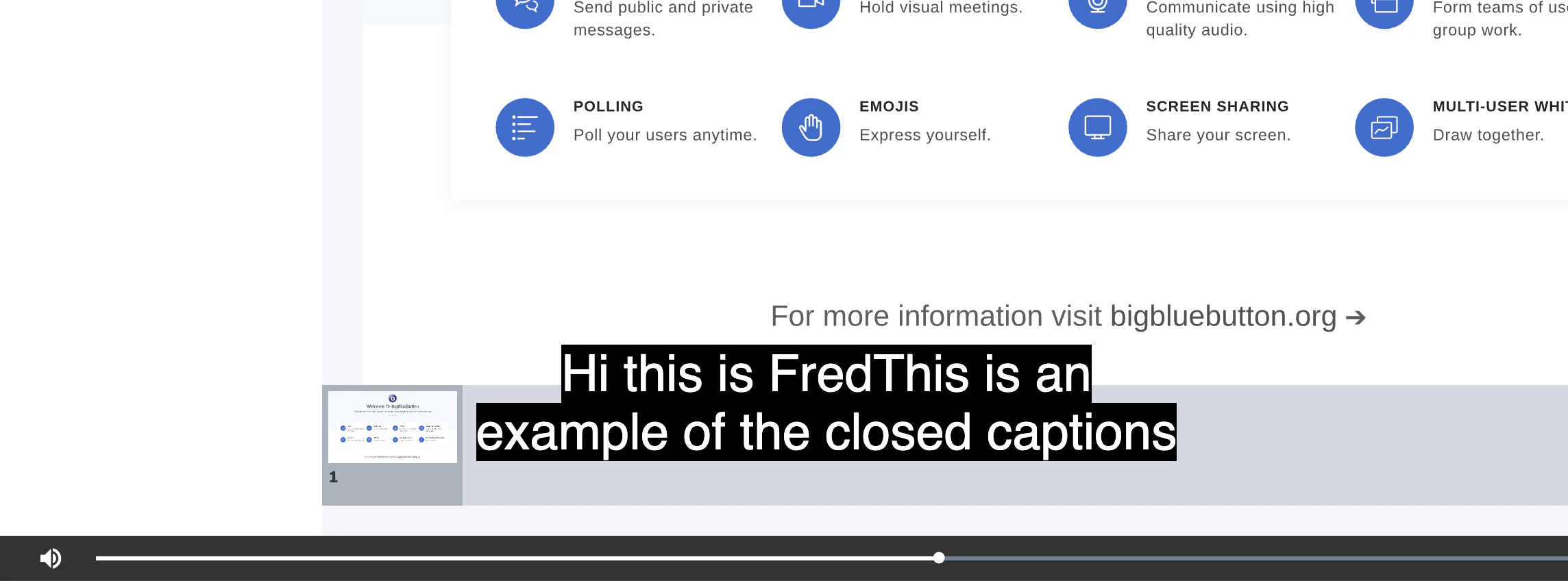
After the session ends, users can view the captions in the recording by clicking the 'CC' button in the recording playback toolbar.
When using [Blindside Networks](/docs/help/about-us) hosting of BigBlueButton, this feature is available for enabling on your account.
## Captions in the recording
After the session ends, users can view the captions in the recording by clicking the 'CC' button in the recording playback toolbar.
 **Privacy:** Chrome and Safari implement browser speech-to-text by sending the user's audio to Google's cloud services and Apple's transcription services. Captioning works well, but the user's audio is shared with Google and Apple for the speech-to-text conversion. Be aware of this data sharing before enabling the feature.