> ## Documentation Index
> Fetch the complete documentation index at: https://bigbluebutton.com/docs/llms.txt
> Use this file to discover all available pages before exploring further.
# Using Chrome's Built In Closed Captioning
> Chrome v132.0 (and later) offers built-in captioning of all audio in a meeting.
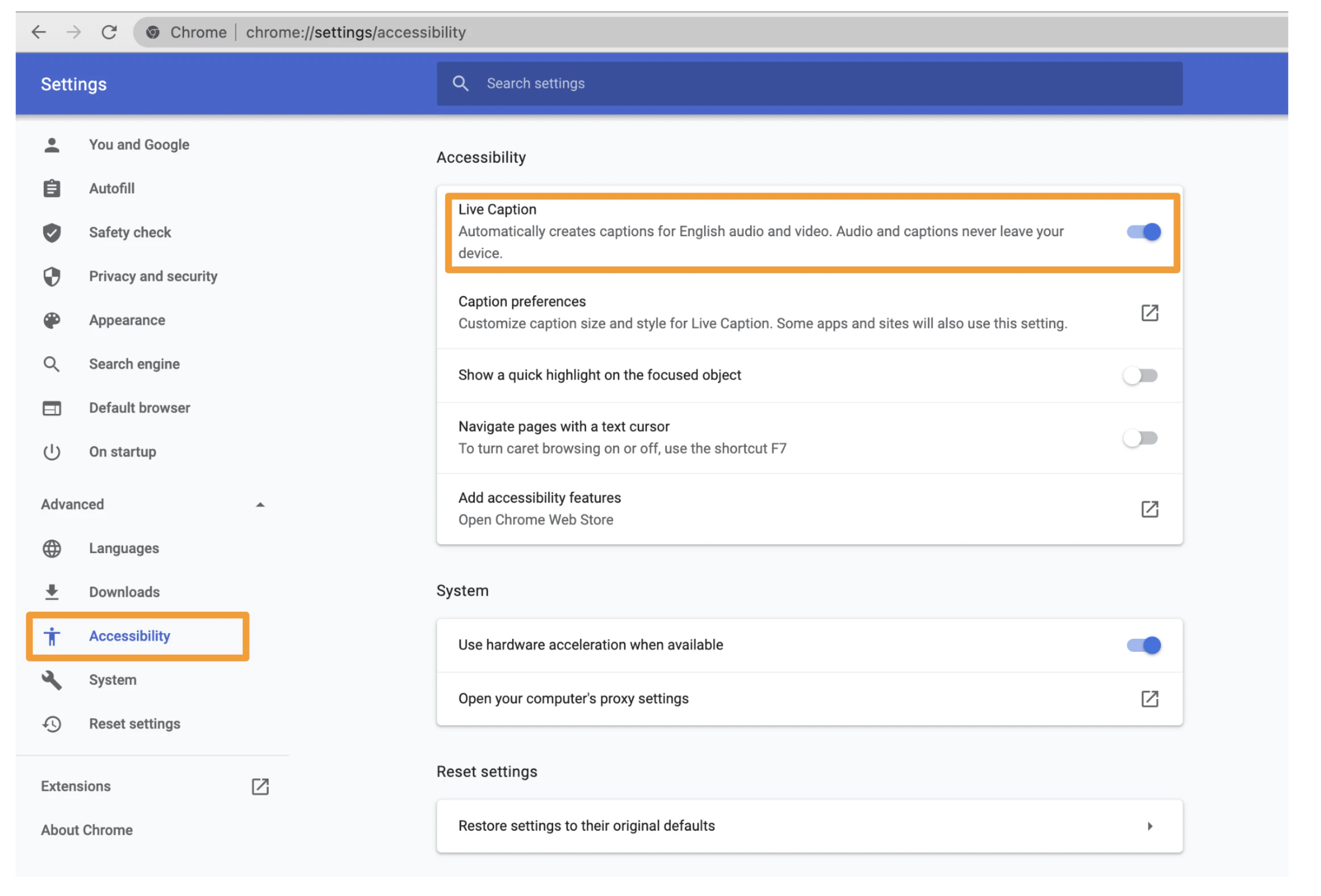
You can enable live captioning by opening Chrome settings, Select **Advanced**, Select **Accessibility**, and enabling **Live Captions**.
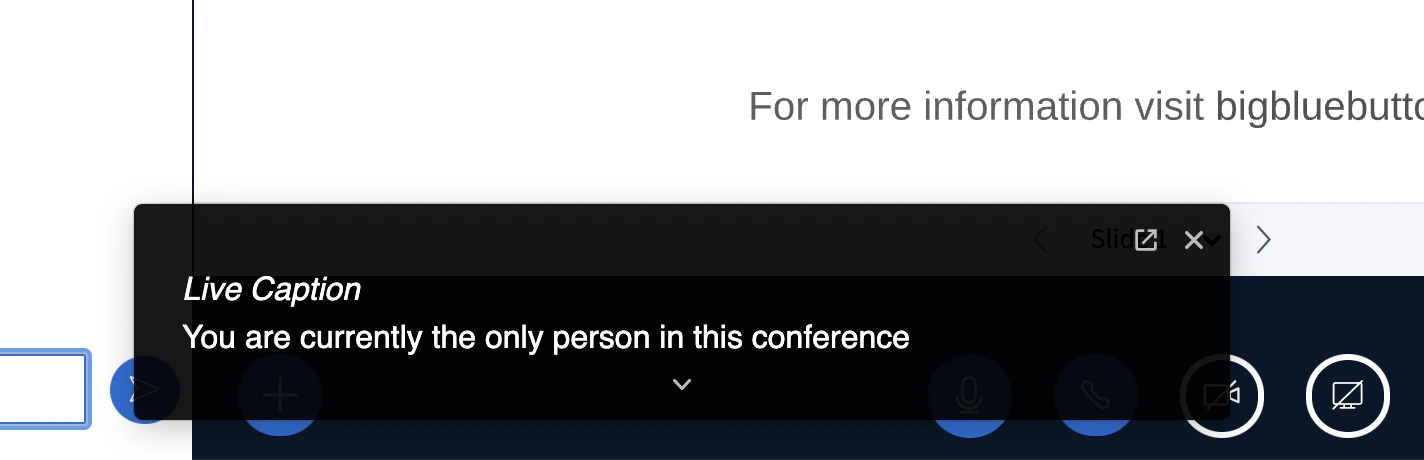
 Once enabled, you'll see a window at the bottom giving a live caption (English) of the meeting's audio.
 For more information, see [https://blog.google/products/chrome/live-caption-chrome/](https://blog.google/products/chrome/live-caption-chrome/)