> ## Documentation Index
> Fetch the complete documentation index at: https://bigbluebutton.com/docs/llms.txt
> Use this file to discover all available pages before exploring further.
# Access breakout room whiteboards or shared notes
> Save whiteboards and shared notes from breakout rooms as PDFs and access them from the Action menu after rooms end.
When creating breakout rooms, you can select **Save whiteboard** or **Save shared notes**.
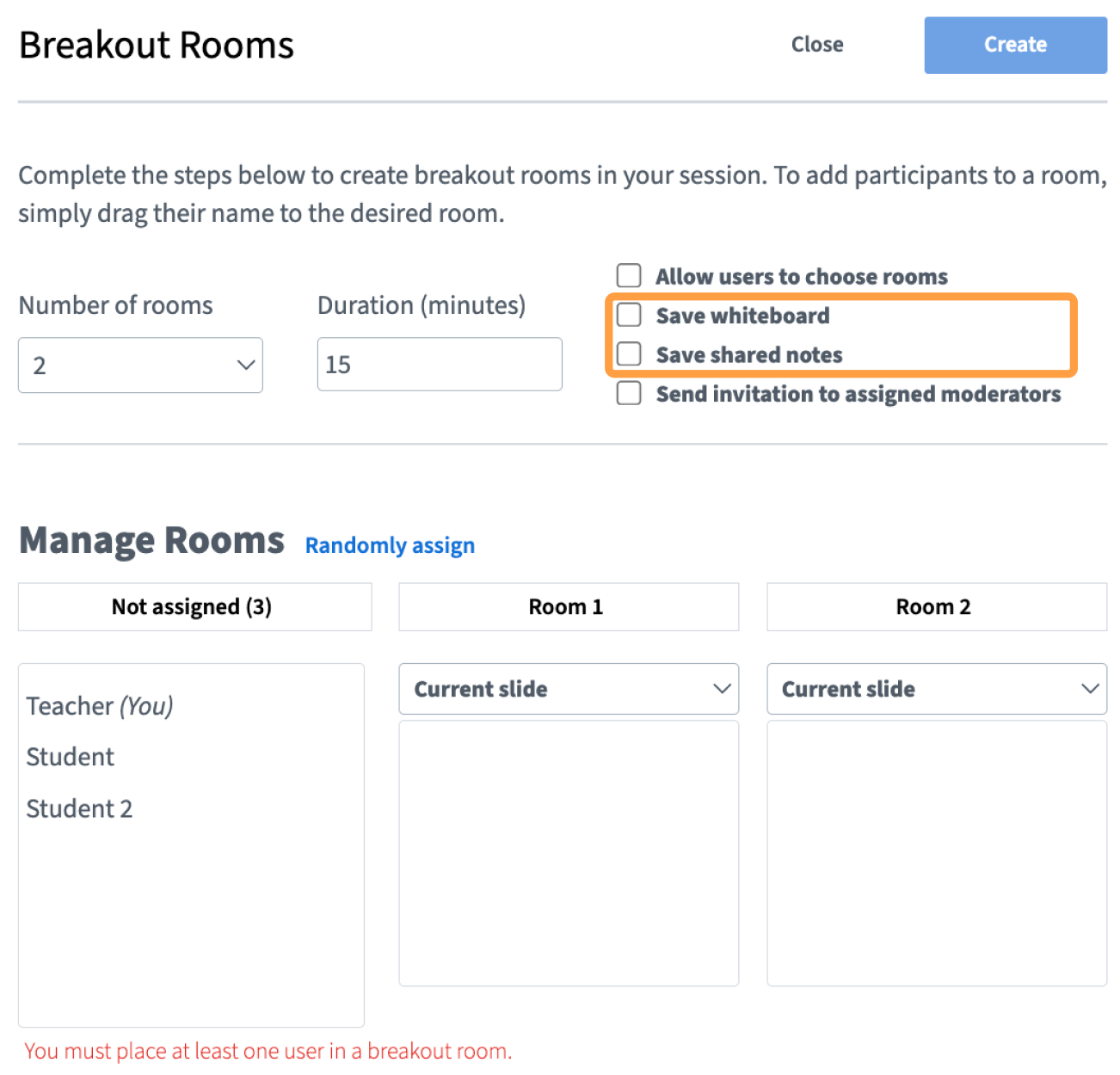 This will export whiteboard presentations or shared notes from all of the breakout rooms you created as PDFs. When breakout rooms end, you can access the files from the **Action menu (+)**.
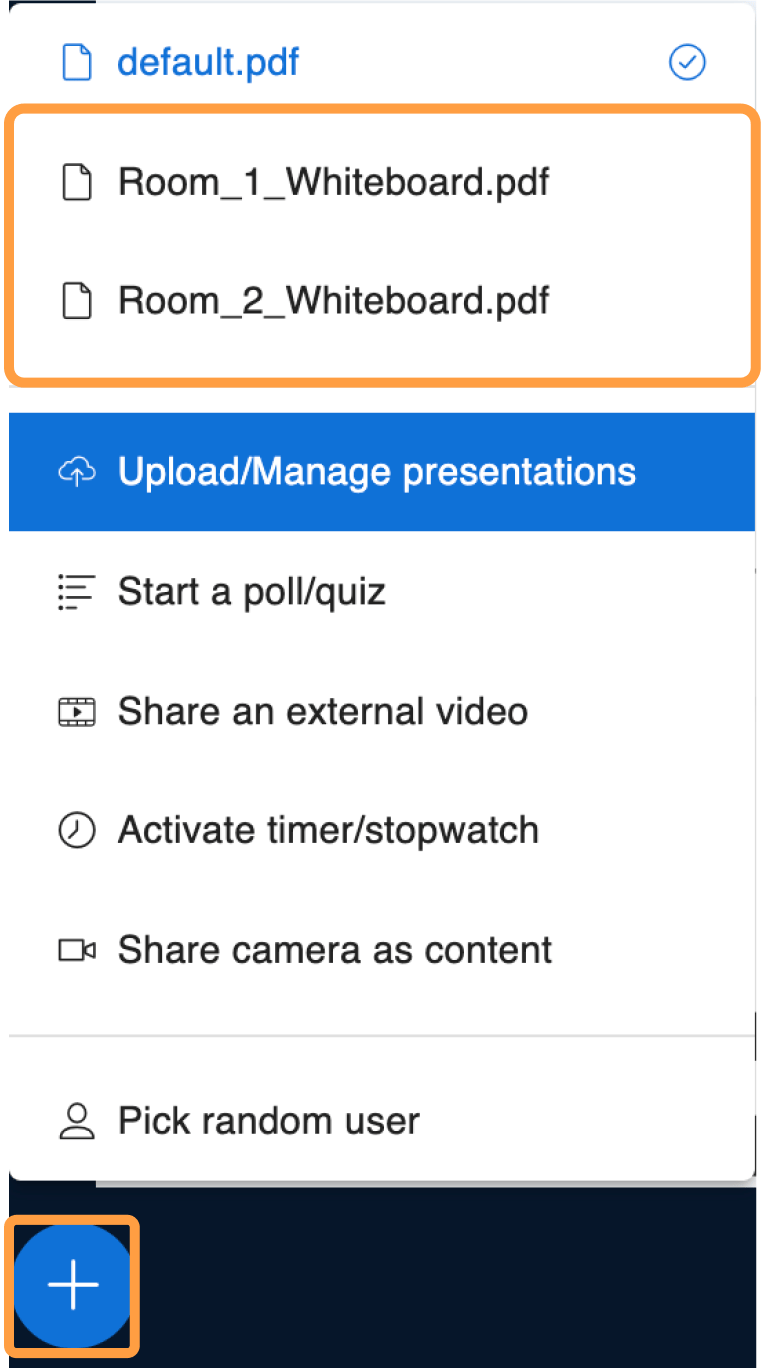 Or, you can access the files from the **Upload/Manage presentations** menu.
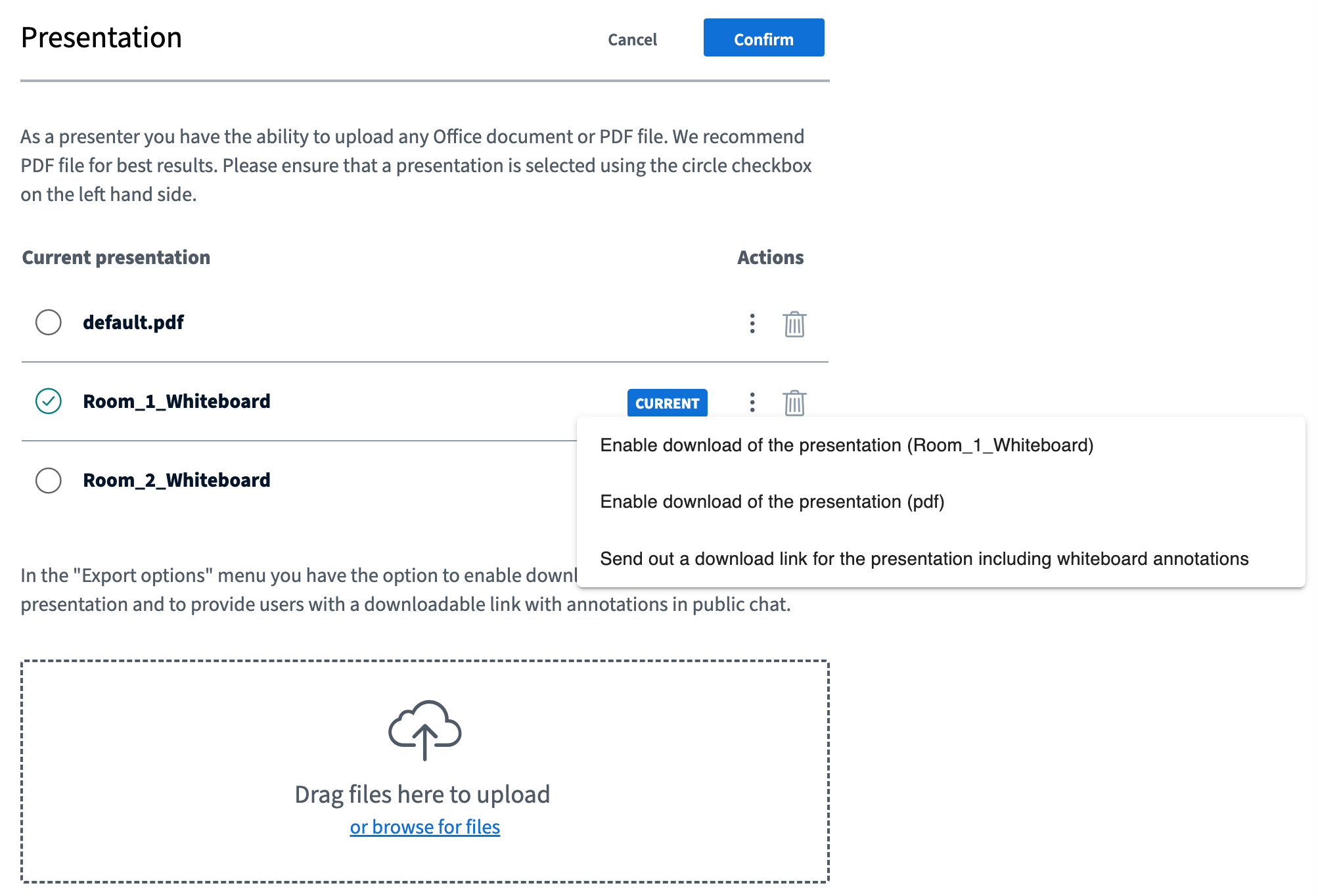 Breakout room presentations and shared notes can be managed as shown in the guides below:
* [Upload a presentation and enable for download](/docs/help/presenter-guide/upload-a-presentation-enable-for-download)
* [Shared notes as a presenter](/docs/help/presenter-guide/shared-notes-presenter)
Breakout room presentations and shared notes can be managed as shown in the guides below:
* [Upload a presentation and enable for download](/docs/help/presenter-guide/upload-a-presentation-enable-for-download)
* [Shared notes as a presenter](/docs/help/presenter-guide/shared-notes-presenter)