> ## Documentation Index
> Fetch the complete documentation index at: https://bigbluebutton.com/docs/llms.txt
> Use this file to discover all available pages before exploring further.
# Create and manage breakout rooms
> Create, configure, and manage breakout rooms during a live BigBlueButton session, and invite late joiners.
Moderators use breakout rooms in BigBlueButton to encourage small group discussion, collaboration, and cooperation amongst students. This page describes how to create breakout rooms, manage them during a live session, and invite late joiners.
## Create breakout rooms
Only viewers who have already joined the BigBlueButton session can be assigned to a breakout room. All connected users appear in the **Users** list.
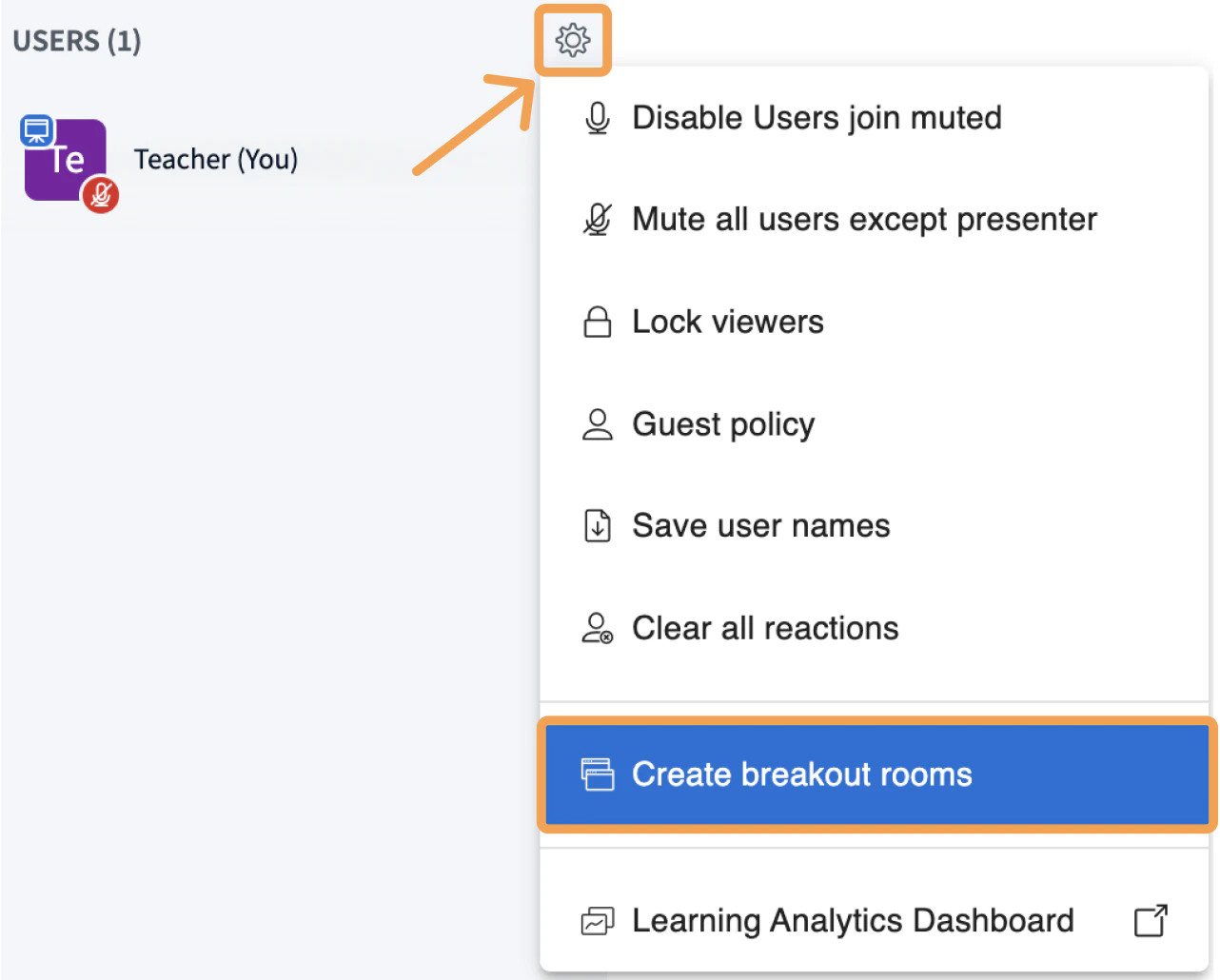 To create breakout rooms, select the gear icon above the **Users** list and choose **Create breakout rooms**.
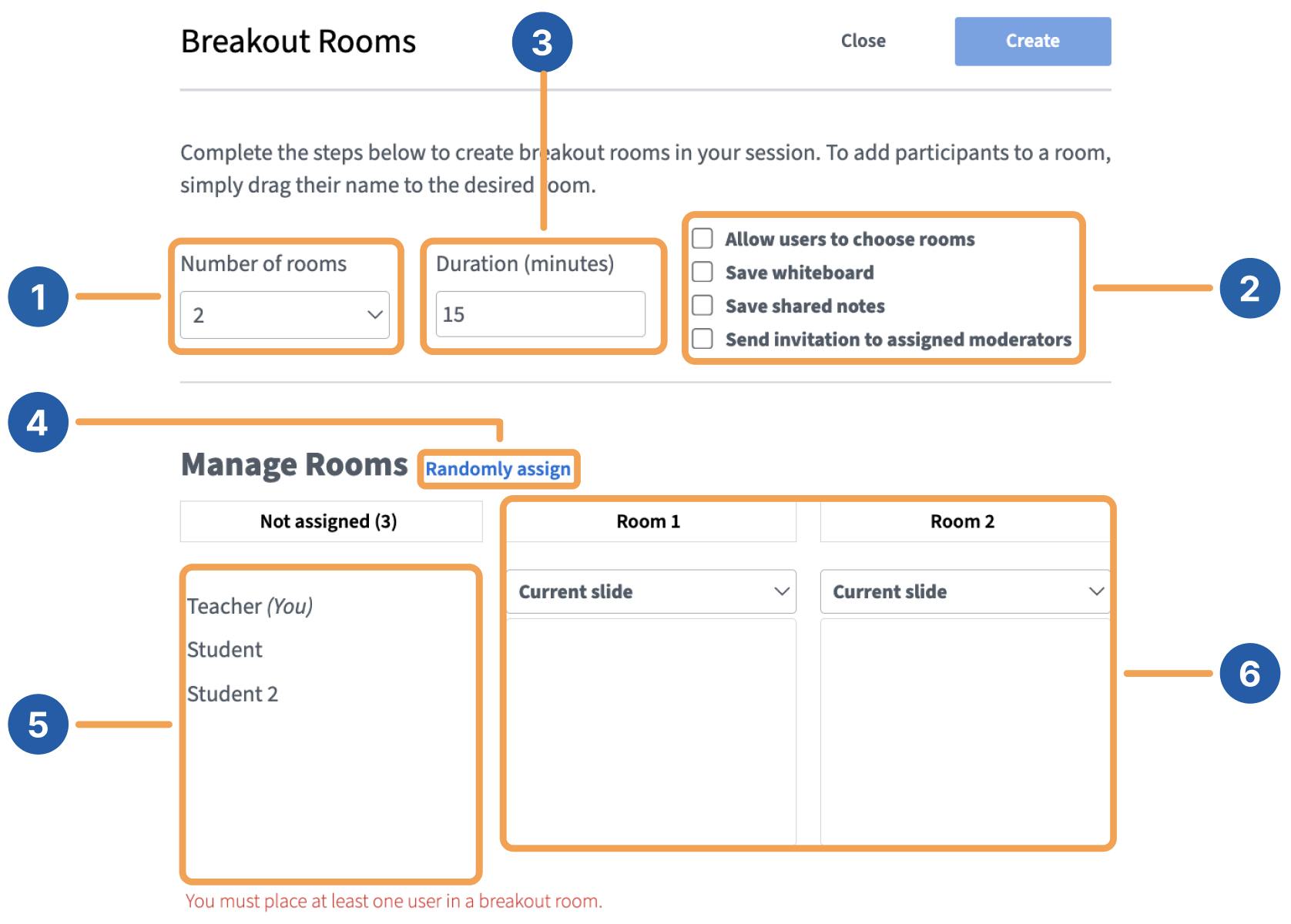 Configure the breakout rooms using the options described below.
* **Number of rooms** **\[1]**: the default minimum is 2. Select the dropdown to change the number of breakout rooms, up to a maximum of 8.
* **Breakout room options** **\[2]**: see the list below for each option.
* **Duration (minutes)** **\[3]**: all rooms close once this duration is reached, and users return to the main session.
* **Randomly assign** **\[4]**: distributes viewers evenly across the selected number of rooms.
* **Not assigned** **\[5]**: lists users who have not yet been assigned to a breakout room.
* **Created Rooms** **\[6]**: shows each room with its assigned users.
The **Breakout room options \[2]** include:
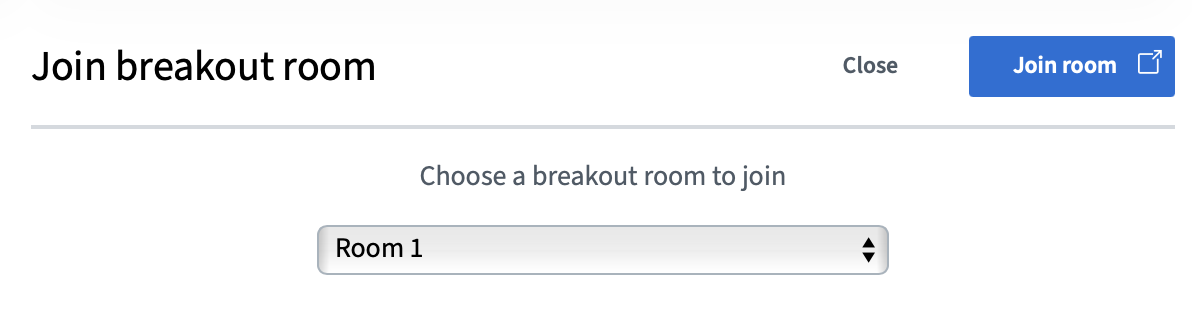
* **Allow users to choose a breakout room to join**: viewers select from a dropdown of available breakout rooms when prompted.
Configure the breakout rooms using the options described below.
* **Number of rooms** **\[1]**: the default minimum is 2. Select the dropdown to change the number of breakout rooms, up to a maximum of 8.
* **Breakout room options** **\[2]**: see the list below for each option.
* **Duration (minutes)** **\[3]**: all rooms close once this duration is reached, and users return to the main session.
* **Randomly assign** **\[4]**: distributes viewers evenly across the selected number of rooms.
* **Not assigned** **\[5]**: lists users who have not yet been assigned to a breakout room.
* **Created Rooms** **\[6]**: shows each room with its assigned users.
The **Breakout room options \[2]** include:
* **Allow users to choose a breakout room to join**: viewers select from a dropdown of available breakout rooms when prompted.
 * **Save whiteboard**: whiteboard annotations are converted to a PDF and made available as a presentation from the action menu.
* **Save shared notes**: shared notes are converted to a PDF and made available as a presentation from the action menu.
* **Send invitation to assigned moderators**: sends breakout room invitations to selected moderators so they can manage the rooms their users are assigned to.
Moderators are not assigned to breakout rooms from the create panel. Use **Send invitation to assigned moderators** or join a room manually after creation.
* **Save whiteboard**: whiteboard annotations are converted to a PDF and made available as a presentation from the action menu.
* **Save shared notes**: shared notes are converted to a PDF and made available as a presentation from the action menu.
* **Send invitation to assigned moderators**: sends breakout room invitations to selected moderators so they can manage the rooms their users are assigned to.
Moderators are not assigned to breakout rooms from the create panel. Use **Send invitation to assigned moderators** or join a room manually after creation.
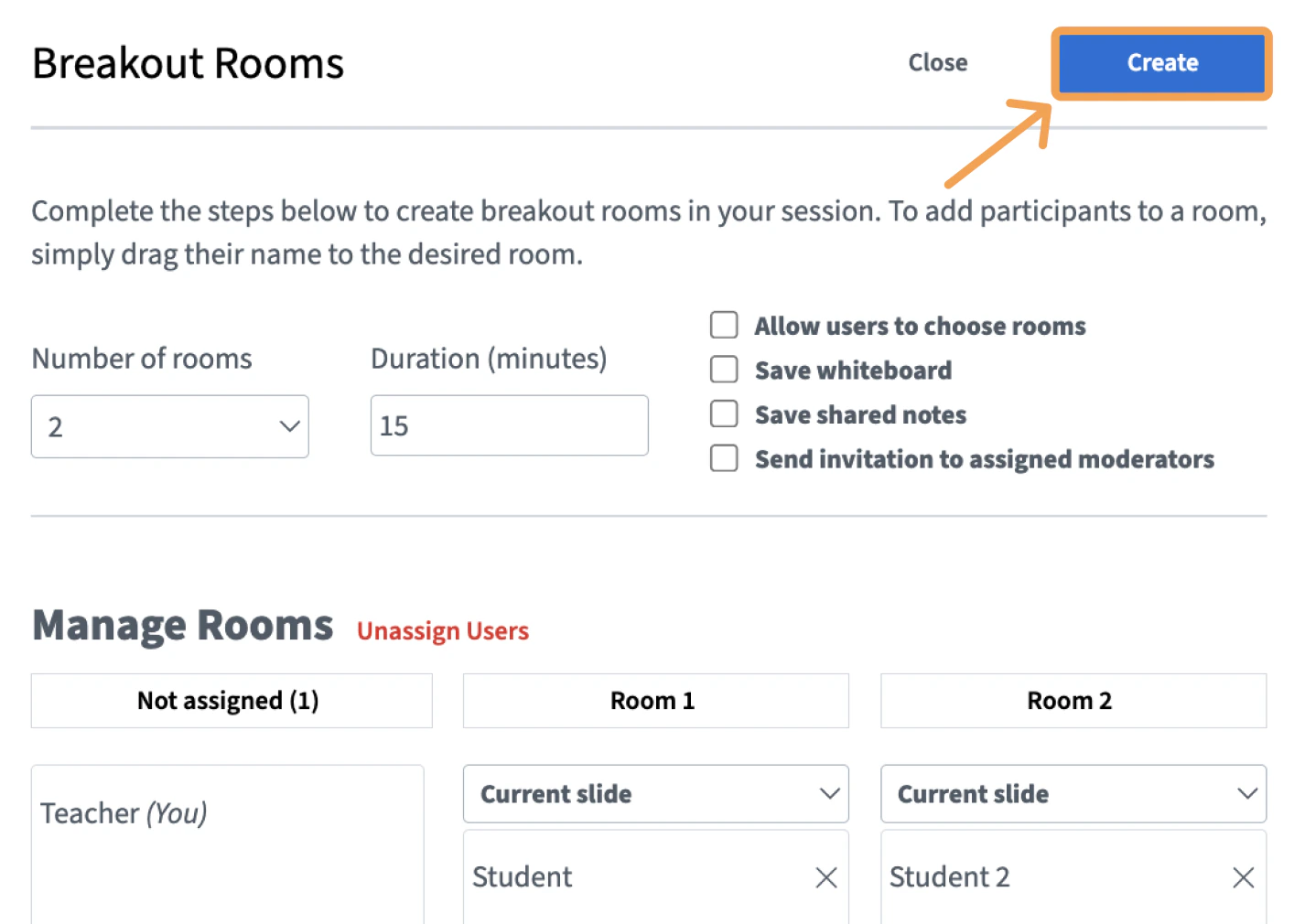 Once the rooms are configured, select **Create** to launch them.
Viewers receive a prompt to join their assigned room. Their audio is removed from the main session, and they are prompted to rejoin audio in the breakout room.
When viewers join a breakout room, they see the current slide from the main session. Slide navigation arrows are disabled because the breakout room contains only that one slide.
## Manage breakout rooms
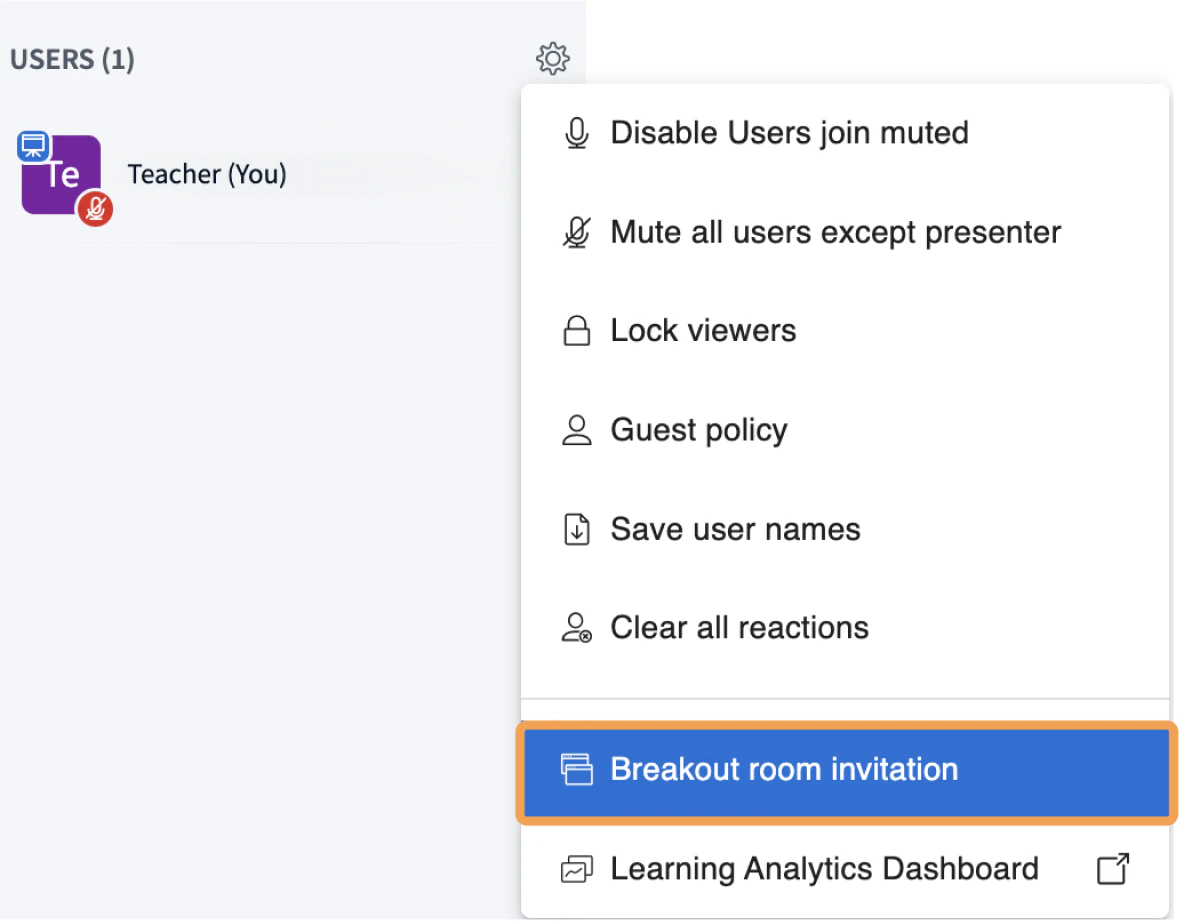
To invite students who are not currently in a breakout room, select the gear icon and choose **Breakout room invitation**.
Once the rooms are configured, select **Create** to launch them.
Viewers receive a prompt to join their assigned room. Their audio is removed from the main session, and they are prompted to rejoin audio in the breakout room.
When viewers join a breakout room, they see the current slide from the main session. Slide navigation arrows are disabled because the breakout room contains only that one slide.
## Manage breakout rooms
To invite students who are not currently in a breakout room, select the gear icon and choose **Breakout room invitation**.
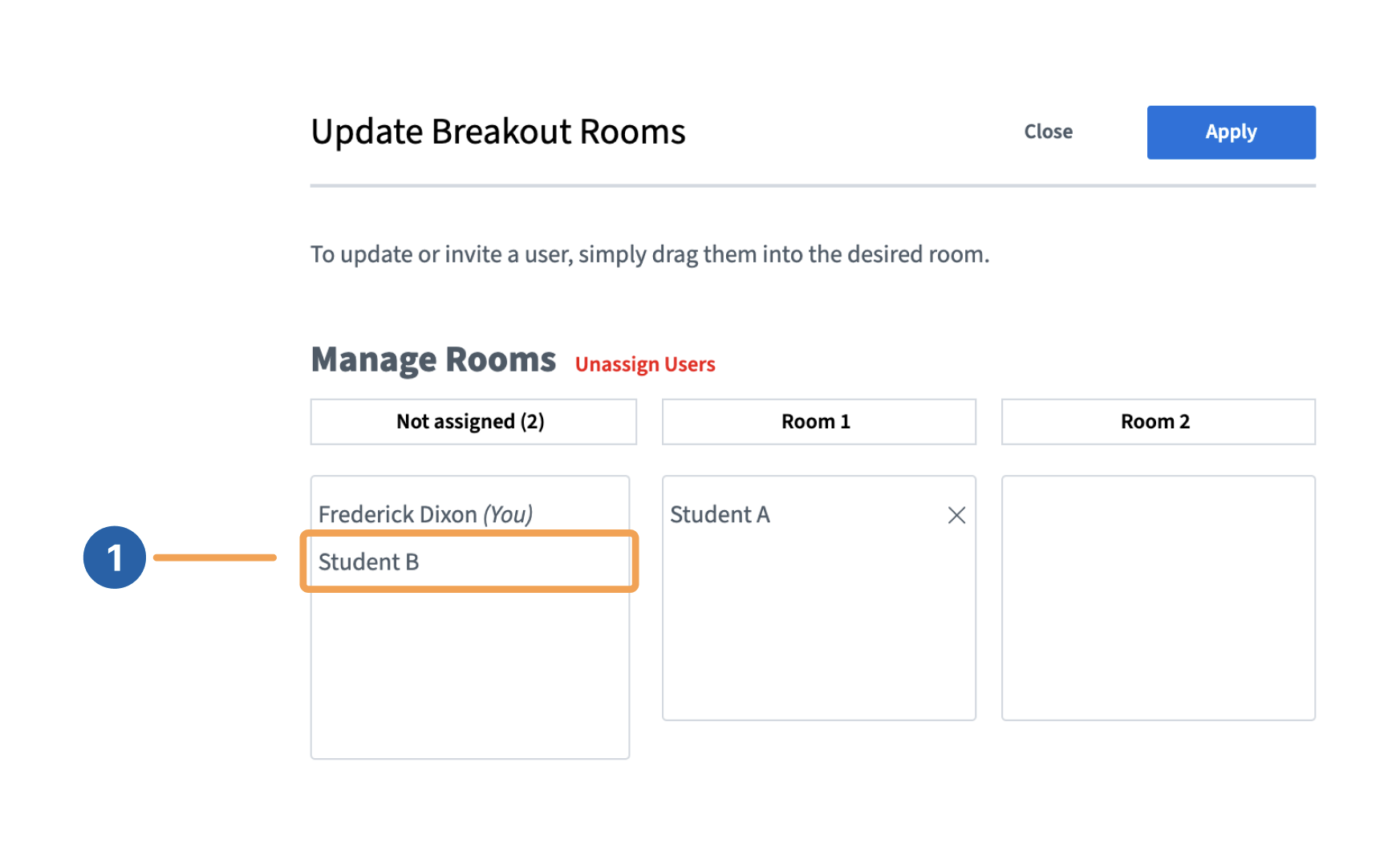
 A dialog appears where you can see students in main room (Not assigned) and breakout rooms. To move a student into a breakout room, **\[1]** Select their name and **drag-and-drop** them into the list below the name of the breakout rooms.
 ## Breakout room controls
After breakout rooms are created and viewers have joined, moderators manage and join the rooms from the main session through the **Breakout Room Control** panel.
## Breakout room controls
After breakout rooms are created and viewers have joined, moderators manage and join the rooms from the main session through the **Breakout Room Control** panel.
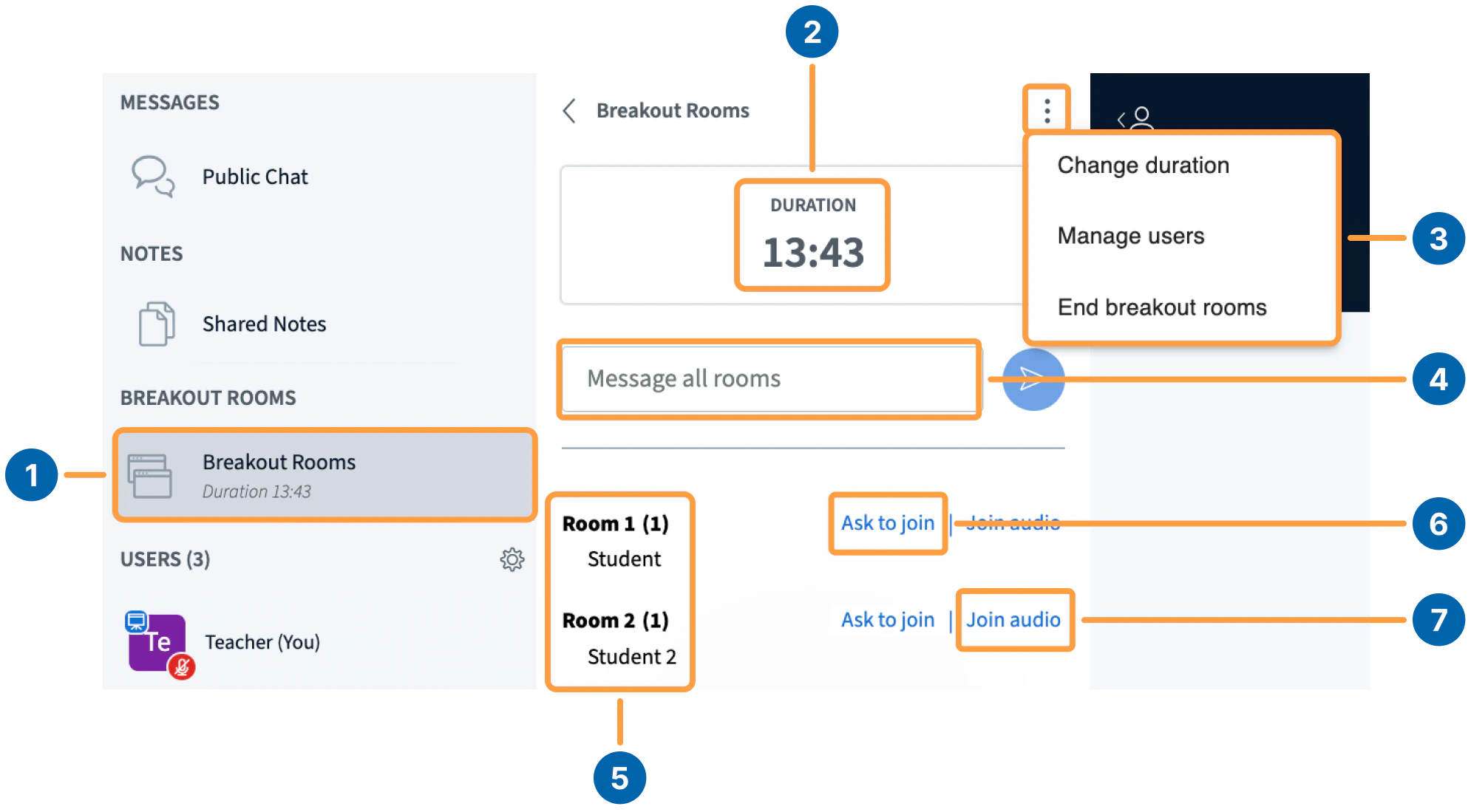 The **Breakout Room Control panel** **\[1]** appears under **Messages** above the **Users** list on the left. Select it to expand the panel.
* **Duration time** **\[2]**: shows the remaining time for the breakout rooms.
* **Breakout room options menu** **\[3]**: opens the actions described below.
* **Message all rooms** **\[4]**: send a message to every breakout room from the chat box.
* **Number and names of attendees in each room** **\[5]**: lists active breakout rooms and their participants.
* **Ask to join** **\[6]**: join a specific breakout room directly.
* **Join audio** **\[7]**: listen in on a breakout room without joining it (Note: This feature is currently disabled in BigBlueButton).
The **breakout room options menu \[3]** provides:
* **Change duration**: increase or decrease the time remaining for all breakout rooms.
* **Manage users**: open the breakout room settings panel to add or remove users in each room.
* **End breakout rooms**: close all breakout rooms before the duration ends. Users return to the main session and rejoin audio.
### Join a breakout room
To join a breakout room directly, select **Ask to join \[6]** for that room. Your audio disconnects from the main session, and you are prompted to connect audio in the breakout room.
The **Breakout Room Control panel** **\[1]** appears under **Messages** above the **Users** list on the left. Select it to expand the panel.
* **Duration time** **\[2]**: shows the remaining time for the breakout rooms.
* **Breakout room options menu** **\[3]**: opens the actions described below.
* **Message all rooms** **\[4]**: send a message to every breakout room from the chat box.
* **Number and names of attendees in each room** **\[5]**: lists active breakout rooms and their participants.
* **Ask to join** **\[6]**: join a specific breakout room directly.
* **Join audio** **\[7]**: listen in on a breakout room without joining it (Note: This feature is currently disabled in BigBlueButton).
The **breakout room options menu \[3]** provides:
* **Change duration**: increase or decrease the time remaining for all breakout rooms.
* **Manage users**: open the breakout room settings panel to add or remove users in each room.
* **End breakout rooms**: close all breakout rooms before the duration ends. Users return to the main session and rejoin audio.
### Join a breakout room
To join a breakout room directly, select **Ask to join \[6]** for that room. Your audio disconnects from the main session, and you are prompted to connect audio in the breakout room.
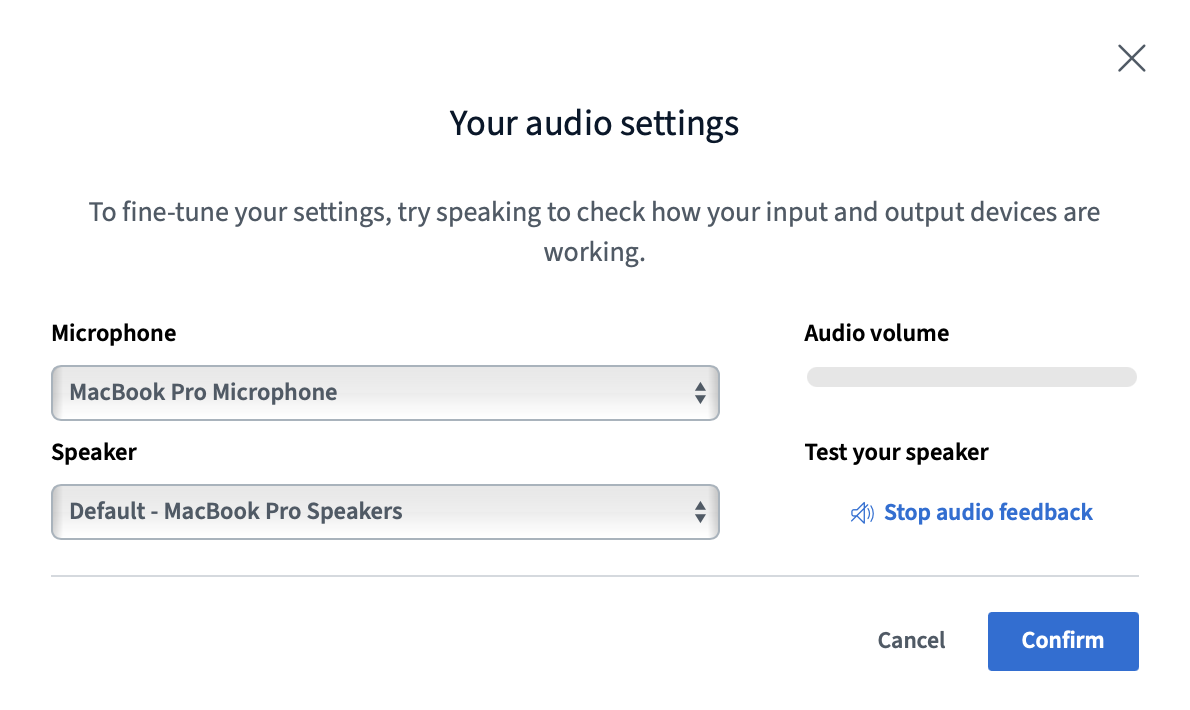 If you do not want to join the audio in the breakout room, select the **X** in the audio chooser when prompted.
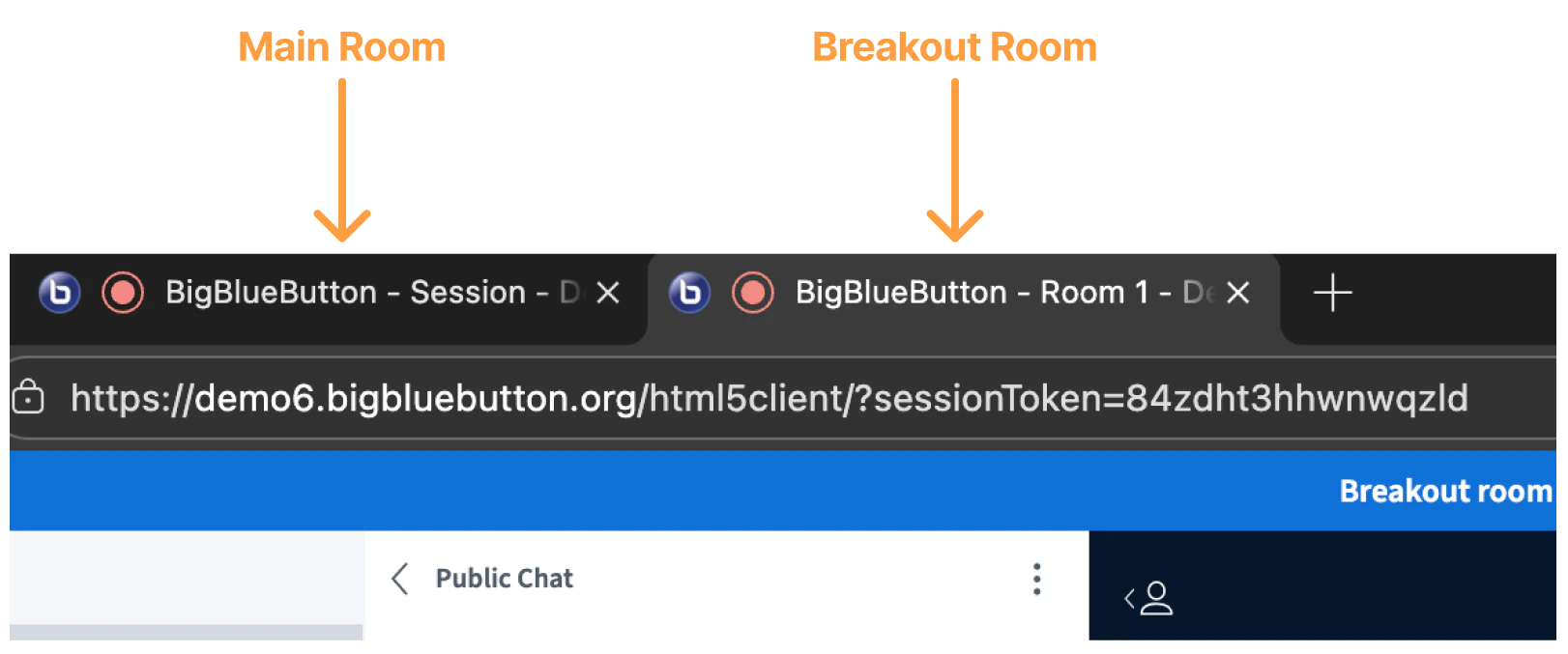
You can open as many breakout rooms as you like using **Ask to join**. Each room opens in a new browser tab at the top of the window.
If you do not want to join the audio in the breakout room, select the **X** in the audio chooser when prompted.
You can open as many breakout rooms as you like using **Ask to join**. Each room opens in a new browser tab at the top of the window.
 ### Manage Breakout Rooms
 ## Important notes and recommendations
All viewers enter breakout rooms with moderator status, and the first to connect is assigned the presenter role. We recommend assigning one person per room as the "breakout captain" to upload content or pass the presenter role during the discussion.
* Breakout rooms **cannot** be recorded.
* Once breakout rooms are created and started, the duration cannot be extended.
## Important notes and recommendations
All viewers enter breakout rooms with moderator status, and the first to connect is assigned the presenter role. We recommend assigning one person per room as the "breakout captain" to upload content or pass the presenter role during the discussion.
* Breakout rooms **cannot** be recorded.
* Once breakout rooms are created and started, the duration cannot be extended.