> ## Documentation Index
> Fetch the complete documentation index at: https://bigbluebutton.com/docs/llms.txt
> Use this file to discover all available pages before exploring further.
# Managing Recordings
> Administrators can use the Server Recordings menu to view, search, sort, rename, and delete or email all recordings made by user accounts.
## Administrators can use the Server Recordings menu to view, search, sort, rename, and delete or email all recordings made by user accounts.
This article covers how to [access the Server Recordings](#access-server-recordings) where you can:
* [View, search & sort recordings](#view-search--sort-recordings)
* [Rename recordings](#rename-recordings)
* [Set recording visibility](#recording-visibility)
* [Edit or delete recordings](#email-or-delete-recordings)
## Access Server Recordings
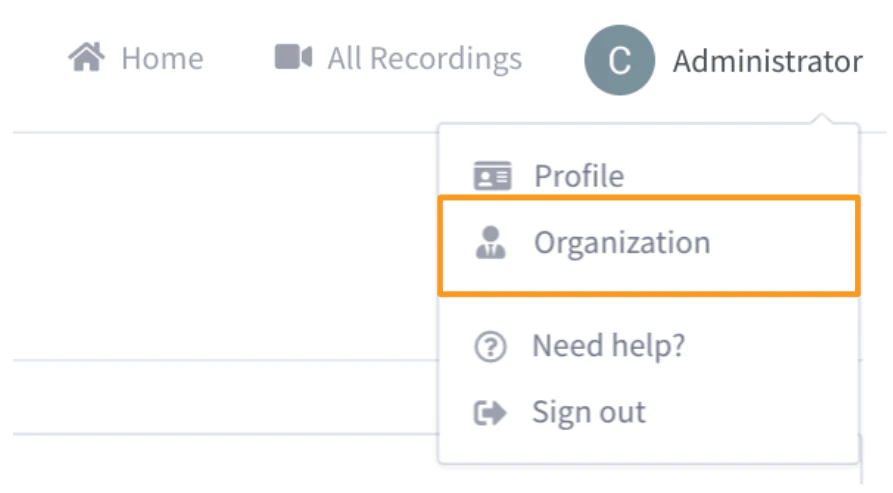 Select \*\*Organization \*\*from your account drop down.
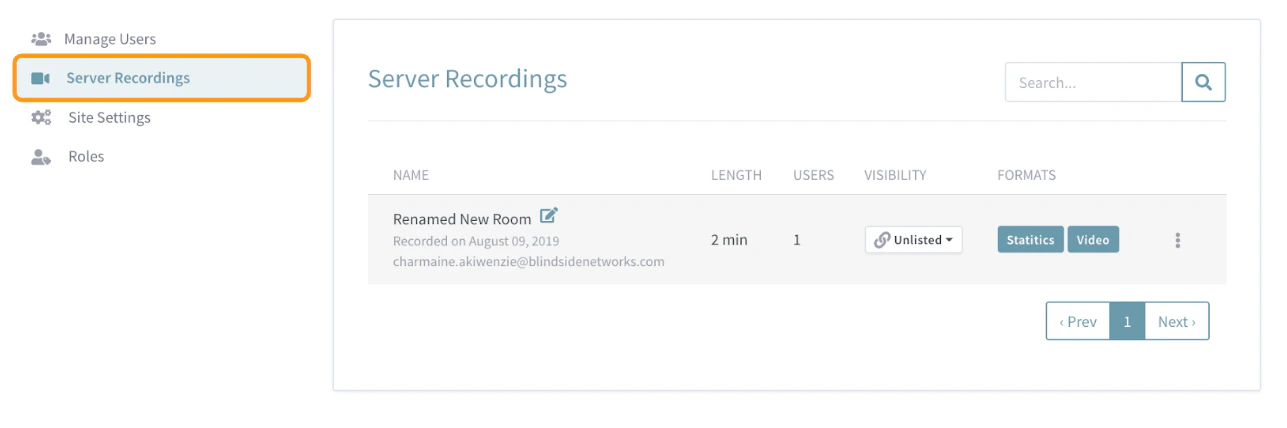 Next choose **Server Recordings** from the Administrator menu options (located in the upper left hand corner next to the users listing).
**IMPORTANT NOTE: If your Personal Rooms instance has several accounts with many rooms and/or recordings, this page may take some time to load or may not load.**
## View, Search & Sort Recordings
Next choose **Server Recordings** from the Administrator menu options (located in the upper left hand corner next to the users listing).
**IMPORTANT NOTE: If your Personal Rooms instance has several accounts with many rooms and/or recordings, this page may take some time to load or may not load.**
## View, Search & Sort Recordings
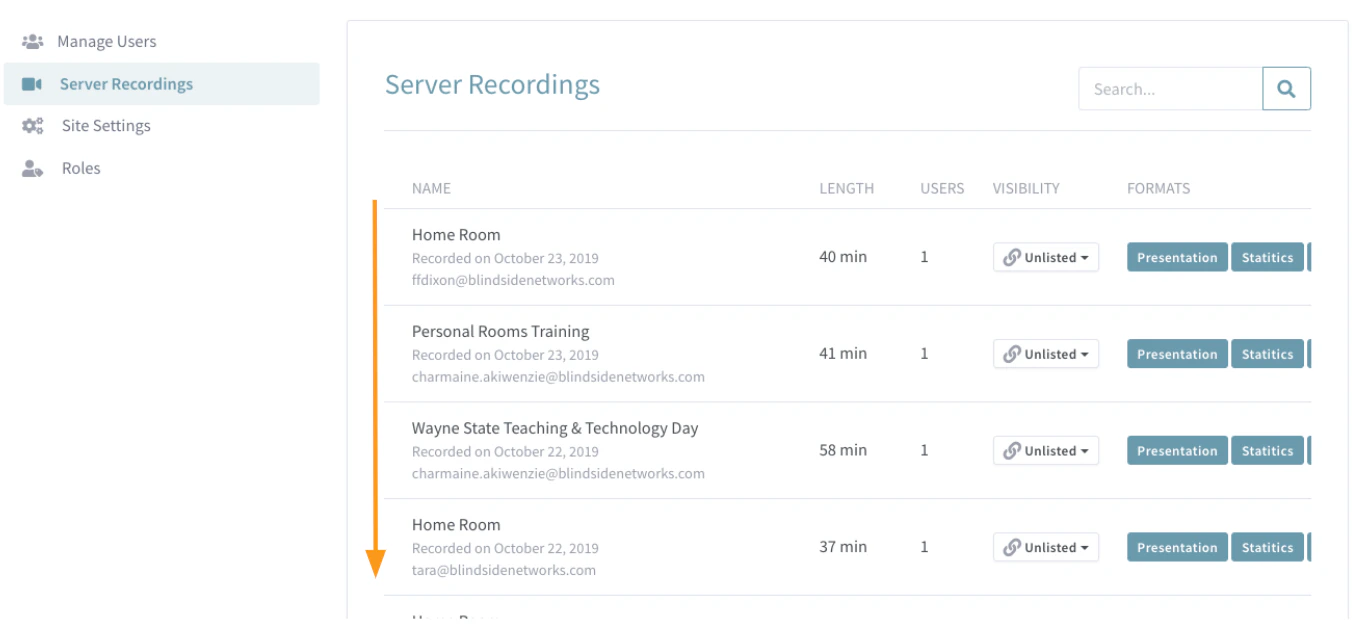 The **Server Recordings** menu will, by default, list recordings in chronological order based on the date they were recorded.
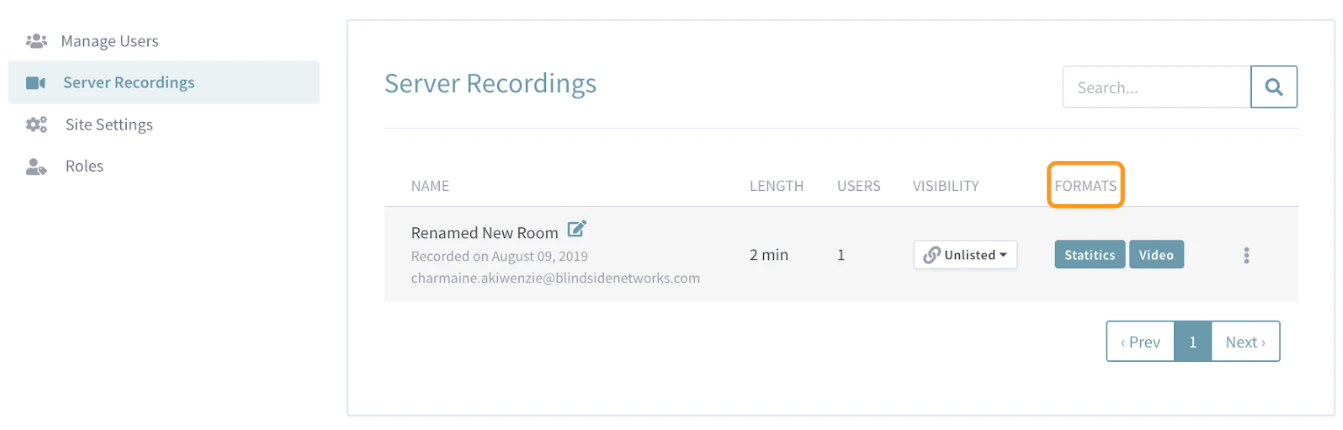 Recording playback and statistics reports are located under the **Formats** column of the recordings server menu.
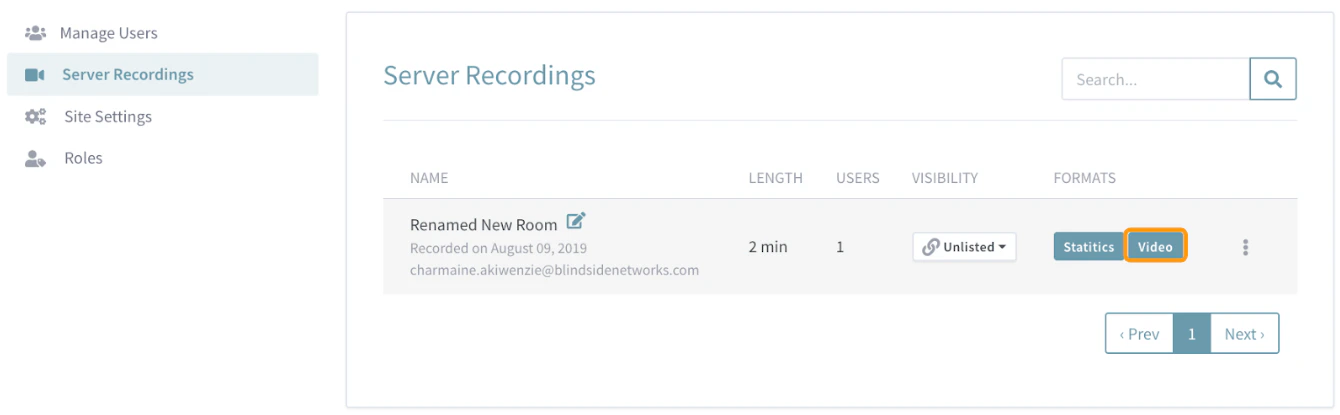 **To view a recording playback** select \*\*"video"\*\*from the format options. A new tab will open and the recording playback will load for viewing.
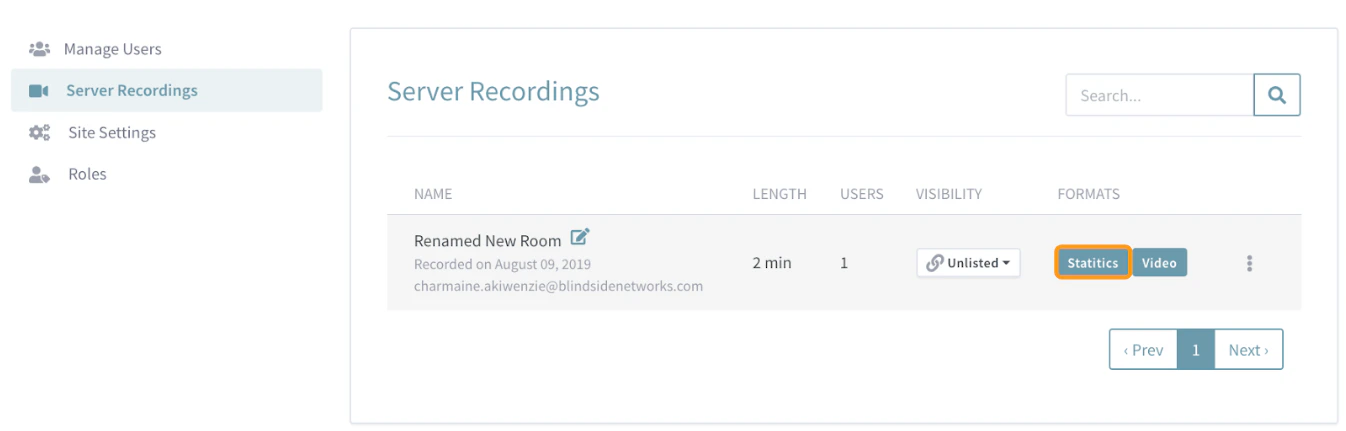 **To view the statistics report** from the recorded session select **"statistics"** from the format options. A new tab will open for viewing.
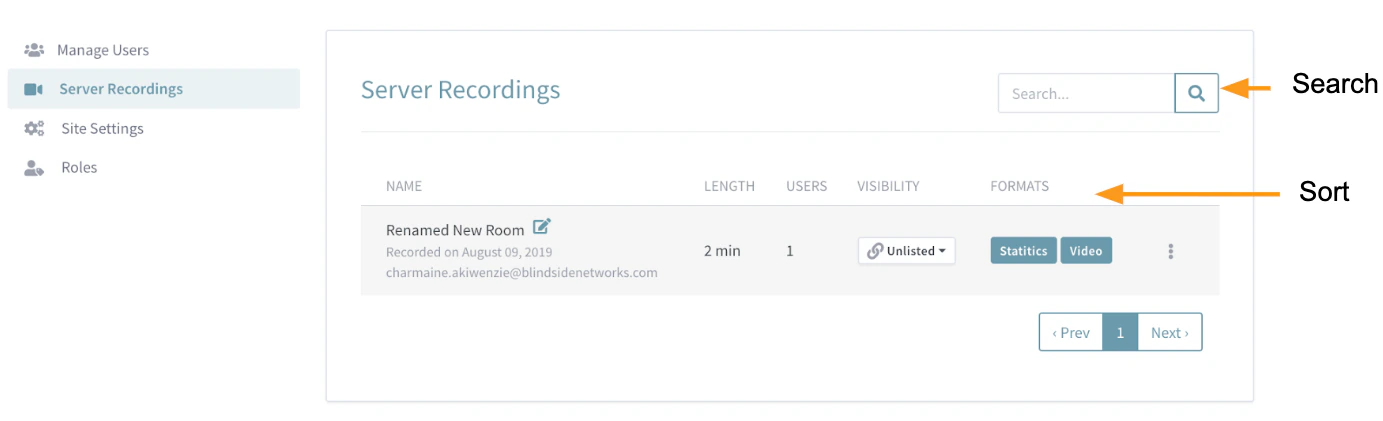 Use the **Search Bar** to filter based on the recording name, length, users, recording owner (room owner), visibility, and format. You can also **Sort** recordings based on the recording name, length, users, and visibility.
## Rename Recordings
Administrators (and the room owner) can rename room recordings that appear in the server recordings listing.
Use the **Search Bar** to filter based on the recording name, length, users, recording owner (room owner), visibility, and format. You can also **Sort** recordings based on the recording name, length, users, and visibility.
## Rename Recordings
Administrators (and the room owner) can rename room recordings that appear in the server recordings listing.
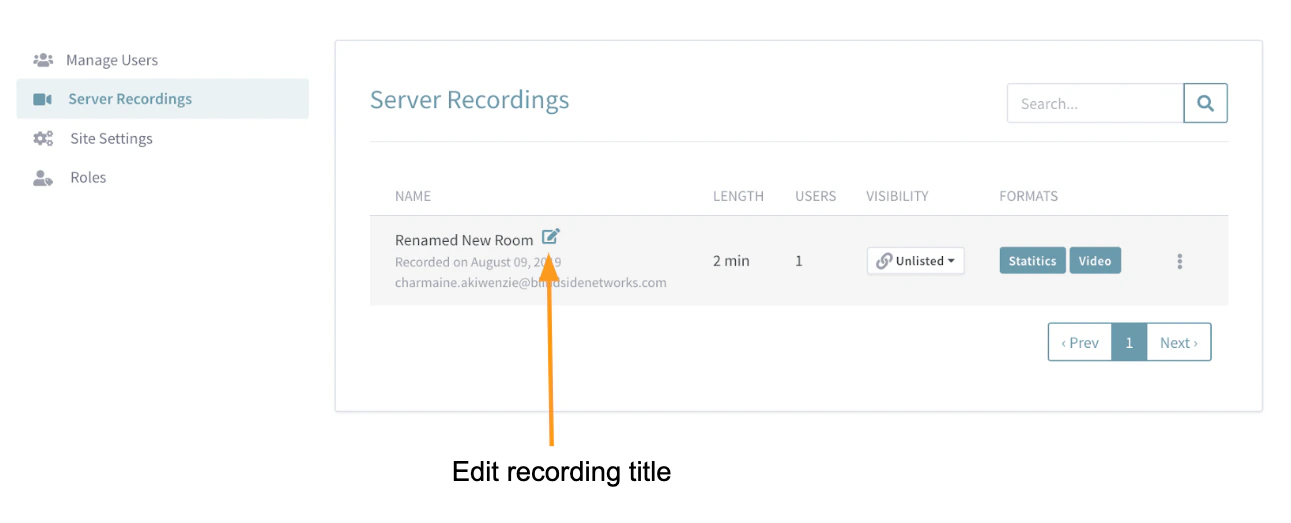 Locate the recording you wish to rename and hover over the current title/name, select the **Edit Icon.**
You can now edit or rename the recording. Once complete, click anywhere outside of the grey area to save the changes.
## Recording Visibility
Administrators (and the room owner) can change a recording's visibility.
Locate the recording you wish to rename and hover over the current title/name, select the **Edit Icon.**
You can now edit or rename the recording. Once complete, click anywhere outside of the grey area to save the changes.
## Recording Visibility
Administrators (and the room owner) can change a recording's visibility.
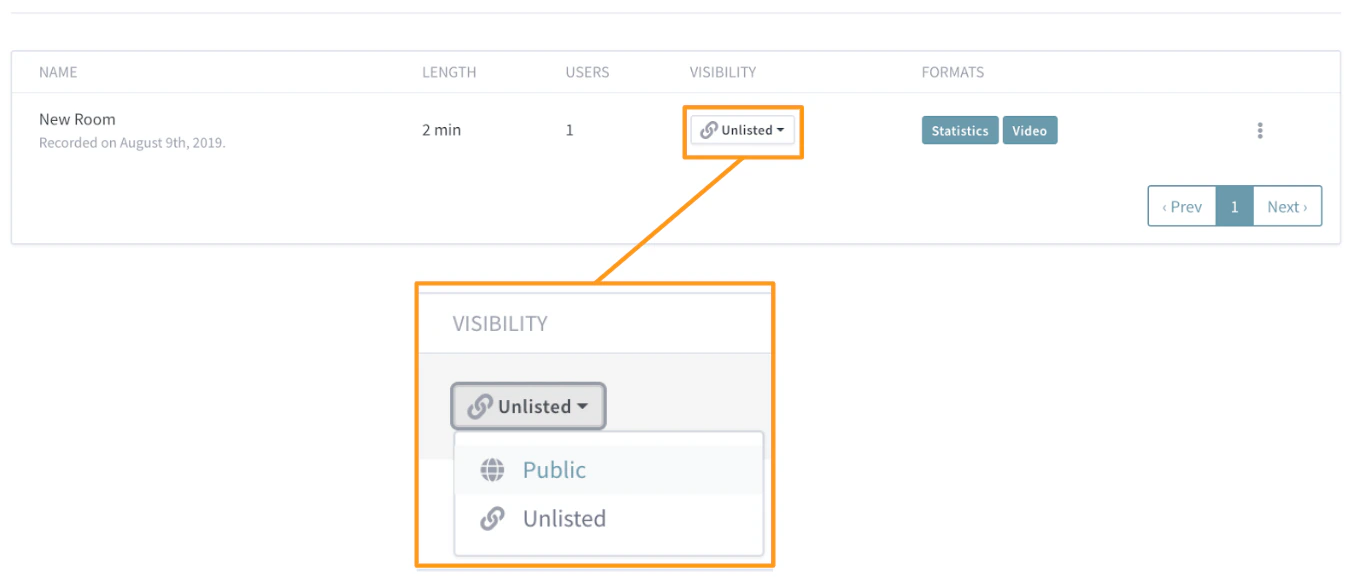 By default all recordings are **Unlisted.** Only users who have the direct recording URL can view it.
Changing the visibility to **Public** allows anyone with the meeting room link access to the recording playback; users will see a recordings menu on the page where they joined the live session.
## Email or Delete Recordings
Administrators (and the room owner) can **Email or Delete** recordings.
By default all recordings are **Unlisted.** Only users who have the direct recording URL can view it.
Changing the visibility to **Public** allows anyone with the meeting room link access to the recording playback; users will see a recordings menu on the page where they joined the live session.
## Email or Delete Recordings
Administrators (and the room owner) can **Email or Delete** recordings.
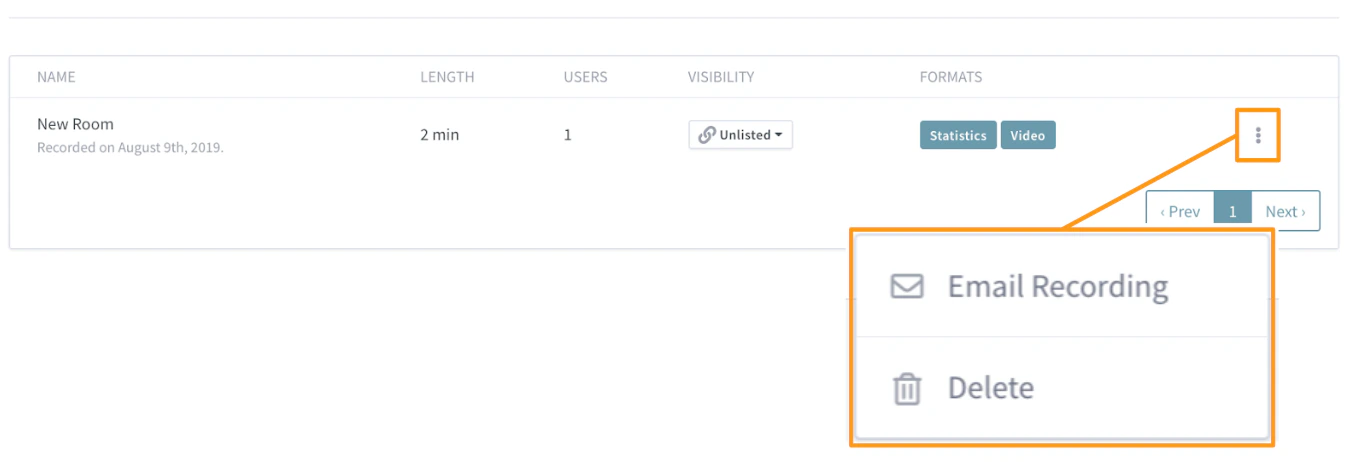 Select the \*\*Vertical Ellipsis \*\*or **Hamburger Menu** located to the right of the recording you wish to email or delete.
It is important to note that selecting **Email** will open the email launcher you have installed on your desktop (outlook for example). It does not provide a direct recording URL.
Selecting \*\*Delete \*\*will permanently delete the recording and its statistic report.
Select the \*\*Vertical Ellipsis \*\*or **Hamburger Menu** located to the right of the recording you wish to email or delete.
It is important to note that selecting **Email** will open the email launcher you have installed on your desktop (outlook for example). It does not provide a direct recording URL.
Selecting \*\*Delete \*\*will permanently delete the recording and its statistic report.