> ## Documentation Index
> Fetch the complete documentation index at: https://bigbluebutton.com/docs/llms.txt
> Use this file to discover all available pages before exploring further.
# Site Settings
> Administrators are able to customize the look and function of their Personal Rooms instance through the Site Settings.
## Administrators are able to customize the look and function of their Personal Rooms instance through the Site Settings.
This article covers how to [access your Personal Rooms Site Settings](#accessing-your-site-settings) and customize the following:
* [Branding image and colour scheme](#branding-image-and-colour-scheme)
* [Registration methods](#registration-methods)
* [Authentication](#authentication)
* [Default recording visibility](#default-recording-visibility)
## Accessing your Site Settings
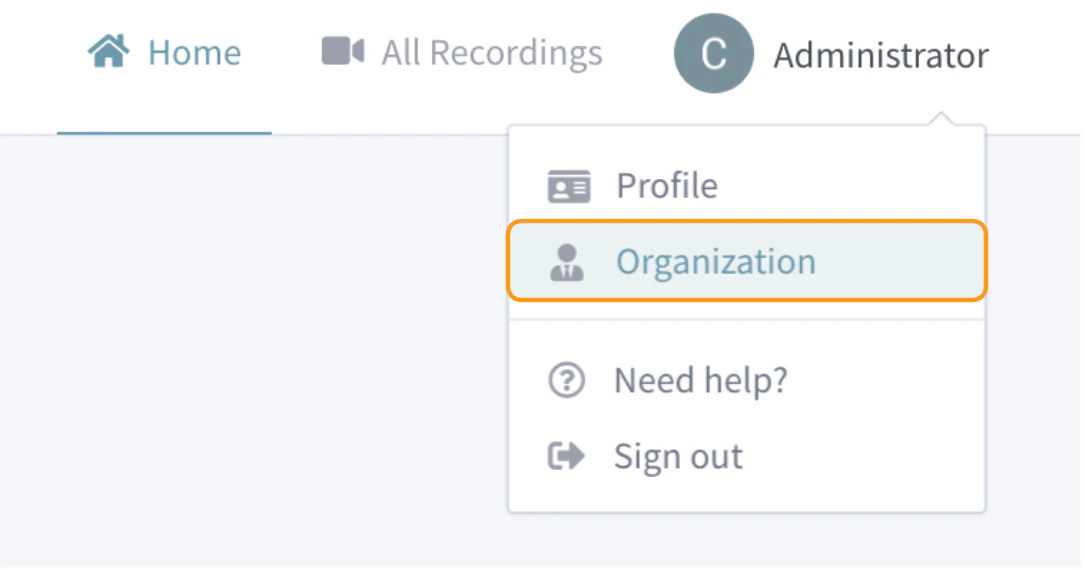 Select \*\*Organization \*\*from your account drop down.
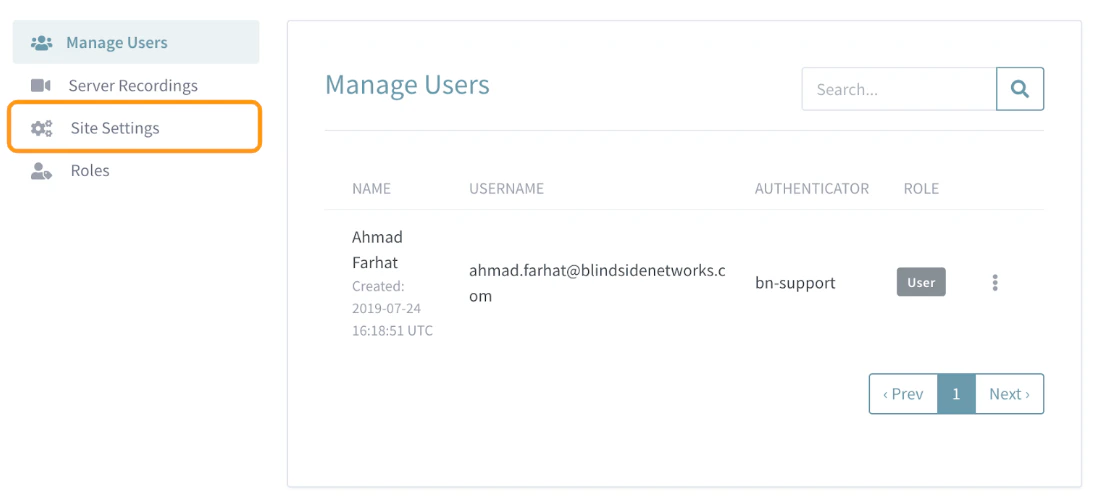 Next choose **Site Settings** from the Administrator menu options (located in the upper left hand corner to the left of the users listing).
## Branding Image and Colour Scheme
Administrators can change the default **Branding** **Image** which is displayed in the upper left hand corner of your Personal Rooms instance.
Next choose **Site Settings** from the Administrator menu options (located in the upper left hand corner to the left of the users listing).
## Branding Image and Colour Scheme
Administrators can change the default **Branding** **Image** which is displayed in the upper left hand corner of your Personal Rooms instance.
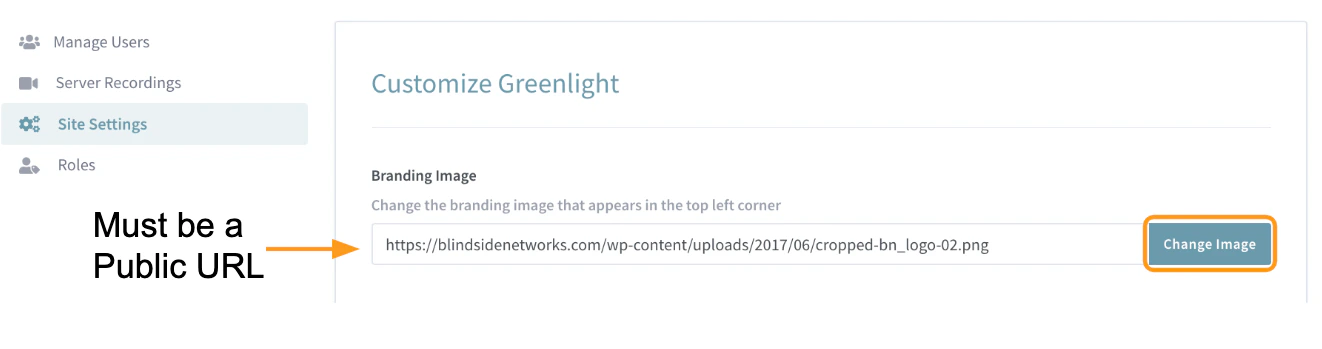 Replace the default image URL and select \*\*Change Image. \*\*You may need to refresh the page for the changes to appear.
**IMPORTANT NOTE: The image must have a public web address**
Replace the default image URL and select \*\*Change Image. \*\*You may need to refresh the page for the changes to appear.
**IMPORTANT NOTE: The image must have a public web address**
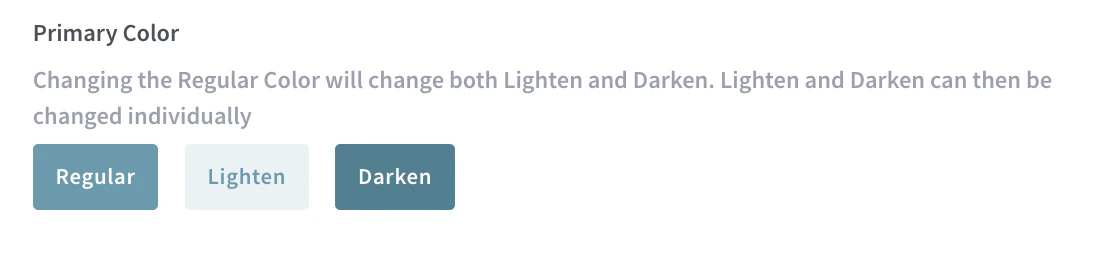 To customize the **Primary Colour** theme of your Personal Rooms instance select **Regular** from the options available.
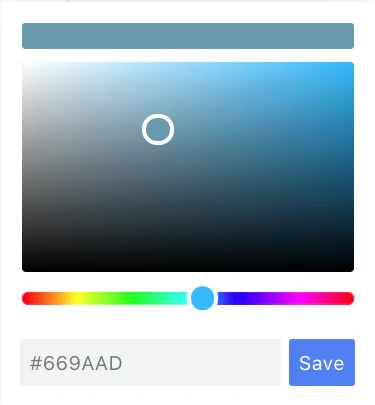 A colour palette **Editor** will open. Here you can select a new primary colour. The palette editor enables you to drag the colour bar, select a specific colour, or enter a specific colour hex code.
Be sure to select \*\*Save \*\*to apply the changes to your account.
The primary colour is the palette Personal Rooms uses as the basis for styling components such as buttons, links, and icons.
Once the primary colour theme has been updated, the **Secondary (lighten)** and \*\*Tertiary (darken) \*\*colour options will automatically adjust. You can also change the secondary (lighten) and tertiary (darken) colours individually.
## Registration Methods
Personal Rooms has three main registration methods; [open registration](#open-registration), [join by invitation](#join-by-invitation), and [approve/decline](#approve-decline). Each registration method cannot be combined and applied to all users who attempt to register for an account under your Personal Rooms instance.
Administrators can configure these registration methods and make changes to them at anytime.
### Open Registration
A colour palette **Editor** will open. Here you can select a new primary colour. The palette editor enables you to drag the colour bar, select a specific colour, or enter a specific colour hex code.
Be sure to select \*\*Save \*\*to apply the changes to your account.
The primary colour is the palette Personal Rooms uses as the basis for styling components such as buttons, links, and icons.
Once the primary colour theme has been updated, the **Secondary (lighten)** and \*\*Tertiary (darken) \*\*colour options will automatically adjust. You can also change the secondary (lighten) and tertiary (darken) colours individually.
## Registration Methods
Personal Rooms has three main registration methods; [open registration](#open-registration), [join by invitation](#join-by-invitation), and [approve/decline](#approve-decline). Each registration method cannot be combined and applied to all users who attempt to register for an account under your Personal Rooms instance.
Administrators can configure these registration methods and make changes to them at anytime.
### Open Registration
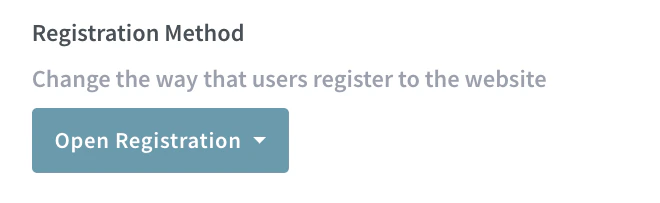 This registration method allows any individual with a valid email address and access to your Personal Rooms URL link the ability to sign up and create an account.
### Join by Invitation
This registration method allows any individual with a valid email address and access to your Personal Rooms URL link the ability to sign up and create an account.
### Join by Invitation
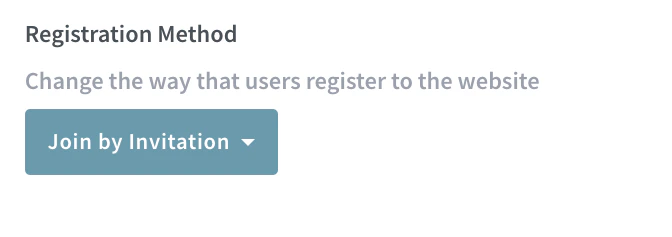 Join by invitation disables the open registration. Only those individuals who have received an email invitation from an Administrator have the ability to sign up and create an account.
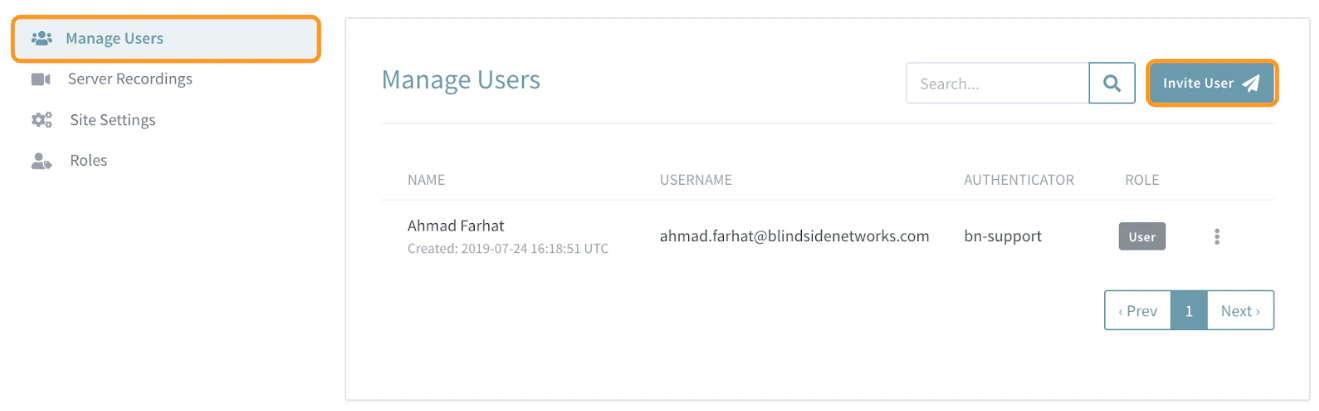 Once this registration method is enabled, Administrators can **Invite a user** by navigating back to the **Manage Users** menu, and select the \*\*Invite User \*\*button located to the right of the menu search bar.
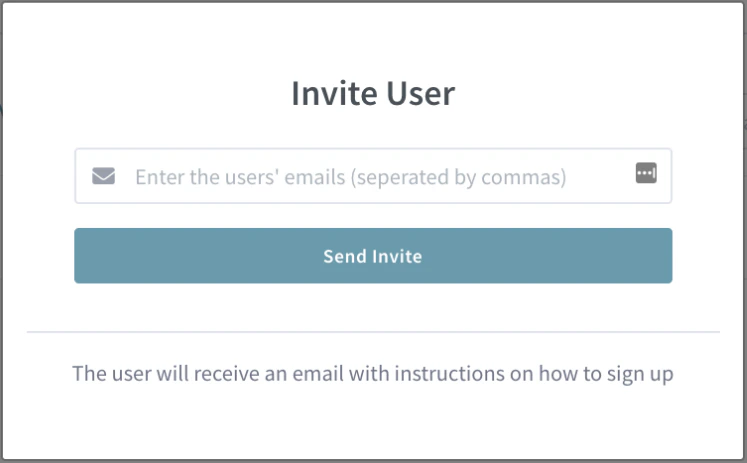 Enter the user email, then send multiple invites by entering emails separated by a comma. The invitee(s) will receive an email invitation to sign up for their Personal Rooms account.
### Approve Decline
Enter the user email, then send multiple invites by entering emails separated by a comma. The invitee(s) will receive an email invitation to sign up for their Personal Rooms account.
### Approve Decline
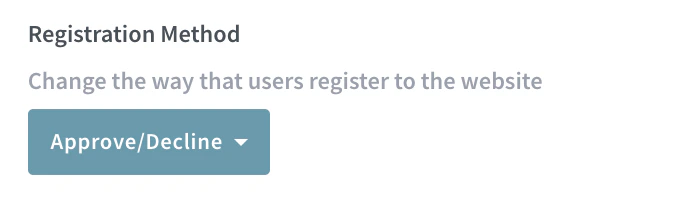 This registration method, much like [Open Registration](#open-registration), allows any individual with a valid email address and access to your Personal Rooms URL link the ability to sign up, however, that user must also be approved by an Administrator to create a Personal Rooms account and access features.
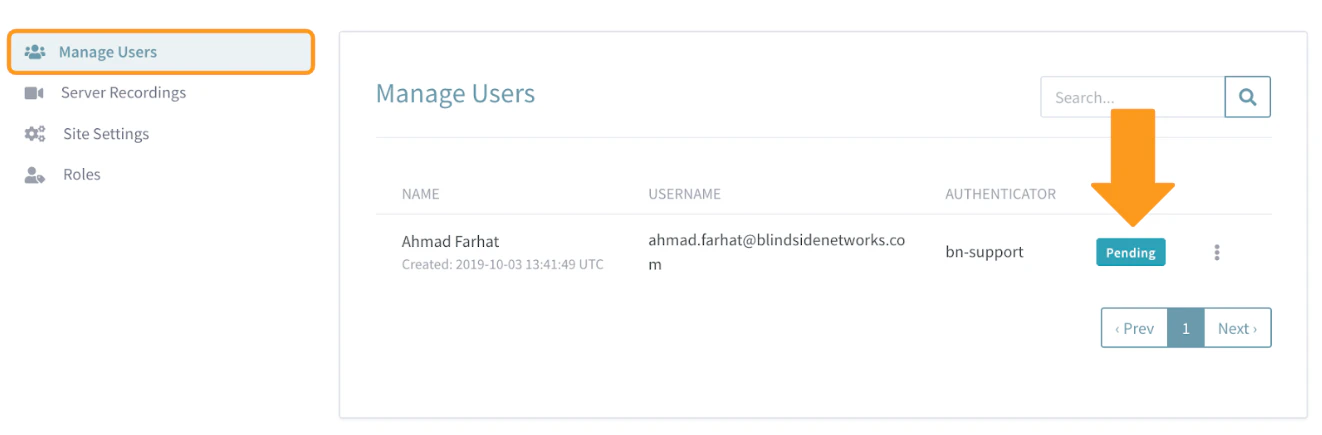 When a user attempts to create an account, they are set to **Pending** in the **Manage Users** menu. The Administrator will receive an email notification when a new user signs up.
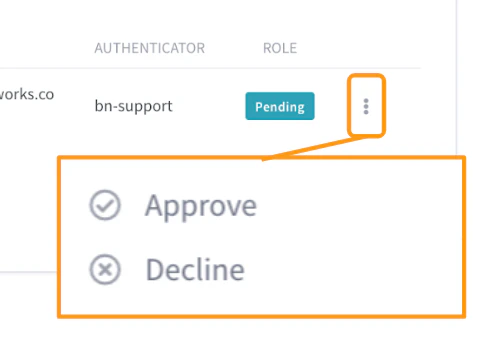 The pending user(s) can be Approved or Declined by accessing the **Vertical Ellipsis** or **Hamburger Menu** to the right of the listing.
If a user is approved, they will receive an email notification that their account is now accessible to them.
If a user is declined, they will be set to the Banned state; a banned user cannot sign in or access any features in Personal Rooms with the credentials they signed up with.
## Authentication
The pending user(s) can be Approved or Declined by accessing the **Vertical Ellipsis** or **Hamburger Menu** to the right of the listing.
If a user is approved, they will receive an email notification that their account is now accessible to them.
If a user is declined, they will be set to the Banned state; a banned user cannot sign in or access any features in Personal Rooms with the credentials they signed up with.
## Authentication
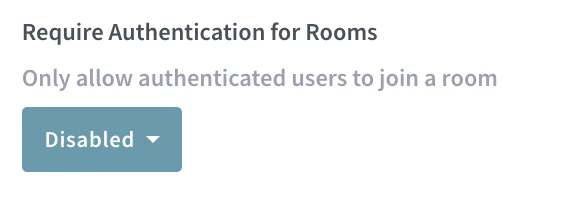 Personal rooms authentication is set to be **Disabled** by default. Any user with the Meeting Room invitation link can join that room once it has been started by the Room Owner.
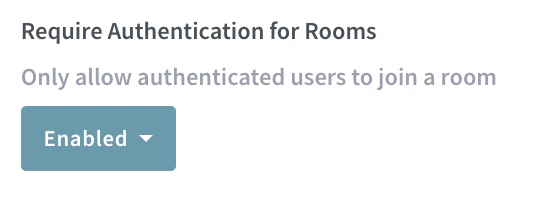 An Administrator can **Enable** authentication for rooms, however, this would require that users with the invite link be signed into their own Personal Rooms accounts.
## Default Recording Visibility
All recordings created by users have two visibility settings that can be updated by the Administrator (and Room Owner).
### Unlisted
An Administrator can **Enable** authentication for rooms, however, this would require that users with the invite link be signed into their own Personal Rooms accounts.
## Default Recording Visibility
All recordings created by users have two visibility settings that can be updated by the Administrator (and Room Owner).
### Unlisted
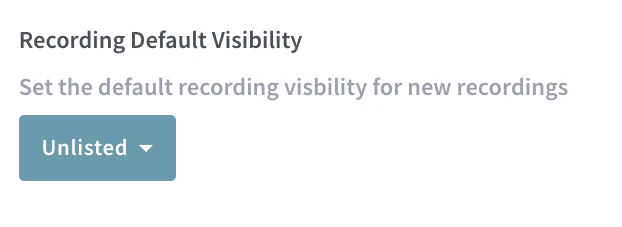 By default, recordings are set to **Unlisted** toanyone with the direct recording URL. Users would need to be provided this link directly from the Room Owner or an Administrator.
### Public
By default, recordings are set to **Unlisted** toanyone with the direct recording URL. Users would need to be provided this link directly from the Room Owner or an Administrator.
### Public
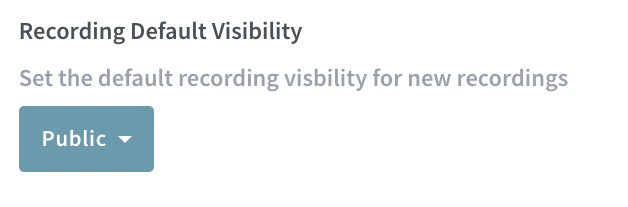 When the default is set to **Public** all users with the original Meeting Room invite link will have access to the recording and any future recordings made in the same Meeting Room.
Users will see their own Recordings List where they can view recordings.
## Room Limits
This setting allows an Administrator to limit the number of Meeting Rooms users with accounts can create.
When the default is set to **Public** all users with the original Meeting Room invite link will have access to the recording and any future recordings made in the same Meeting Room.
Users will see their own Recordings List where they can view recordings.
## Room Limits
This setting allows an Administrator to limit the number of Meeting Rooms users with accounts can create.
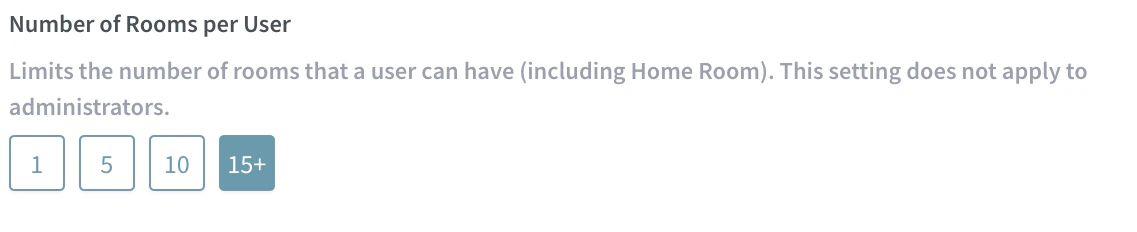 By default, users are allowed to create and manage as many Meeting Rooms as they like. To restrict this, select one of the available options.
**IMPORTANT NOTE: If users have already created more rooms than the limit subsequently applied, the user will not be able to start any sessions for the Meeting Rooms that are above the limit based on creation date.**
**For example: If a user creates 10 Meeting Rooms and the room limit is subsequently changed to 5, the 5 oldest Meeting Rooms become inaccessible**
By default, users are allowed to create and manage as many Meeting Rooms as they like. To restrict this, select one of the available options.
**IMPORTANT NOTE: If users have already created more rooms than the limit subsequently applied, the user will not be able to start any sessions for the Meeting Rooms that are above the limit based on creation date.**
**For example: If a user creates 10 Meeting Rooms and the room limit is subsequently changed to 5, the 5 oldest Meeting Rooms become inaccessible**