> ## Documentation Index
> Fetch the complete documentation index at: https://bigbluebutton.com/docs/llms.txt
> Use this file to discover all available pages before exploring further.
# How do I create my own rooms?
> Create additional Personal Rooms beyond the default Home Page, modify room settings, and configure user behaviour for each room.
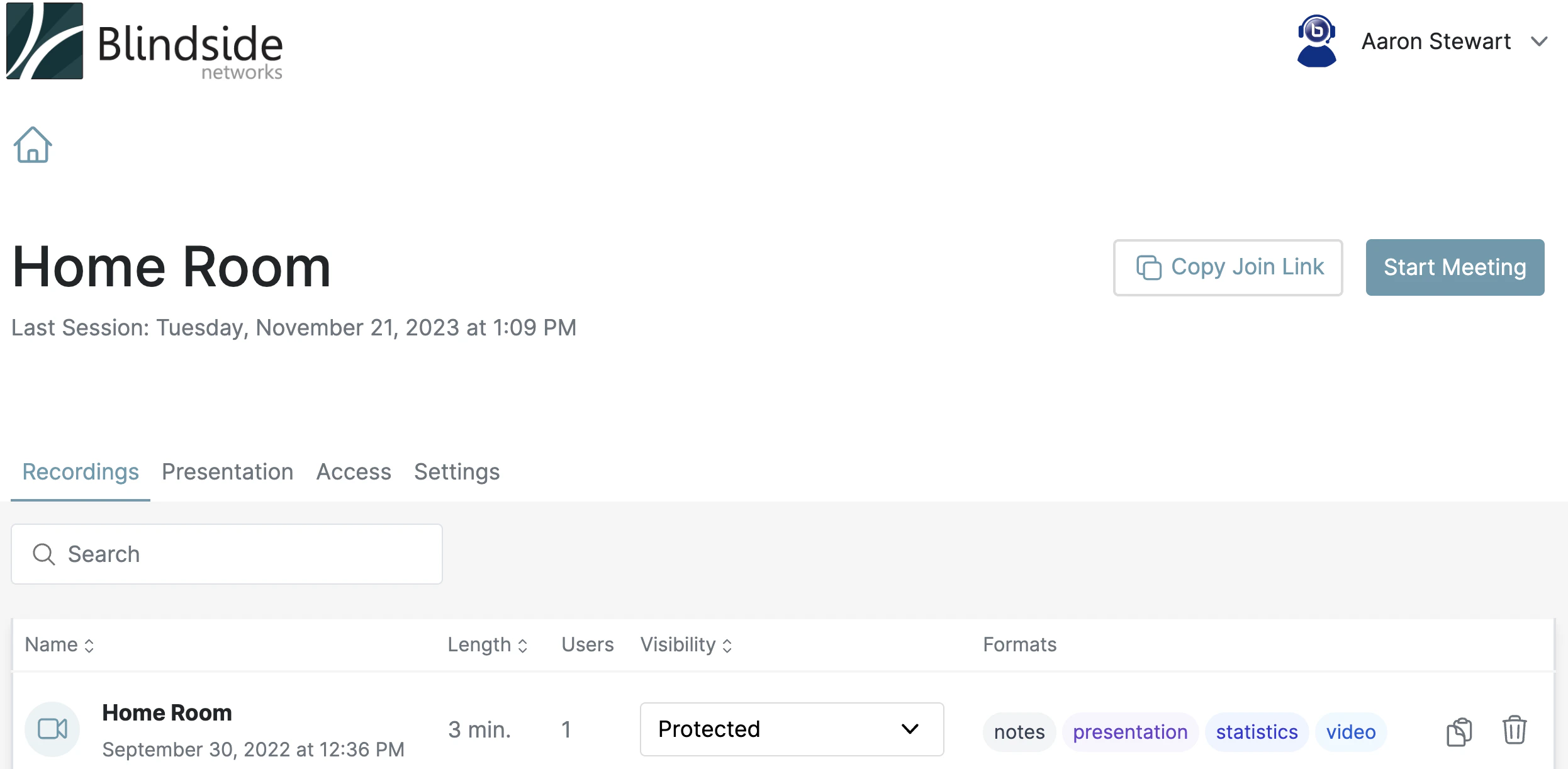
Personal Rooms accounts come with a default **Home Page** room. You can [create additional rooms](#create-a-new-room), [modify room settings](#modify-room-settings), and [configure user behaviour](#configure-user-settings) for each room.
The Home Page displays each time you log in to your Personal Rooms account.
 ## Create a new room
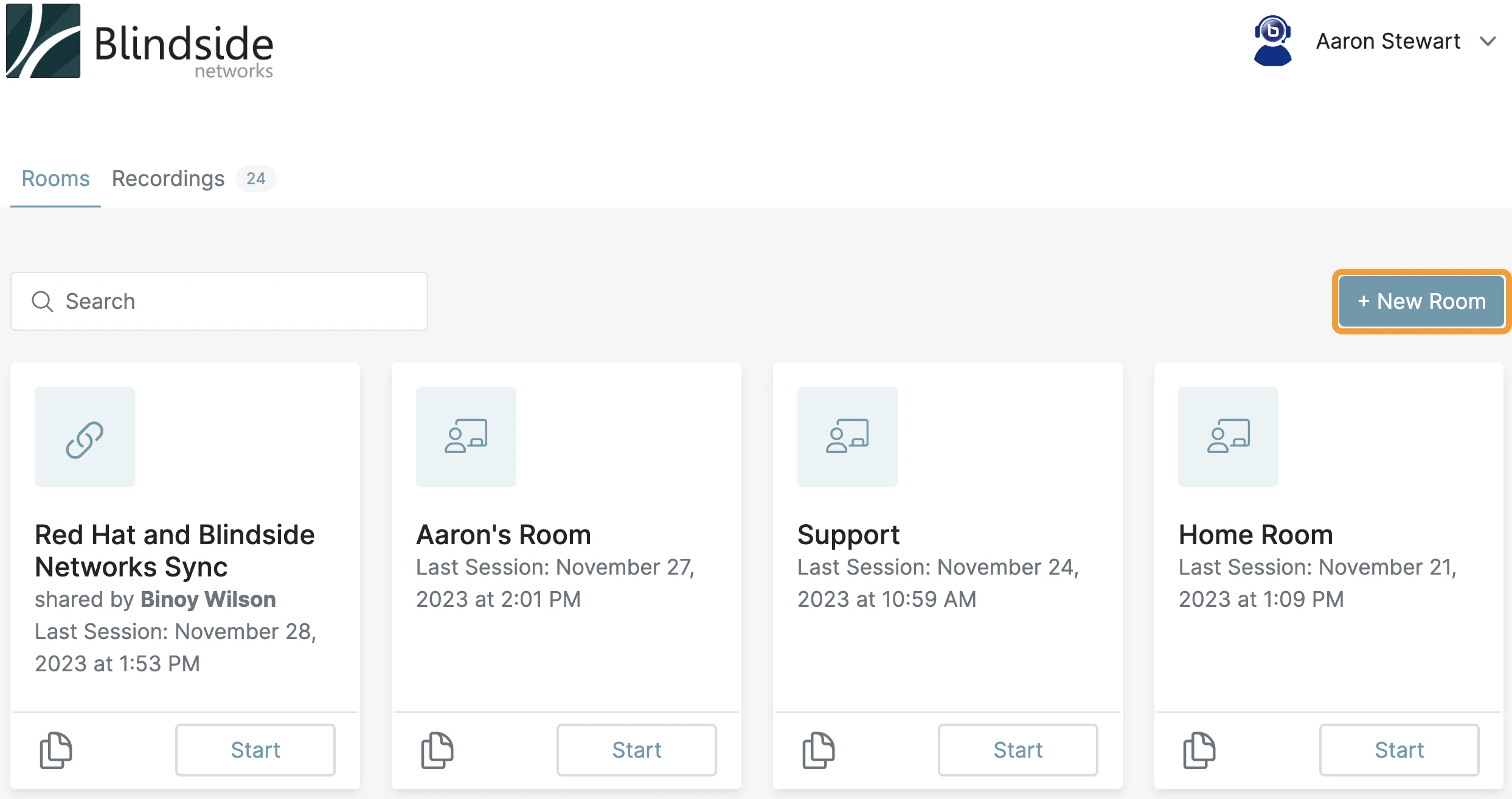
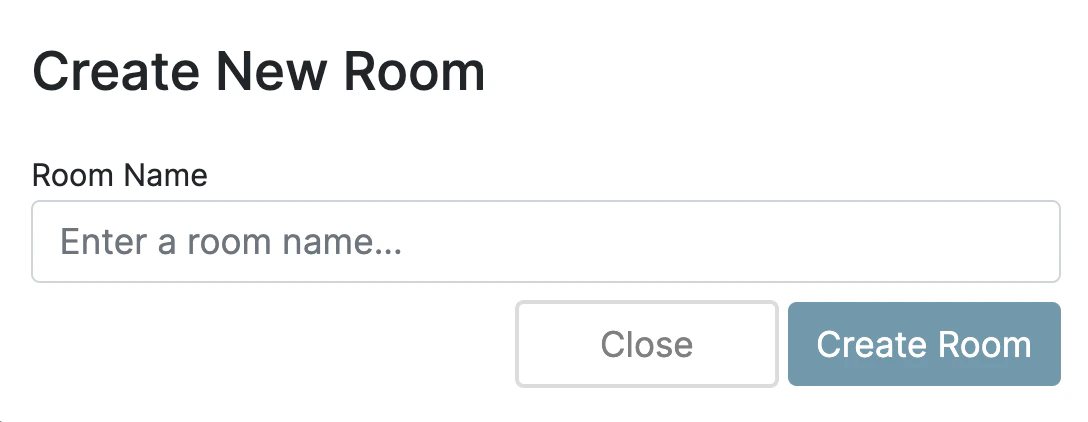
To create a new room, select the **+ New Room** button. Enter a name for the new room when prompted.
## Create a new room
To create a new room, select the **+ New Room** button. Enter a name for the new room when prompted.
 New rooms appear in the **Room Manager**, ordered by the date they were created.
## Modify room settings
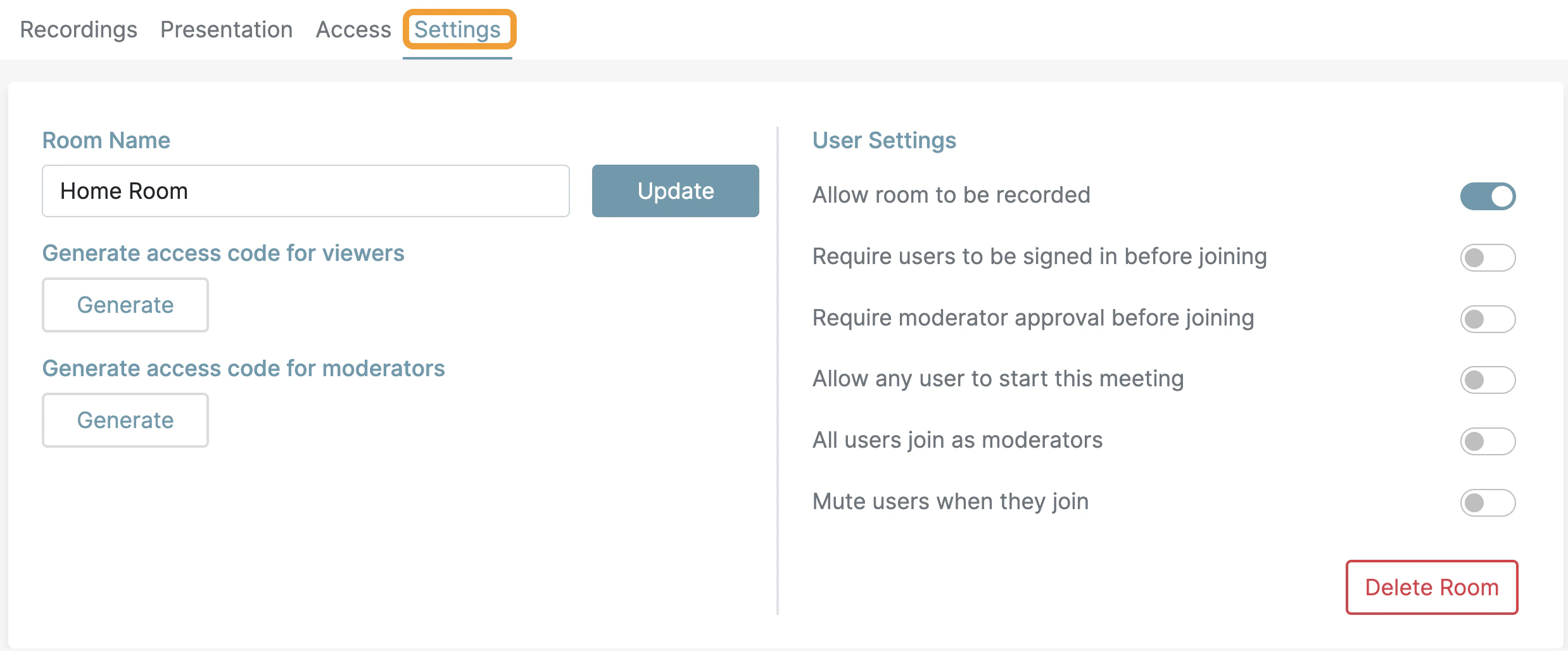
To modify a room, select the settings tab.
New rooms appear in the **Room Manager**, ordered by the date they were created.
## Modify room settings
To modify a room, select the settings tab.
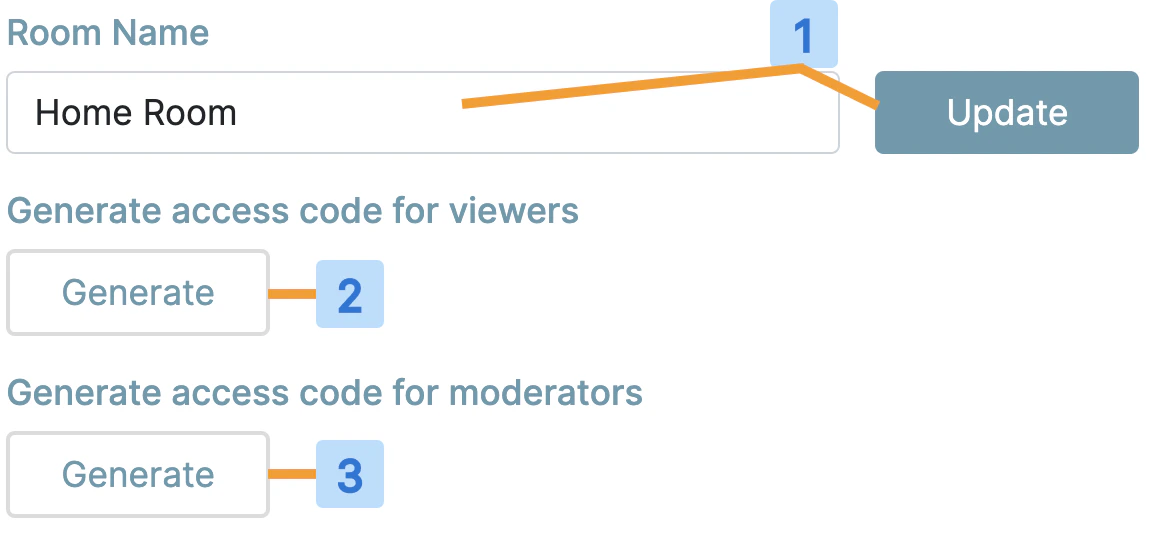 | # | Setting |
| - | ------------------------------------------------------------------------------------------------------------------------------------------------------------------------------------------------------------------------ |
| 1 | Change the room name. Select **Update** to save. |
| 2 | **Generate an optional room access code** — select **Generate** to create an access code that you can copy into an email or message along with the room link. To remove an existing code, select the **trash bin** icon. |
| 3 | **Generate an optional moderator access code** — select **Generate** to create a code that lets users join as moderators. To remove an existing code, select the **trash bin** icon. |
## Configure user settings
| # | Setting |
| - | ------------------------------------------------------------------------------------------------------------------------------------------------------------------------------------------------------------------------ |
| 1 | Change the room name. Select **Update** to save. |
| 2 | **Generate an optional room access code** — select **Generate** to create an access code that you can copy into an email or message along with the room link. To remove an existing code, select the **trash bin** icon. |
| 3 | **Generate an optional moderator access code** — select **Generate** to create a code that lets users join as moderators. To remove an existing code, select the **trash bin** icon. |
## Configure user settings
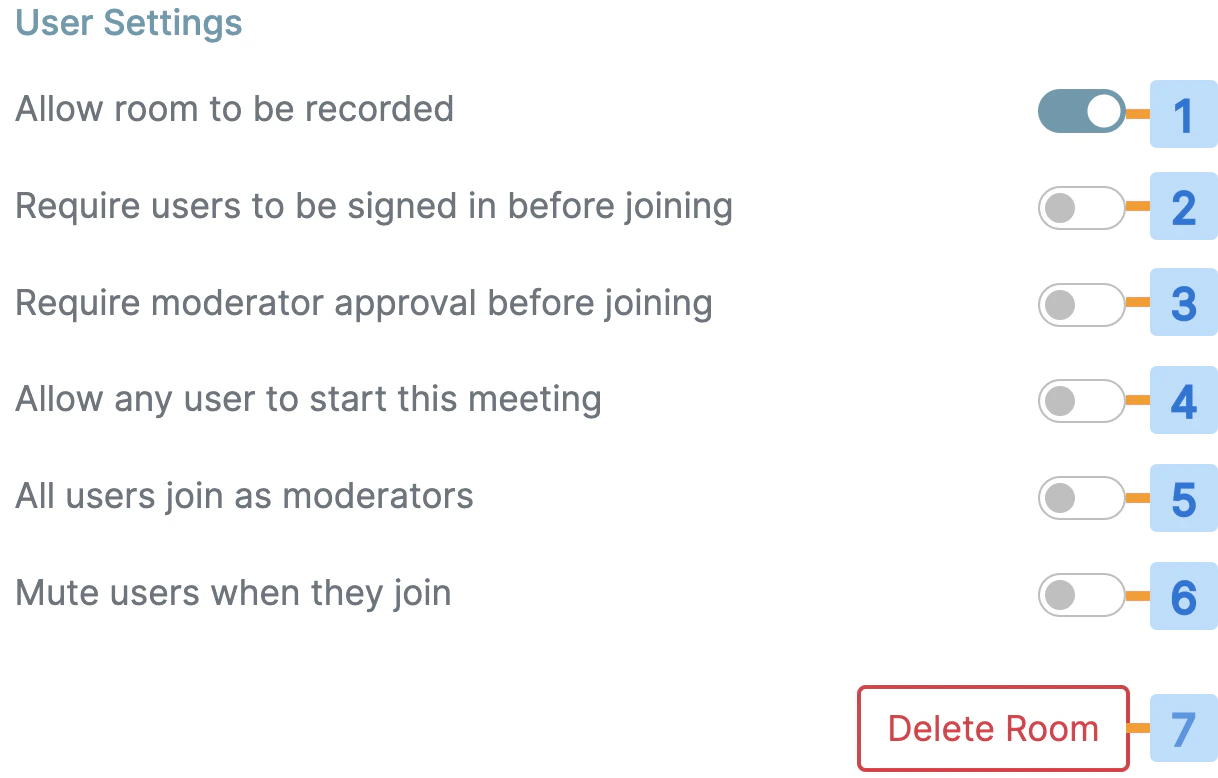 You can configure each room with custom settings to match your use case:
* **Allow room to be recorded** **\[1]** — by default, rooms are not recordable. Enable this to let the moderator record the meeting.
* **Require users to be signed in before joining** **\[2]** — requires users to sign in to Personal Rooms before they can join.
* **Require moderator approval before joining** **\[3]** — prompts the moderator to approve each join request.
* **Allow any user to start this meeting** **\[4]** — by default, only the room owner can start a room. Enabling this lets any user with the room link start the room.
* **All users join as moderators** **\[5]** — by default, only the room owner enters as moderator. Enabling this gives moderator privileges to anyone with the room link.
* **Mute users when they join** **\[6]** — automatically mutes users joining with a microphone. Users can unmute themselves once in the meeting.
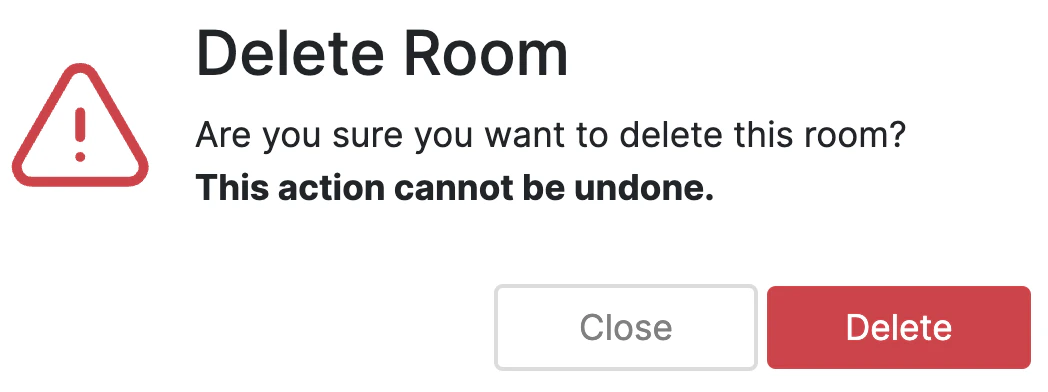
* **Delete Room** **\[7]** — delete the room. A confirmation prompt appears.
Deletion is permanent and cannot be undone. Deleting a room also deletes all recordings associated with it.
You can configure each room with custom settings to match your use case:
* **Allow room to be recorded** **\[1]** — by default, rooms are not recordable. Enable this to let the moderator record the meeting.
* **Require users to be signed in before joining** **\[2]** — requires users to sign in to Personal Rooms before they can join.
* **Require moderator approval before joining** **\[3]** — prompts the moderator to approve each join request.
* **Allow any user to start this meeting** **\[4]** — by default, only the room owner can start a room. Enabling this lets any user with the room link start the room.
* **All users join as moderators** **\[5]** — by default, only the room owner enters as moderator. Enabling this gives moderator privileges to anyone with the room link.
* **Mute users when they join** **\[6]** — automatically mutes users joining with a microphone. Users can unmute themselves once in the meeting.
* **Delete Room** **\[7]** — delete the room. A confirmation prompt appears.
Deletion is permanent and cannot be undone. Deleting a room also deletes all recordings associated with it.
 ## Enter or manage an existing room
To enter or manage a room, select it in the **Room Manager**.
## Enter or manage an existing room
To enter or manage a room, select it in the **Room Manager**.