> ## Documentation Index
> Fetch the complete documentation index at: https://bigbluebutton.com/docs/llms.txt
> Use this file to discover all available pages before exploring further.
# How do I find / manage recordings?
> View and manage Personal Rooms recordings per room or across your entire account, and set per-recording visibility, format, and access.
You can view and manage Personal Rooms recordings two ways: per room ([Room recordings](#recordings-for-the-selected-room)) or across your account ([All recordings](#all-recordings)).
## Recordings for the selected room
When you log in, the currently selected room is your **Home Room**. The bottom panel lists all recordings for the selected room.
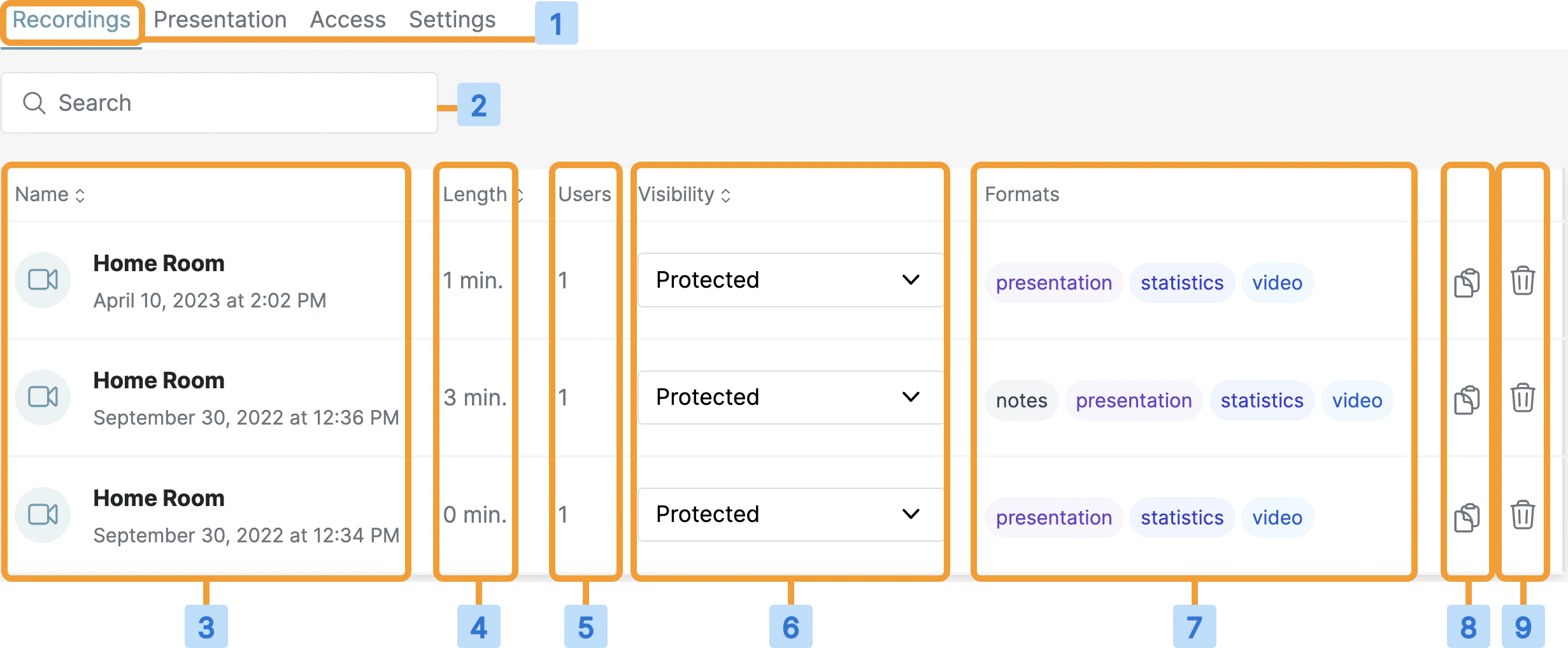 | # | Column |
| - | -------------------------------------------------------------------- |
| 1 | **Recordings tab** — shows all recordings for this room. |
| 2 | Search for a recording. |
| 3 | Recording name (matches the room name) and the date it was recorded. |
| 4 | Length in minutes. |
| 5 | Number of attendees in the session. |
| 6 | Visibility of the recording. |
| 7 | Available formats for the recording. |
| 8 | Quickly copy the recording link. |
| 9 | Quickly delete the recording. |
### Recording visibility
By default, recordings are **unlisted** — only the room owner can access them. To allow attendees with the room link to access a recording, change visibility from the dropdown.
| # | Column |
| - | -------------------------------------------------------------------- |
| 1 | **Recordings tab** — shows all recordings for this room. |
| 2 | Search for a recording. |
| 3 | Recording name (matches the room name) and the date it was recorded. |
| 4 | Length in minutes. |
| 5 | Number of attendees in the session. |
| 6 | Visibility of the recording. |
| 7 | Available formats for the recording. |
| 8 | Quickly copy the recording link. |
| 9 | Quickly delete the recording. |
### Recording visibility
By default, recordings are **unlisted** — only the room owner can access them. To allow attendees with the room link to access a recording, change visibility from the dropdown.
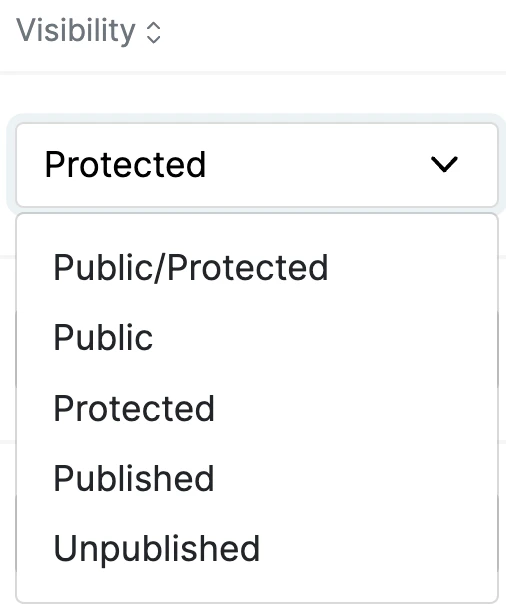 * **Public** — appears on the Public Recordings page on the Room Join page. The link can be shared with anyone.
* **Protected** — must be viewed from within Personal Rooms.
* **Published** — accessible to anyone who has the link.
* **Unpublished** — not accessible to anyone.
Setting a recording to **Public** also makes the meeting statistics available.
An **Unpublished** recording can still be viewed by anyone given the playback URL directly, even without access to the room link.
### Recording formats
Up to four formats are produced for each processed recording. Selecting **presentation** or **video** opens the playback in a new tab. Selecting **statistics** or **notes** also opens in a new tab.
Anyone with access to the room can view the available recording formats. The **statistics** format provides an overview of attendance, participation, and engagement.
If you use Blindside Networks hosting, deleted recordings can be recovered up to 14 days after the **live** session.
## All recordings
To view every recording across your account, select the home icon, then the **Recordings** tab.
* **Public** — appears on the Public Recordings page on the Room Join page. The link can be shared with anyone.
* **Protected** — must be viewed from within Personal Rooms.
* **Published** — accessible to anyone who has the link.
* **Unpublished** — not accessible to anyone.
Setting a recording to **Public** also makes the meeting statistics available.
An **Unpublished** recording can still be viewed by anyone given the playback URL directly, even without access to the room link.
### Recording formats
Up to four formats are produced for each processed recording. Selecting **presentation** or **video** opens the playback in a new tab. Selecting **statistics** or **notes** also opens in a new tab.
Anyone with access to the room can view the available recording formats. The **statistics** format provides an overview of attendance, participation, and engagement.
If you use Blindside Networks hosting, deleted recordings can be recovered up to 14 days after the **live** session.
## All recordings
To view every recording across your account, select the home icon, then the **Recordings** tab.

 You can also select **Recordings** from the navigation toolbar in the upper-right corner of the interface.
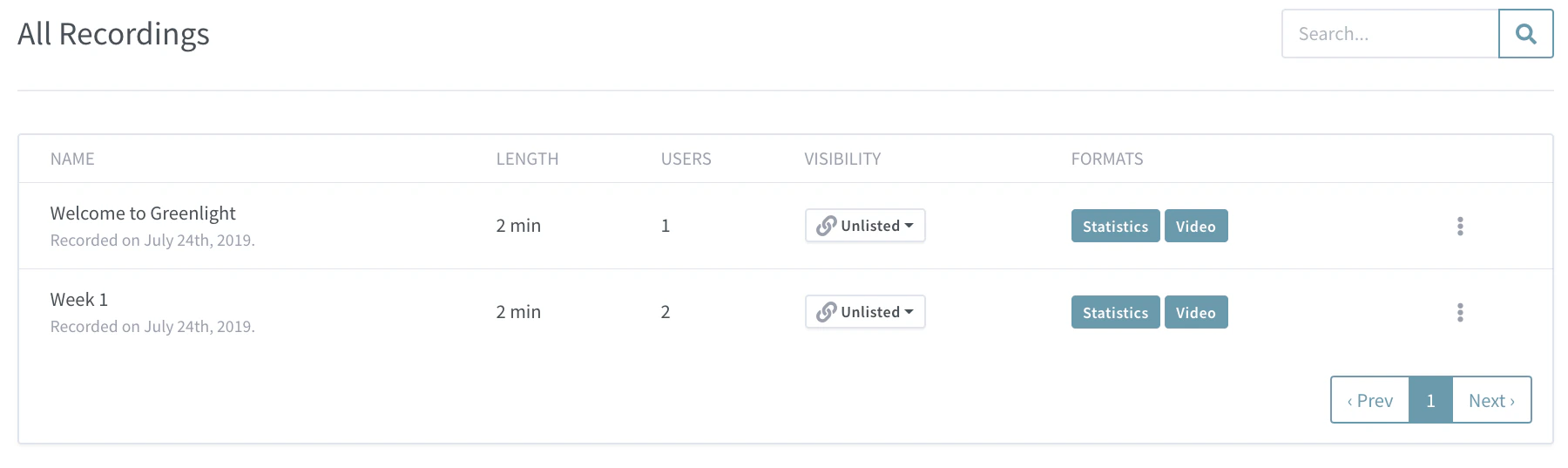 The **All recordings** view lists every recording in chronological order.