> ## Documentation Index
> Fetch the complete documentation index at: https://bigbluebutton.com/docs/llms.txt
> Use this file to discover all available pages before exploring further.
# Overview
> How BigBlueButton Enhanced goes beyond the open source version of BigBlueButton
**BigBlueButton Enhanced** is Blindside Networks's premium hosted version of BigblueButton that adds the follo wing value added capabilities to increae learning outcomes.
* [enhanced recordings](#enhanced-recordings)
* [meeting analytics](#meeting-analytics)
* [personal rooms](#personal-rooms)
* [guest invites](#guest-invites)
* [dial-in numbers](#dial-in-number)
* [account customization](#account-customization)
If you are already using BigBlueButton Essentials in Moodle, Canvas, or Schoology, these features become avail able when you upgrade.
To upgrade, contact your LMS provider — Instructure, Schoology, or your Moodle Partner — who can resell BigBlueButton Enhanced hosting directly. You can also [contact us](https://blindsidenetworks.com/contact) directly.
## Recordings
### Recordings as video files
Recordings are produced as a single video file containing all session content except chat (displayed beside the video during playback) and videos shared via **Share video**.
### Recordings are permanent
Recordings do not expire. They persist until you delete them. We can setup a policy to
* automatically remove recordings after N days of creation
* automatically remove recordings after N days of last access
There is no cost for storage of the first 10k recordings (which for 95% of customers is all they will need).
### Recordings are downloadable
See how to [download a recording](/docs/help/premium/how-do-i-download-a-recording).
### Recordings are protected (optional)
When recording links are passed to your LMS, our servers can generate temporary links that are only viewable by a single person — preventing students from copying and sharing recordings.
### Integration with Canvas Studio
If you have Canvas Studio, we can configure your account to [automatically upload recordings into Studio and share them with the instructor's account](/docs/integrations/canvas/faq-integration-with-canvas-studio).
### Meeting analytics
For each recorded session, instructors see a **statistics** playback format that answers:
* Who attended?
* How long did they attend?
* What activities did they participate in (talking, chatting, raising hand, emojis)?
* How did they respond to polling?
All data is downloadable as CSV. See the [statistics recording format](https://blindsidenetworks.com/statistic]). All times in the statistics reports are in UTC.
## Personal rooms
If you authenticate instructor email accounts via Office 365 or Google Apps, we can provide an interface outside your LMS to create rooms, invite users, and manage recordings. Personal rooms have permanent URLs.
See the [Personal Rooms admin guide](/docs/help/personal-rooms/admin/site-settings).
As part of BigBlueButton Enhanced hosting, Blindside Networks can customize a range of account-level settings. To request any of the changes below, contact your Blindside Networks Customer Success Manager with a description of what you need.
## Webcams
### Don't record student webcams
We can configure your account so student webcams are not visible in the recordings.
### Custom default webcam background
For additional branding, provide a PNG or JPEG image at an HTTPS URL, and we can configure your account to use it as the default webcam background. Users can still upload their own background.
## Recordings
### Auto-expire recordings
If your school requires recordings to be deleted automatically after a set period — for example, two years (730 days) — we can configure auto-deletion. Tell us the retention you need.
### Protected recording links
We can enable Protected Recording Links so viewers cannot copy and share recording links.
### Disable recording
We can configure your account so no sessions are recorded.
### Automatic transfer of recordings to an S3 bucket
We can set up a workflow so that once our infrastructure finishes processing a recording, it is automatically transferred to a write-only S3 bucket hosted by you, along with a manifest of the recording metadata.
## Privacy
### Default lock settings
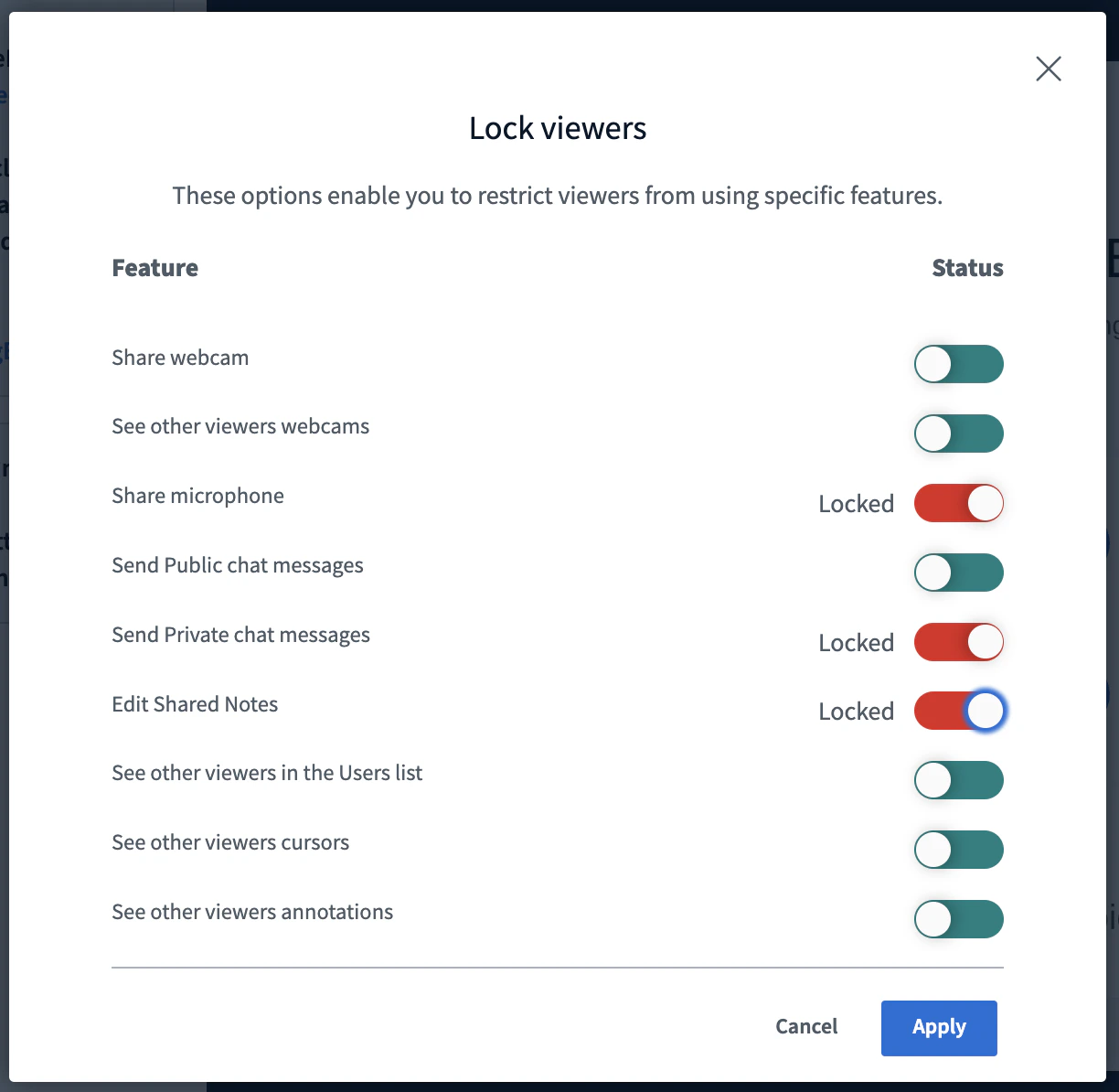
Each instructor can use **Lock viewers** to restrict viewer access to specific features.
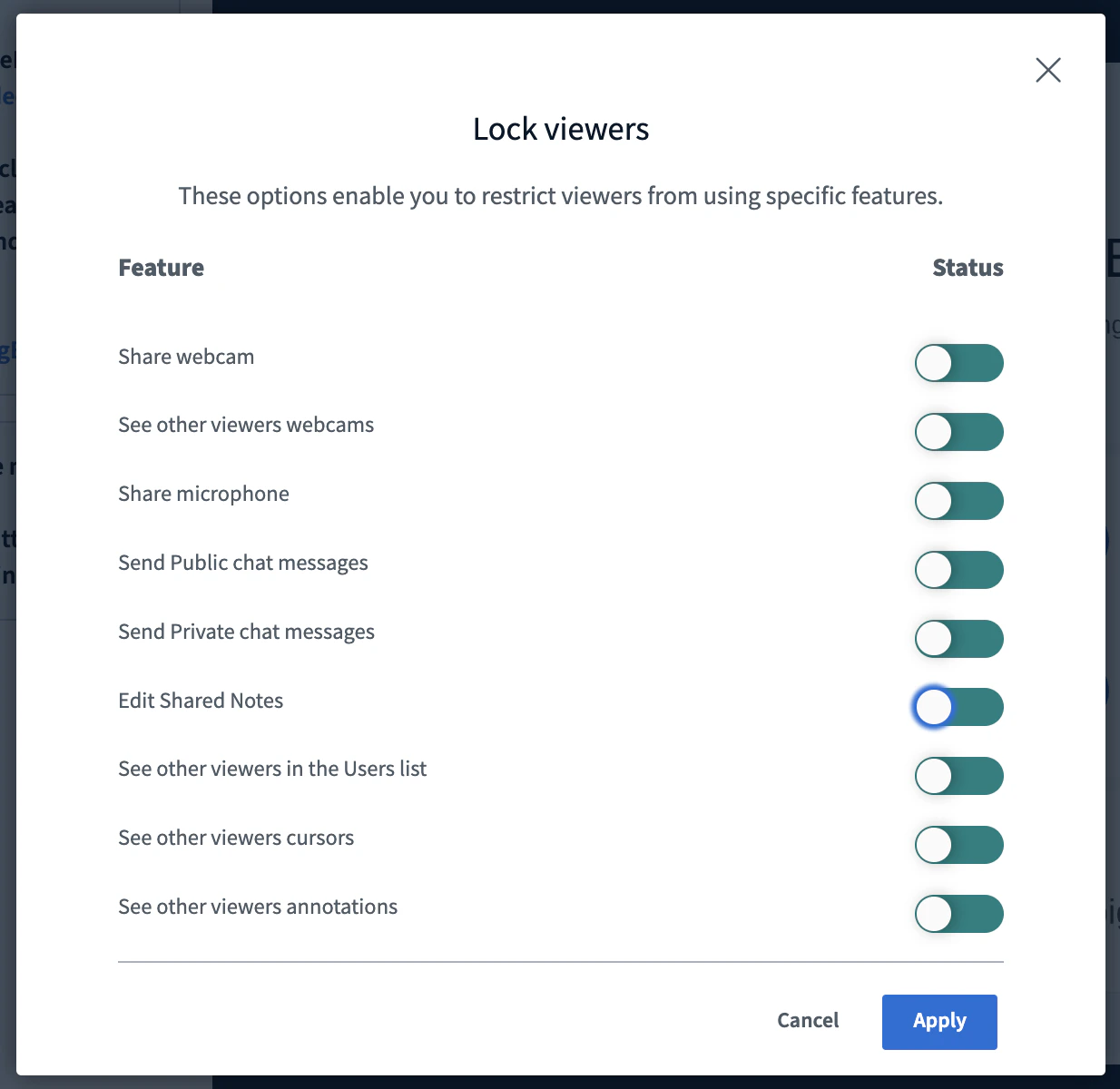 We can set any of these lock settings as defaults for your account. For example, you can configure every session to start with these locks in effect:
* Microphone
* Private chat messages
* Edit shared notes
We can set any of these lock settings as defaults for your account. For example, you can configure every session to start with these locks in effect:
* Microphone
* Private chat messages
* Edit shared notes
 ### Ability to unmute users
By default, moderators cannot unmute another user's microphone, for privacy. However, for K12 customers teaching young students, we can enable moderators to unmute student microphones directly.
### Mute users on join
By default, users joining with a microphone are unmuted. We can change the default so all users join muted.
### Hide viewer names in recording chat
We can conceal student names in the chat of recordings. Student/viewer names appear as "Viewer" while moderator/instructor names display as normal.
## Branding
### Custom welcome message
When users join a session, users can click on the meeting title to see additional information. The left column n is visible to everyone, the right column is only visible to moderators.
### Ability to unmute users
By default, moderators cannot unmute another user's microphone, for privacy. However, for K12 customers teaching young students, we can enable moderators to unmute student microphones directly.
### Mute users on join
By default, users joining with a microphone are unmuted. We can change the default so all users join muted.
### Hide viewer names in recording chat
We can conceal student names in the chat of recordings. Student/viewer names appear as "Viewer" while moderator/instructor names display as normal.
## Branding
### Custom welcome message
When users join a session, users can click on the meeting title to see additional information. The left column n is visible to everyone, the right column is only visible to moderators.
 We can replace these branding elements with whatever text you choose..
### Custom logo
We can place your logo in the upper-left corner of the BigBlueButton session.
We can replace these branding elements with whatever text you choose..
### Custom logo
We can place your logo in the upper-left corner of the BigBlueButton session.
 ### Custom default presentation
You can send us a PDF that will appear as the default presentation on all your sessions.
## Misc
### Automatically end session when no moderators are present
We can set an interval (such as 2 minutes) after which BigBlueButton automatically ends a session that no long er has a moderator present. This is useful in K12 to avoid scenarios where the educator gets disconnected (for example, loses their internet connection) and students are left unsupervised.
### Guest invites
Moderators can [invite guests](/docs/help/premium/how-do-i-invite-a-guest-to-a-live-meeting) into a live session.
### Dial-in number
Every BigBlueButton Enhanced account in North America includes a default dial-in number. For Canada, Europe, and Asia/Pacific, we can provide a dial-in number for an additional cost.
### Custom default presentation
You can send us a PDF that will appear as the default presentation on all your sessions.
## Misc
### Automatically end session when no moderators are present
We can set an interval (such as 2 minutes) after which BigBlueButton automatically ends a session that no long er has a moderator present. This is useful in K12 to avoid scenarios where the educator gets disconnected (for example, loses their internet connection) and students are left unsupervised.
### Guest invites
Moderators can [invite guests](/docs/help/premium/how-do-i-invite-a-guest-to-a-live-meeting) into a live session.
### Dial-in number
Every BigBlueButton Enhanced account in North America includes a default dial-in number. For Canada, Europe, and Asia/Pacific, we can provide a dial-in number for an additional cost.