> ## Documentation Index
> Fetch the complete documentation index at: https://bigbluebutton.com/docs/llms.txt
> Use this file to discover all available pages before exploring further.
# Share an External Audio/Video Link
> Presenters can share an external audio or video URL with everyone in the session and control playback for all users.
Presenters can share an external audio or video URL with everyone in the session. BigBlueButton synchronizes playback for all users so the presenter can [start the video](#start-sharing-a-video), pause it, scrub the playhead, and [stop sharing](#stop-sharing-the-video) when done.
BigBlueButton supports URLs from:
* YouTube
* Vimeo
* Instructure Media (previously called Arc)
* Twitch and Dailymotion
* Panopto
* A direct link to an `.mp4` file, for example [https://ubuntu.bigbluebutton.org/test/FredDixon.mp4](http://ubuntu.bigbluebutton.org/test/FredDixon.mp4)
* A direct link to an `.mp3` file, for example [https://ubuntu.bigbluebutton.org/test/audioSample.mp3](http://ubuntu.bigbluebutton.org/test/audioSample.mp3)
* A direct link to an `.mp4` or `.mp3` file shared in Dropbox (get a free Dropbox account at [dropbox.com/basic](https://www.dropbox.com/basic) to upload your videos)
Externally shared videos do not appear in the processed recordings.
## Start sharing a video
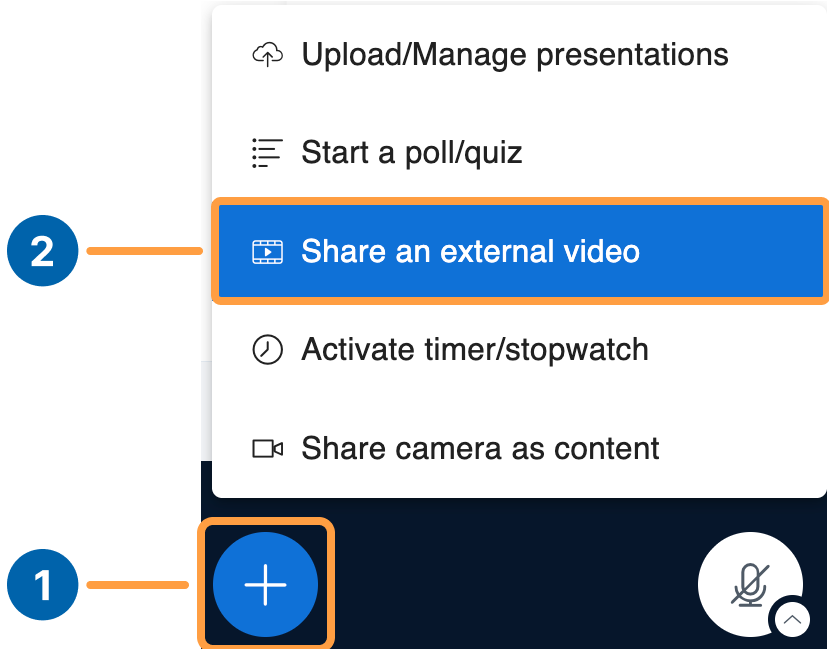
To share a video, select the **'+' Actions menu** **\[1]**, then **Share an external video** **\[2]**.
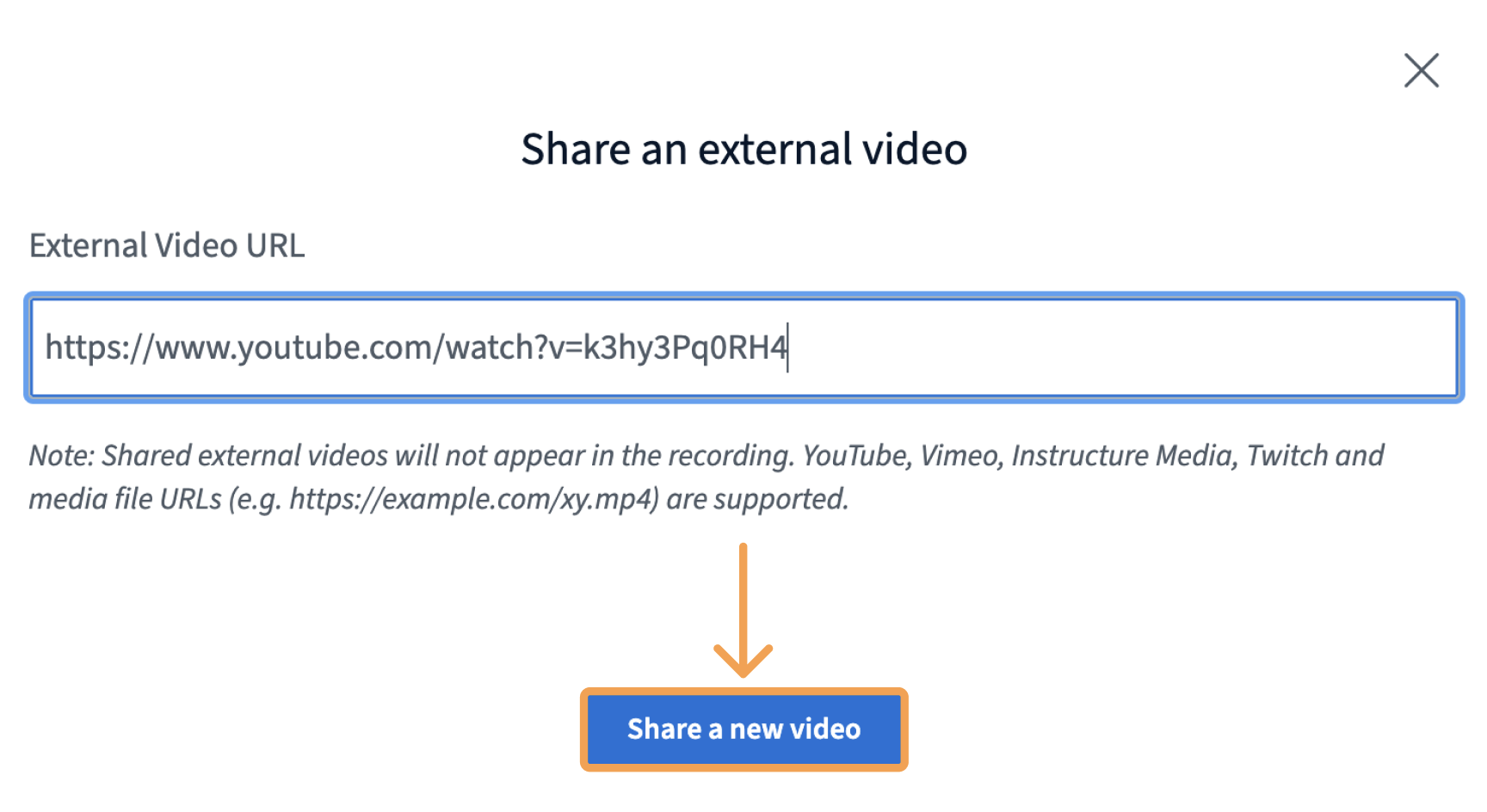
 In the dialog box, paste your video URL and select **Share a new video**.
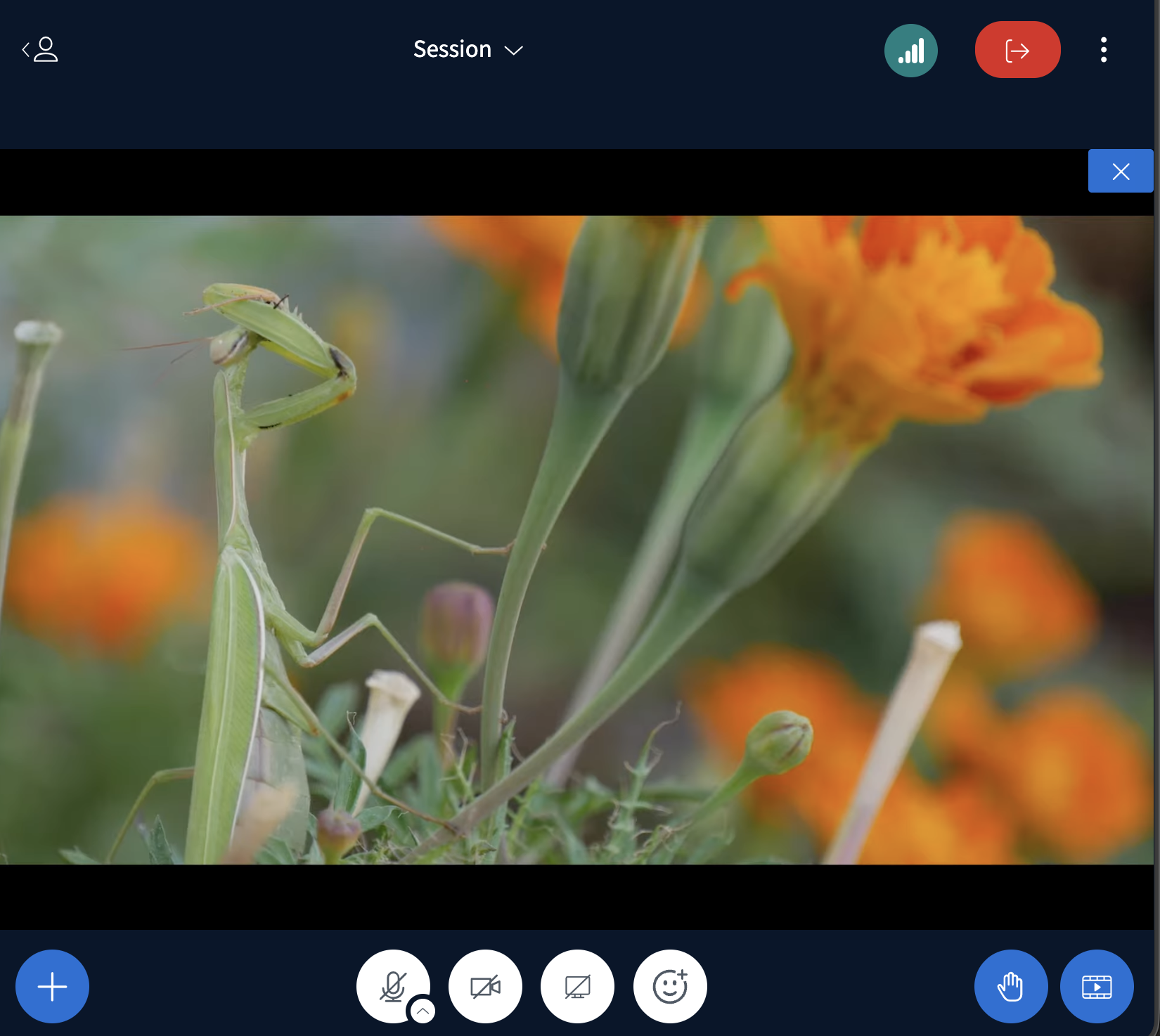
 The video appears in the presentation area, and BigBlueButton synchronizes playback for everyone in the session. As presenter, you can:
* Start or pause the video
* Move the playhead
* Stop sharing
The video appears in the presentation area, and BigBlueButton synchronizes playback for everyone in the session. As presenter, you can:
* Start or pause the video
* Move the playhead
* Stop sharing
 ## Stop sharing the video
To stop sharing, select the **X** in the upper-right corner of the presentation area.
## Stop sharing the video
To stop sharing, select the **X** in the upper-right corner of the presentation area.
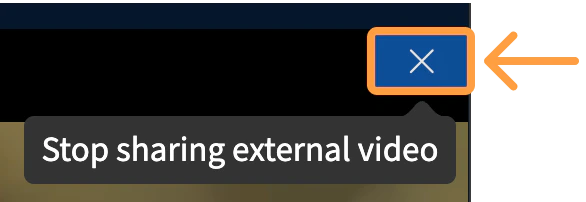 The presentation area reverts to the previous presentation.