> ## Documentation Index
> Fetch the complete documentation index at: https://bigbluebutton.com/docs/llms.txt
> Use this file to discover all available pages before exploring further.
# Share my screen
> Presenters can share their entire screen, an application window, or a single browser tab with everyone in the session.
Presenters can share their entire screen, an application window, or a single browser tab in addition to uploading a presentation. The shared screen appears in the presentation area for all attendees, and is captured in the recording if the session is being recorded.
Mobile devices such as iPhone, iPad, and Android do not support screen sharing.
## Confirm your presenter role
By default, the first moderator to enter a BigBlueButton session receives the presenter role. If you are a viewer, request the presenter role from a moderator before continuing.
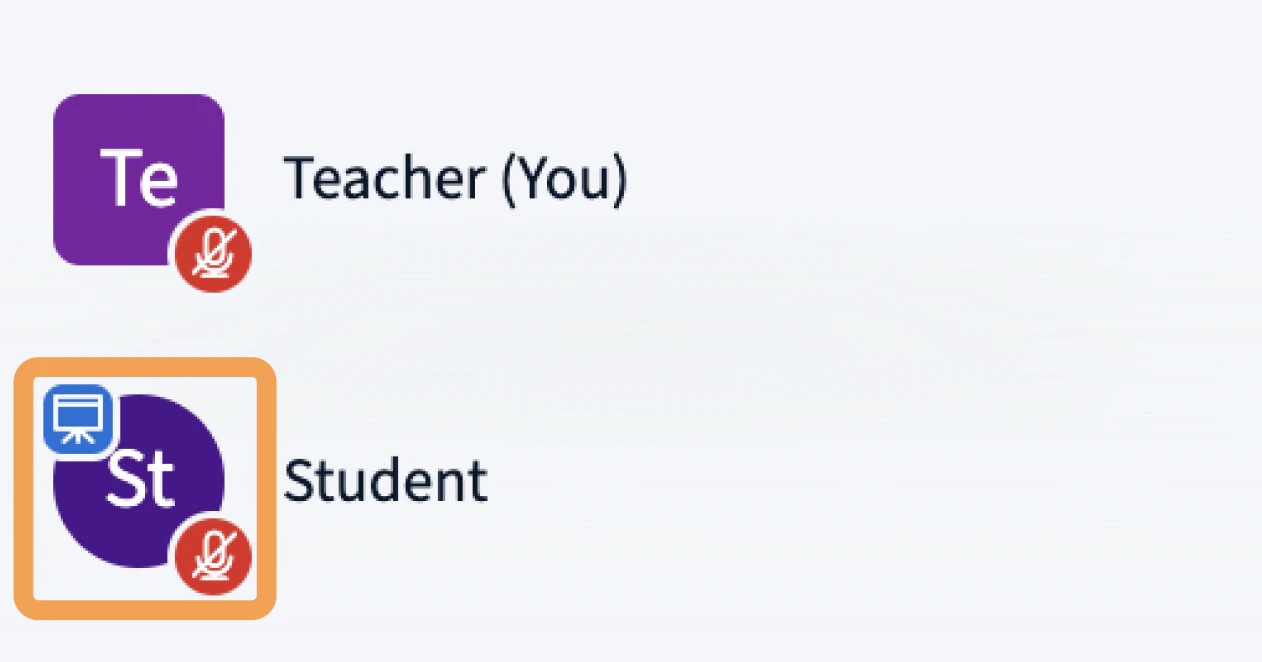 When a user has the presenter role, the **presenter icon** appears over their avatar in the user list.
## Start sharing your screen
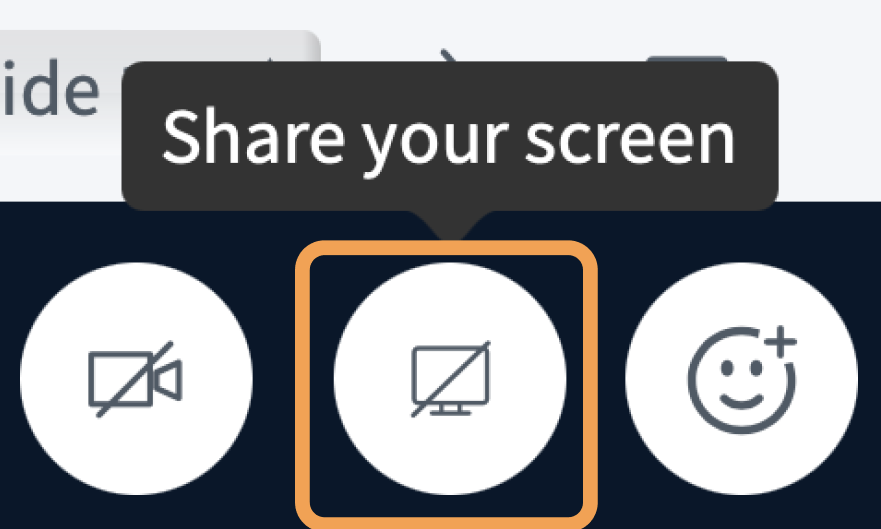
To begin sharing, select the **Screen Share** button in the media bar.
When a user has the presenter role, the **presenter icon** appears over their avatar in the user list.
## Start sharing your screen
To begin sharing, select the **Screen Share** button in the media bar.
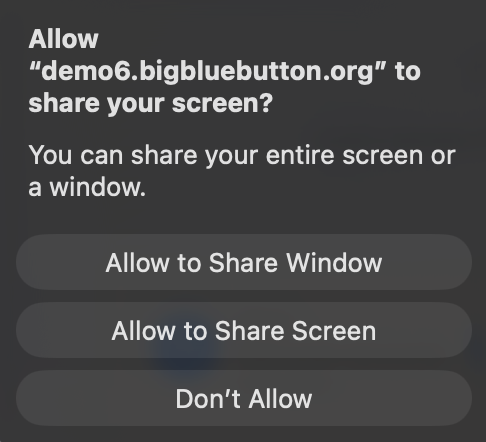
 Your browser prompts you to share your entire screen, an application window, or a browser tab.
 After you confirm your selection, your shared screen appears in the presentation area.
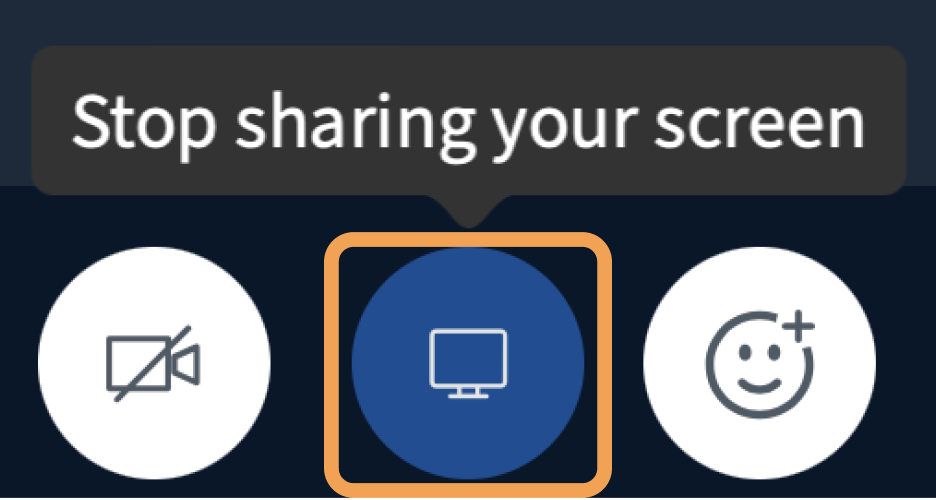
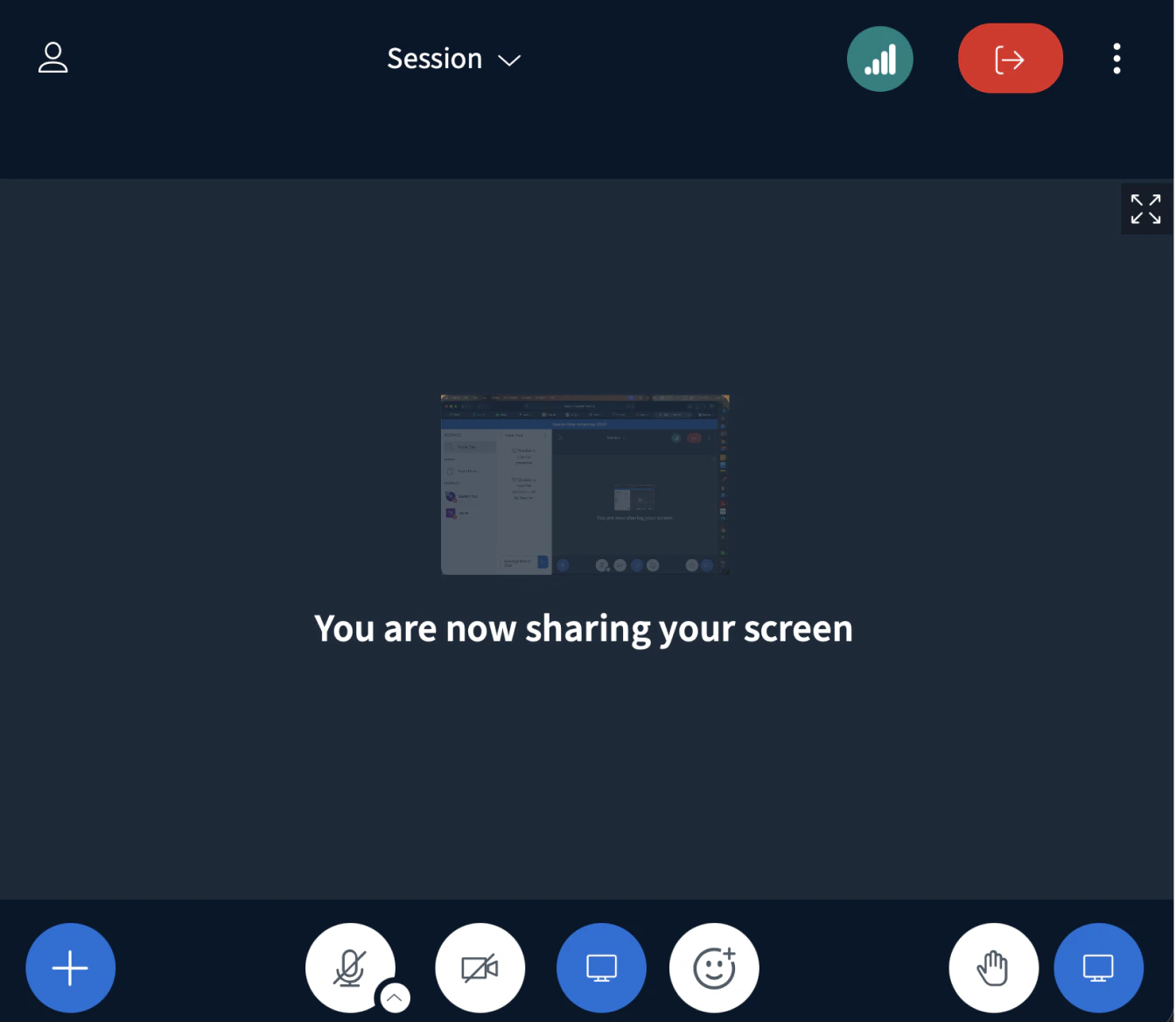 To stop sharing, select the **Screen Share** button again.
 Open the applications or browser windows you intend to share **before** you start screen sharing. Doing so makes them available in the browser's selection dialog.
## Choose a sharing option for your browser
The next steps depend on which browser you use.
Chrome prompts you to choose **Chrome Tab** **\[1]**, an application **Window** **\[2]**, or **Entire Screen** **\[3]**. After choosing, select **Share** **\[4]** to begin sharing with attendees.
Open the applications or browser windows you intend to share **before** you start screen sharing. Doing so makes them available in the browser's selection dialog.
## Choose a sharing option for your browser
The next steps depend on which browser you use.
Chrome prompts you to choose **Chrome Tab** **\[1]**, an application **Window** **\[2]**, or **Entire Screen** **\[3]**. After choosing, select **Share** **\[4]** to begin sharing with attendees.
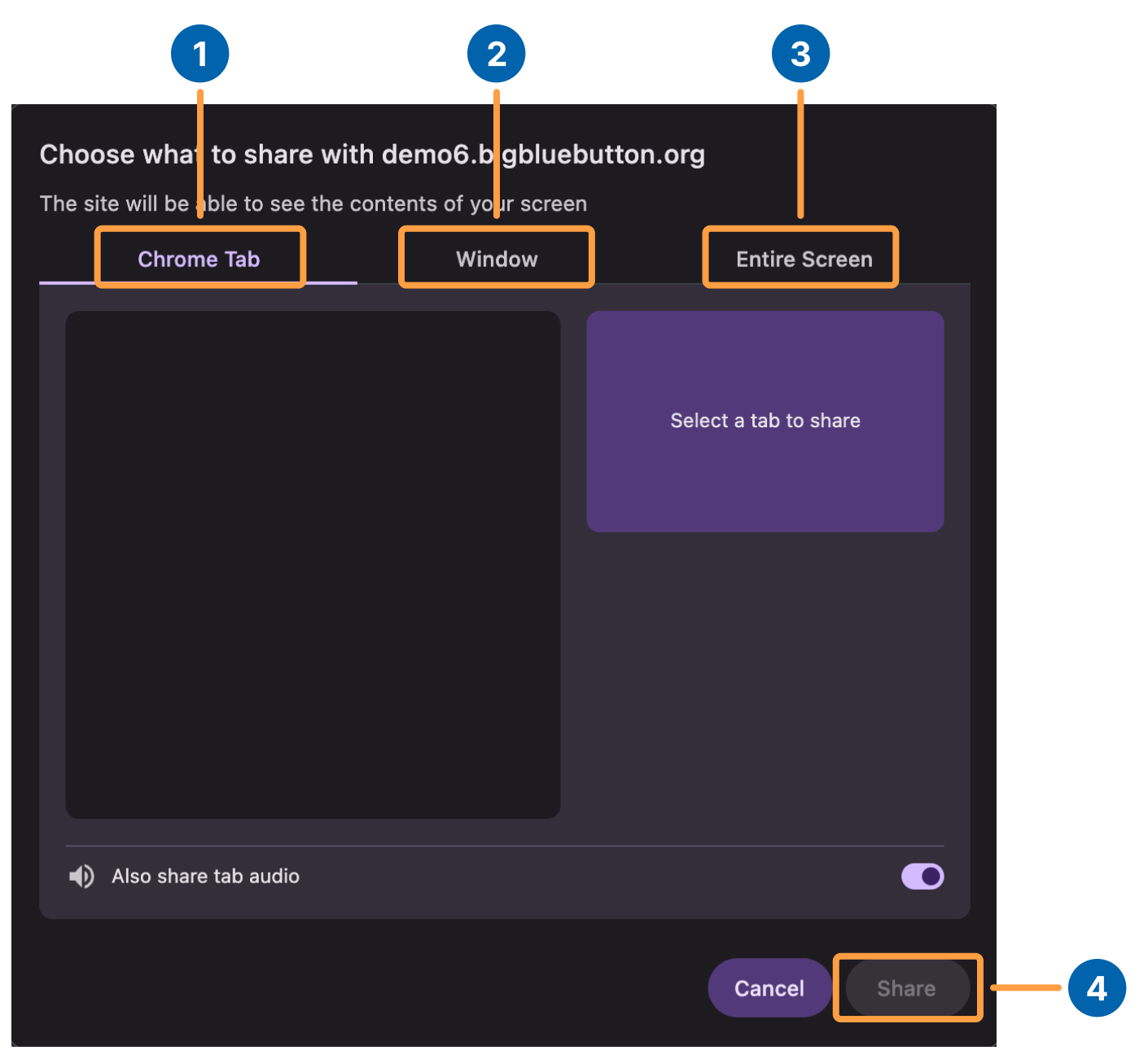 Pick the option that matches what you want to share:
* **Entire Screen** — Attendees see your screen even when you switch to another browser or application. Use this option if you plan to move between several applications without reconfiguring screen sharing.
* **Window** — Attendees see only the selected application. If you navigate outside that application, attendees do not see those actions. This option uses less bandwidth than sharing your entire screen and works well when you stay in a single application.
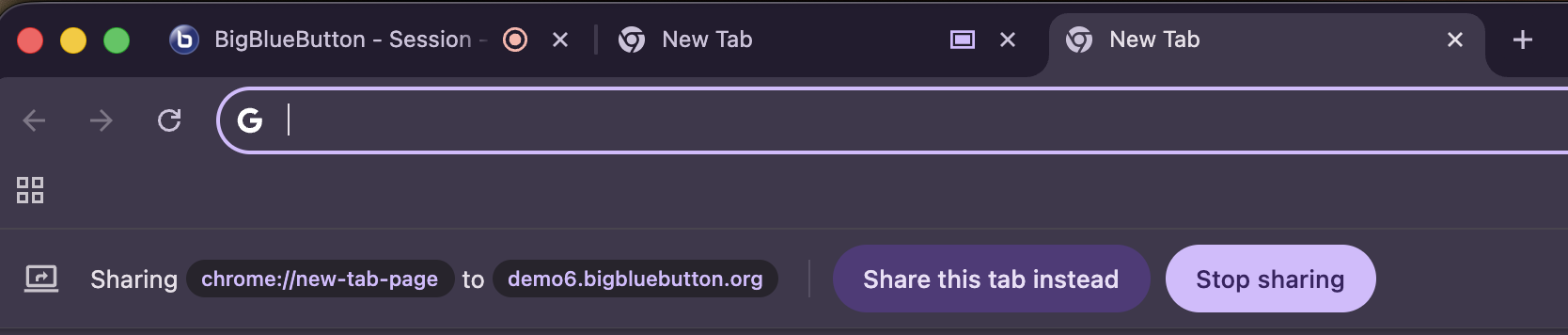
* **Chrome Tab** — On the latest version of Chrome, switch tabs quickly by opening another tab and selecting **Share this tab instead**.
**Error 1136: Permission to capture the screen needs to be granted.** If Chrome is partway through an update when you start screen sharing, the browser may not register the request. To fix it, restart Chrome, allow the update to finish, then start screen sharing again.
Pick the option that matches what you want to share:
* **Entire Screen** — Attendees see your screen even when you switch to another browser or application. Use this option if you plan to move between several applications without reconfiguring screen sharing.
* **Window** — Attendees see only the selected application. If you navigate outside that application, attendees do not see those actions. This option uses less bandwidth than sharing your entire screen and works well when you stay in a single application.
* **Chrome Tab** — On the latest version of Chrome, switch tabs quickly by opening another tab and selecting **Share this tab instead**.
**Error 1136: Permission to capture the screen needs to be granted.** If Chrome is partway through an update when you start screen sharing, the browser may not register the request. To fix it, restart Chrome, allow the update to finish, then start screen sharing again.
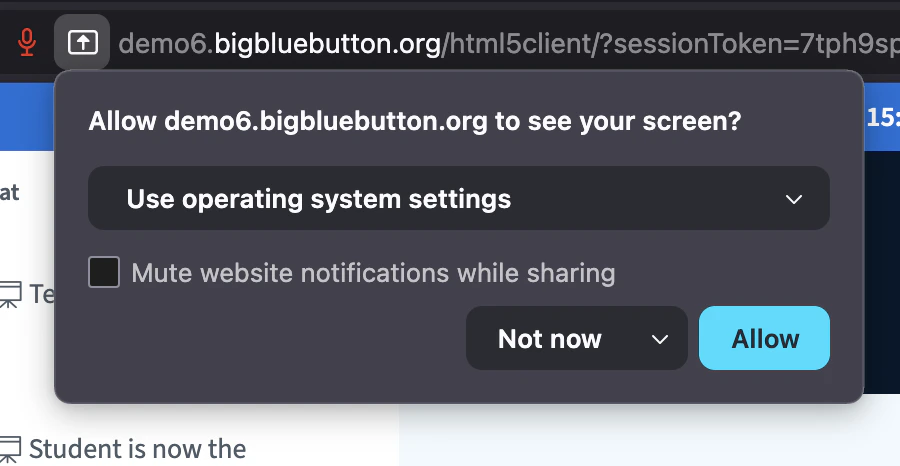
 Firefox asks for screen sharing permission. Select **Allow** to continue.
 If the window you want to share is not in the list, it is likely not open. Open the application or window, then start screen sharing again.
## What attendees see
Attendees see your shared screen displayed in the presentation area of the BigBlueButton interface — it no longer loads in a separate window.
If the window you want to share is not in the list, it is likely not open. Open the application or window, then start screen sharing again.
## What attendees see
Attendees see your shared screen displayed in the presentation area of the BigBlueButton interface — it no longer loads in a separate window.
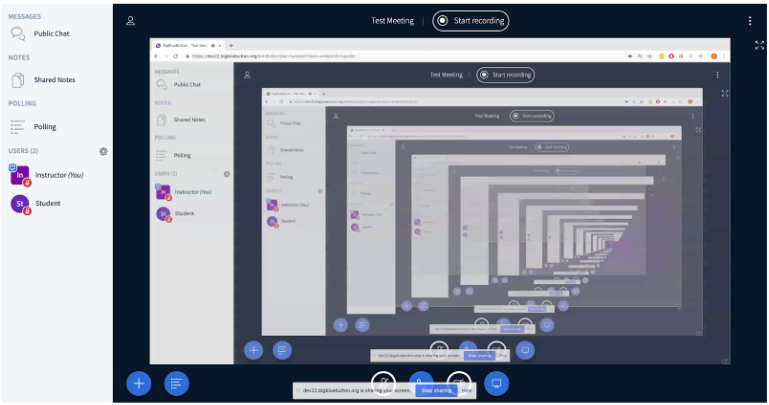
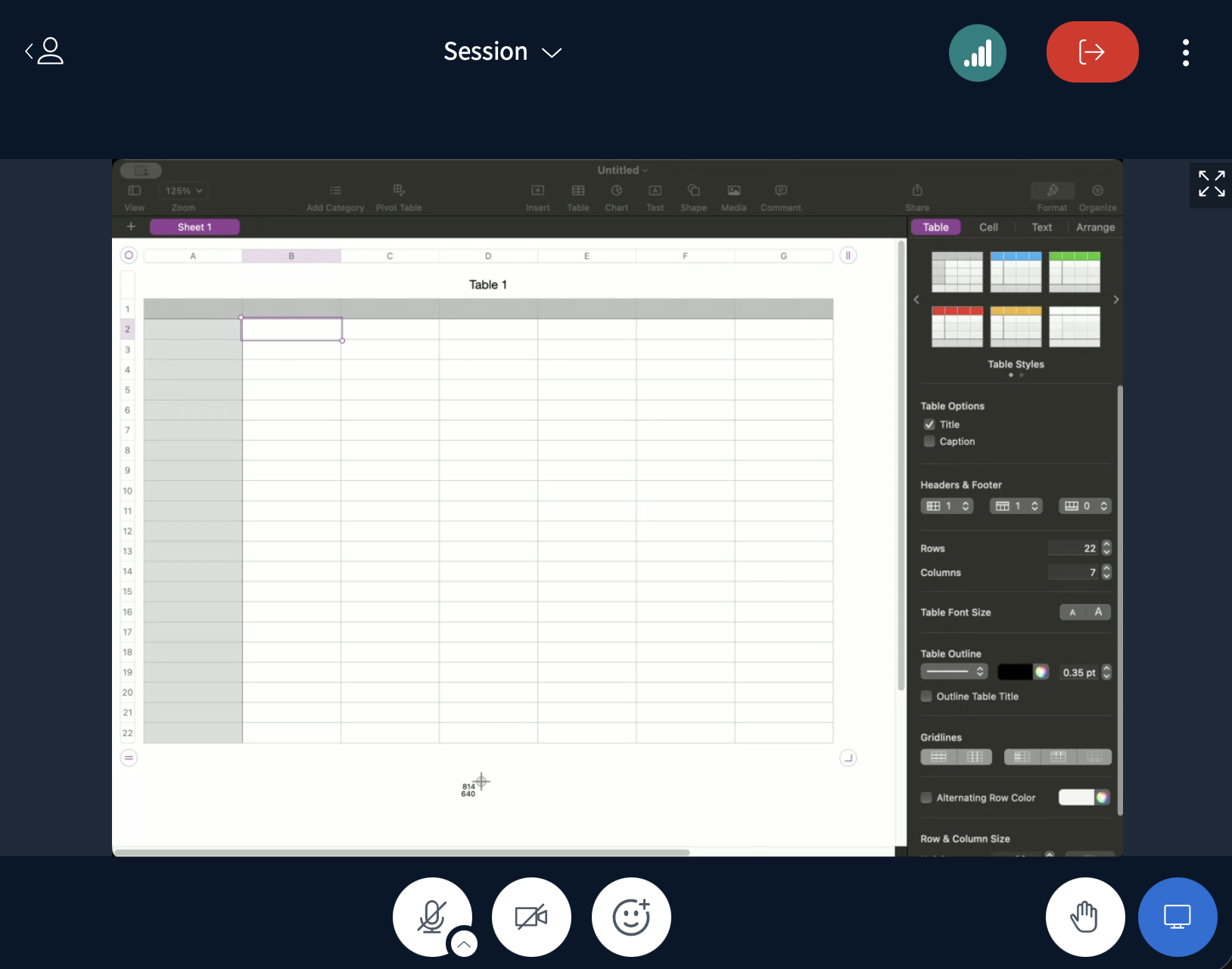 As the presenter, your own BigBlueButton interface shows a mirrored broadcast of the shared screen. Attendees viewing another tab or application do not see this duplicated view.