> ## Documentation Index
> Fetch the complete documentation index at: https://bigbluebutton.com/docs/llms.txt
> Use this file to discover all available pages before exploring further.
# Shared notes as a presenter
> Anyone in a session can collaborate in Shared Notes, export the contents to common file formats, or pin the notes onto the whiteboard.
Anyone in a BigBlueButton session can [contribute to Shared Notes](#contribute-to-shared-notes), [export the notes](#export-the-notes-to-a-file) to a file, or — as a presenter — [pin or convert the notes](#pin-or-convert-notes-to-the-whiteboard) onto the whiteboard.
## Contribute to Shared Notes
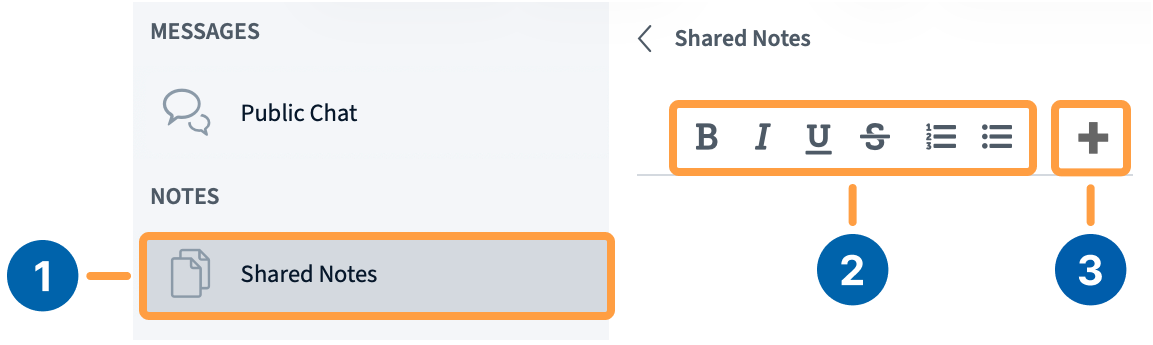 To open the notes panel, select **Shared Notes** **\[1]** in the left sidebar. **Formatting Options** **\[2]** such as **Bold** and **Italic** appear at the top of the panel. To reveal undo, redo, and download buttons, select the **'+'** **\[3]** button.
When another user edits the notes, an alert appears on the **Shared Notes** icon.
## Export the notes to a file
To download the current notes, select the **Export** **\[4]** button.
To open the notes panel, select **Shared Notes** **\[1]** in the left sidebar. **Formatting Options** **\[2]** such as **Bold** and **Italic** appear at the top of the panel. To reveal undo, redo, and download buttons, select the **'+'** **\[3]** button.
When another user edits the notes, an alert appears on the **Shared Notes** icon.
## Export the notes to a file
To download the current notes, select the **Export** **\[4]** button.
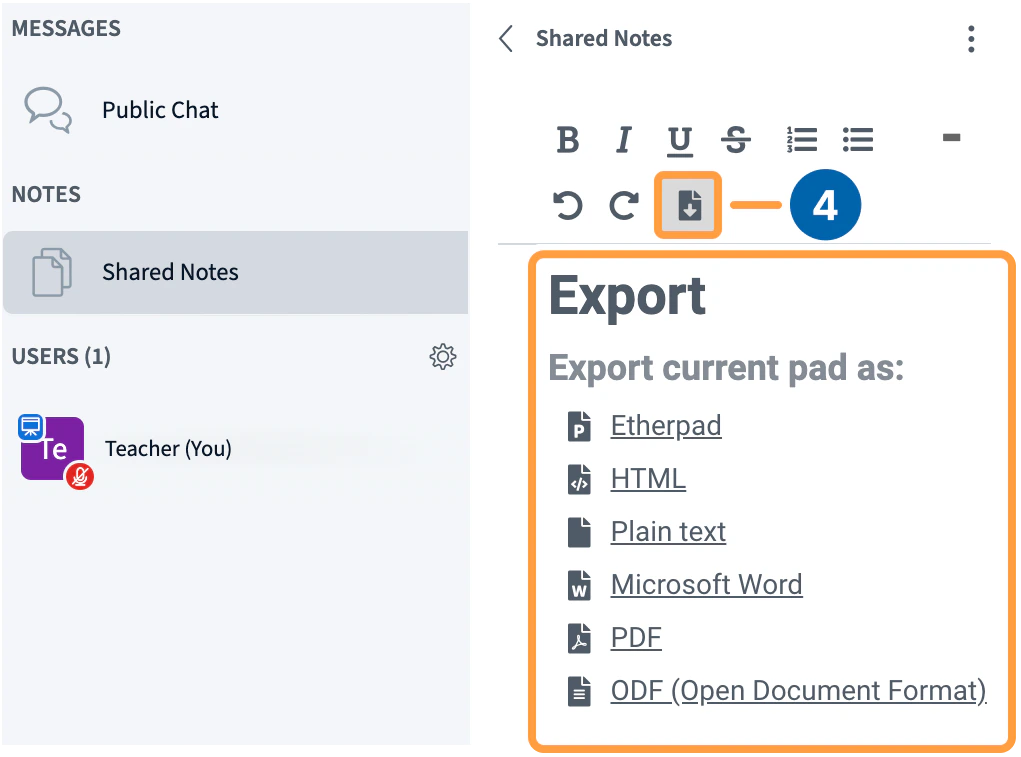 A list of available formats appears. Select your preferred format and save the file to your device.
 ## Pin or convert notes to the whiteboard
As presenter, you can pin the live notes onto the presentation area or convert them into a slide.
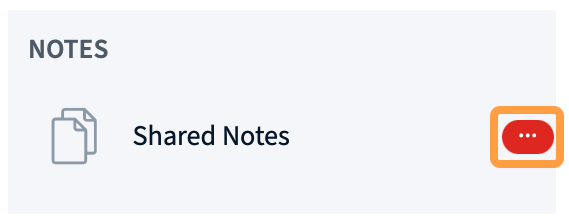
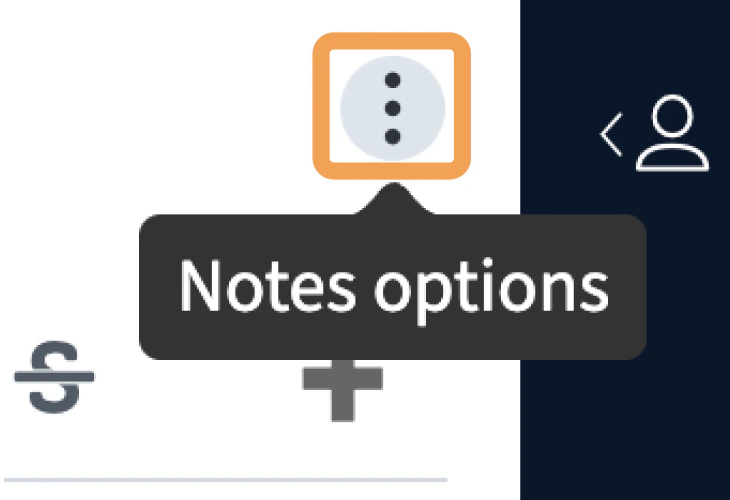
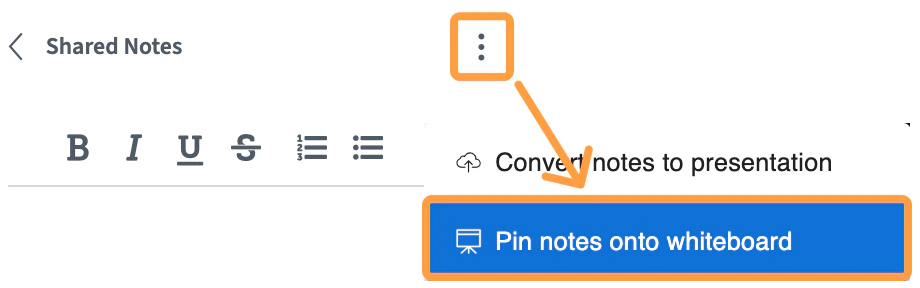
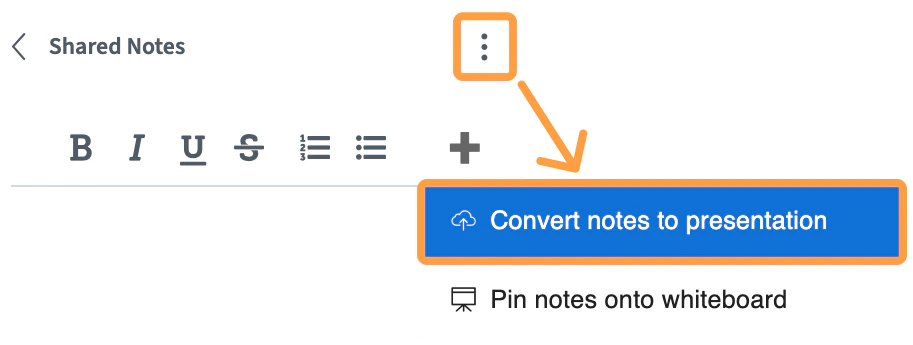
To open the notes options, select the **Notes options** menu in the upper-right corner.
## Pin or convert notes to the whiteboard
As presenter, you can pin the live notes onto the presentation area or convert them into a slide.
To open the notes options, select the **Notes options** menu in the upper-right corner.
 ### Pin notes onto the whiteboard
To pin the notes to the presentation area, select **Pin notes onto whiteboard**. Every user in the session can continue typing in the pinned notes.
### Pin notes onto the whiteboard
To pin the notes to the presentation area, select **Pin notes onto whiteboard**. Every user in the session can continue typing in the pinned notes.
 To unpin and return the notes to the sidebar, select the **X** in the upper-right corner.
 ### Convert notes to a presentation slide
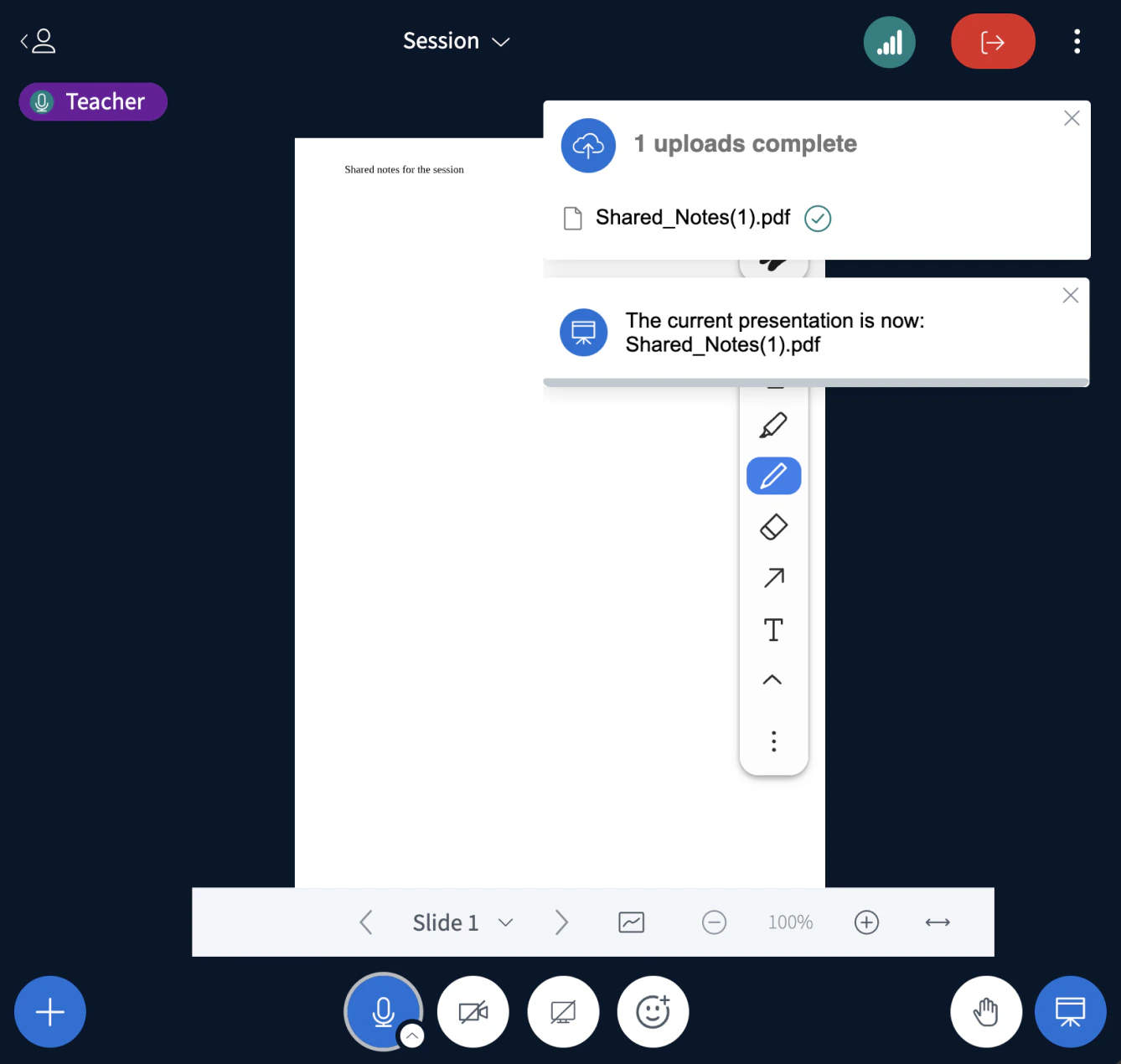
To post the notes onto the presentation as a PDF slide, select **Convert notes to presentation**.
### Convert notes to a presentation slide
To post the notes onto the presentation as a PDF slide, select **Convert notes to presentation**.
 The notes appear in the presentation area as a document.
 * Shared Notes are not captured in the recording.
* Each user must open their own Shared Notes panel.
* Contributions to Shared Notes are anonymous.
* Shared Notes are not captured in the recording.
* Each user must open their own Shared Notes panel.
* Contributions to Shared Notes are anonymous.