> ## Documentation Index
> Fetch the complete documentation index at: https://bigbluebutton.com/docs/llms.txt
> Use this file to discover all available pages before exploring further.
# Upload a presentation and enable for download
> Presenters can upload documents into the presentation area, switch between presentations, and enable any of them for viewers to download.
Presenters can [upload a presentation](#upload-a-presentation) into the BigBlueButton presentation area, [enable it for download](#enable-a-presentation-for-download) so viewers can save a copy, and [switch between uploaded presentations](#switch-between-presentations) during the session.
## Confirm your presenter role
To upload documents and enable them for download, you must have the presenter role. By default, the first moderator to enter the session receives the presenter role. If you are a viewer, request the presenter role from a moderator.
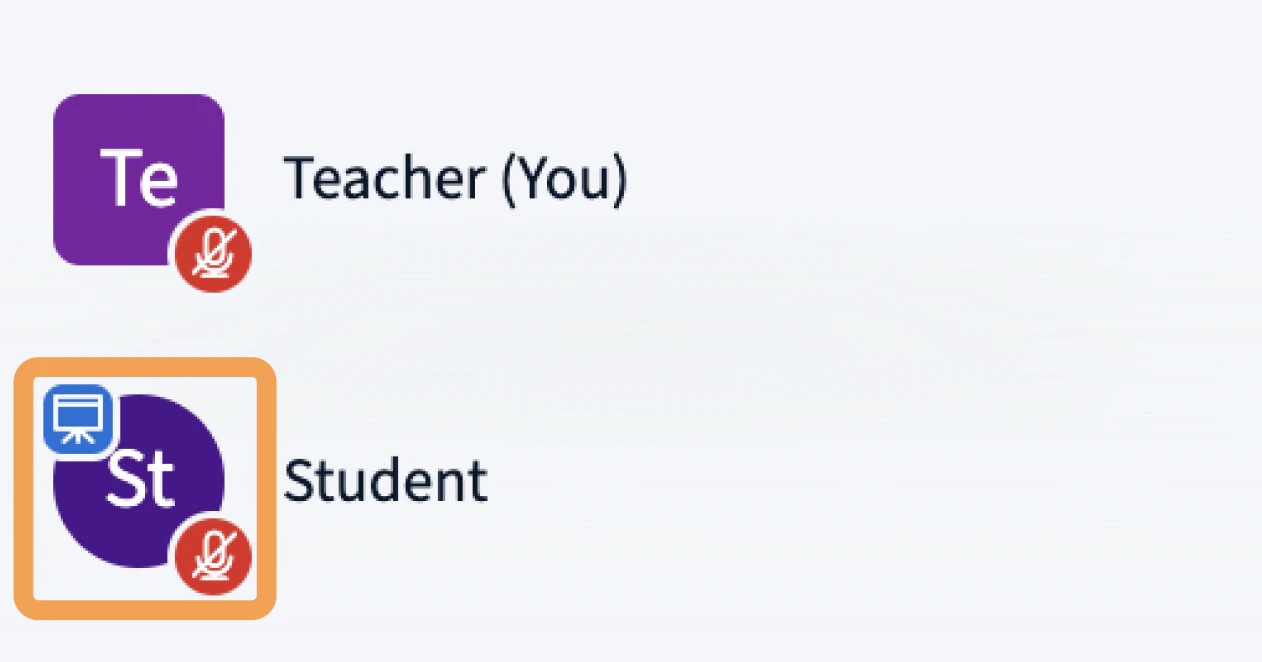 When a user has the presenter role, the **presenter icon** appears over their avatar in the user list.
## Verify document size and format
Each document can be up to **30 MB or 150 pages**. You can upload multiple documents as long as each one is under those limits.
BigBlueButton accepts:
* Office documents — `.doc`, `.docx`, `.pptx`
* Text documents — `.txt`
* Images — `.png`, `.jpg`
* Adobe Acrobat documents — `.pdf`
For the best results, convert your documents to **PDF** before uploading.
## Upload a presentation
When a user has the presenter role, the **presenter icon** appears over their avatar in the user list.
## Verify document size and format
Each document can be up to **30 MB or 150 pages**. You can upload multiple documents as long as each one is under those limits.
BigBlueButton accepts:
* Office documents — `.doc`, `.docx`, `.pptx`
* Text documents — `.txt`
* Images — `.png`, `.jpg`
* Adobe Acrobat documents — `.pdf`
For the best results, convert your documents to **PDF** before uploading.
## Upload a presentation
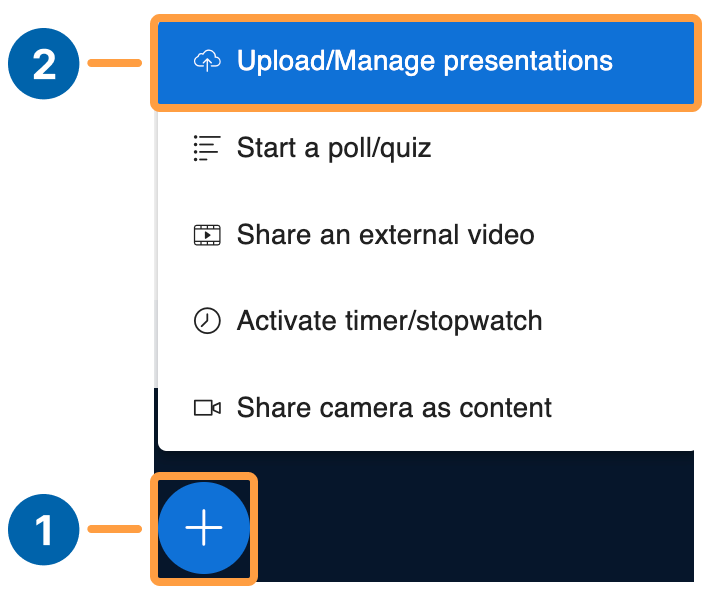 To open the uploader, select the **Actions menu** **\[1]** in the lower-left corner of the presentation window, then **Upload/Manage presentations** **\[2]**.
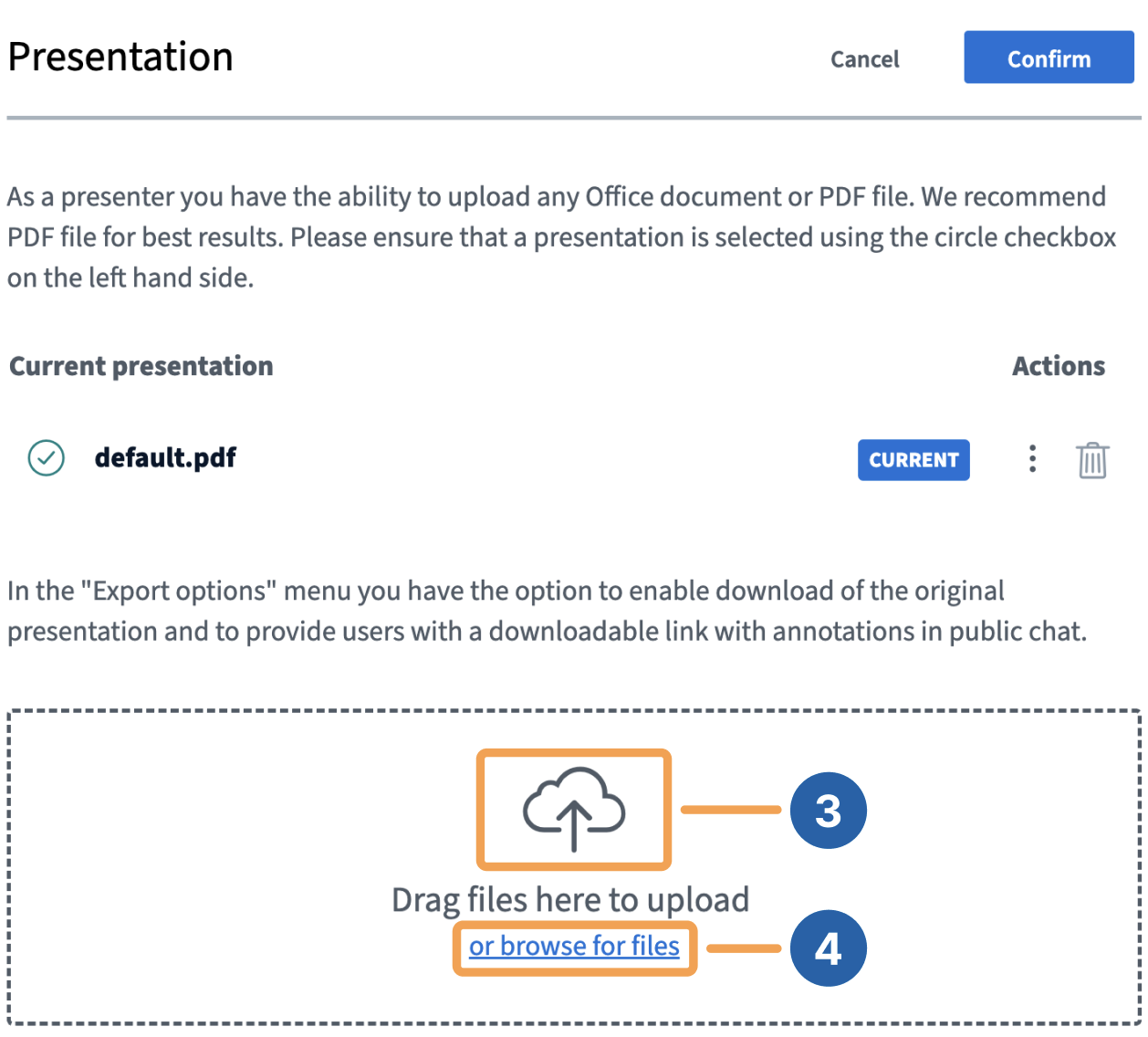 The uploader lets you **drag and drop** **\[3]** files into the panel or **browse for files** **\[4]** on your computer.
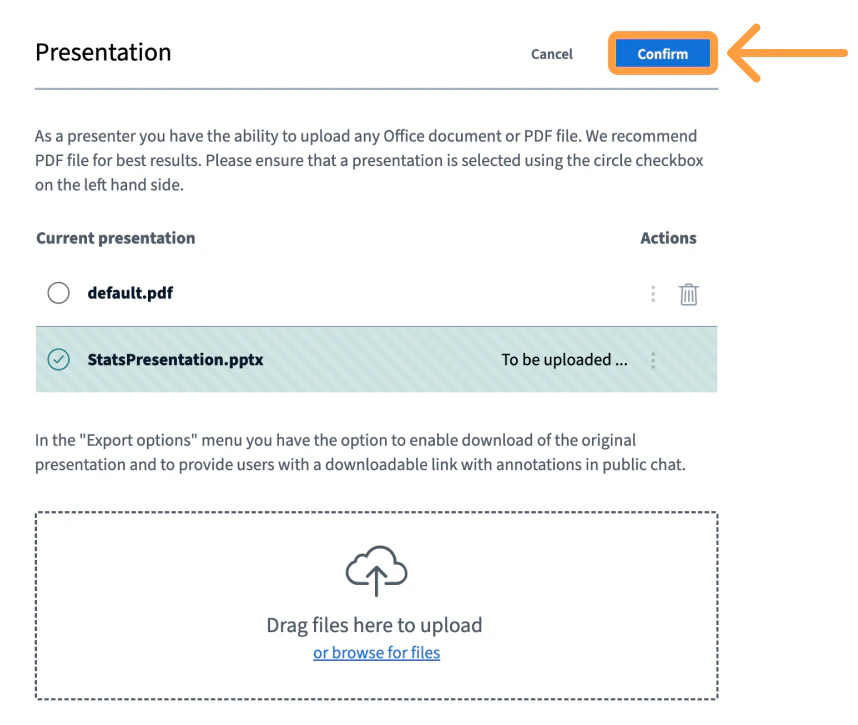 When uploading one or more files, set the file you want shown by default by selecting the **green circle** to the right of that document, then select **Confirm** to upload.
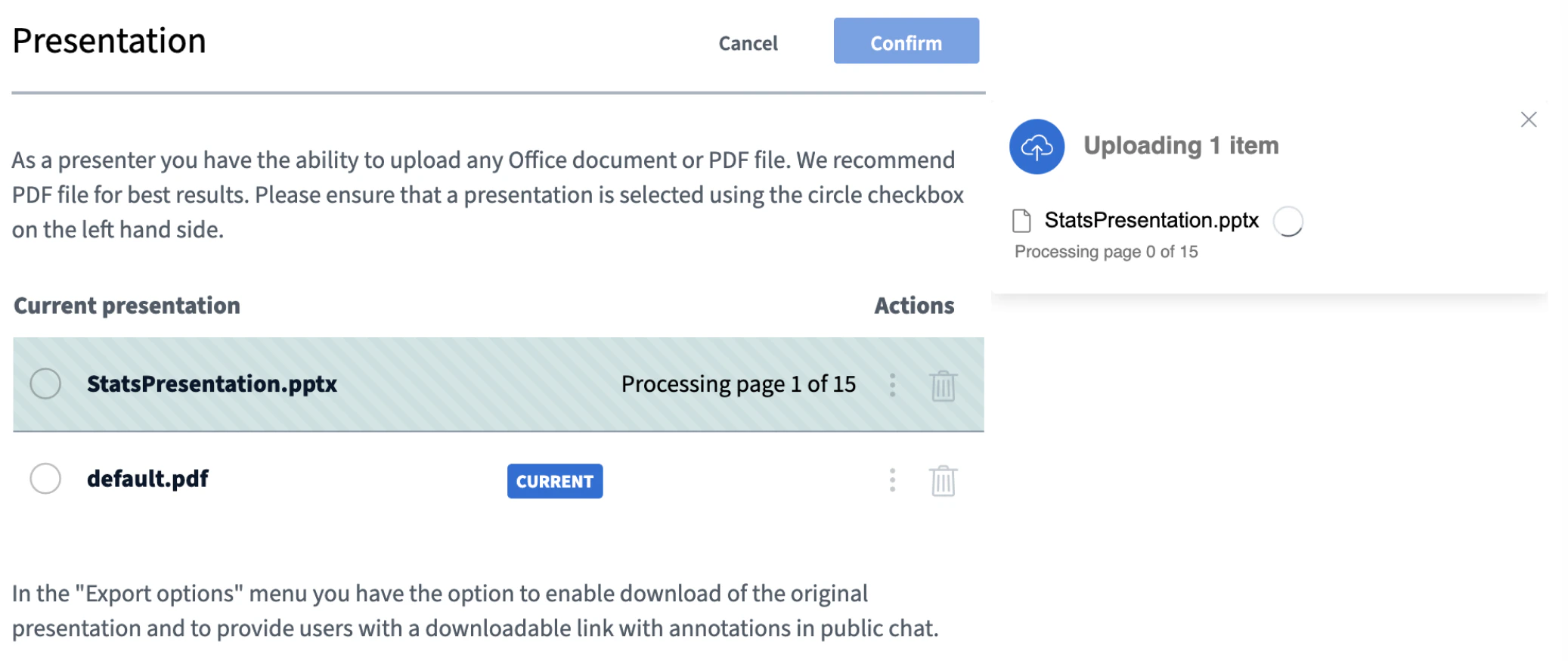 A prompt confirms the upload while BigBlueButton converts the files. You can return to **Upload/Manage presentations** at any time to change which presentation is shown.
Larger documents take longer to convert and load.
## Enable a presentation for download
A presenter can enable any uploaded document for download by viewers at any time during the session.
A prompt confirms the upload while BigBlueButton converts the files. You can return to **Upload/Manage presentations** at any time to change which presentation is shown.
Larger documents take longer to convert and load.
## Enable a presentation for download
A presenter can enable any uploaded document for download by viewers at any time during the session.
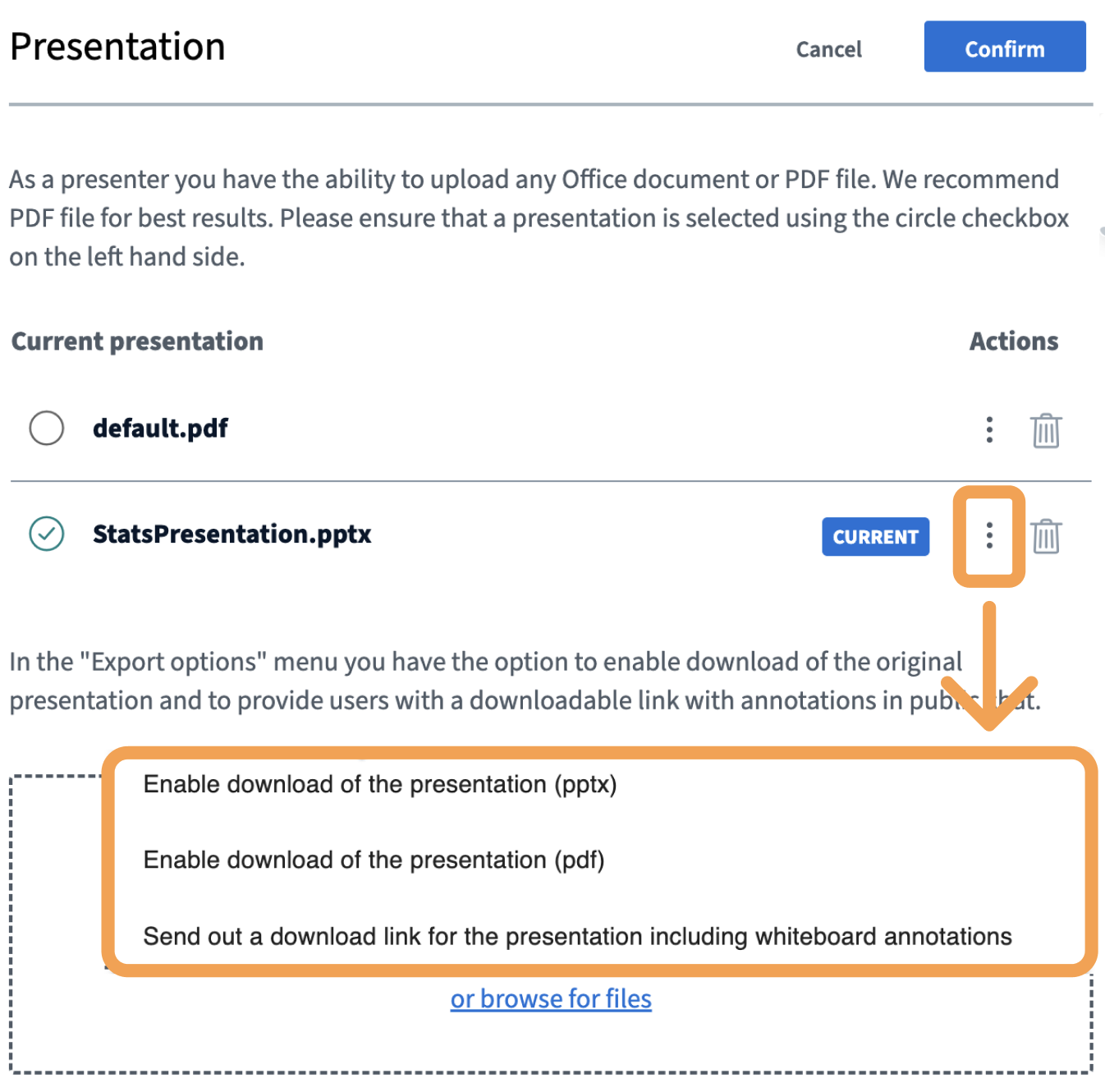 You can offer the presentation as a **.pptx**, a **PDF**, or a **PDF with annotations**.
If you have multiple presentations uploaded, you can choose which ones to enable for download.
## What viewers see
You can offer the presentation as a **.pptx**, a **PDF**, or a **PDF with annotations**.
If you have multiple presentations uploaded, you can choose which ones to enable for download.
## What viewers see
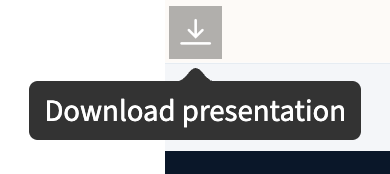 Viewers download enabled documents using the **download icon** in the lower-left corner of their presentation area.
## Switch between presentations
After uploading multiple presentations, you can switch between them at any time during the session.
Viewers download enabled documents using the **download icon** in the lower-left corner of their presentation area.
## Switch between presentations
After uploading multiple presentations, you can switch between them at any time during the session.
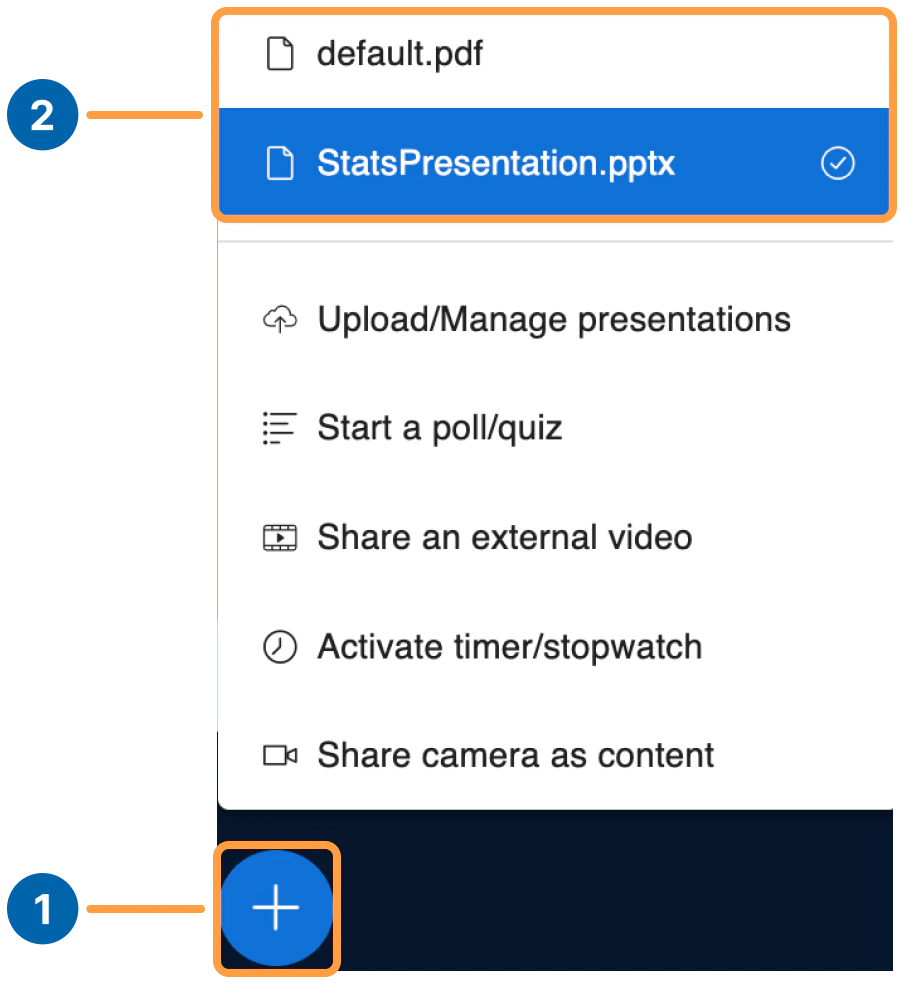 To switch, select the **Actions menu** **\[1]** in the lower-left corner, then choose a **presentation from the uploaded list** **\[2]**.