> ## Documentation Index
> Fetch the complete documentation index at: https://bigbluebutton.com/docs/llms.txt
> Use this file to discover all available pages before exploring further.
# Use Polling or Quizzing
> Presenters can launch polls and quizzes during a session to gauge understanding, gather feedback, and review answers with the class.
Presenters can [start a poll](#start-a-poll) to engage students, run informal pop quizzes, or gather quick feedback during a session. Presenters can also [run a quiz](#run-a-quiz) — a poll with a correct answer marked.
By default, the first moderator to enter the session receives the presenter role. If you are a viewer, request the presenter role from a moderator before starting a poll.
When a user has the presenter role, a **presenter icon** appears over their avatar in the user list.
## Start a poll
To open the polling panel, select the **Actions menu** **\[1]** in the lower-left corner of the presentation window, then **Start a poll/quiz** **\[2]**.
The **Poll** option is selected by default. Enter a question in the **Write your question** **\[1]** field, then pick one of the **Response Types** **\[2]** to set how users answer.
For example, type **"Are insects animals?"** **\[1]**, choose **Yes / No / Abstention** **\[2]**, then select **Start poll** **\[4]** to push the poll to all users.
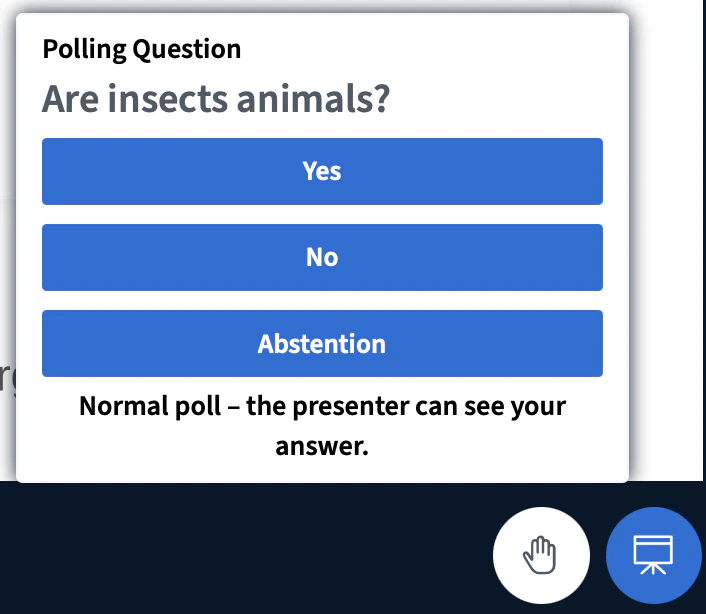
After you start the poll, every user receives a prompt to respond.
As users respond — for example, by selecting **Yes** — the presenter sees live results.
The poll panel shows each student's **Yes** response next to their name.
Select **Anonymous Poll** before starting the poll to hide student names from the results.
### Publish poll results
Selecting **Publish results** posts the results to both the public chat and the current slide.
Once published to the slide, the results behave like any other whiteboard object — you can move, resize, duplicate, or delete them.
Published results also appear in the recording, in both the chat and the slide.
## Run a quiz
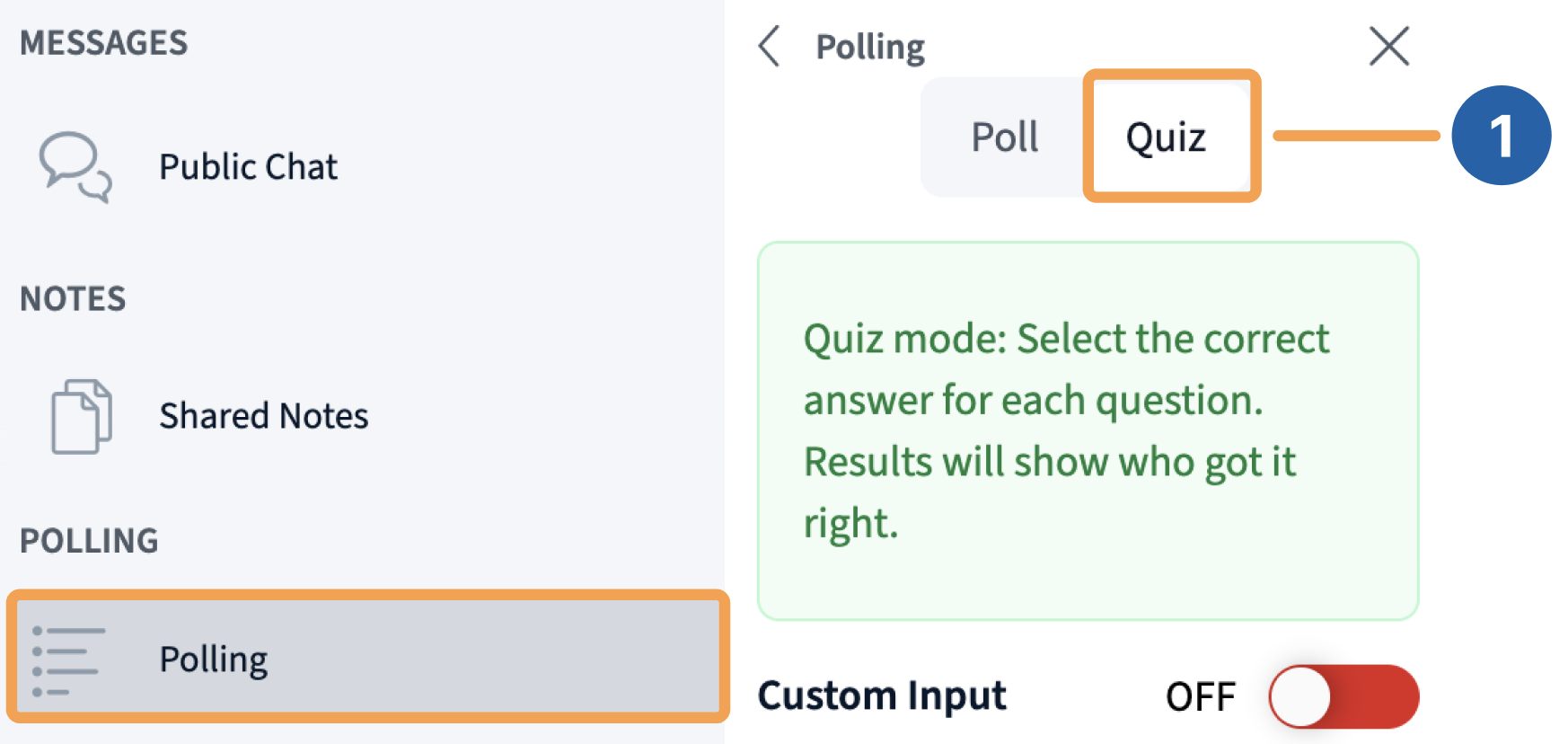
A quiz is a poll with a correct answer marked. To start one, select **Quiz** **\[1]** in the polling panel — the response types update to show multiple-choice options.
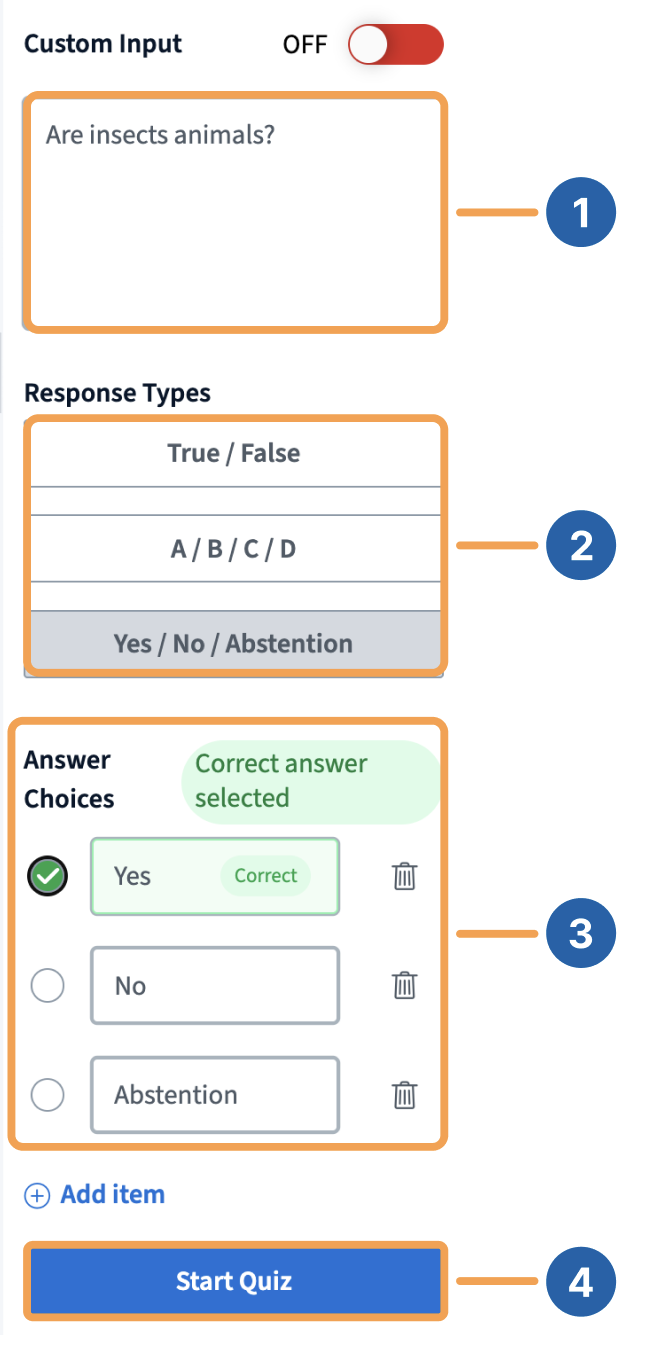
To launch the quiz, enter a question such as **"Are insects animals?"** **\[1]**, choose **Yes / No / Abstention** **\[2]**, mark **True** **\[3]** as the correct answer, then select **Start quiz** **\[4]**.
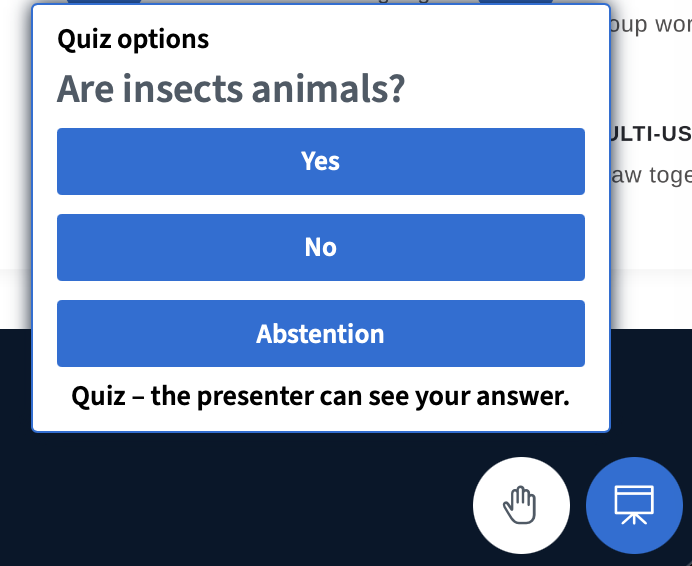
Users see a prompt to respond to the quiz.
The presenter sees live results. Because the quiz has a correct answer, BigBlueButton indicates whether each student selected it.
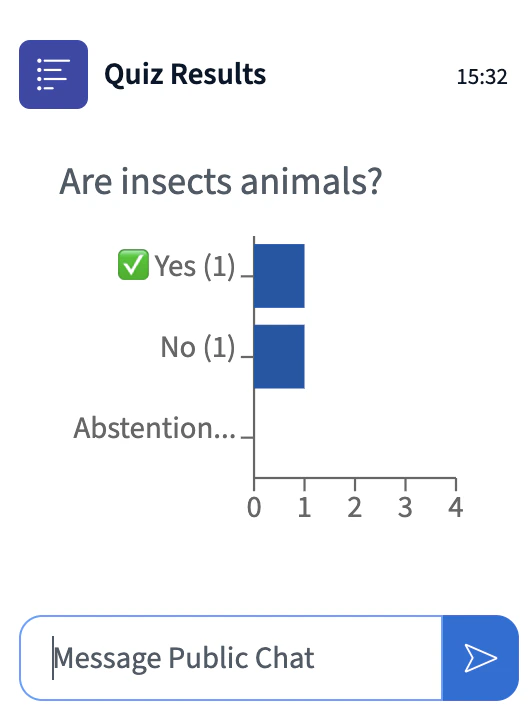
Published quiz results show the correct answer alongside each response, unless you clear **Display correct answers to all participants** before publishing.
### Quiz with Smart Slides
You can also run a quiz directly from a Smart Slide. The video below walks through the workflow.
 When a user has the presenter role, a **presenter icon** appears over their avatar in the user list.
## Start a poll
When a user has the presenter role, a **presenter icon** appears over their avatar in the user list.
## Start a poll
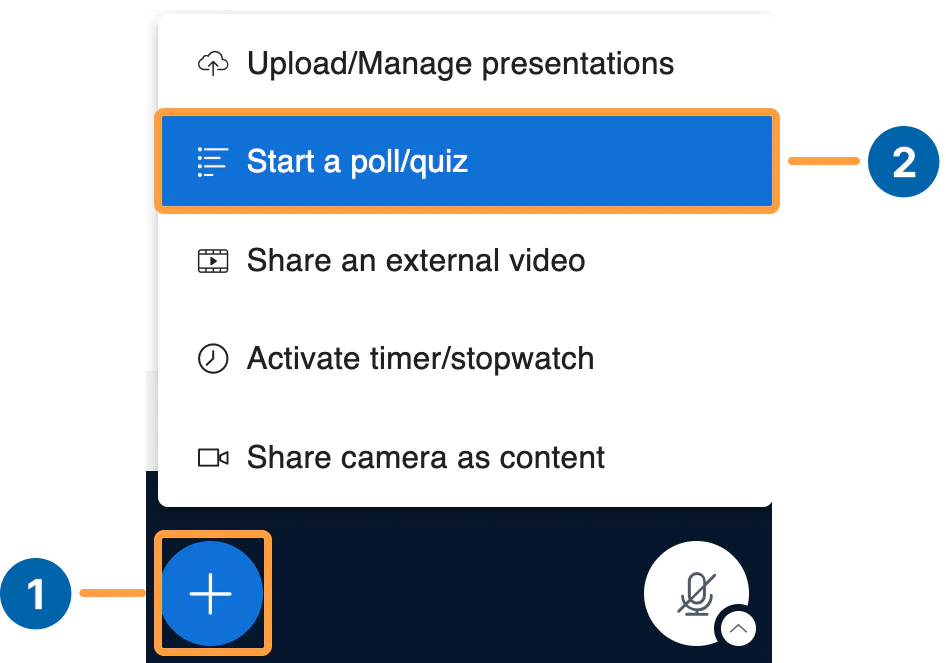 To open the polling panel, select the **Actions menu** **\[1]** in the lower-left corner of the presentation window, then **Start a poll/quiz** **\[2]**.
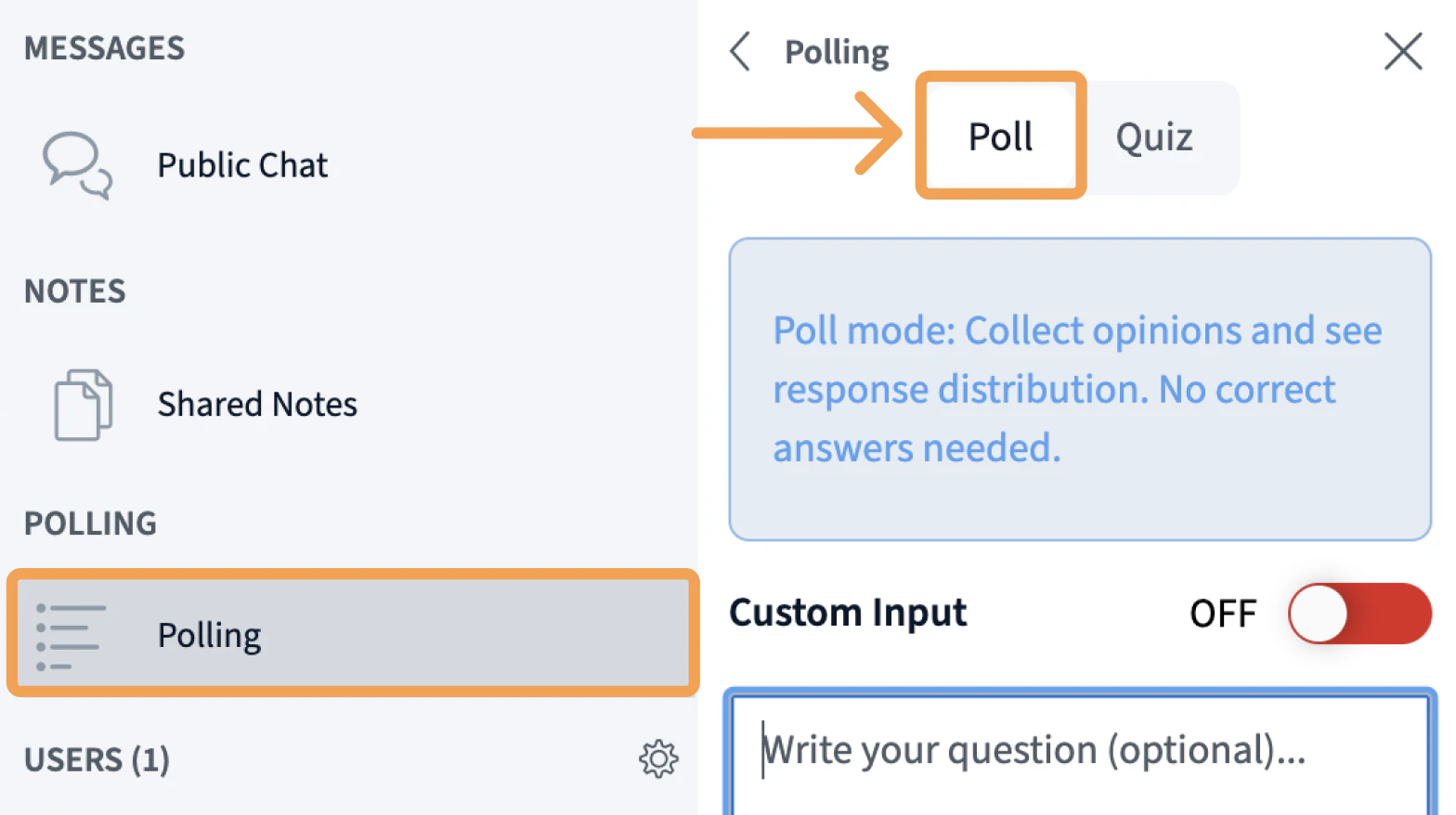 The **Poll** option is selected by default. Enter a question in the **Write your question** **\[1]** field, then pick one of the **Response Types** **\[2]** to set how users answer.
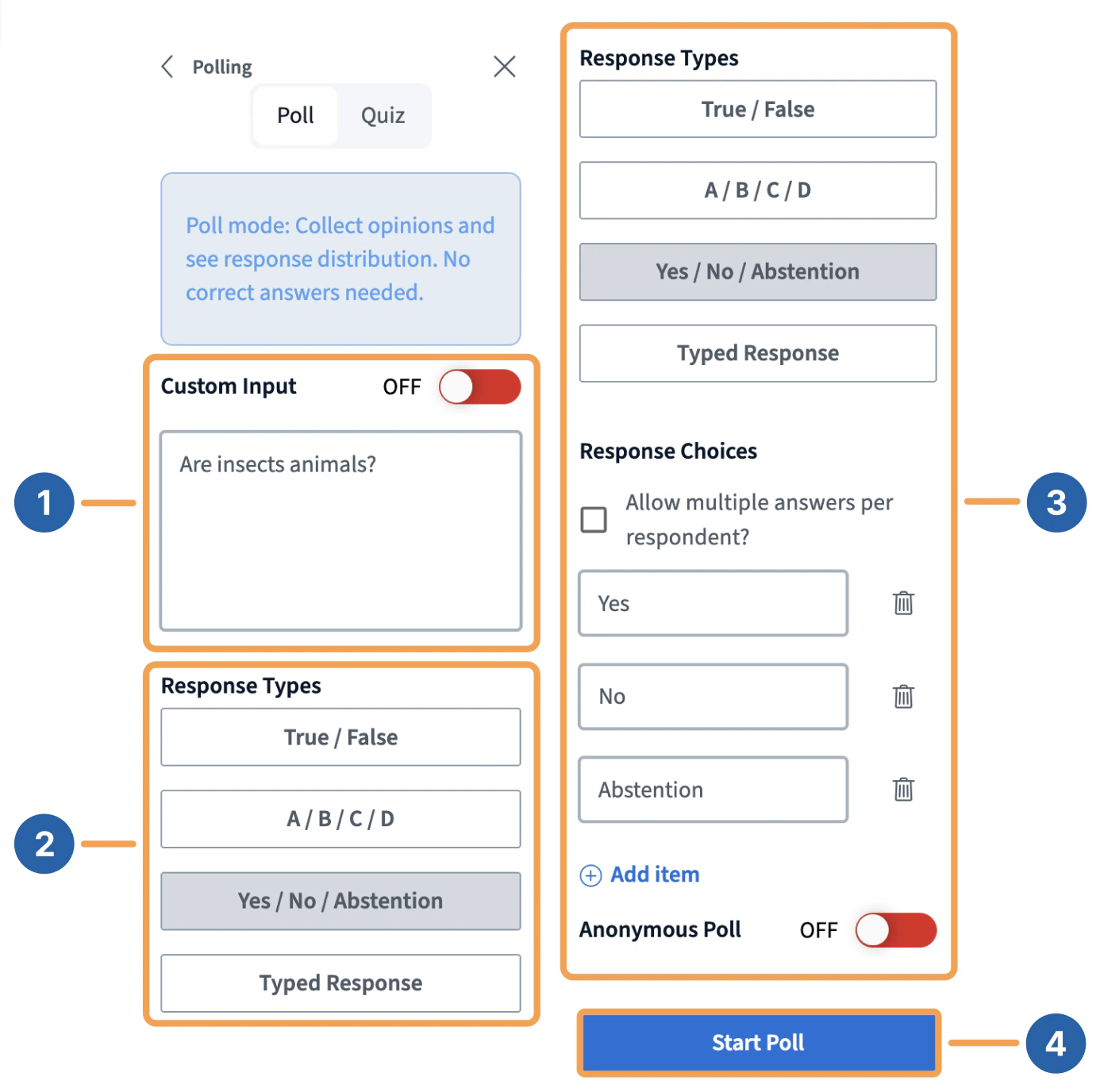 For example, type **"Are insects animals?"** **\[1]**, choose **Yes / No / Abstention** **\[2]**, then select **Start poll** **\[4]** to push the poll to all users.
After you start the poll, every user receives a prompt to respond.
For example, type **"Are insects animals?"** **\[1]**, choose **Yes / No / Abstention** **\[2]**, then select **Start poll** **\[4]** to push the poll to all users.
After you start the poll, every user receives a prompt to respond.
 As users respond — for example, by selecting **Yes** — the presenter sees live results.
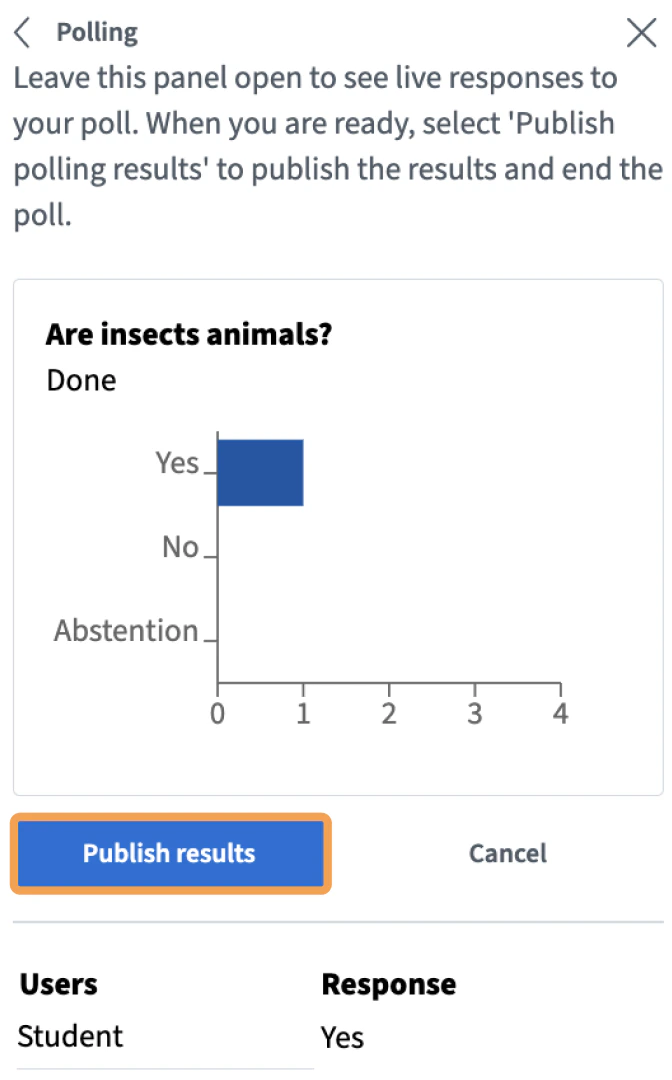 The poll panel shows each student's **Yes** response next to their name.
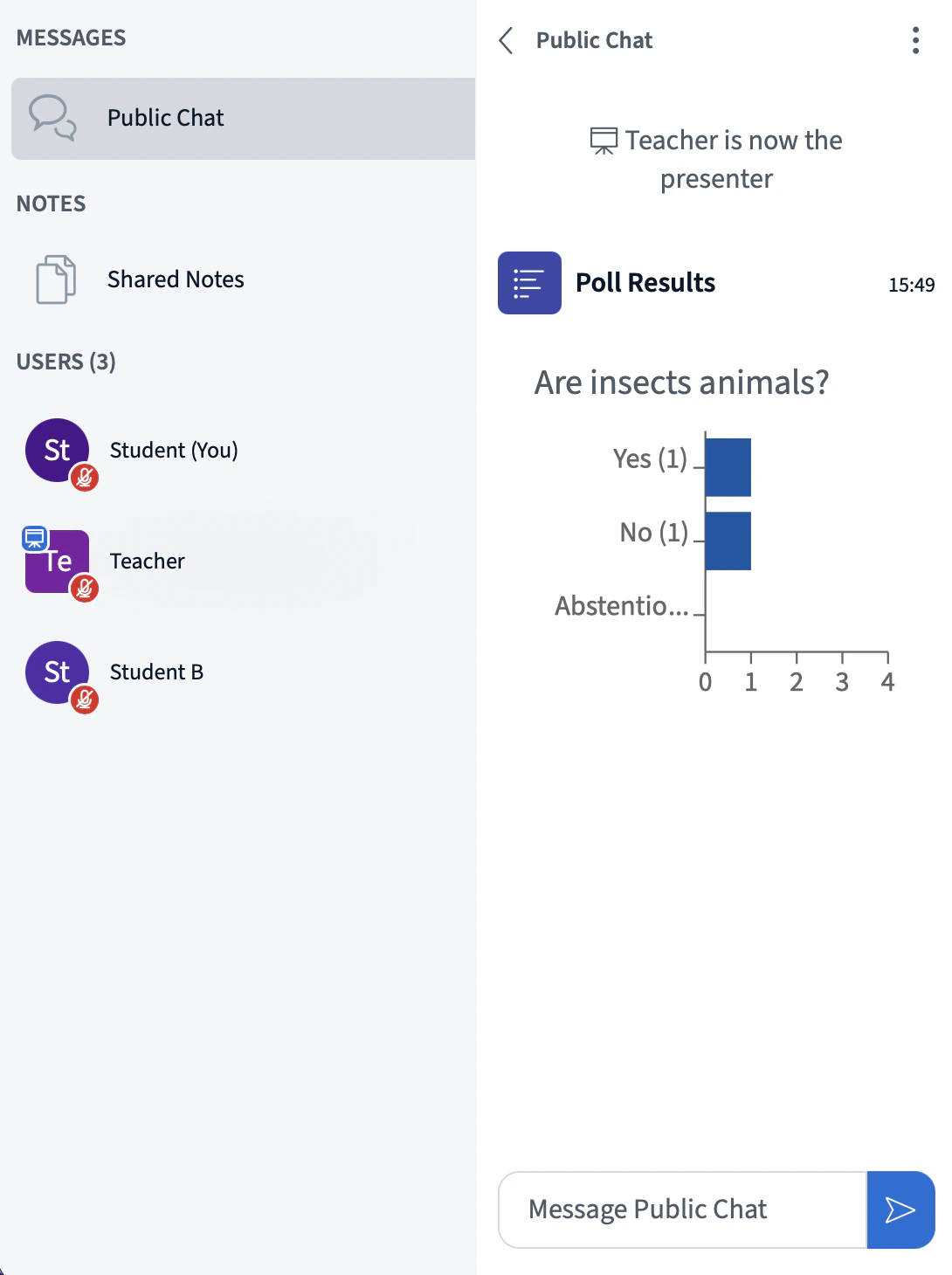
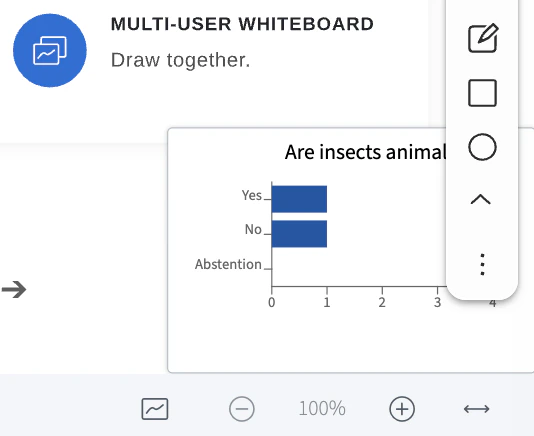 Once published to the slide, the results behave like any other whiteboard object — you can move, resize, duplicate, or delete them.
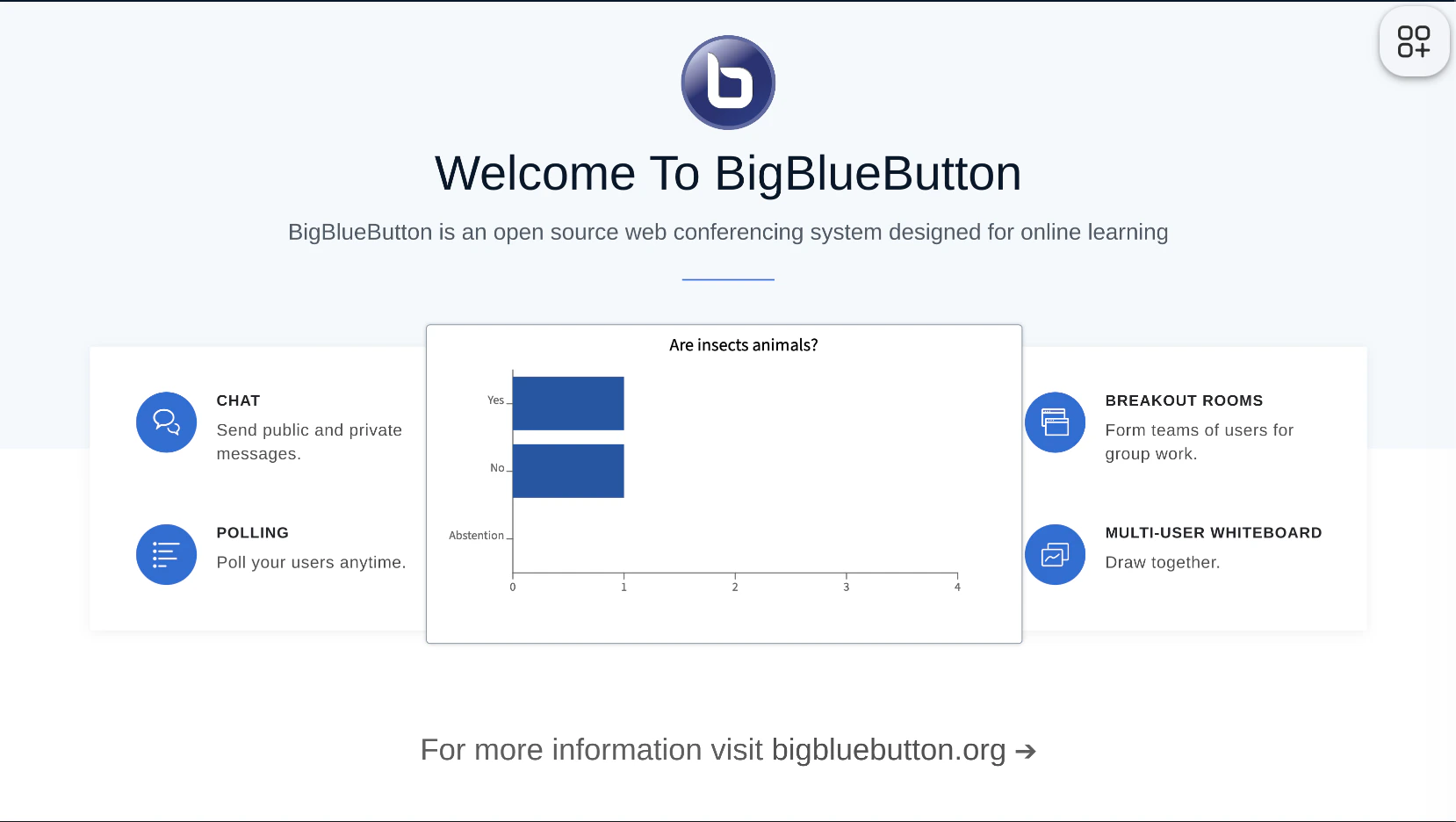 Published results also appear in the recording, in both the chat and the slide.
## Run a quiz
A quiz is a poll with a correct answer marked. To start one, select **Quiz** **\[1]** in the polling panel — the response types update to show multiple-choice options.
Published results also appear in the recording, in both the chat and the slide.
## Run a quiz
A quiz is a poll with a correct answer marked. To start one, select **Quiz** **\[1]** in the polling panel — the response types update to show multiple-choice options.
 To launch the quiz, enter a question such as **"Are insects animals?"** **\[1]**, choose **Yes / No / Abstention** **\[2]**, mark **True** **\[3]** as the correct answer, then select **Start quiz** **\[4]**.
 Users see a prompt to respond to the quiz.
 The presenter sees live results. Because the quiz has a correct answer, BigBlueButton indicates whether each student selected it.
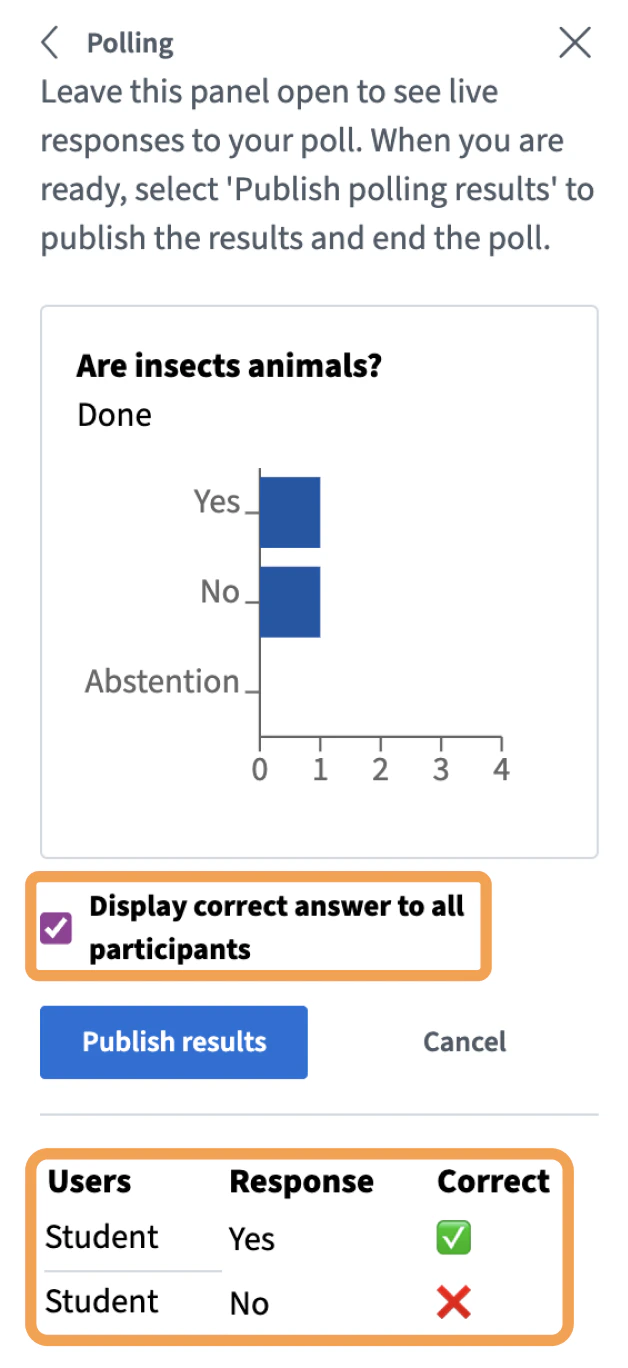 Published quiz results show the correct answer alongside each response, unless you clear **Display correct answers to all participants** before publishing.
 ### Quiz with Smart Slides
You can also run a quiz directly from a Smart Slide. The video below walks through the workflow.
### Quiz with Smart Slides
You can also run a quiz directly from a Smart Slide. The video below walks through the workflow.