> ## Documentation Index
> Fetch the complete documentation index at: https://bigbluebutton.com/docs/llms.txt
> Use this file to discover all available pages before exploring further.
# Use the presentation controls
> Presenters can navigate slides, zoom and fit content, and enable the multi-user whiteboard for everyone in the session.
Presenters can [navigate slides](#navigate-slides), zoom and fit content, and enable the multi-user whiteboard for everyone. For annotation tools, see [Use the multi-user whiteboard](/docs/help/releases/how-do-i-use-the-multi-user-whiteboard).
## Confirm your presenter role
By default, the first moderator to enter the session receives the presenter role. If you are a viewer, request the presenter role from a moderator before continuing.
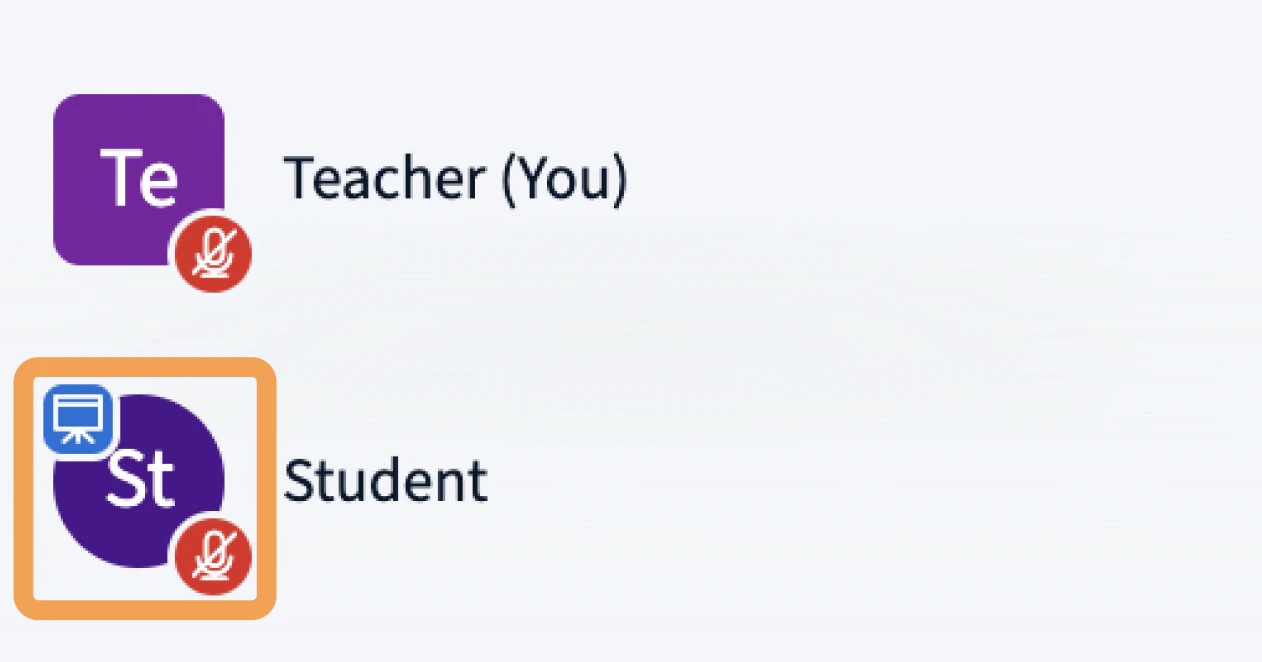 When a user has the presenter role, the **presenter icon** appears over their avatar in the user list.
## Navigate slides
Once content is uploaded into the presentation area, you can control how it displays and which slide is shown.
When a user has the presenter role, the **presenter icon** appears over their avatar in the user list.
## Navigate slides
Once content is uploaded into the presentation area, you can control how it displays and which slide is shown.
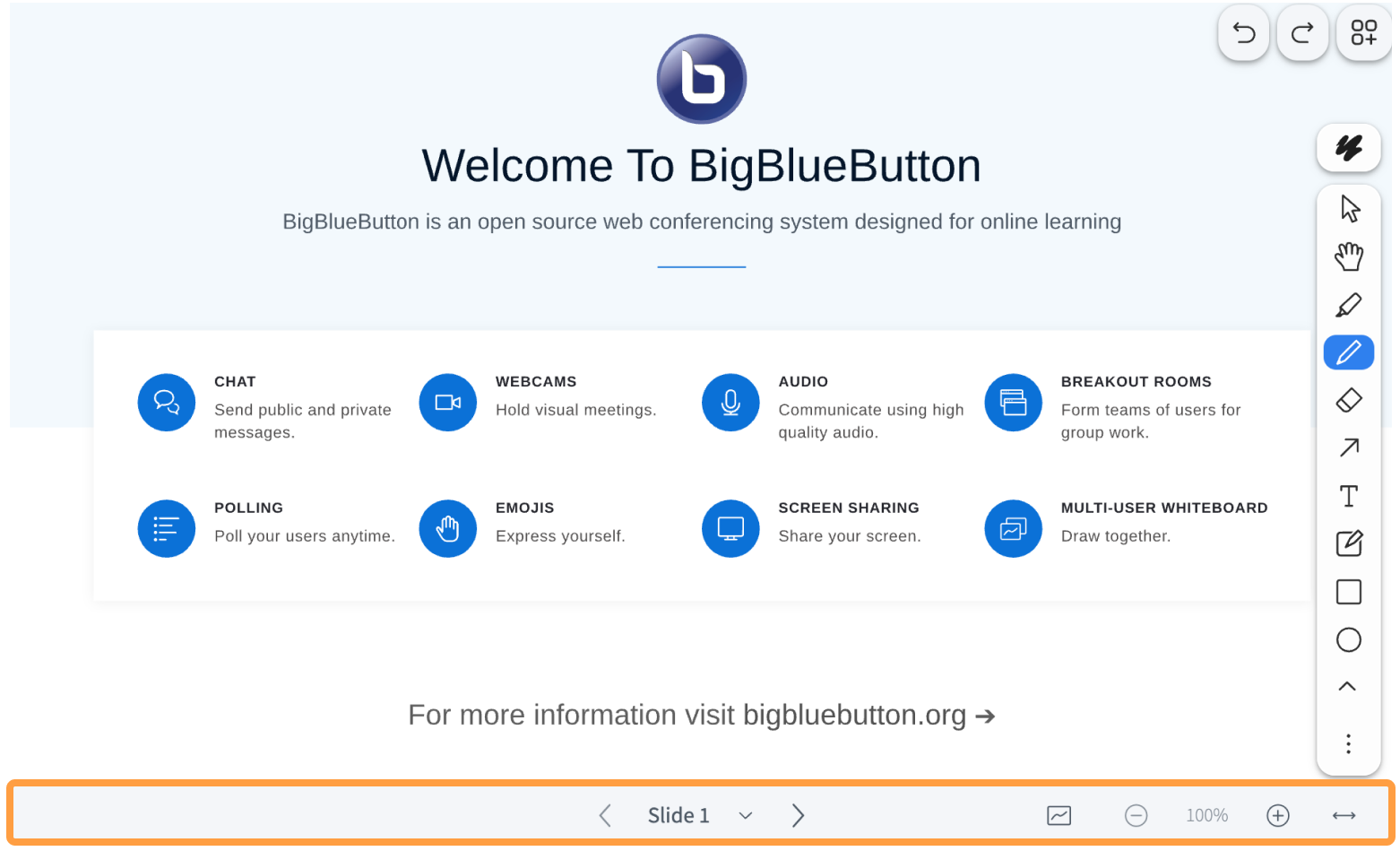 The presenter's slide control panel sits below the presentation display, above the media controls.
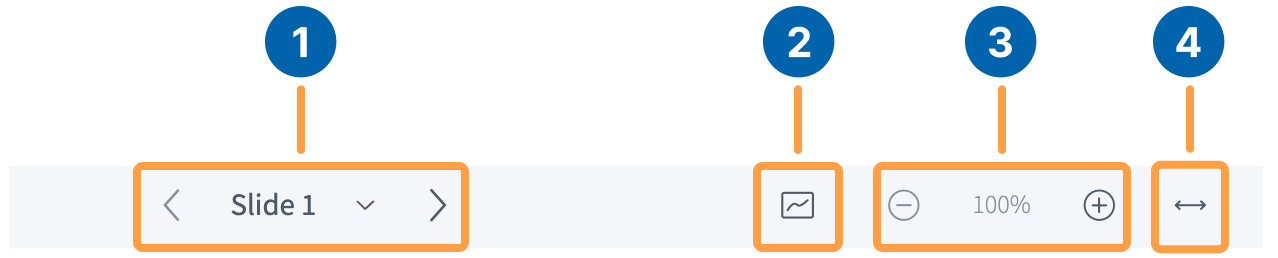 To move through your slides, use the **Slide Navigator** **\[1]**:
* Select the **forward** arrow (`>`) to advance.
* Select the **backward** arrow (`<`) to go back.
* Select a slide number from the **dropdown** to jump to a specific slide.
## Enable the multi-user whiteboard
To let every user annotate the slide, select the **multi-user whiteboard** button **\[2]**.
To move through your slides, use the **Slide Navigator** **\[1]**:
* Select the **forward** arrow (`>`) to advance.
* Select the **backward** arrow (`<`) to go back.
* Select a slide number from the **dropdown** to jump to a specific slide.
## Enable the multi-user whiteboard
To let every user annotate the slide, select the **multi-user whiteboard** button **\[2]**.
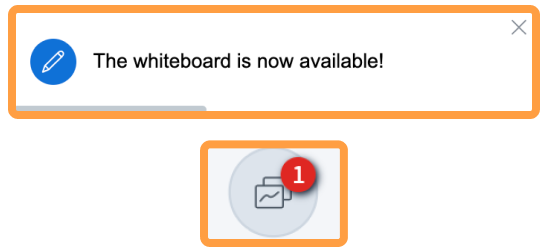 A prompt appears in the upper-right corner confirming that multi-user mode is on, and the multi-user whiteboard icon highlights in the toolbar.
## Zoom and fit content
The presenter control panel also includes zoom and fit options:
* **Zoom in (+) or Zoom out (-)** **\[3]** — change the zoom level of the slide.
* **Fit-to-Width** **\[4]** — fit the slide to the width of the presentation area.
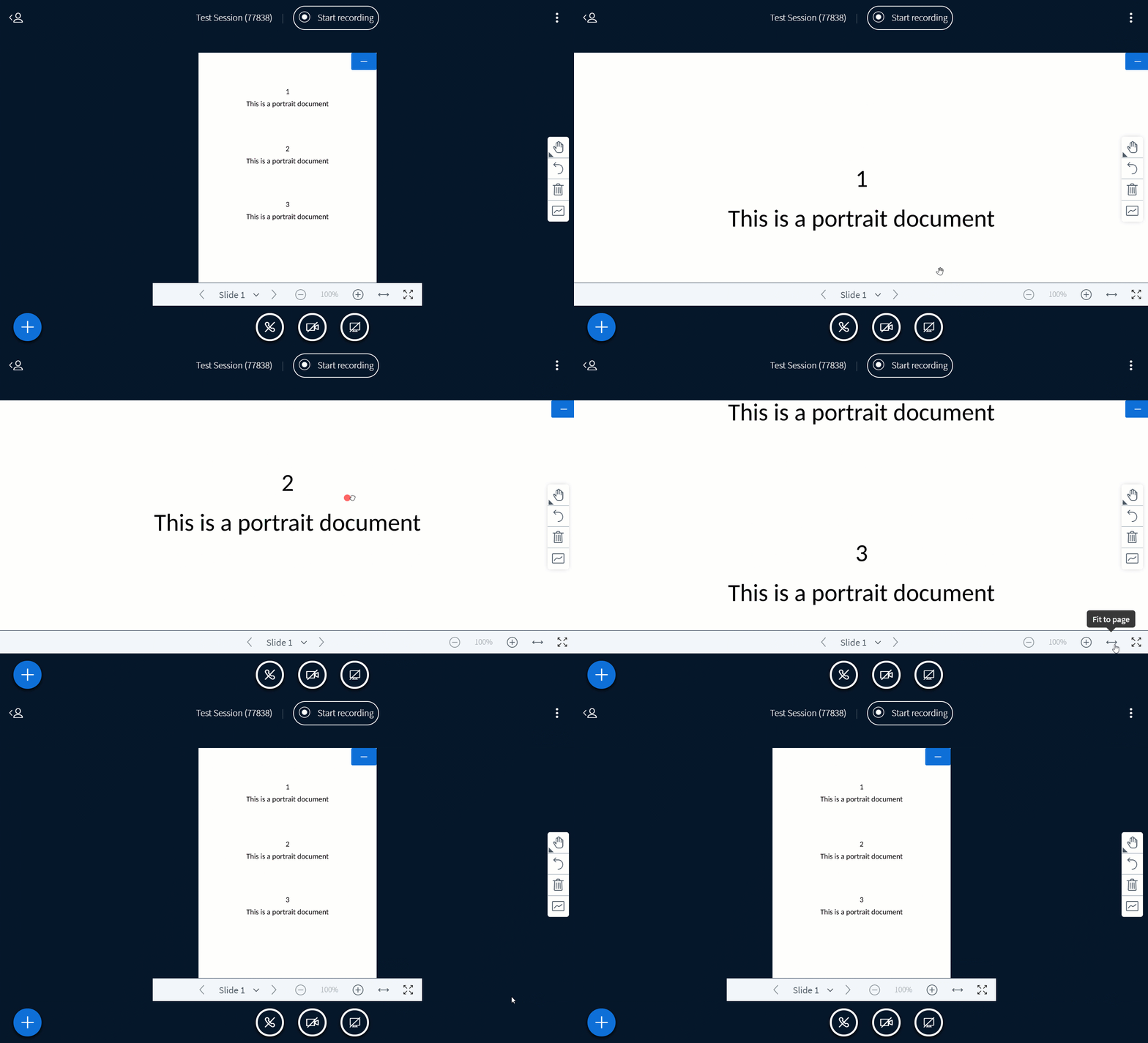
For portrait documents, use **Fit-to-Width** to enlarge the text. You can then drag with the hand tool to scroll up and down the document.
A prompt appears in the upper-right corner confirming that multi-user mode is on, and the multi-user whiteboard icon highlights in the toolbar.
## Zoom and fit content
The presenter control panel also includes zoom and fit options:
* **Zoom in (+) or Zoom out (-)** **\[3]** — change the zoom level of the slide.
* **Fit-to-Width** **\[4]** — fit the slide to the width of the presentation area.
For portrait documents, use **Fit-to-Width** to enlarge the text. You can then drag with the hand tool to scroll up and down the document.