> ## Documentation Index
> Fetch the complete documentation index at: https://bigbluebutton.com/docs/llms.txt
> Use this file to discover all available pages before exploring further.
# How to disable IPv6
> Disable IPv6 on Windows, macOS, or your Spectrum router to stop your home connection from dropping BigBlueButton sessions.
If your connection to BigBlueButton repeatedly reconnects from home, your router may be inadvertently closing the connection. This is common on Spectrum networks in the US.
To resolve this, disable IPv6 on your computer or router using the steps below.
## Disable IPv6 on Windows 10
Right-click the **Network  / Wi-Fi
  ** icon in the bottom-right corner of your screen. A pop-up menu appears.
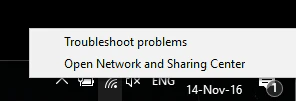 Select **Open Network and Sharing Center**. The Settings dialog appears.
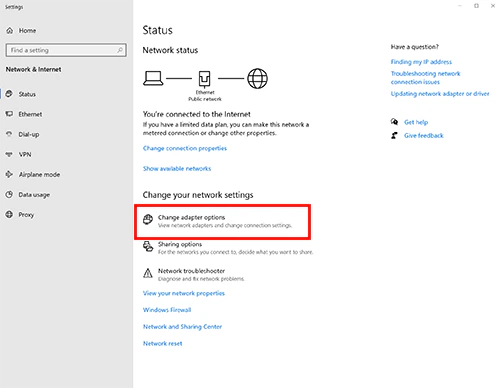 Select **Change adapter options**. A list of network adapters appears. Locate the active adapter — either **Ethernet** or **Wi-Fi**.
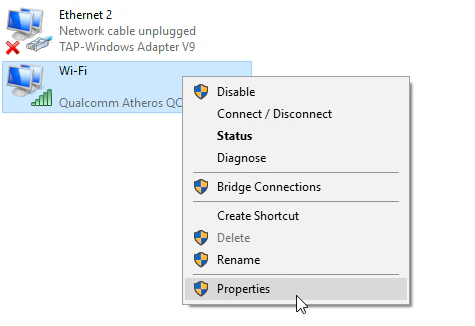
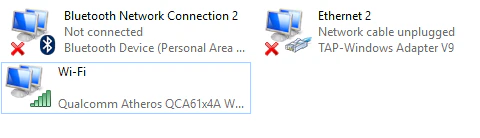 Right-click the active network adapter and select **Properties**.
 In the **Properties** window, scroll to **Internet Protocol Version 6 (TCP/IPv6)**.
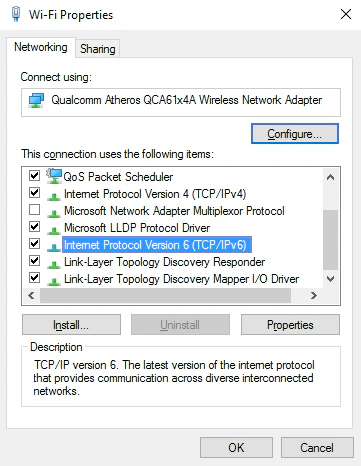 Uncheck the **Internet Protocol Version 6 (TCP/IPv6)** checkbox, select **OK** to save the changes, and restart your computer.
## Disable IPv6 on macOS
Open **System Preferences** and select the **Network** icon.
Select the network you are using — usually labeled **Wi-Fi**.
Uncheck the **Internet Protocol Version 6 (TCP/IPv6)** checkbox, select **OK** to save the changes, and restart your computer.
## Disable IPv6 on macOS
Open **System Preferences** and select the **Network** icon.
Select the network you are using — usually labeled **Wi-Fi**.
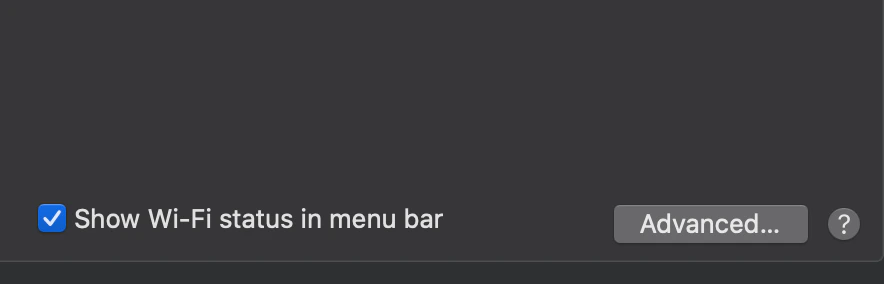
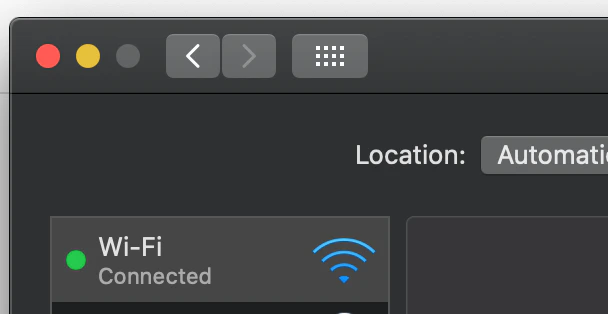 Select **Advanced…**.
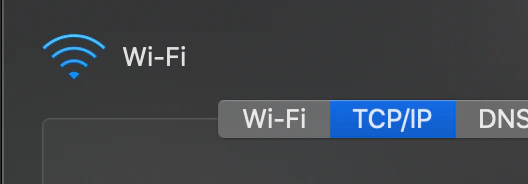
 Select the **TCP/IP** tab.
 Open the **Configure IPv6** drop-down menu and set it to **Link-local only**.
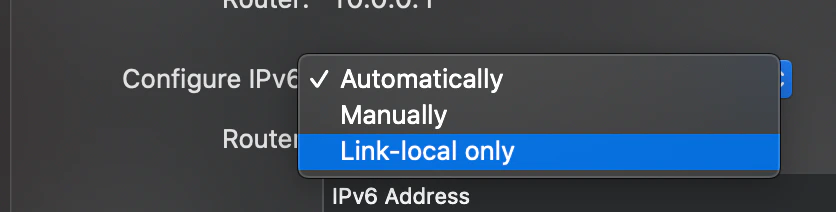 Select **OK**, then restart your Mac.
## Disable IPv6 on your Spectrum router
If you have the **rac2v1k** Spectrum router, you can disable IPv6 from the router's web-based interface.
To sign in, find the URL and password on the back of the router — typically [http://192.168.1.1](http://192.168.1.1/) with `admin`/`admin`.
Once signed in, select **Advanced** at the top, select **IPv6** on the left, and under **IPv6 LAN settings** choose **Disable**.
Select **OK**, then restart your Mac.
## Disable IPv6 on your Spectrum router
If you have the **rac2v1k** Spectrum router, you can disable IPv6 from the router's web-based interface.
To sign in, find the URL and password on the back of the router — typically [http://192.168.1.1](http://192.168.1.1/) with `admin`/`admin`.
Once signed in, select **Advanced** at the top, select **IPv6** on the left, and under **IPv6 LAN settings** choose **Disable**.
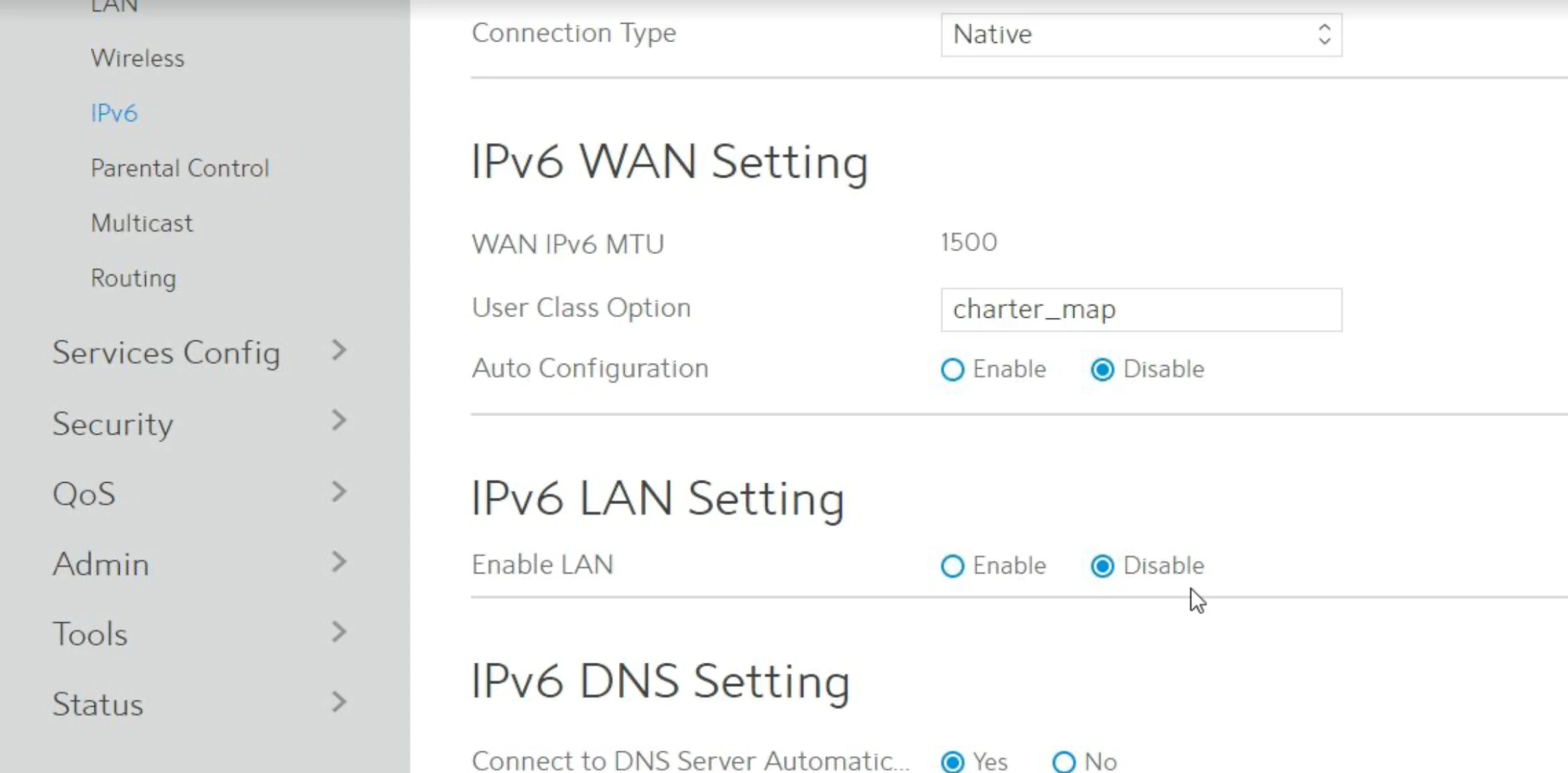 Select **Apply**. After a few moments, the router confirms the update is complete. Try joining the BigBlueButton session again.