> ## Documentation Index
> Fetch the complete documentation index at: https://bigbluebutton.com/docs/llms.txt
> Use this file to discover all available pages before exploring further.
# PDF that contains scanned content does not display correctly
> Most portable document format (PDF) files uploaded to BigBlueButton will be converted and displayed exactly as the original. However, some PDF files...
Most portable document format (PDF) files uploaded to BigBlueButton will be converted and displayed exactly as the original.
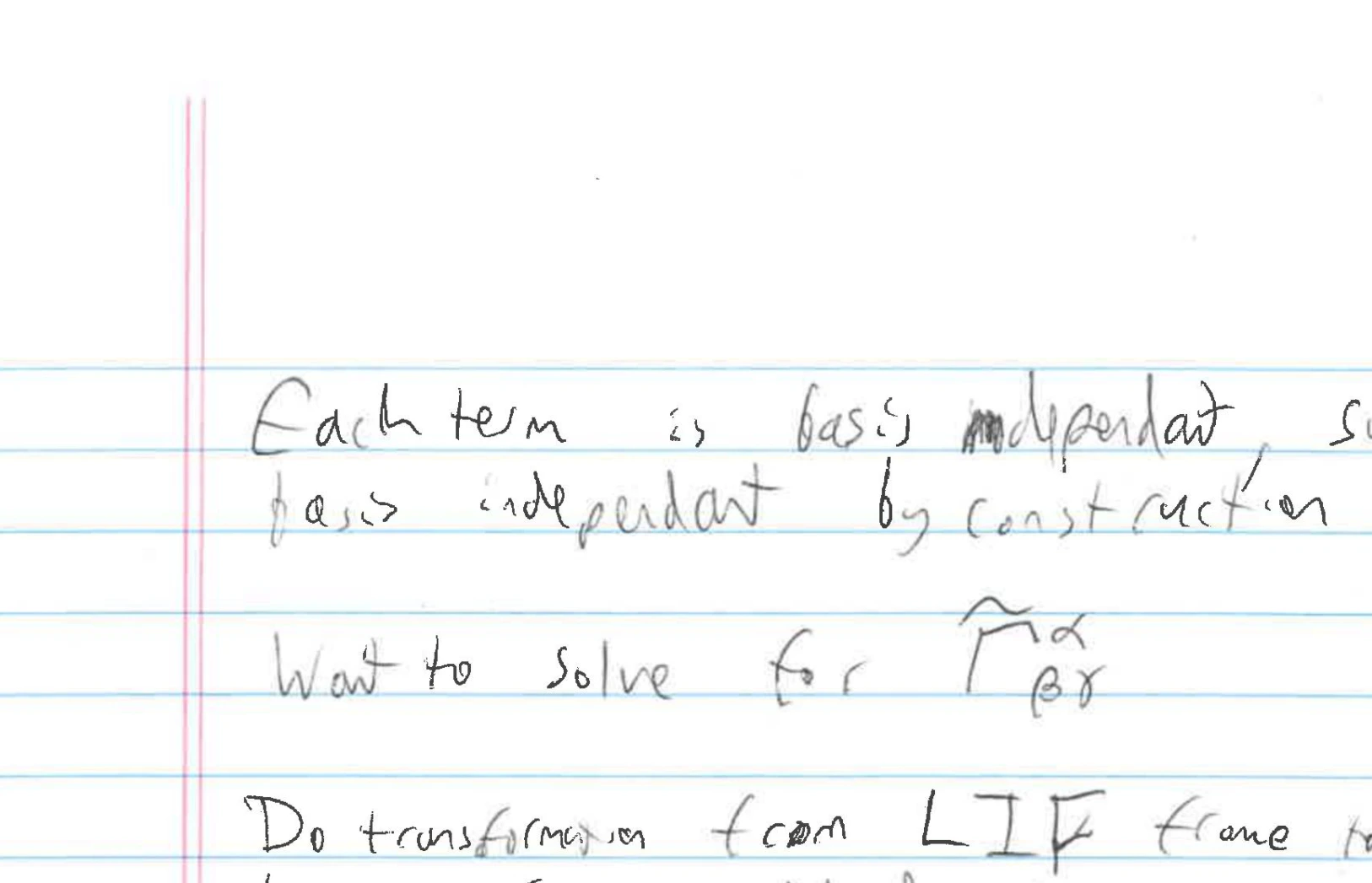
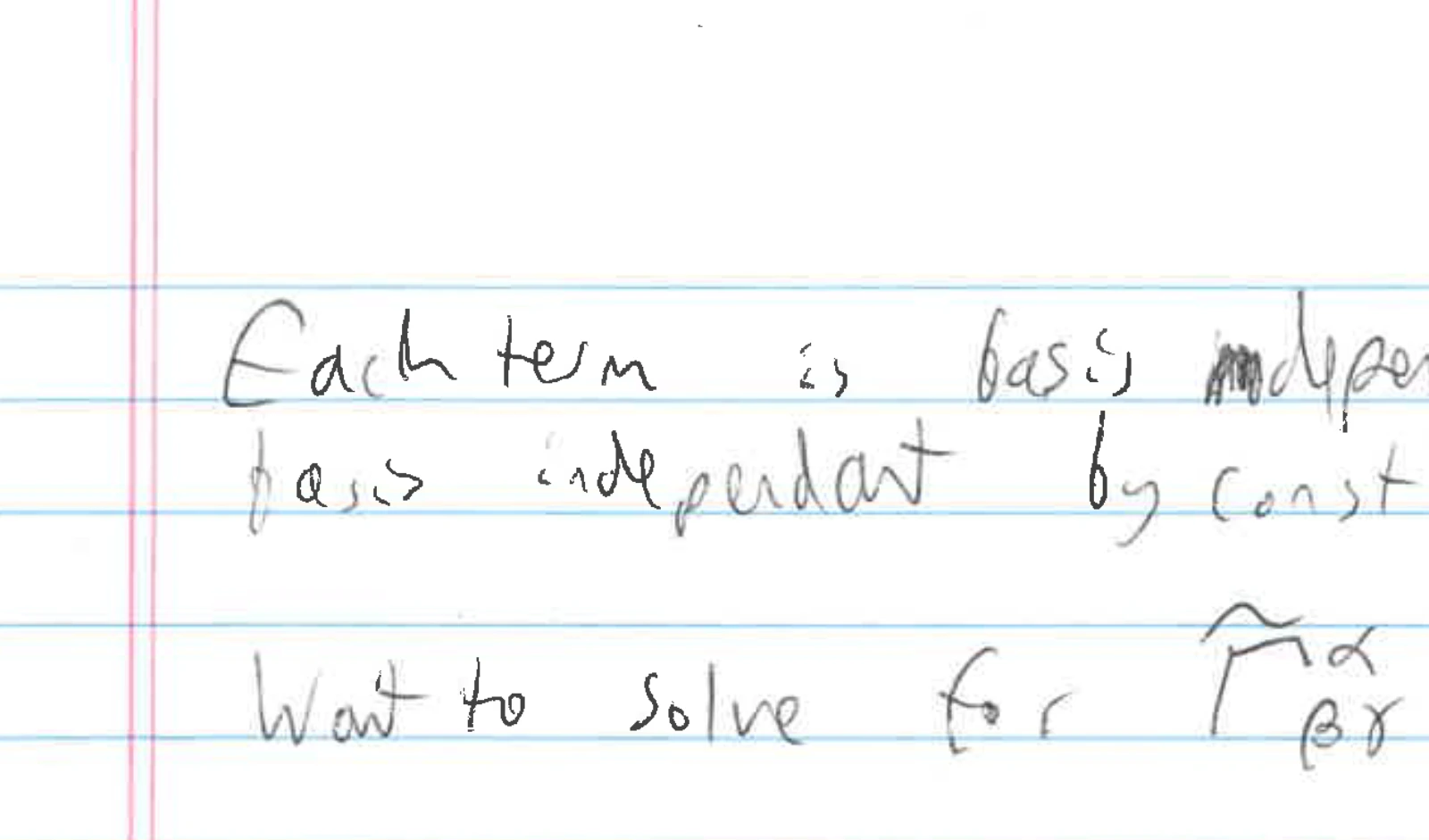
However, some PDF files that comprise layers of scanned content don't convert correctly. For example, consider the following PDF from a scanned notebook
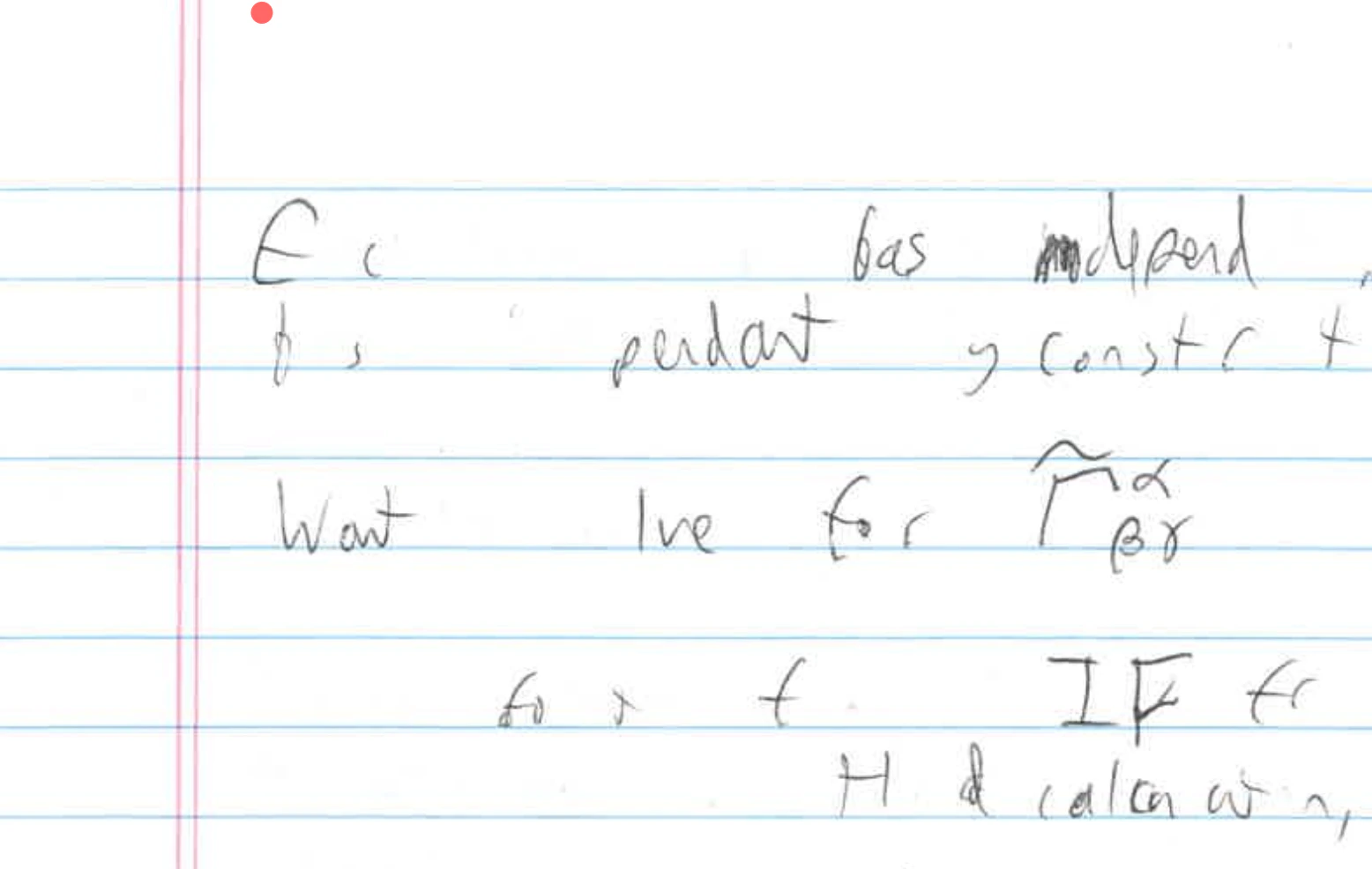
 After uploading to BigBlueButton, some of the layers will not display
 The solution is to use [smallpdf.com/blog/flatten-pdf](https://smallpdf.com/blog/flatten-pdf) to flatten the PDF to JPG images and combine the JPEG images back into a single PDF.
Here's how the flatten PDF from the scanned notebook displays in BigBlueButton.
The solution is to use [smallpdf.com/blog/flatten-pdf](https://smallpdf.com/blog/flatten-pdf) to flatten the PDF to JPG images and combine the JPEG images back into a single PDF.
Here's how the flatten PDF from the scanned notebook displays in BigBlueButton.