> ## Documentation Index
> Fetch the complete documentation index at: https://bigbluebutton.com/docs/llms.txt
> Use this file to discover all available pages before exploring further.
# Troubleshooting Microphone
> Verify and fix microphone input on Windows 10 and macOS for BigBlueButton sessions.
Any user who cannot hear themselves in the echo test can follow these steps to verify their microphone works in the operating system before rejoining a BigBlueButton session. These steps are for the Chrome browser.
To confirm the issue, visit the test server at [https://my.bigbluebutton.com/](https://my.bigbluebutton.com/), join the audio with a microphone, and run the checks below.
## Refresh the client
To reload the client, select the refresh button in your browser. You do not need to log in again — the client reloads automatically and rejoins your session.
## Verify your microphone on Windows 10
To open the sound settings, right-click the audio icon in the task bar and select **Open Sound Settings**.
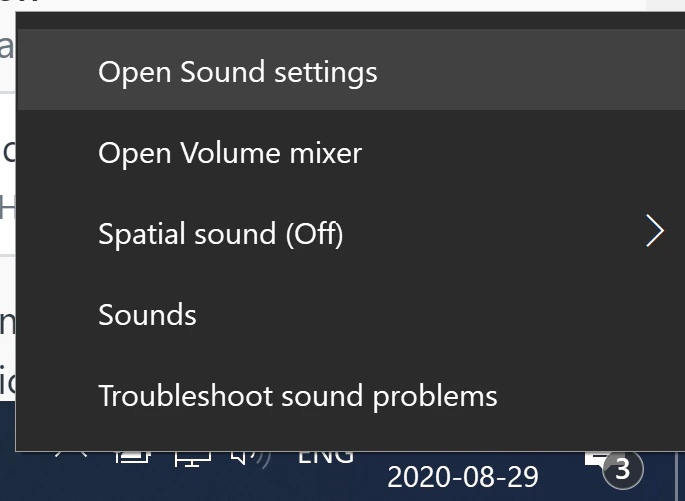 Windows opens a Settings window showing your current input audio devices.
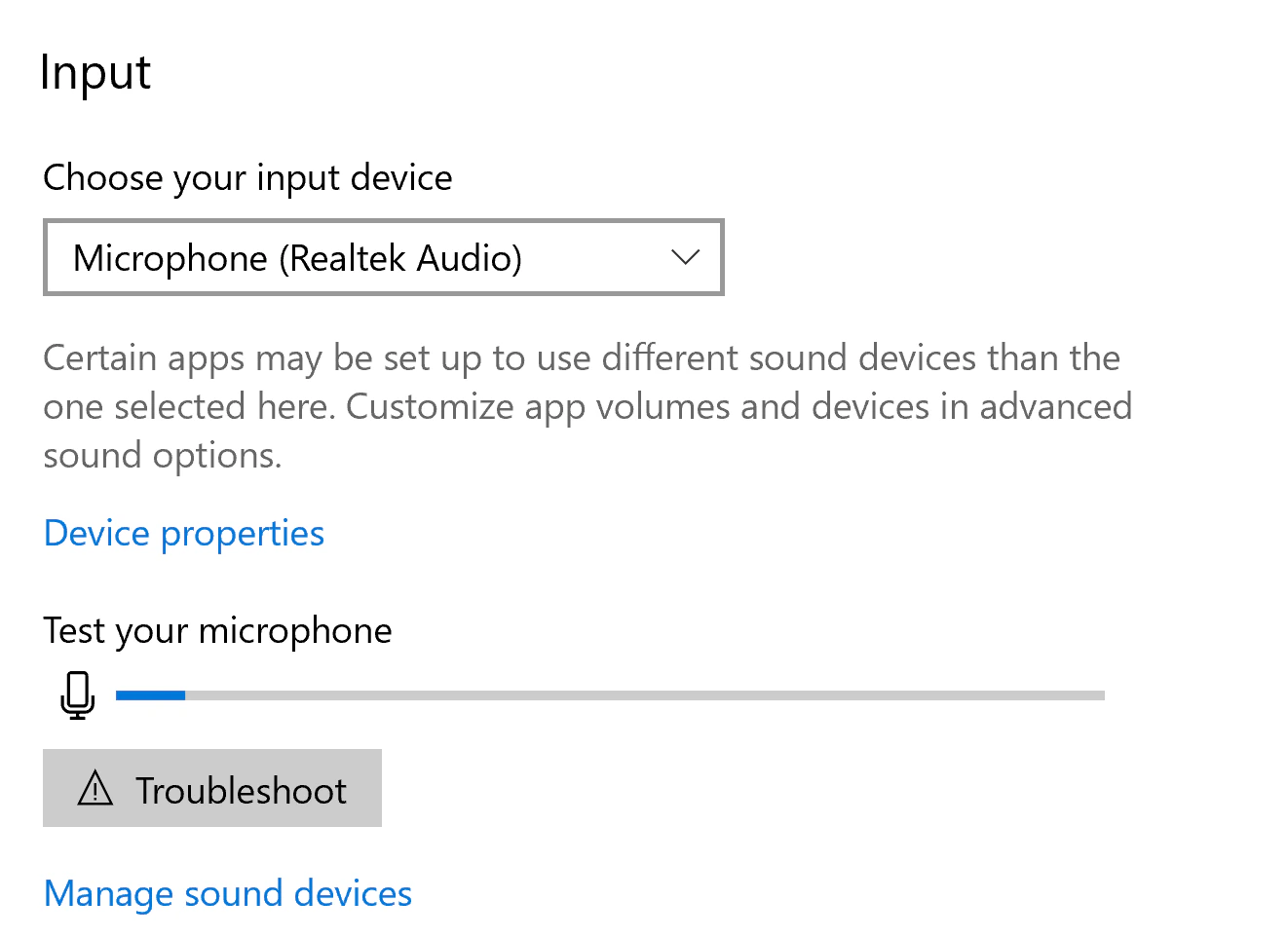 Talk into your microphone. The energy bar under **Test your microphone** highlights as you speak.
If there is no energy, select a different microphone under **Choose your input device**.
Once you see energy in the microphone, close the Settings window, then leave and rejoin (or refresh) your BigBlueButton session. When prompted to join the audio, select **Microphone** and listen for yourself in the echo test.
## Verify your microphone on macOS
To open the sound settings, open **System Preferences**, type `sound`, and select **Sound input**.
Talk into your microphone. The energy bar under **Test your microphone** highlights as you speak.
If there is no energy, select a different microphone under **Choose your input device**.
Once you see energy in the microphone, close the Settings window, then leave and rejoin (or refresh) your BigBlueButton session. When prompted to join the audio, select **Microphone** and listen for yourself in the echo test.
## Verify your microphone on macOS
To open the sound settings, open **System Preferences**, type `sound`, and select **Sound input**.
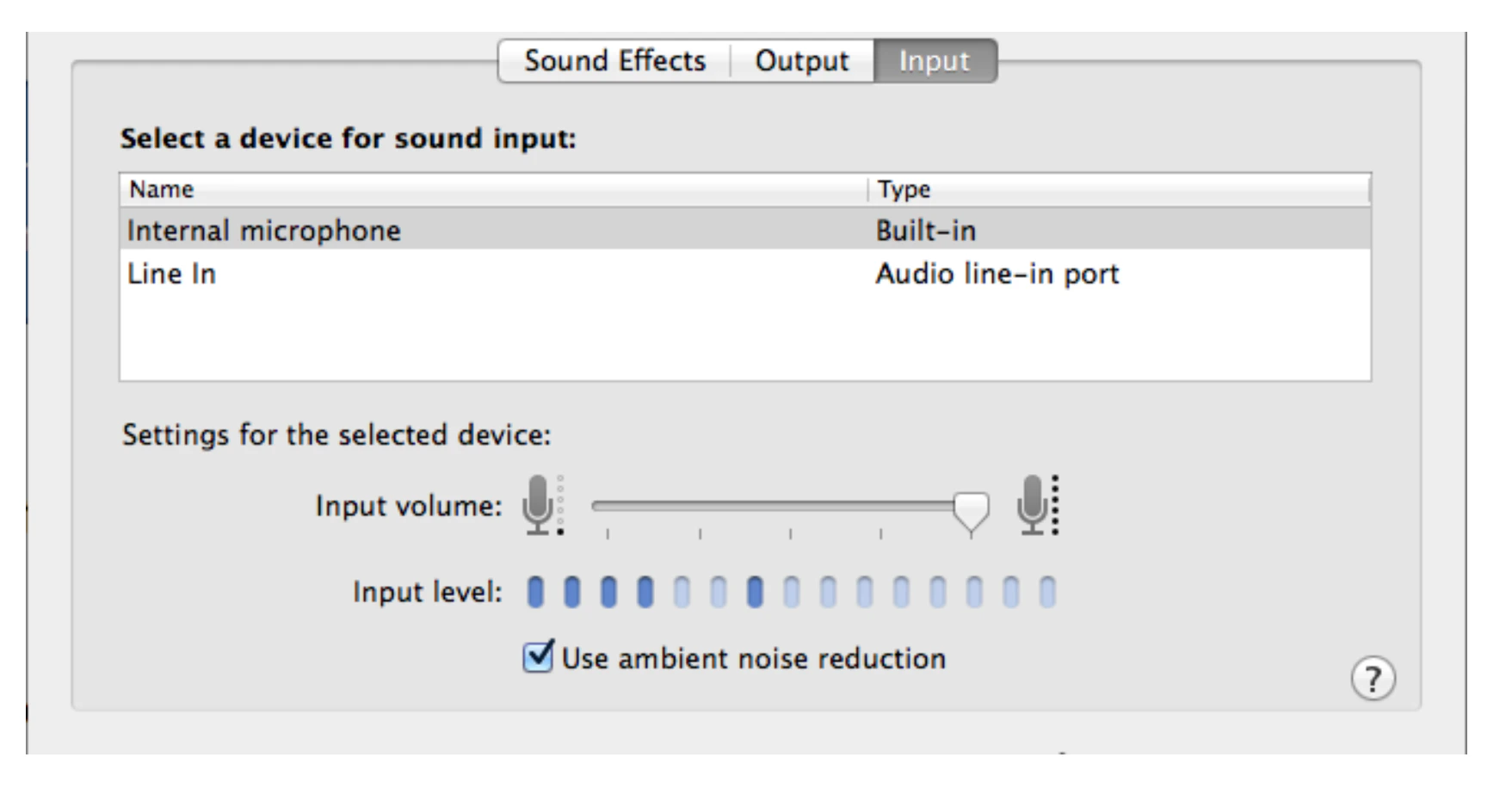
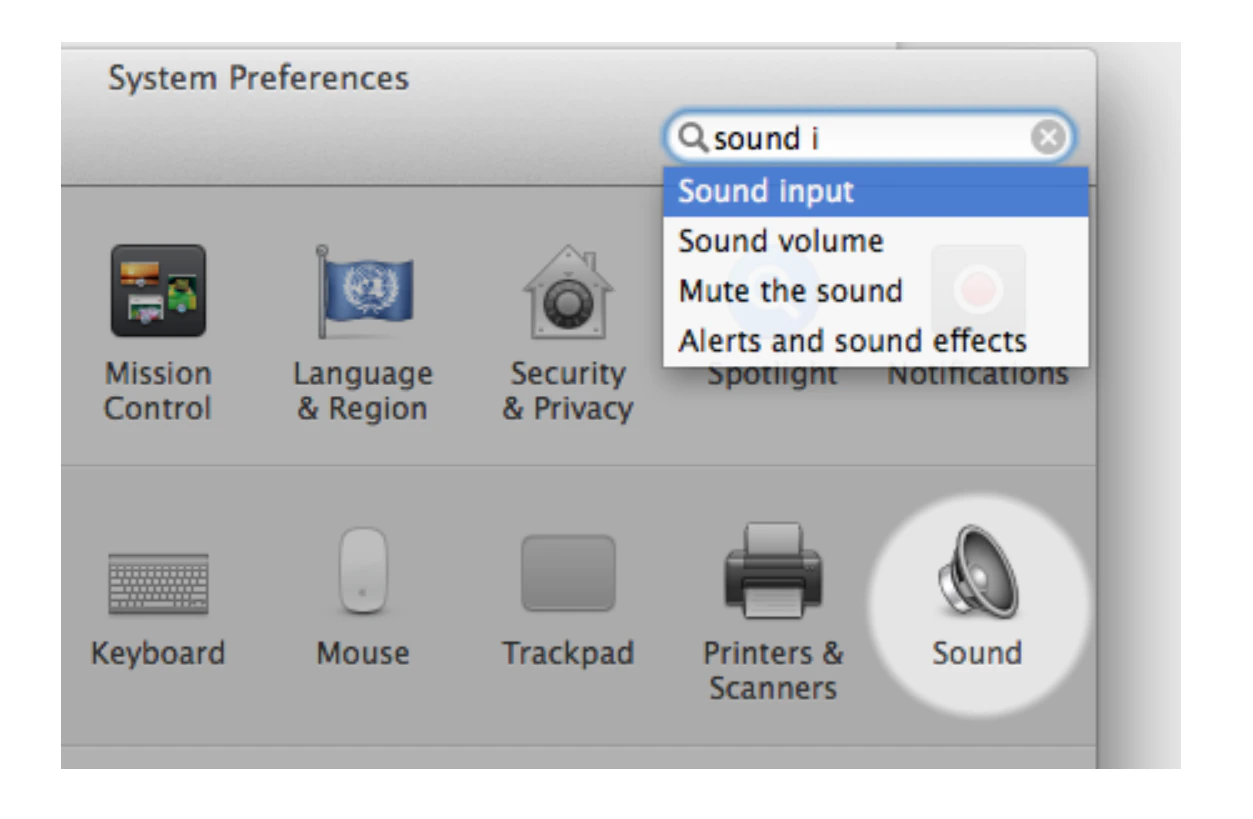 Tap your microphone. The blue bars on the **Input Level** move as sound is detected.
If the bars do not move, select a different microphone from the list.
Tap your microphone. The blue bars on the **Input Level** move as sound is detected.
If the bars do not move, select a different microphone from the list.
 Once you see energy in the microphone, close the Settings window, then leave and rejoin (or refresh) your BigBlueButton session. When prompted to join the audio, select **Microphone** and listen for yourself in the echo test.
If you still hear nothing, verify that [Chrome has permission to access the microphone](/docs/help/troubleshooting/mac-os-updates-bigbluebutton-media-permissions).
Once you see energy in the microphone, close the Settings window, then leave and rejoin (or refresh) your BigBlueButton session. When prompted to join the audio, select **Microphone** and listen for yourself in the echo test.
If you still hear nothing, verify that [Chrome has permission to access the microphone](/docs/help/troubleshooting/mac-os-updates-bigbluebutton-media-permissions).