> ## Documentation Index
> Fetch the complete documentation index at: https://bigbluebutton.com/docs/llms.txt
> Use this file to discover all available pages before exploring further.
# Join the audio
> Learn how to join audio in a BigBlueButton session with a microphone or in listen-only mode.
Anyone with a connected audio device can join audio in a BigBlueButton session. You can join with a [microphone](#join-with-a-mic) or [listen only](#join-listen-only).
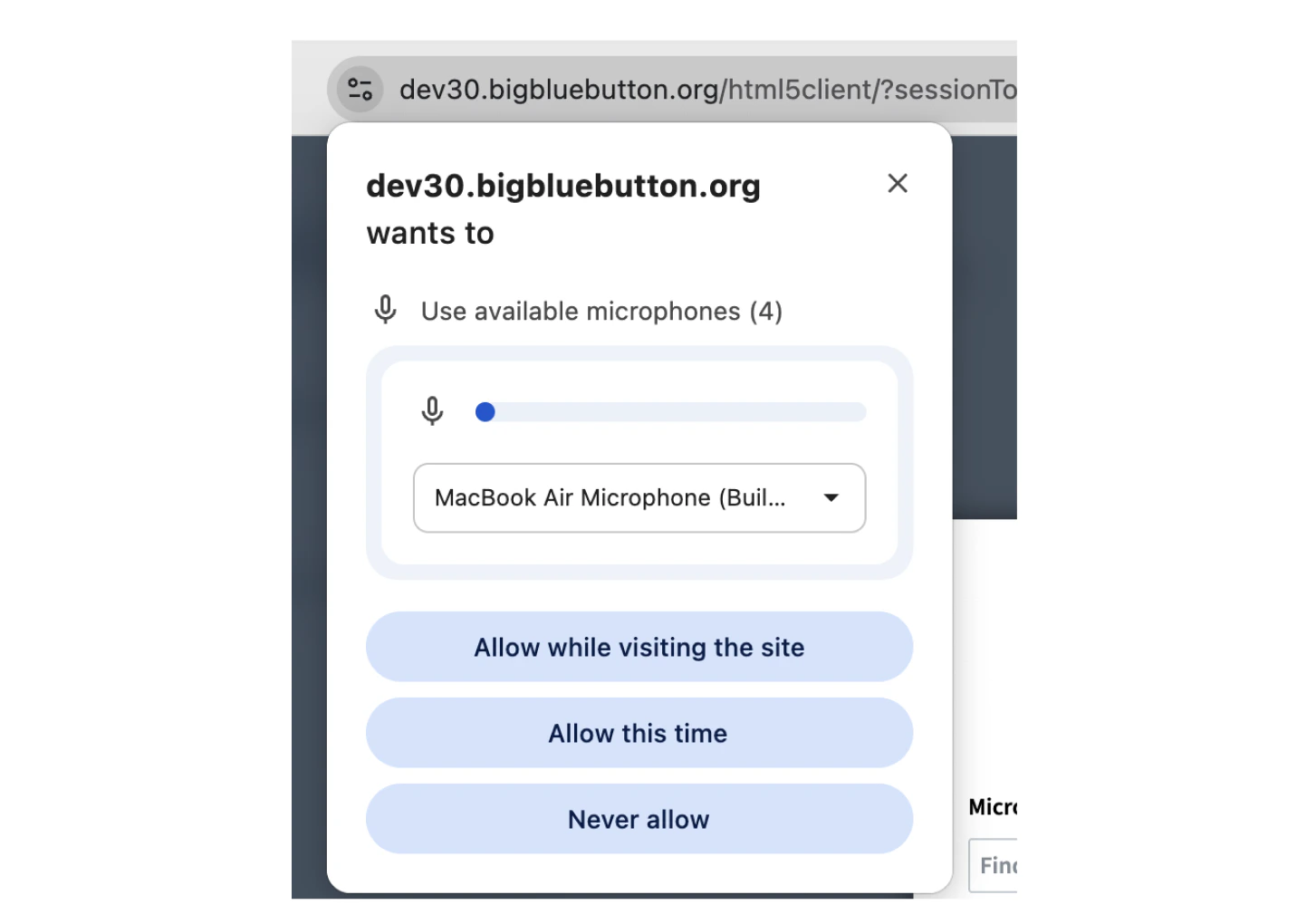
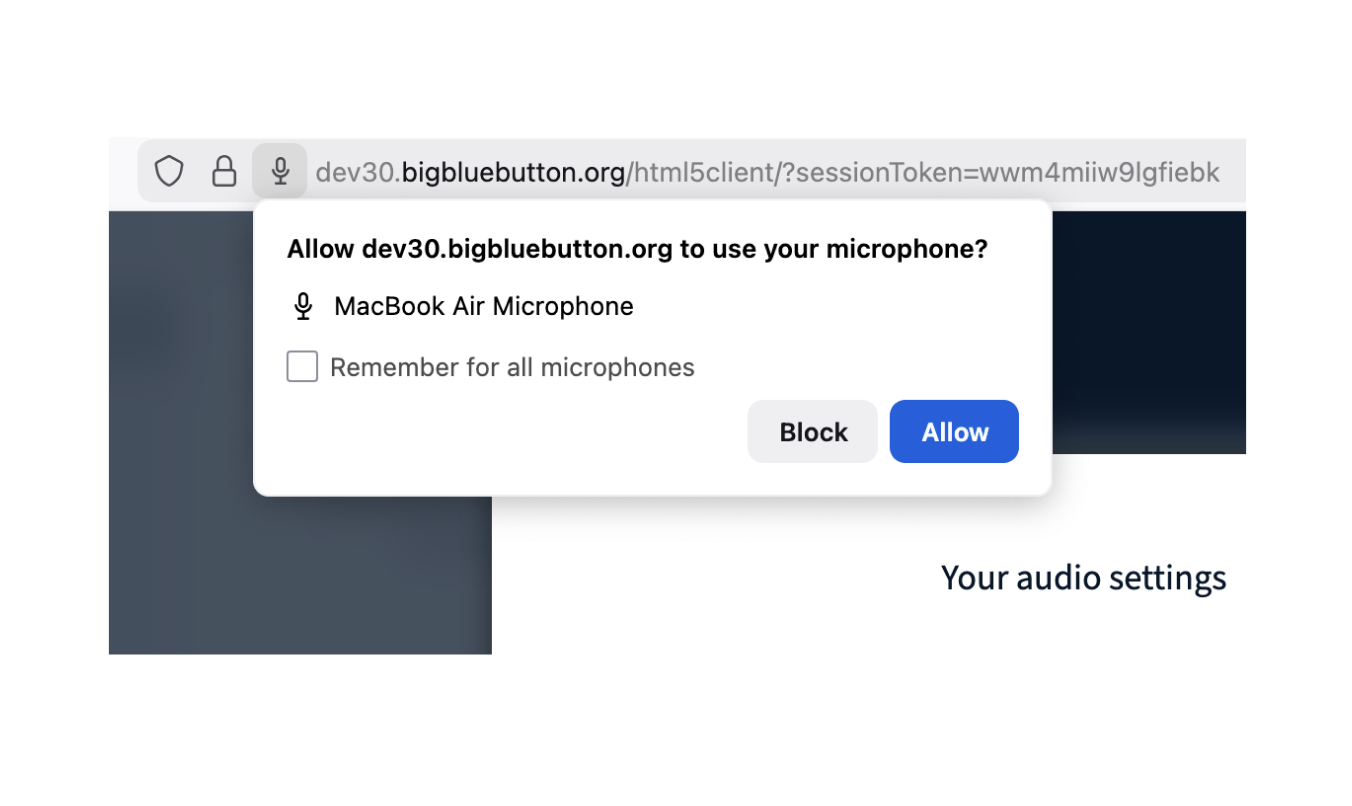
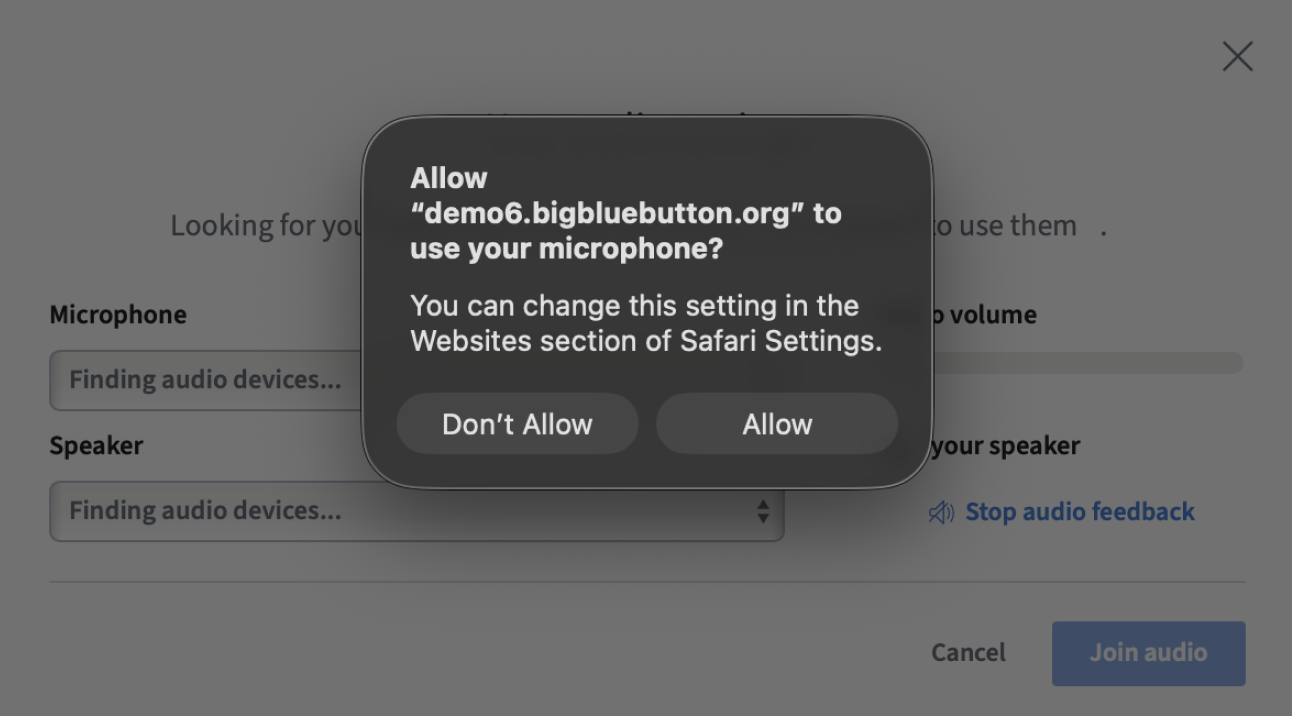
When you first join a session, your browser prompts you for permission to access your microphone. Select **Allow**.
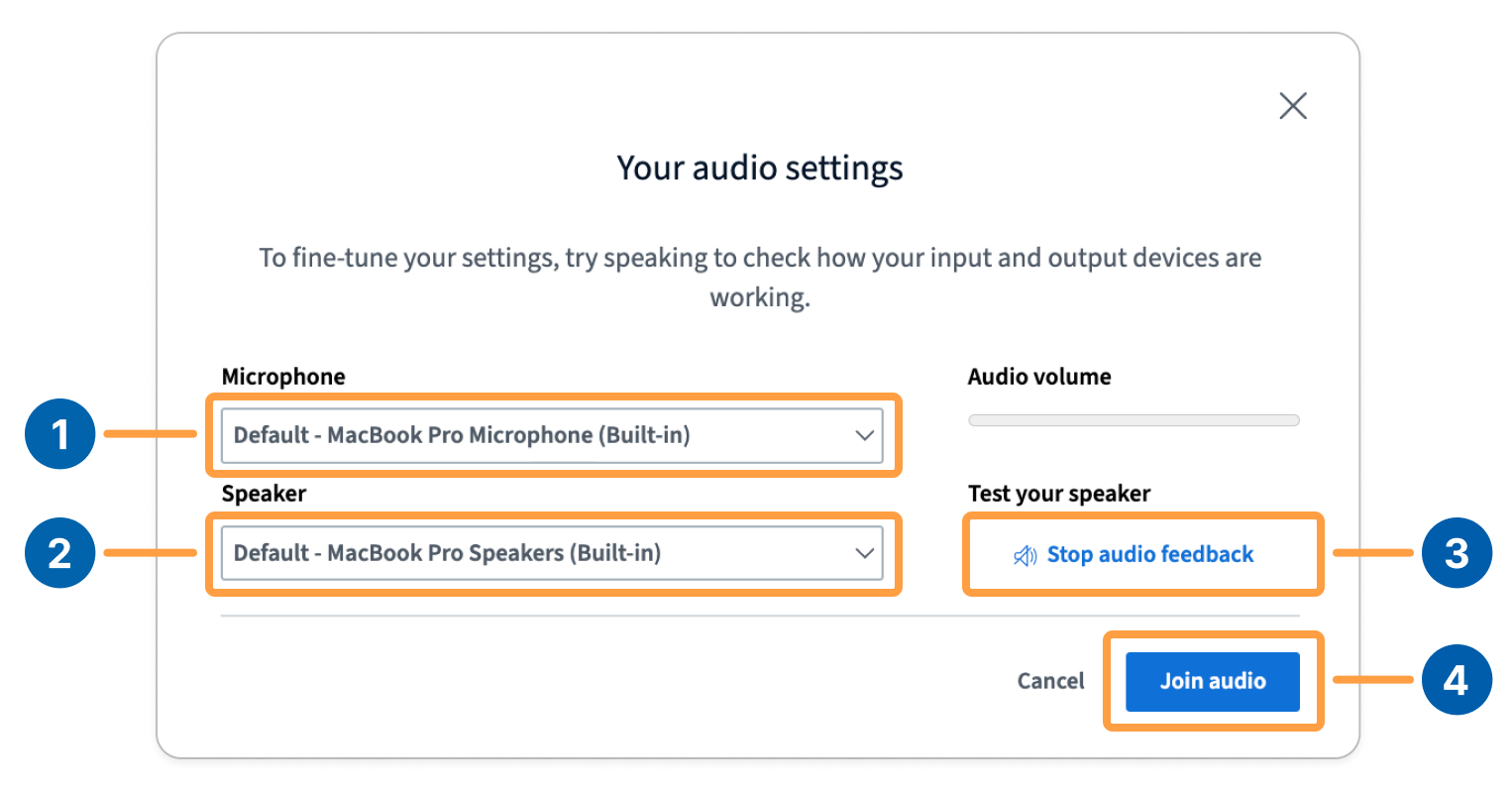
 Next, your **Audio Settings** appear. You can select your microphone input **\[1]**, speaker output **\[2]**, test your audio feedback **\[3]**, and join audio when you are done adjusting your settings **\[4]**.
 You have the option to join the audio with a [mic](#join-with-a-mic) or [listen only](#join-listen-only). You can choose from different microphone and speaker devices in the dropdown menus.
After you confirm your audio settings and select **Join Audio**, a confirmation prompt appears in the session.
You have the option to join the audio with a [mic](#join-with-a-mic) or [listen only](#join-listen-only). You can choose from different microphone and speaker devices in the dropdown menus.
After you confirm your audio settings and select **Join Audio**, a confirmation prompt appears in the session.
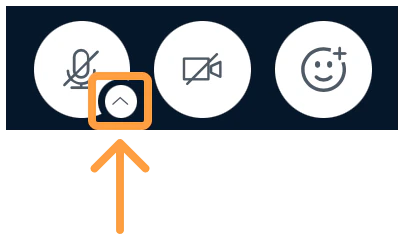
 You can always access your audio settings from the arrow icon next to your microphone icon.
 ## Join with a mic
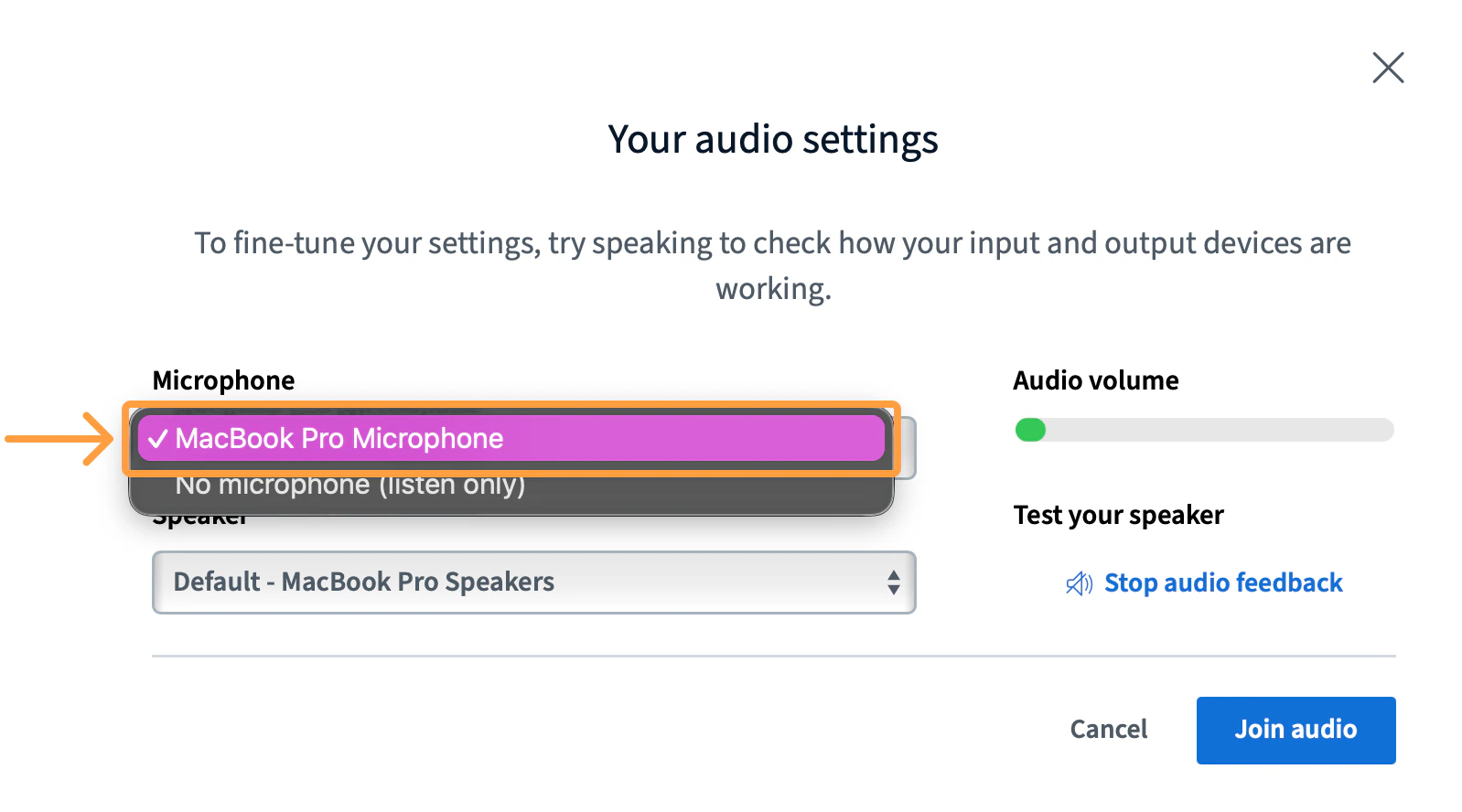
If you want others to hear you, select **Microphone**.
## Join with a mic
If you want others to hear you, select **Microphone**.
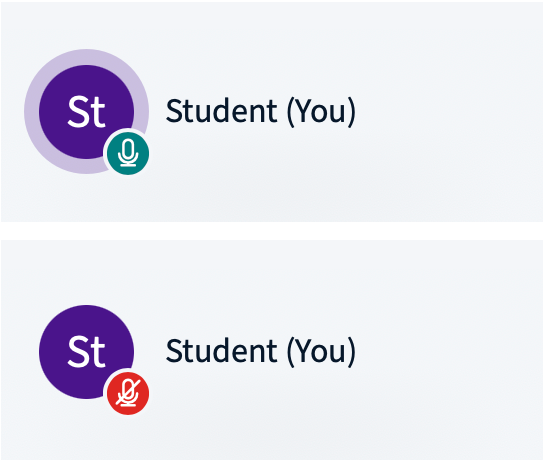
 After joining audio with a microphone, a microphone icon appears next to your name in the user list, showing either muted or unmuted status.
 ## Join listen only
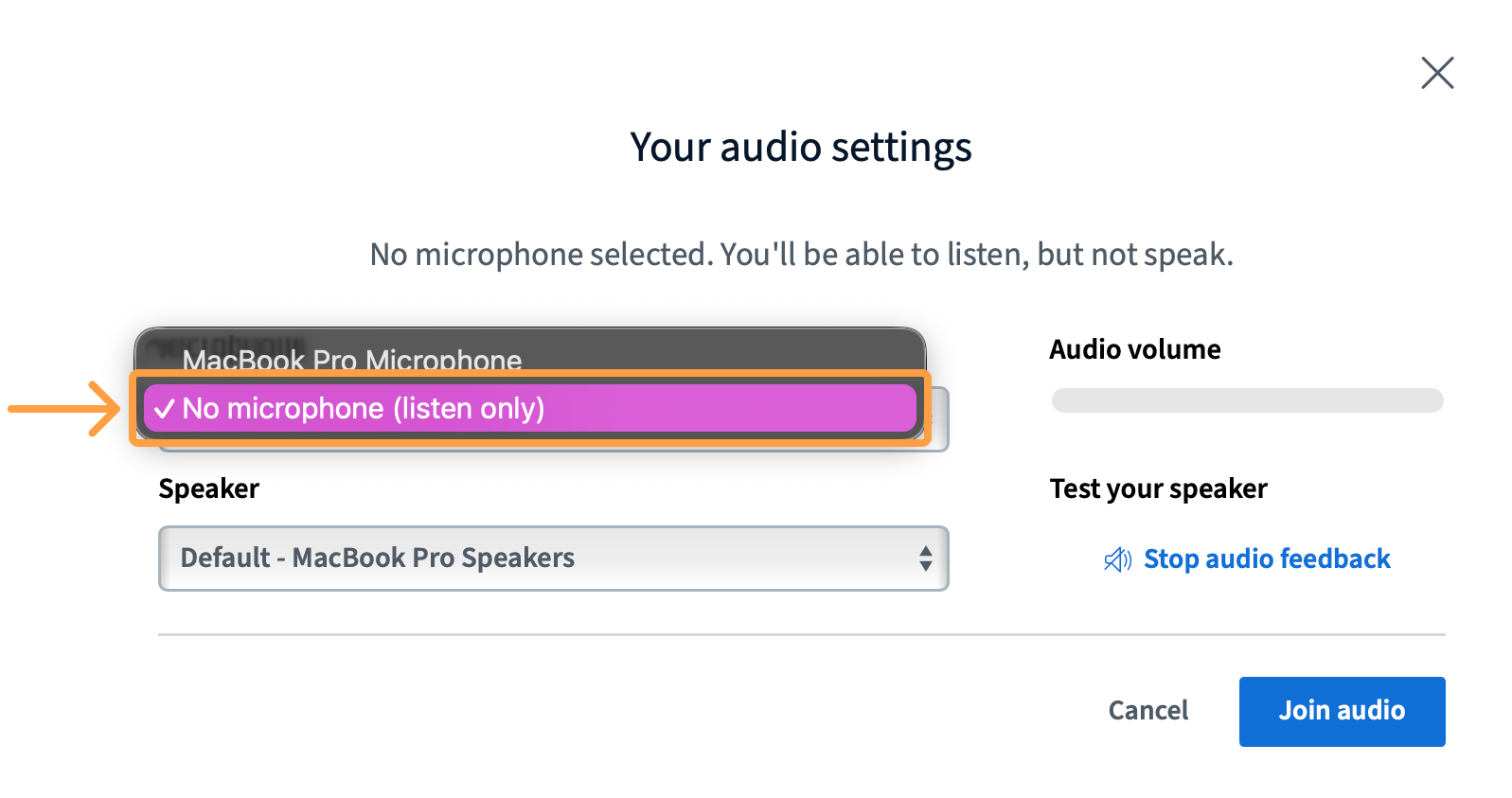
If you do not intend to talk in the session or if you are in an area that has significant background noise, you can also choose to join with **No microphone**.
## Join listen only
If you do not intend to talk in the session or if you are in an area that has significant background noise, you can also choose to join with **No microphone**.
 When you connect in listen-only mode, a headset icon appears next to your name in the user list.
 ## No audio
If you are in the session and do not have an indicator next to your icon in the user list, you are not connected to the audio. Try refreshing the browser to engage the audio chooser.
## No audio
If you are in the session and do not have an indicator next to your icon in the user list, you are not connected to the audio. Try refreshing the browser to engage the audio chooser.
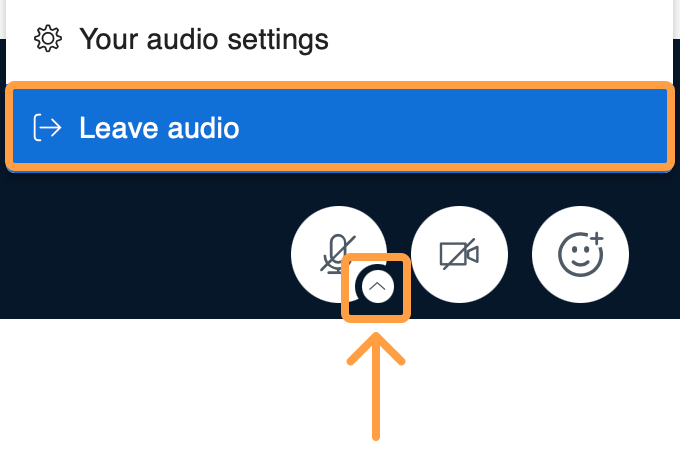
 If you ever want to disconnect your audio devices during a session, you can select **Leave audio** from the audio settings menu.
 ## Access the audio settings menu
You can quickly change your audio preferences by accessing the audio settings menu in BigBlueButton. Select the **arrow button \[1]** under your microphone icon to access the menu.
## Access the audio settings menu
You can quickly change your audio preferences by accessing the audio settings menu in BigBlueButton. Select the **arrow button \[1]** under your microphone icon to access the menu.
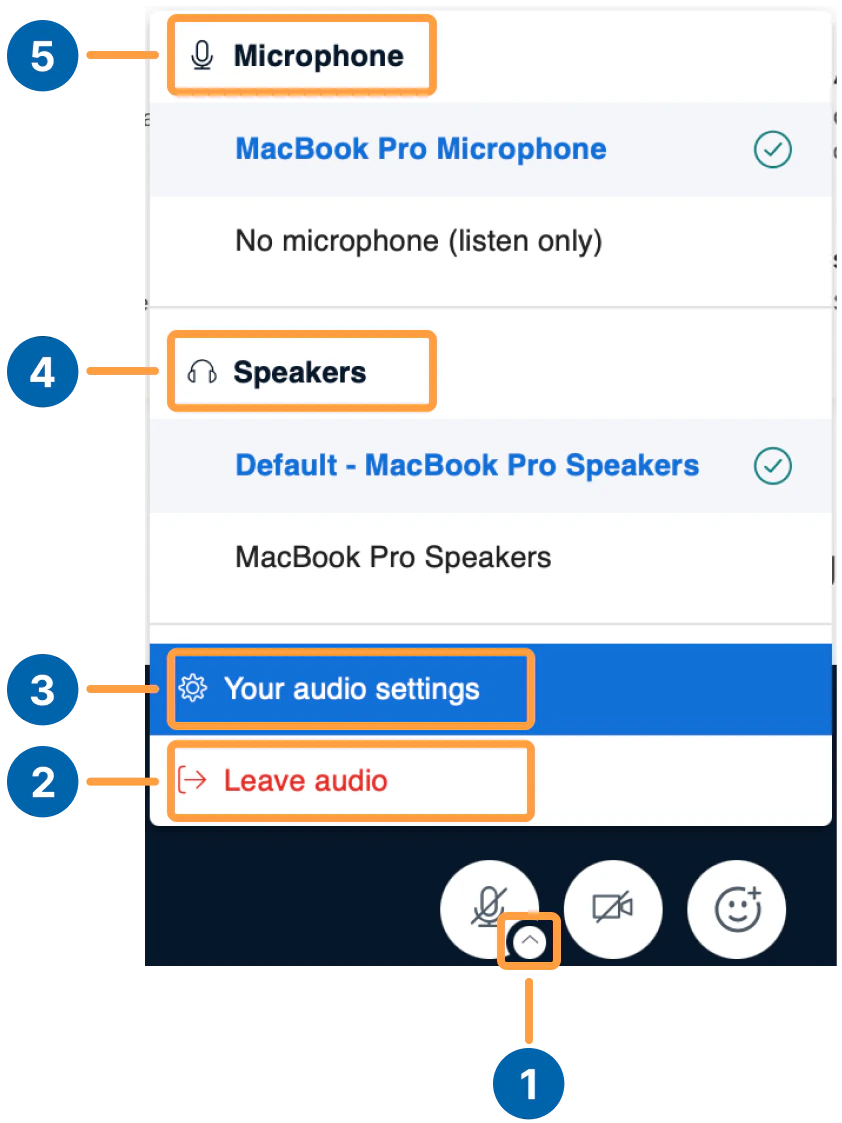 You can choose to **leave audio \[2]**, access your **audio settings \[3]**, change your **speakers \[4]**, and change the **microphone** **\[5]** that you are using.
## Troubleshoot microphone issues
On Windows or macOS, if you are still unable to hear yourself in the echo test, visit our test server at [my.bigbluebutton.com](https://my.bigbluebutton.com/) and join the audio with a microphone and go through the steps below. These steps are for the Chrome browser.
1. Refresh your browser (you don't need to log in again, the client will automatically reload).
2. Verify you have a working microphone.
**On Windows 10**, right-click on the audio icon in the task bar and choose **Open Sound Settings**.
You can choose to **leave audio \[2]**, access your **audio settings \[3]**, change your **speakers \[4]**, and change the **microphone** **\[5]** that you are using.
## Troubleshoot microphone issues
On Windows or macOS, if you are still unable to hear yourself in the echo test, visit our test server at [my.bigbluebutton.com](https://my.bigbluebutton.com/) and join the audio with a microphone and go through the steps below. These steps are for the Chrome browser.
1. Refresh your browser (you don't need to log in again, the client will automatically reload).
2. Verify you have a working microphone.
**On Windows 10**, right-click on the audio icon in the task bar and choose **Open Sound Settings**.
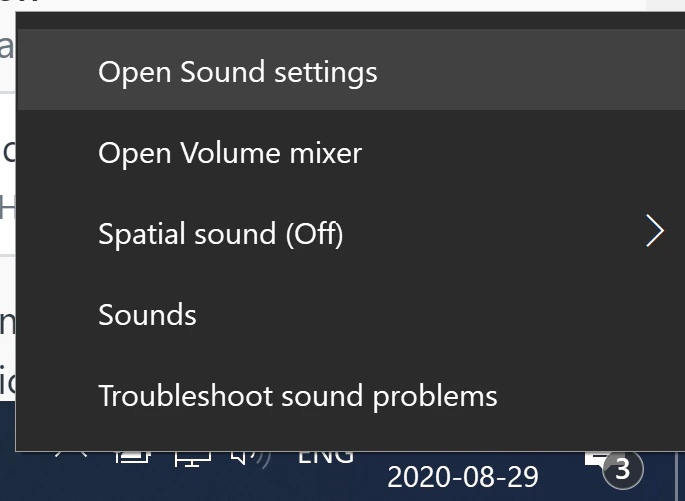 Windows will open a Settings window showing you the settings for your current input audio devices.
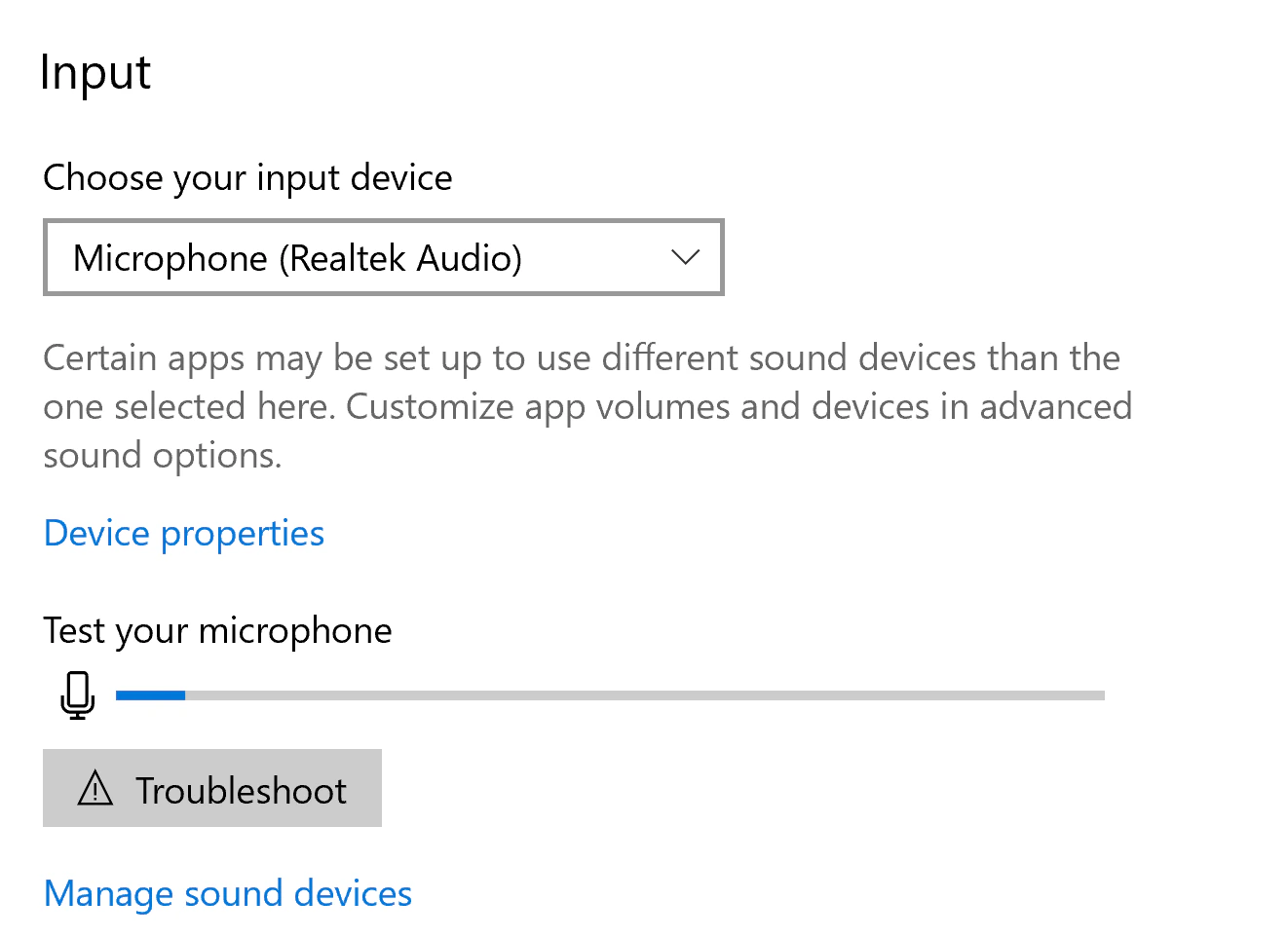 Talk into your microphone and you should see the energy bar highlight under **Test your microphone** as you speak. If there is no energy, try choosing a different microphone under **Choose your audio device**.
Once you see energy in the microphone, close the Settings window, and leave and rejoin (or refresh) your session in BigBlueButton. When prompted to join the audio, choose **Microphone** and listen to ensure you hear yourself in the echo test.
On **macOS**, open System Preferences and type in sound. Choose **Sound input**.
Talk into your microphone and you should see the energy bar highlight under **Test your microphone** as you speak. If there is no energy, try choosing a different microphone under **Choose your audio device**.
Once you see energy in the microphone, close the Settings window, and leave and rejoin (or refresh) your session in BigBlueButton. When prompted to join the audio, choose **Microphone** and listen to ensure you hear yourself in the echo test.
On **macOS**, open System Preferences and type in sound. Choose **Sound input**.
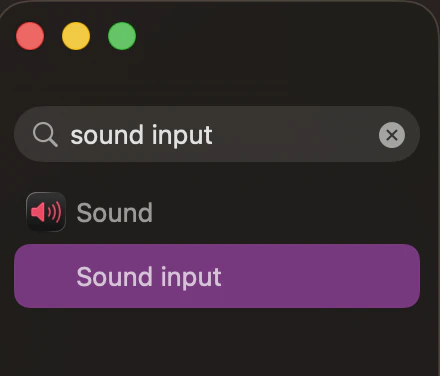 As you talk, you need to see blue bars highlight on the **Input Level**. Tap your microphone — you should see the blue energy bars move. If not, select a different microphone from the list.
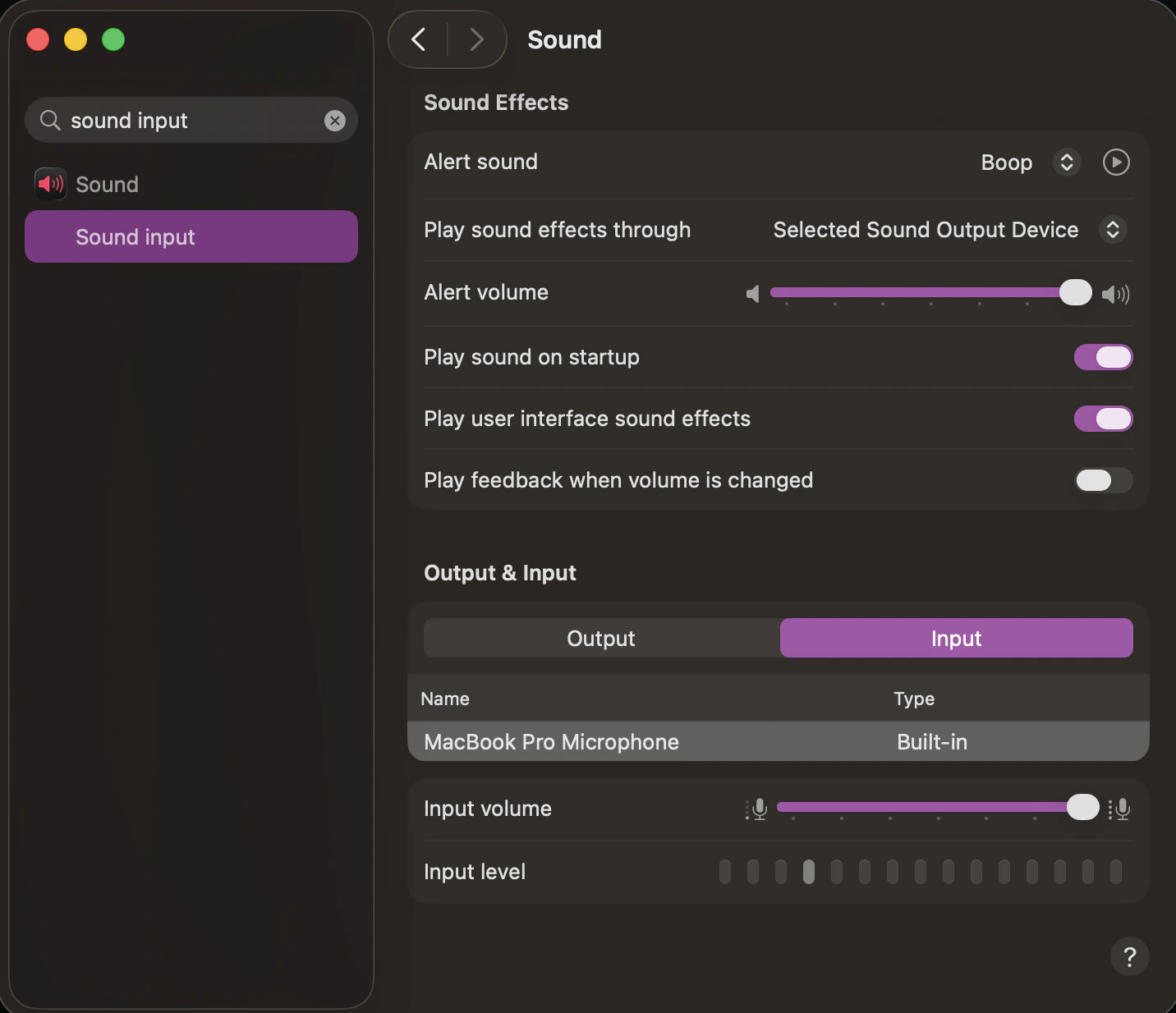 Once you see energy in the microphone, close the Settings window, and leave and rejoin (or refresh) your session in BigBlueButton. When prompted to join the audio, choose **Microphone** and you should now hear yourself in the echo test. If not, verify on macOS that [Chrome has permission to access the microphone](/docs/help/troubleshooting/mac-os-updates-bigbluebutton-media-permissions).