> ## Documentation Index
> Fetch the complete documentation index at: https://bigbluebutton.com/docs/llms.txt
> Use this file to discover all available pages before exploring further.
# Send public and private chat messages
> Anyone can send public and private chat messages as well as edit or delete their own chat messages.
Anyone can send chat messages in BigBlueButton; you can send both [public](#send-a-public-chat-message) and [private chat](#send-a-private-chat-message) messages. You can also choose to edit, react, delete and reply to messages in the chat.
## Send a public chat message
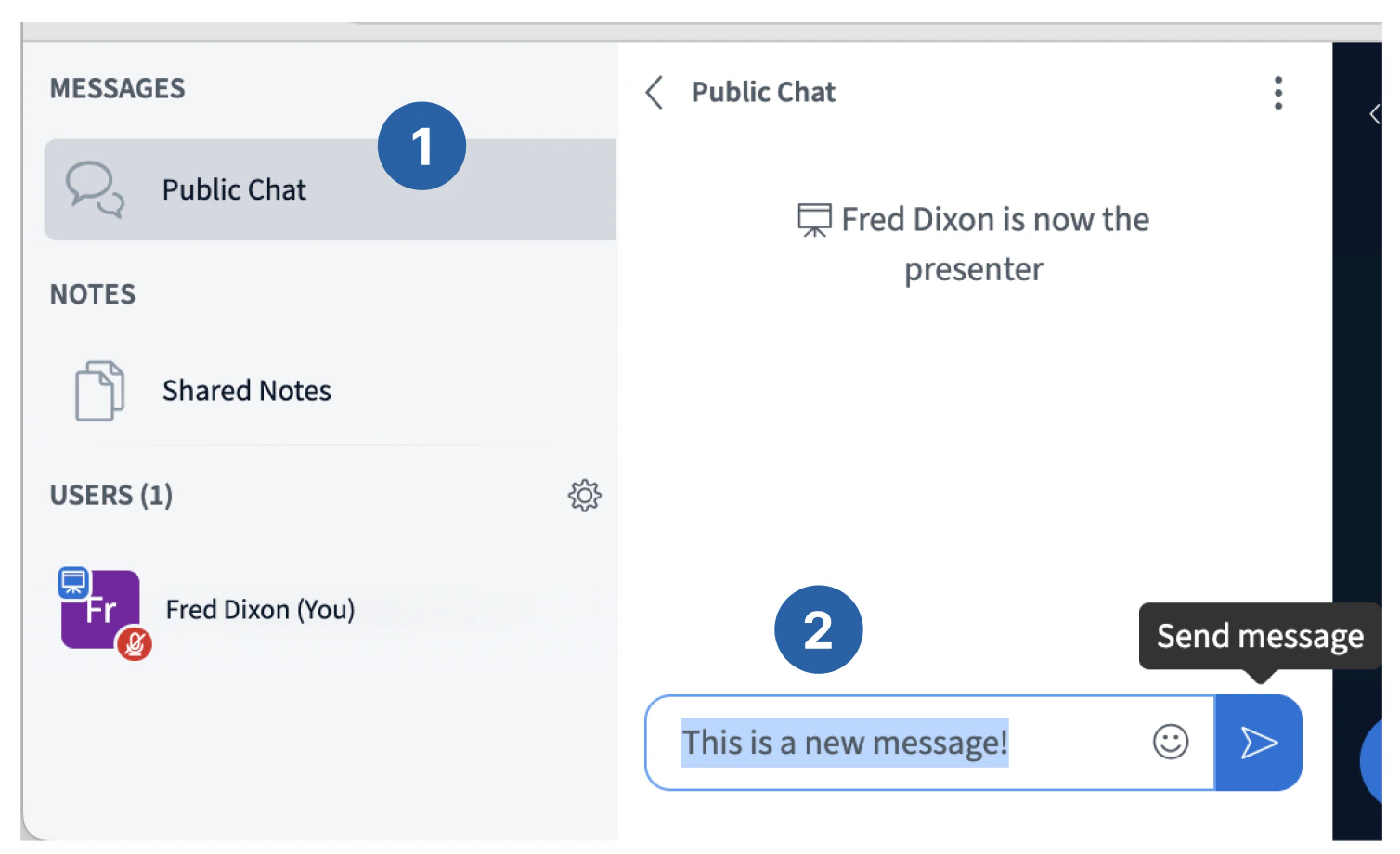
To send a public chat message, select **\[1] Public Chat** in the left panel, **\[2]** type a message, then select **Send message**.
 Select the **User list toggle** button to open/close it.
 ## Send a private chat message
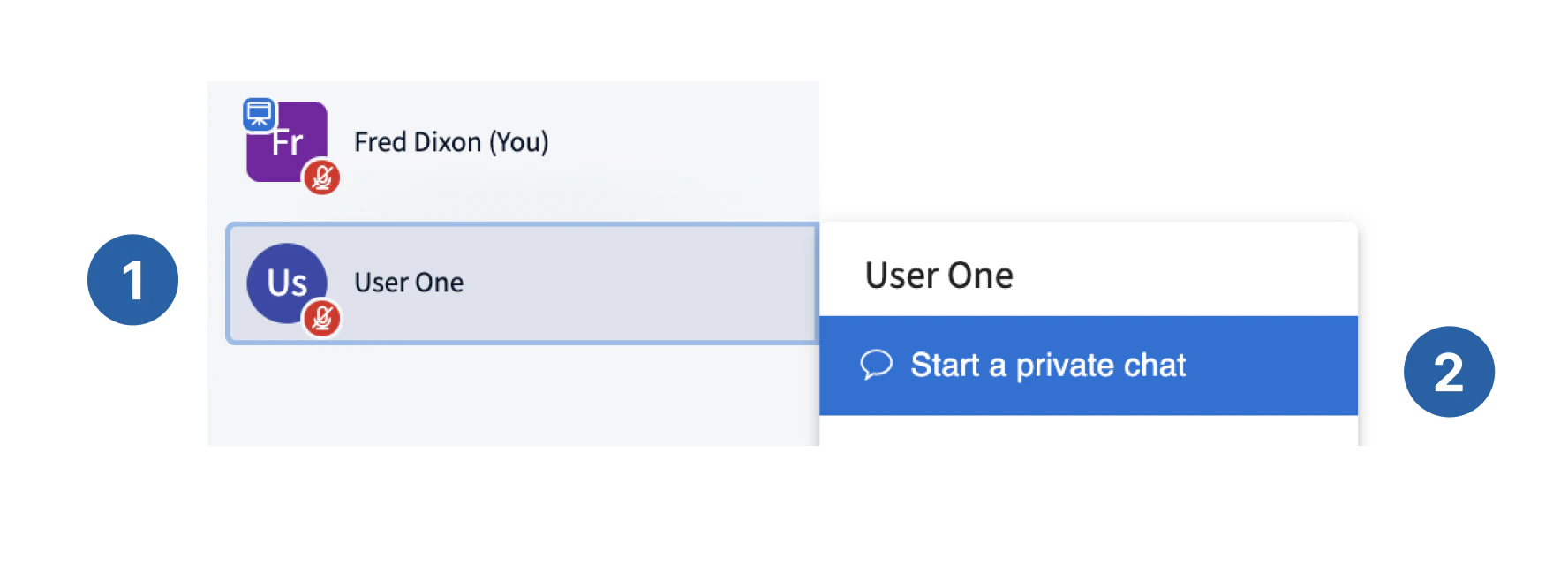
To start a private message to another user, **\[1]** select the user with the mouse, **\[2]** select **Start a private chat**. A new private chat panel appears to the right.
## Send a private chat message
To start a private message to another user, **\[1]** select the user with the mouse, **\[2]** select **Start a private chat**. A new private chat panel appears to the right.
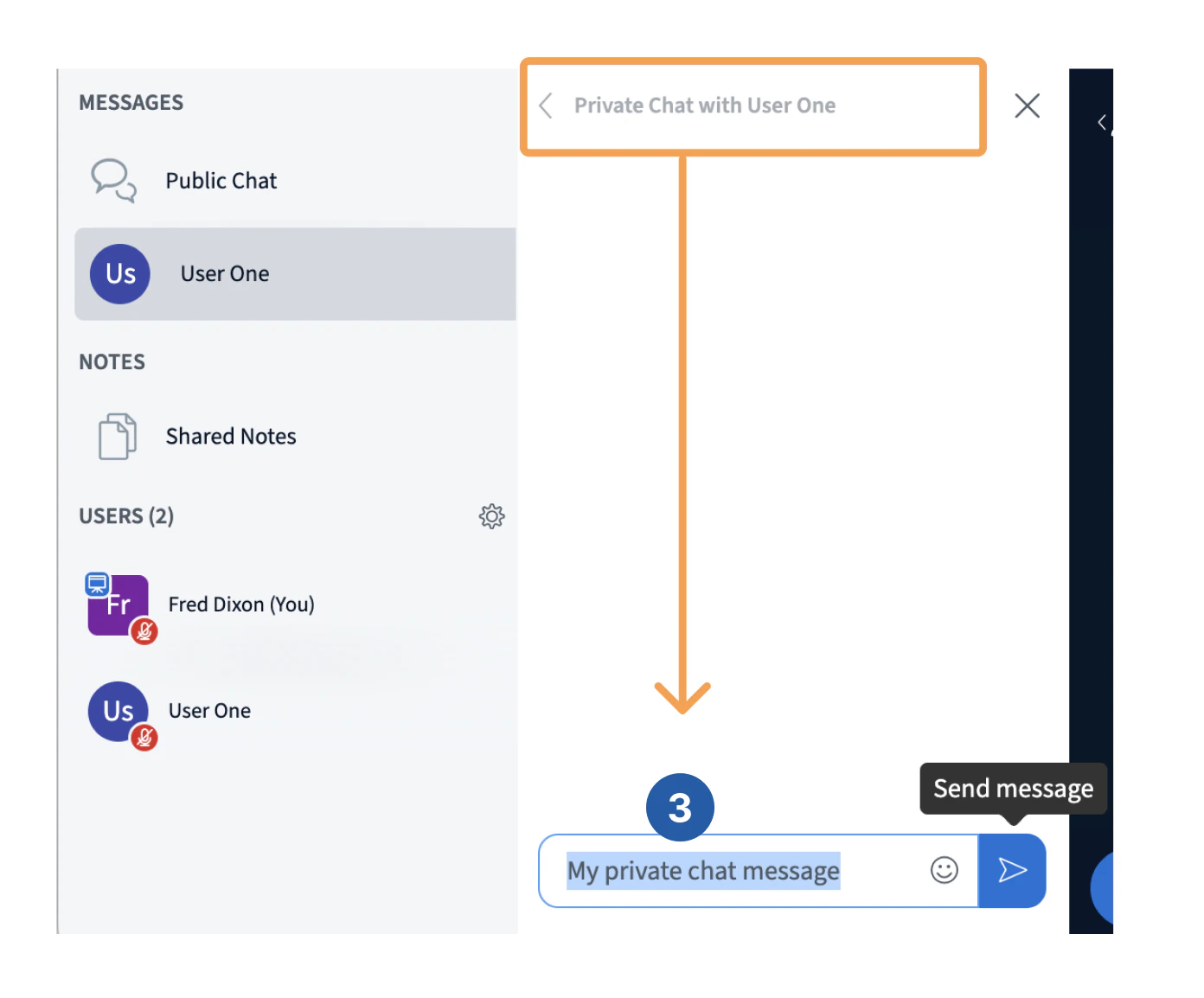
 In the new panel **\[3]** type your message and select **Send message**. Only that user will see your private messages.
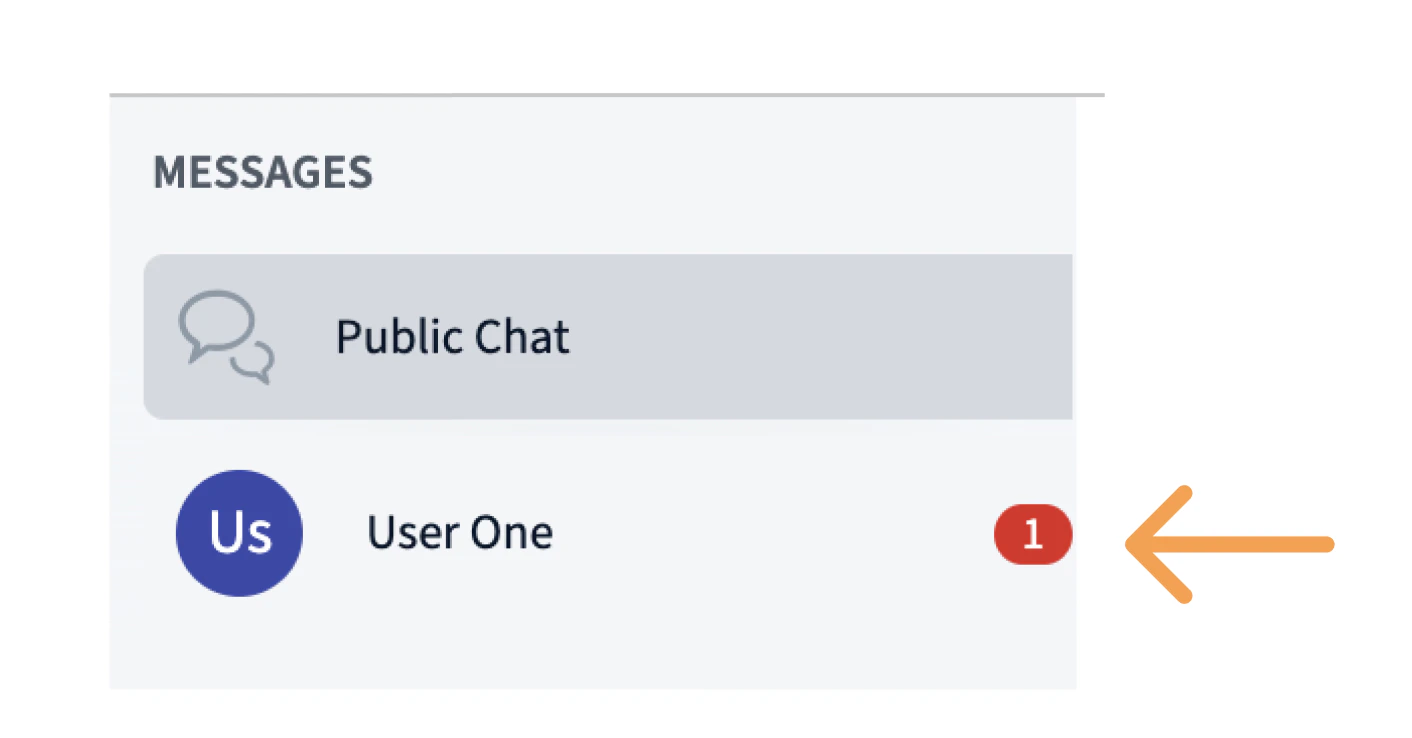
 Later, when the user responds, if the panel is not in focus, a count of unread messages will appear next to their name.
 ## Chat message options
Moving your cursor over a chat message shows the message options bar with four options.
* Reply to a message
* Add an emoji reaction
* Edit a message
* Delete a message
### Reply to a message
You can reply to a message, which makes a copy of the original with your reply.
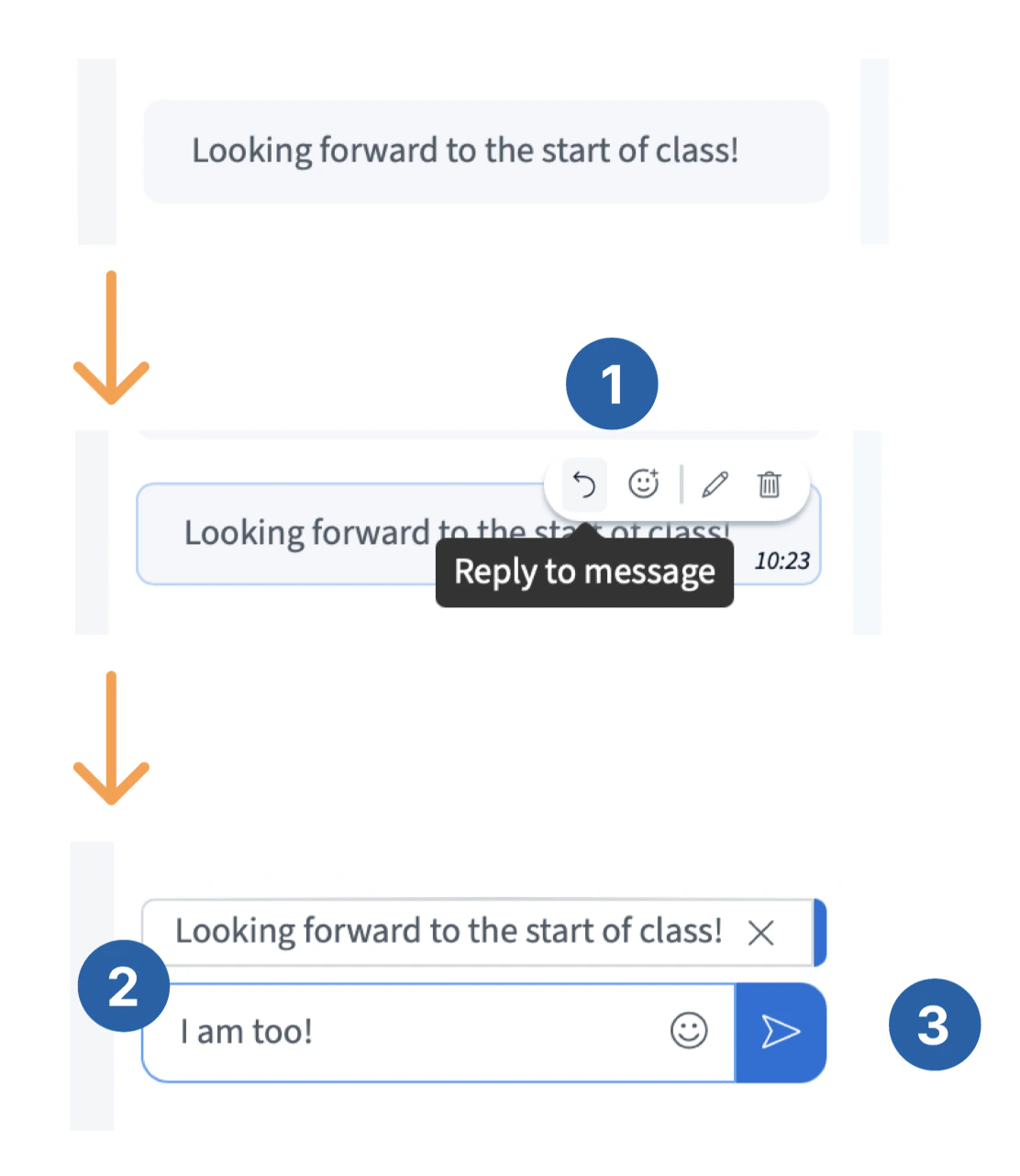
To reply to a message, move the cursor over the message and **\[1]** select **Reply to message**. The selected message appears above the message field, then **\[2]** type a reply and select **\[3] Send message**.
## Chat message options
Moving your cursor over a chat message shows the message options bar with four options.
* Reply to a message
* Add an emoji reaction
* Edit a message
* Delete a message
### Reply to a message
You can reply to a message, which makes a copy of the original with your reply.
To reply to a message, move the cursor over the message and **\[1]** select **Reply to message**. The selected message appears above the message field, then **\[2]** type a reply and select **\[3] Send message**.
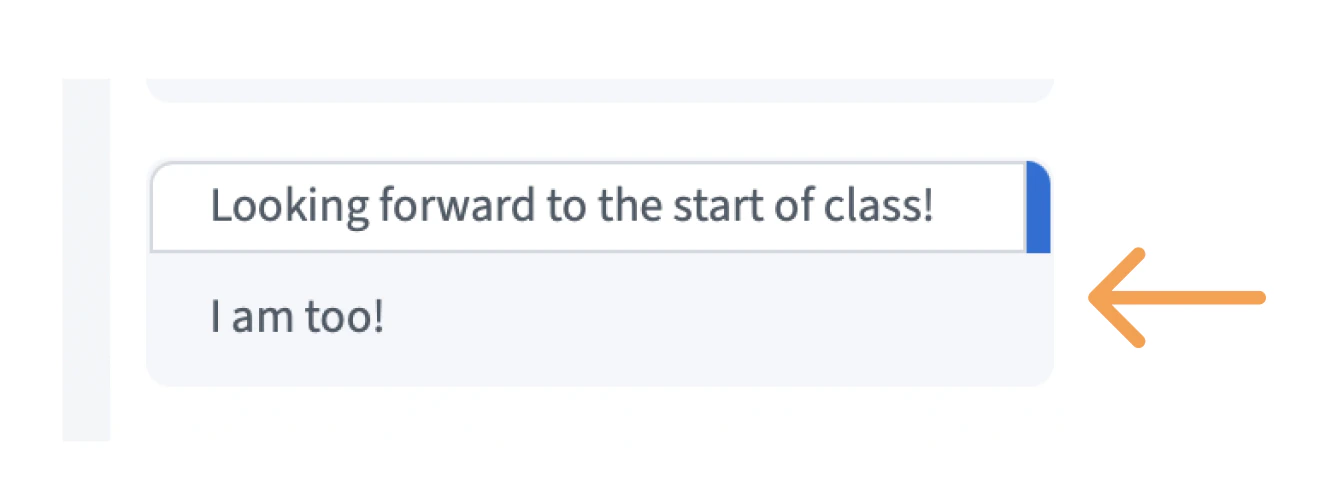
 The original message will appear again in the chat with your reply underneath for everyone to see.
 ### Add an emoji reaction
To add an emoji to a message, **\[1]** select the React button from the message option menu and **\[2]** select an emoji from the pop-up. **\[3]** The emoji will appear under the message.
### Add an emoji reaction
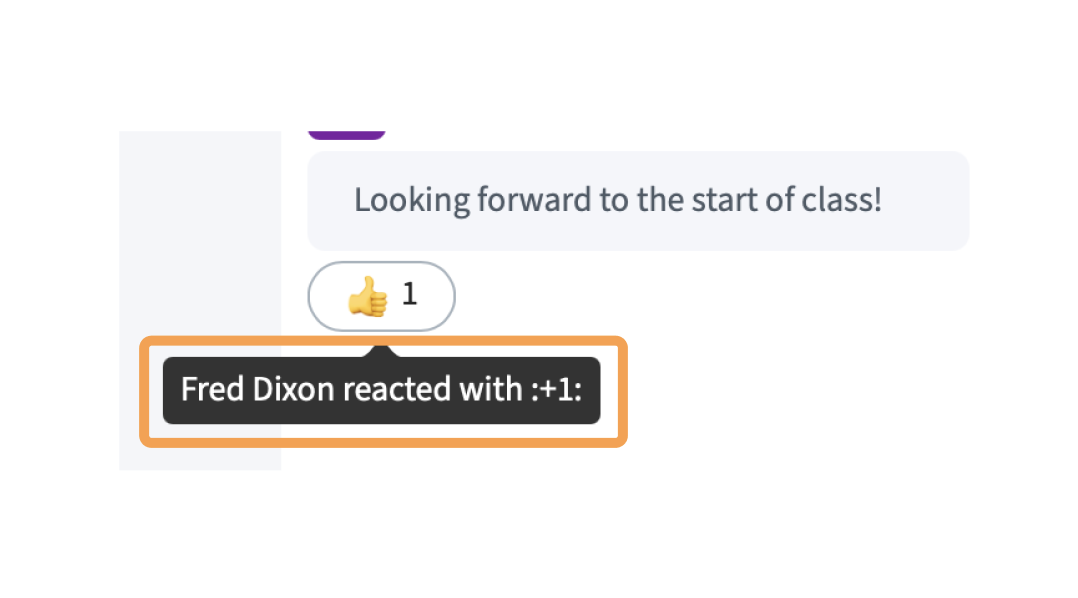
To add an emoji to a message, **\[1]** select the React button from the message option menu and **\[2]** select an emoji from the pop-up. **\[3]** The emoji will appear under the message.
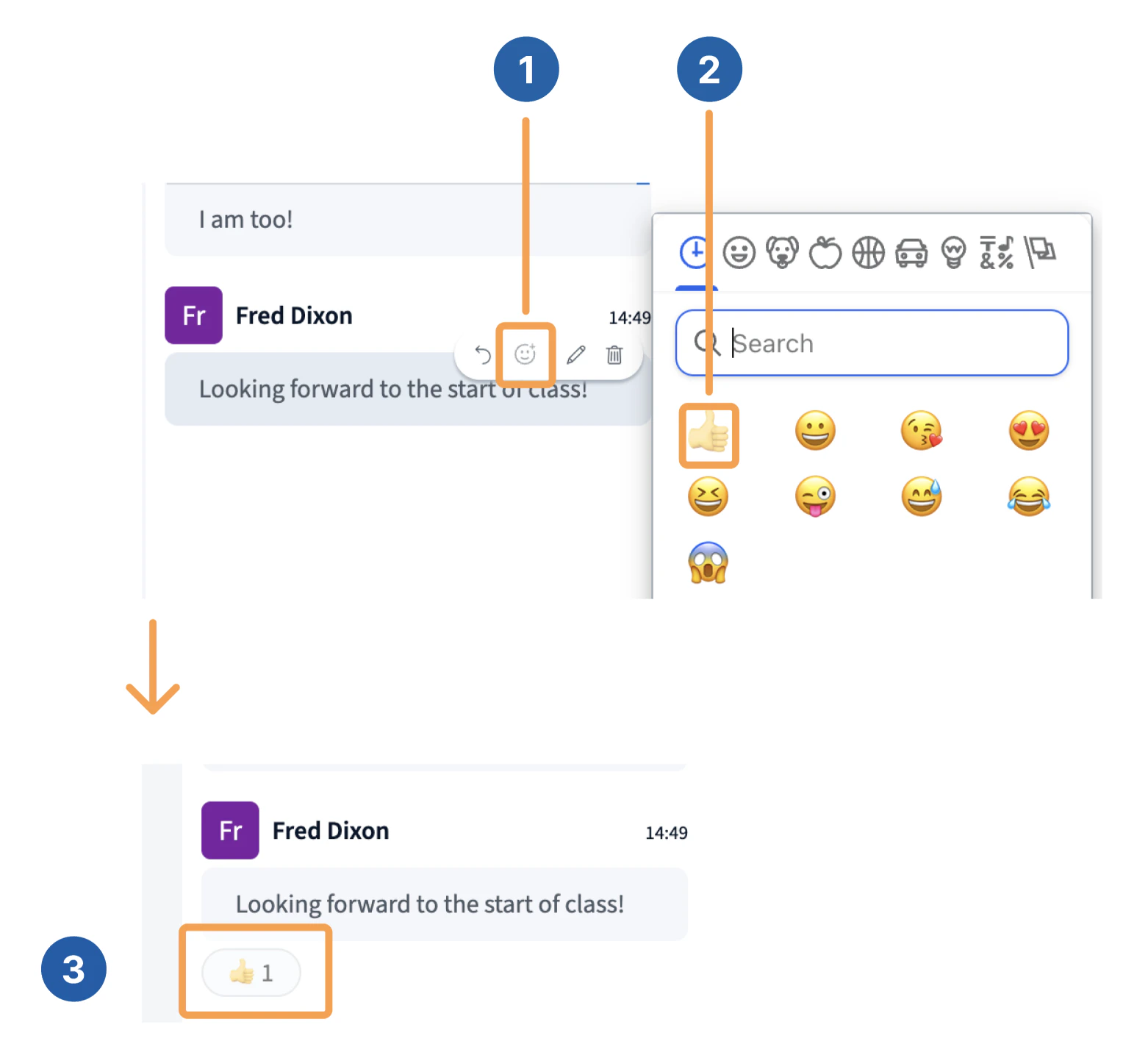 Users can hover over the reaction to see who added it.
 ### Edit a message
To edit a message, **\[1]** select **Edit** from the options bar, **\[2]** type in your new message and select **Send message**.
### Edit a message
To edit a message, **\[1]** select **Edit** from the options bar, **\[2]** type in your new message and select **Send message**.
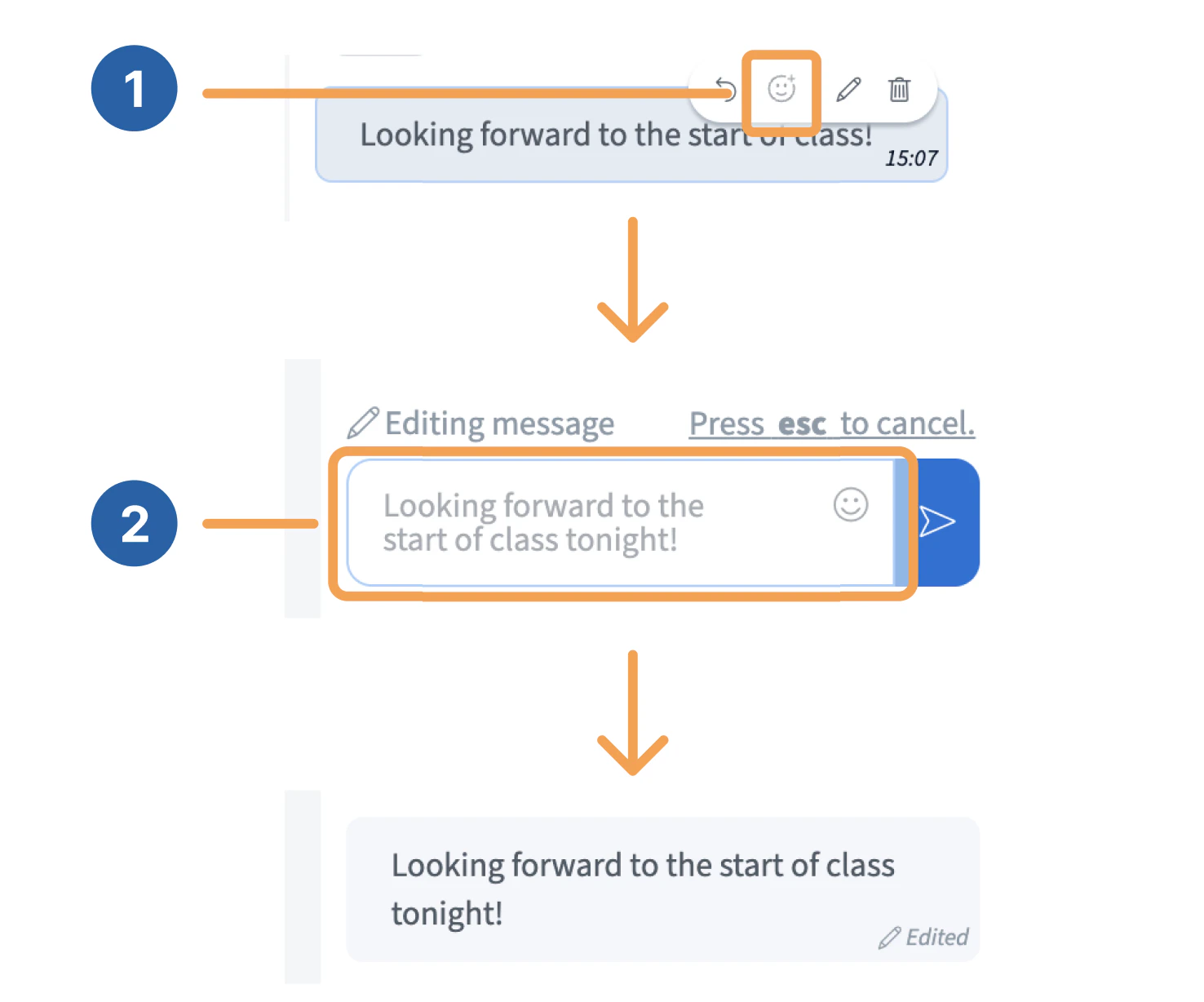 Your edited message will appear with the label *Edited.*
### Delete a message
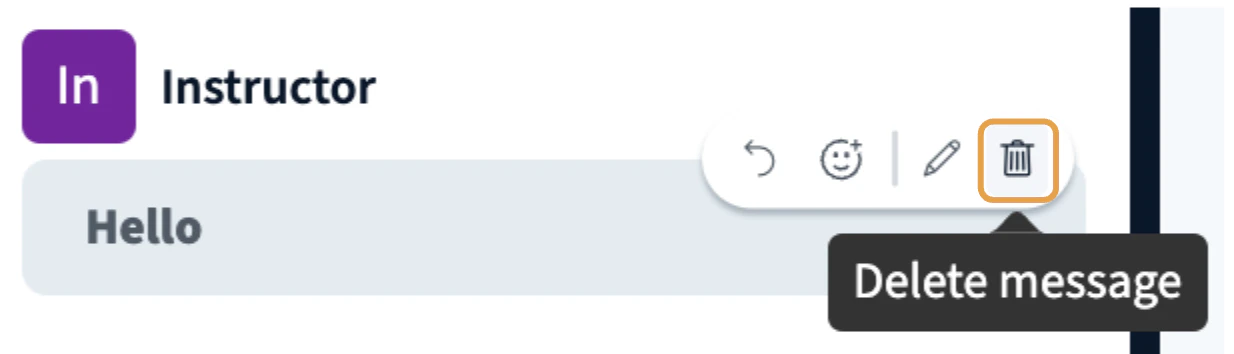
To delete your message, select the **Delete message** button in the options bar.
Your edited message will appear with the label *Edited.*
### Delete a message
To delete your message, select the **Delete message** button in the options bar.
 A prompt will appear to confirm that you want to permanently remove your message from the chat.
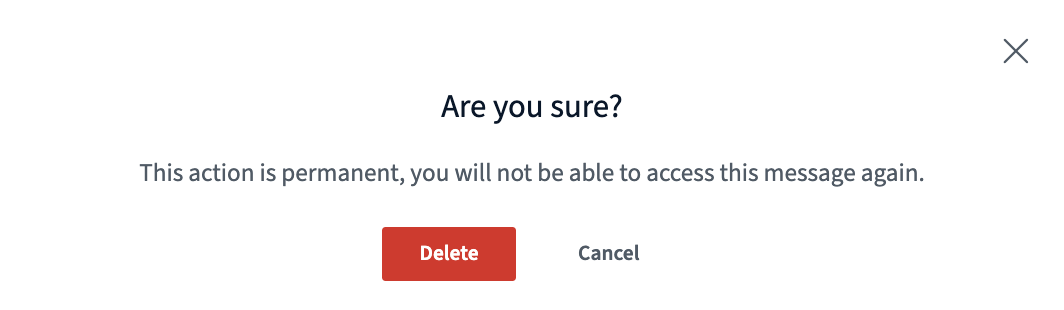 Viewers can only edit and delete their own chat messages. Moderators can delete any chat message.