> ## Documentation Index
> Fetch the complete documentation index at: https://bigbluebutton.com/docs/llms.txt
> Use this file to discover all available pages before exploring further.
# Share a Webcam
> Any user can share a built-in or external webcam, adjust brightness, set a virtual background, pin webcams, or share a second webcam.
Any user with a built-in or external webcam can [share their webcam](#share-your-webcam) so others in the session can see them. You can also [adjust webcam brightness](#adjust-webcam-brightness), [set a virtual background](#change-the-webcam-background), [pin a webcam](#pin-a-webcam), and [share multiple webcams](#share-multiple-webcams).
Configure your webcam device and set it as the default in your operating system before joining the session.
## Share your webcam
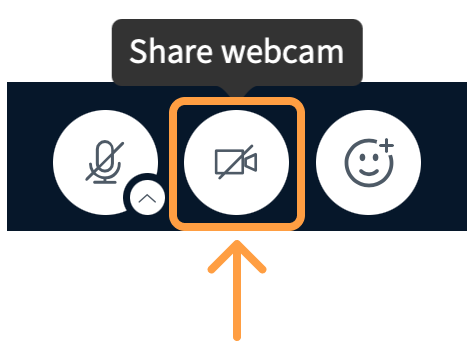
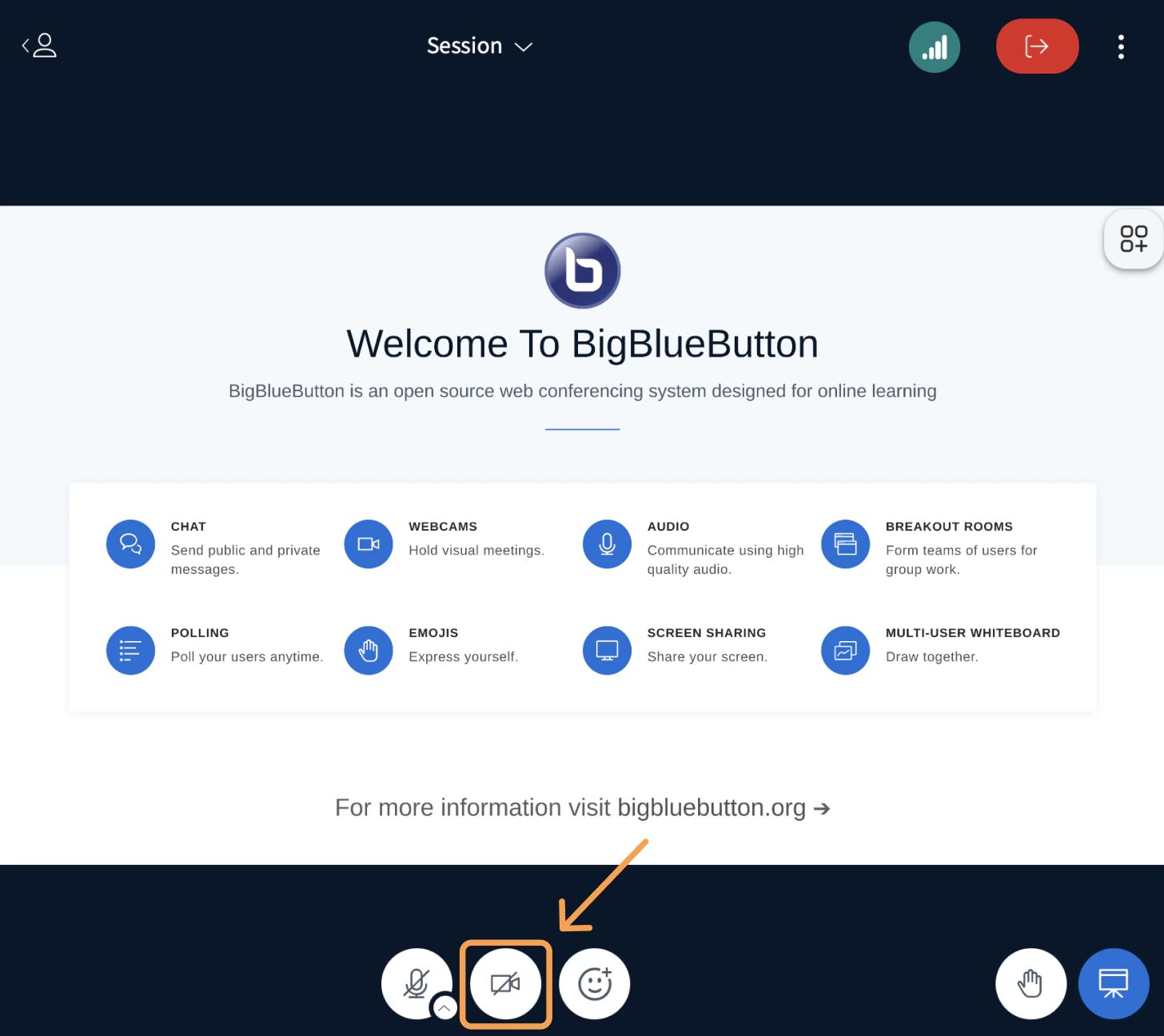 To start sharing, select the webcam icon in the media bar at the bottom of the BigBlueButton interface.
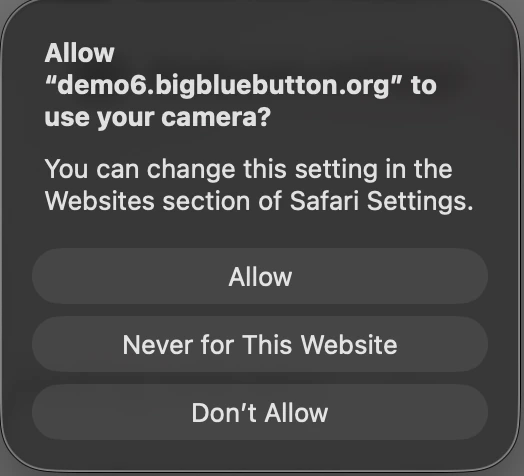
 Your browser asks for permission to use the webcam. The prompt usually appears in the upper-right corner or the center of the browser. Select **Allow**.
 After allowing access, choose your device and quality settings.
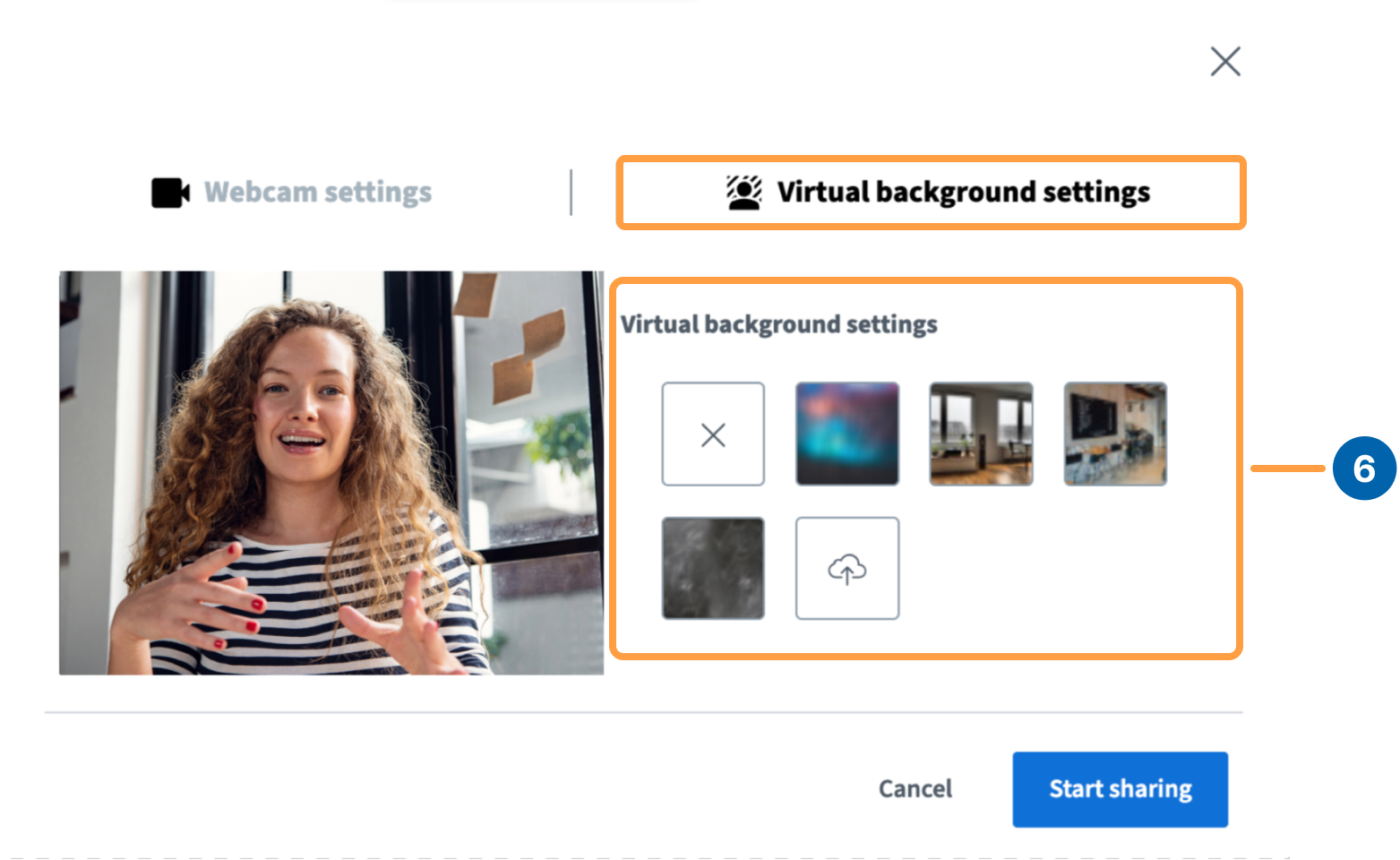
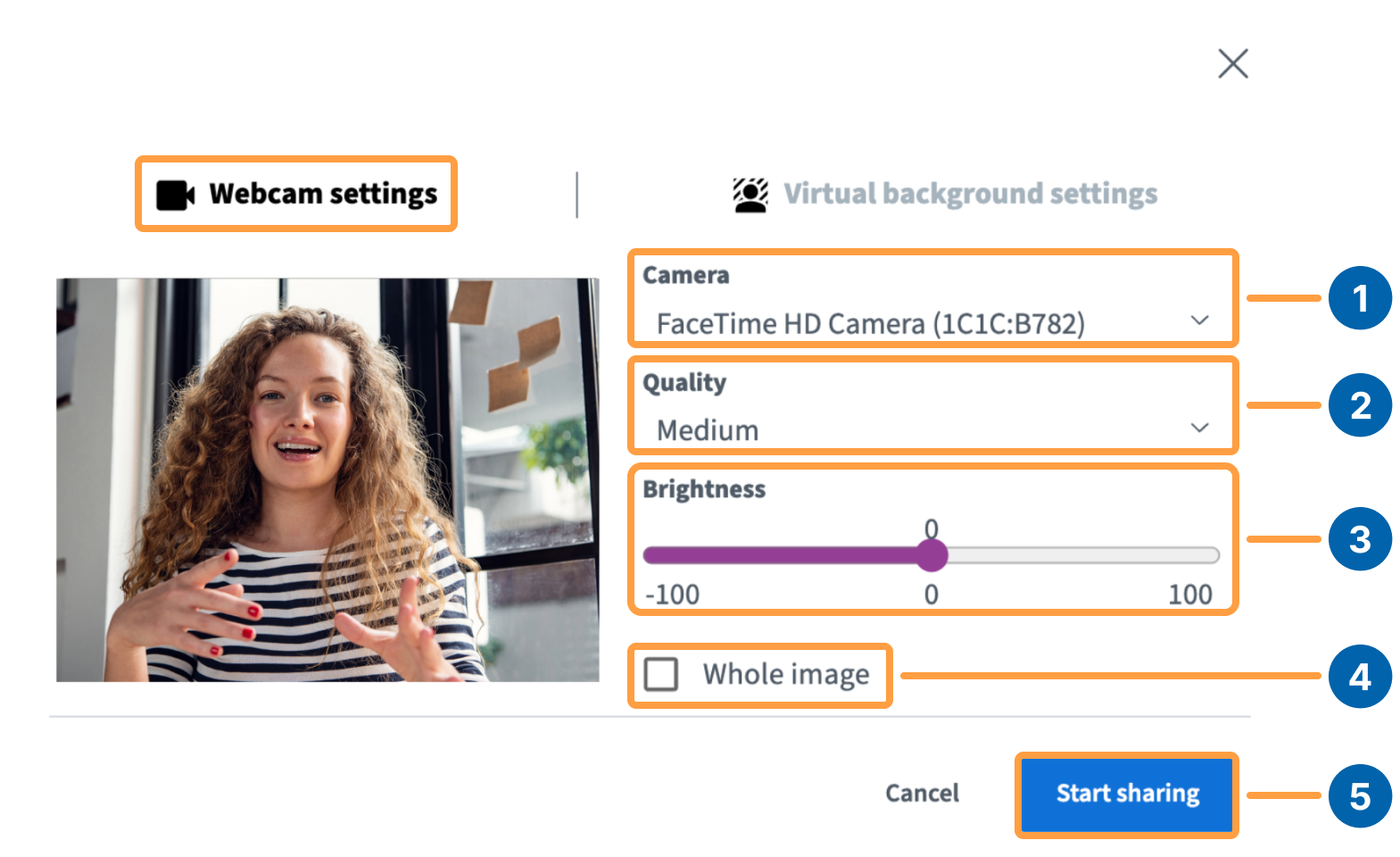 If you have multiple webcams connected, select the one you want from the **dropdown** **\[1]**. You can also set **Quality** **\[2]**, **Brightness** **\[3]**, and **Whole image** **\[4]**, then select **Share** **\[5]**. To set a virtual background, select **Virtual background** **\[6]** in the next tab before sharing.
 ## Adjust webcam brightness
Use the **Brightness** slider at the bottom of the webcam settings window to change how bright your image appears.
If **Whole image** is selected, the slider adjusts the brightness of the entire image. If it is not selected, only your face is adjusted.
## Adjust webcam brightness
Use the **Brightness** slider at the bottom of the webcam settings window to change how bright your image appears.
If **Whole image** is selected, the slider adjusts the brightness of the entire image. If it is not selected, only your face is adjusted.
 ## Change the webcam background
BigBlueButton includes a set of default virtual backgrounds, and you can also upload your own.
To upload a custom background, select the camera icon, then **Upload**.
## Change the webcam background
BigBlueButton includes a set of default virtual backgrounds, and you can also upload your own.
To upload a custom background, select the camera icon, then **Upload**.
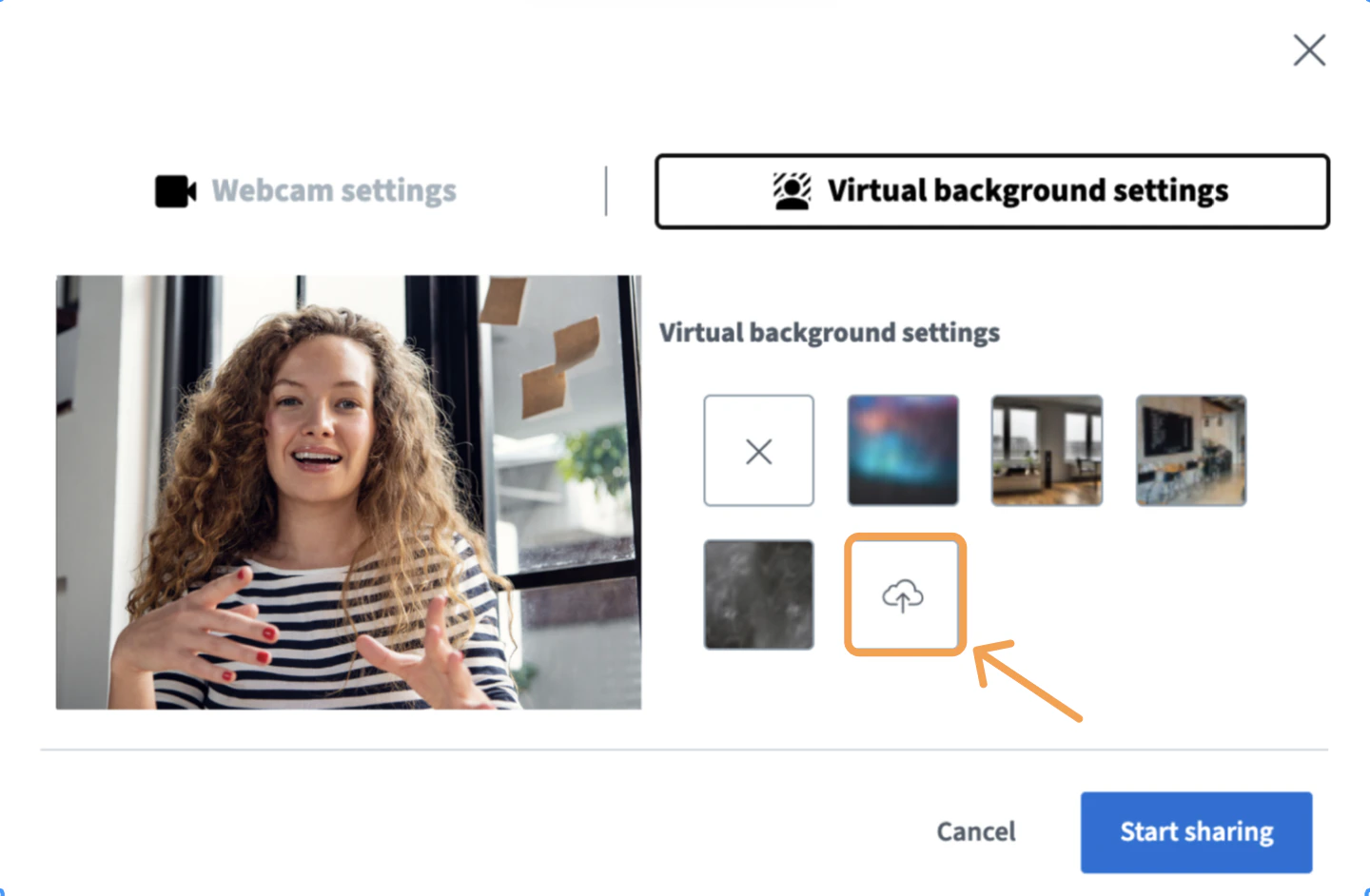 Select an image file (`.jpg`, `.png`, or `.webp`) from your computer. The uploaded image appears in the first position on the left in the list of available backgrounds.
 To delete a custom background, select the **X** in the upper-right corner of the image.
 ## Pin a webcam
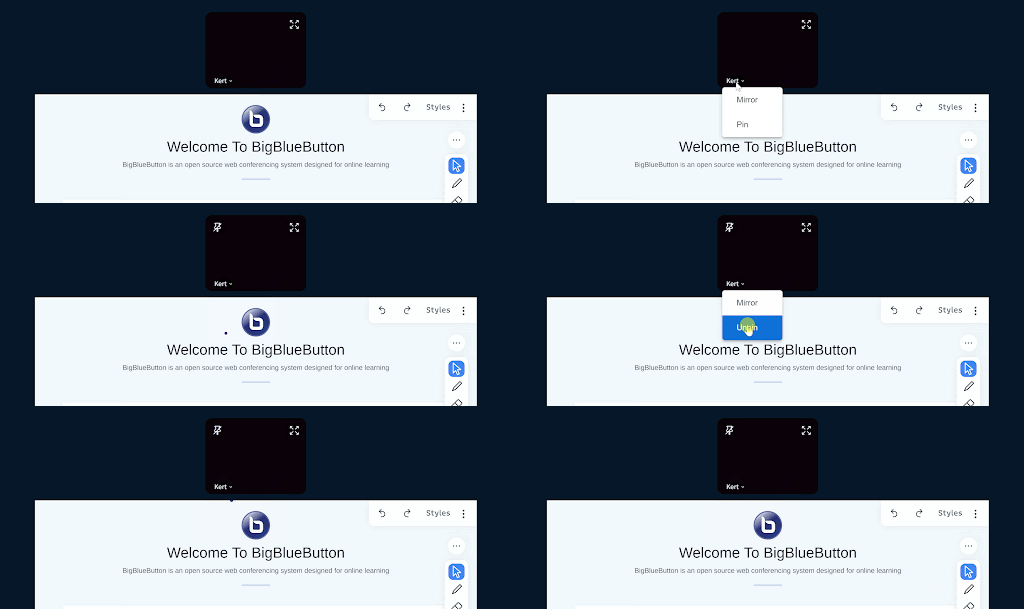
You can pin one or more webcams so they always stay visible — useful when one webcam is showing sign language interpretation, for example.
## Pin a webcam
You can pin one or more webcams so they always stay visible — useful when one webcam is showing sign language interpretation, for example.
 ## Share multiple webcams
After sharing one webcam, share a second by opening the video options menu.
## Share multiple webcams
After sharing one webcam, share a second by opening the video options menu.
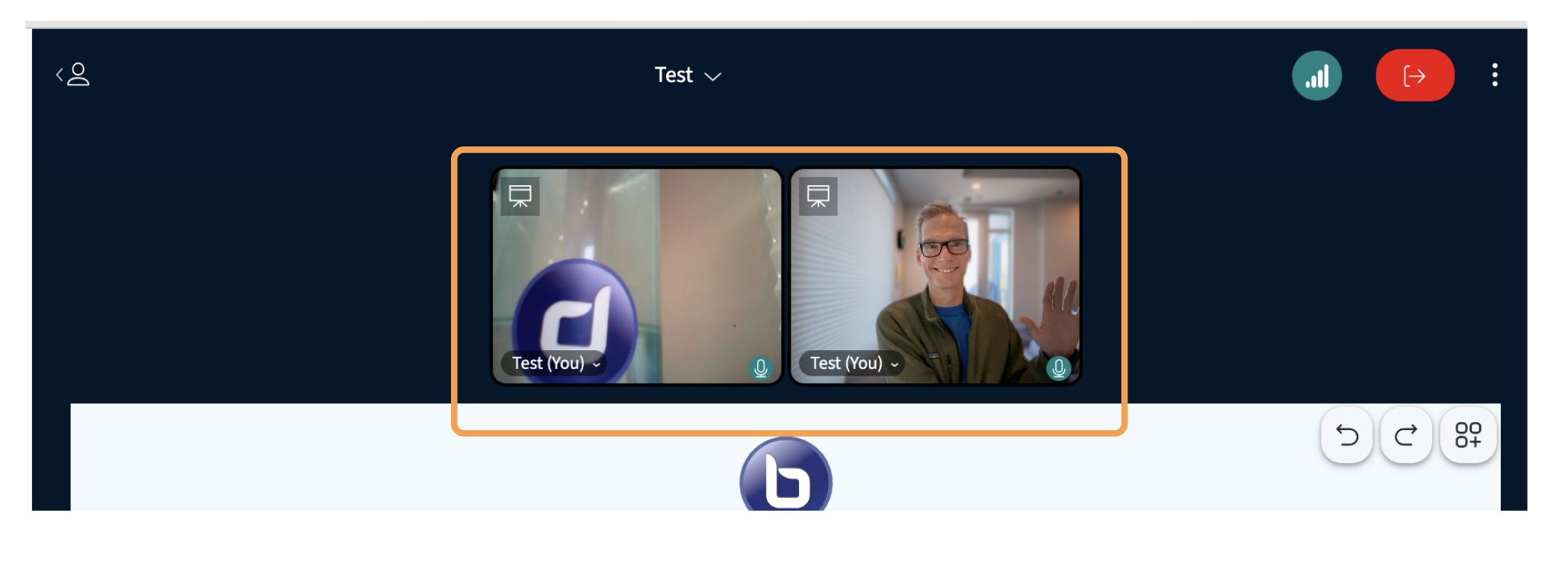
 Select **Open advanced settings**. In the webcam dialog, select a different webcam **\[1]**, then select **Start sharing** **\[2]**.
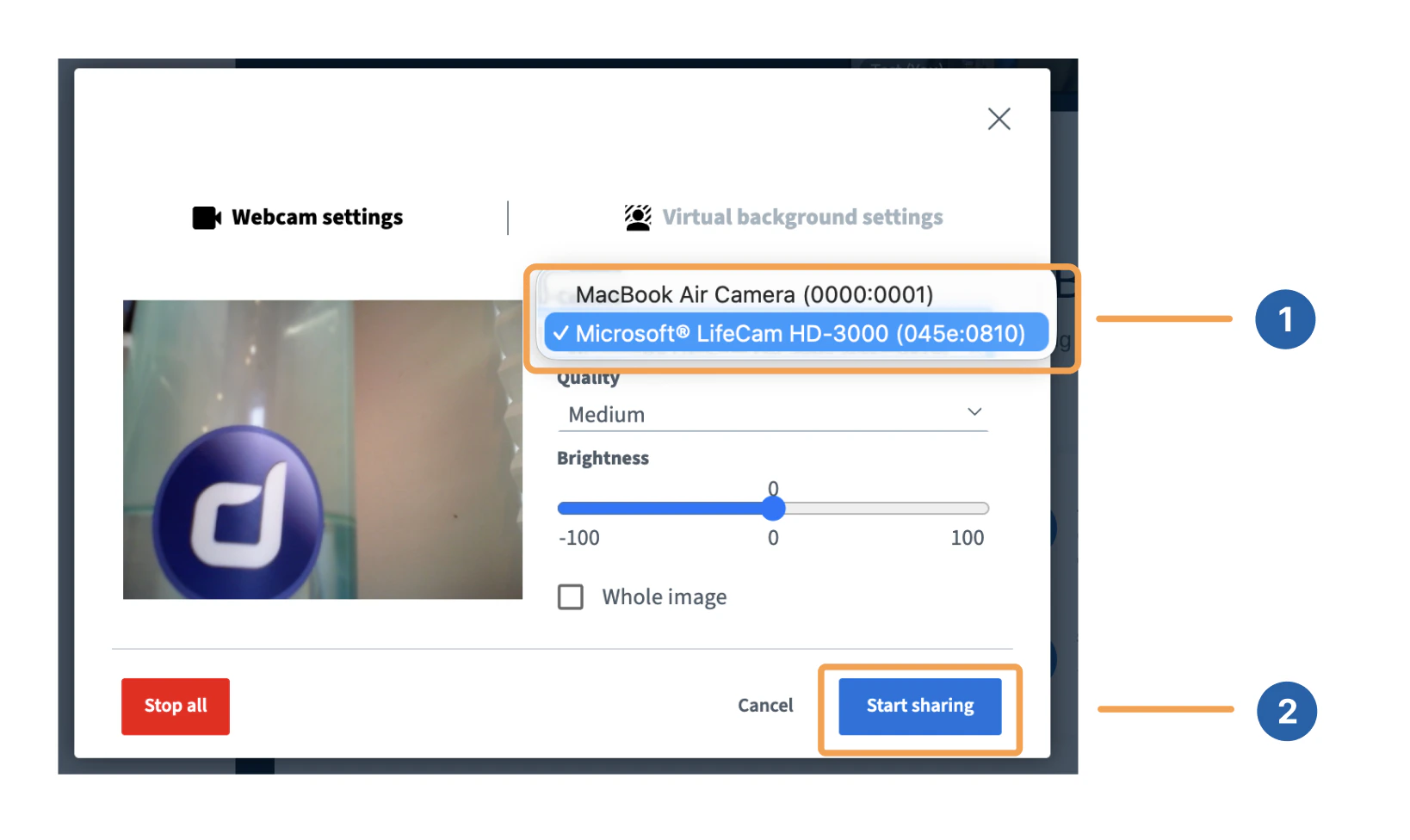 The second webcam appears alongside the first.
 ## Troubleshoot Chrome webcam permissions
If you see the message **"The webcam is in use by another application"** in Chrome, check that you have allowed webcam access.
## Troubleshoot Chrome webcam permissions
If you see the message **"The webcam is in use by another application"** in Chrome, check that you have allowed webcam access.
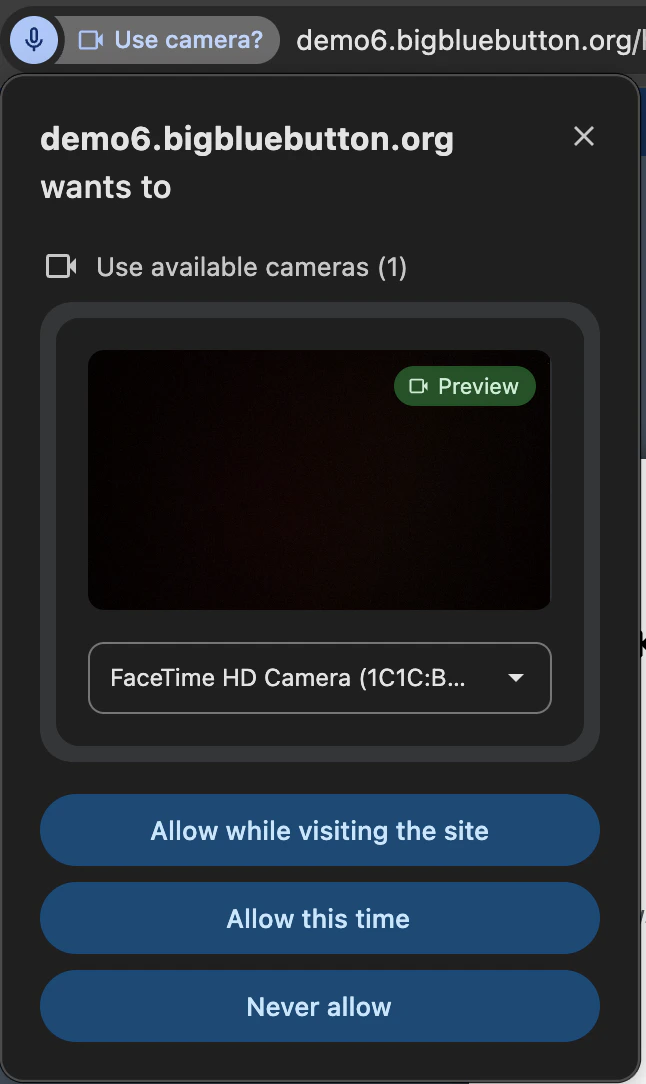 The browser permission prompt usually appears in the upper-right corner. Select **Allow** and choose the device you want to share.