> ## Documentation Index
> Fetch the complete documentation index at: https://bigbluebutton.com/docs/llms.txt
> Use this file to discover all available pages before exploring further.
# Share iPad screen
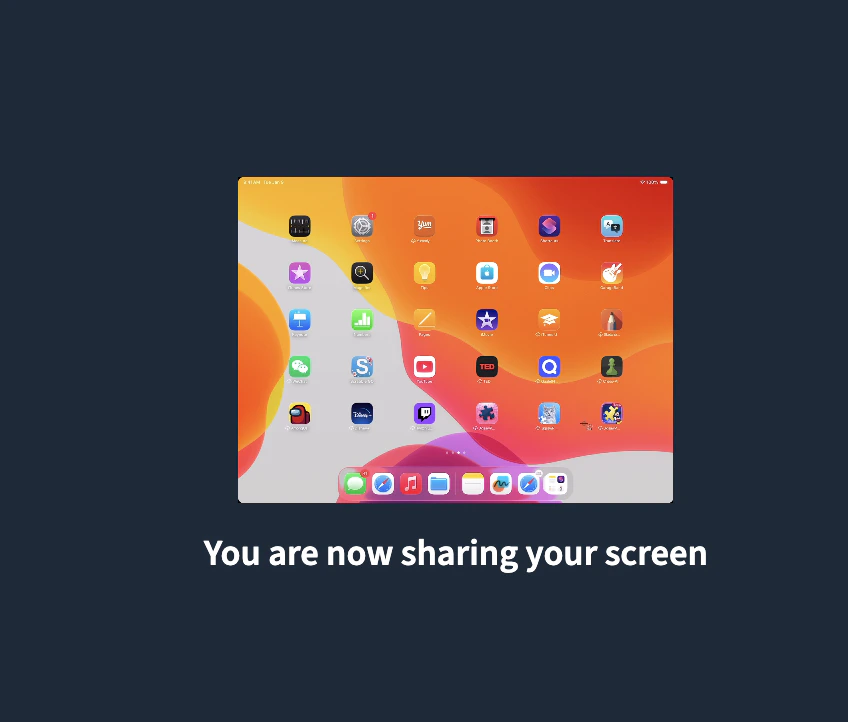
> Share an iPad screen in a BigBlueButton session by mirroring the iPad to a Mac and screen-sharing the QuickTime window.
Safari on iPad cannot share its screen directly into BigBlueButton. To share an iPad screen, mirror the iPad to a Mac using QuickTime Player, then screen-share the QuickTime window from the Mac in your BigBlueButton session.
The result is that other users in the session see your iPad screen as a live view.
## Connect the iPad to your Mac
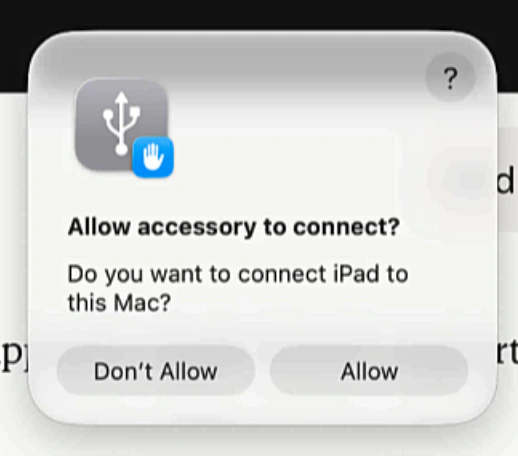
Connect your iPad to your Mac with a USB-C cable. When the iPad prompts you, select **Allow**.
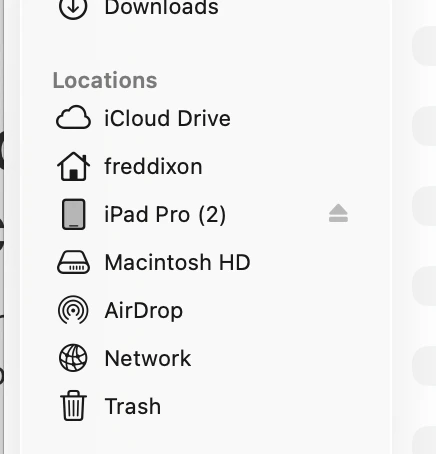
 To verify the connection, open **Finder**. Your iPad appears under **Locations** — for example, **iPad Pro (2)** in the screenshot below.
 ## Mirror the iPad with QuickTime Player
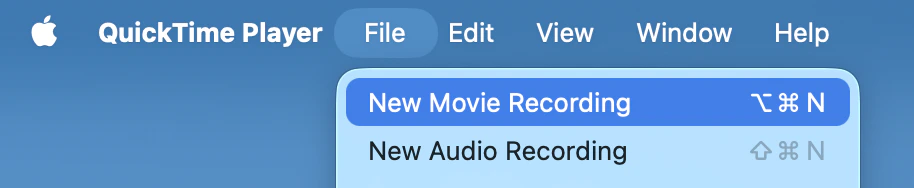
Open **QuickTime Player** and select **New Movie Recording**.
## Mirror the iPad with QuickTime Player
Open **QuickTime Player** and select **New Movie Recording**.
 Select the **arrow** next to the red **Record** button to open the source menu.
 In the source menu, choose your iPad by name (for example, **iPad Pro (2)**).
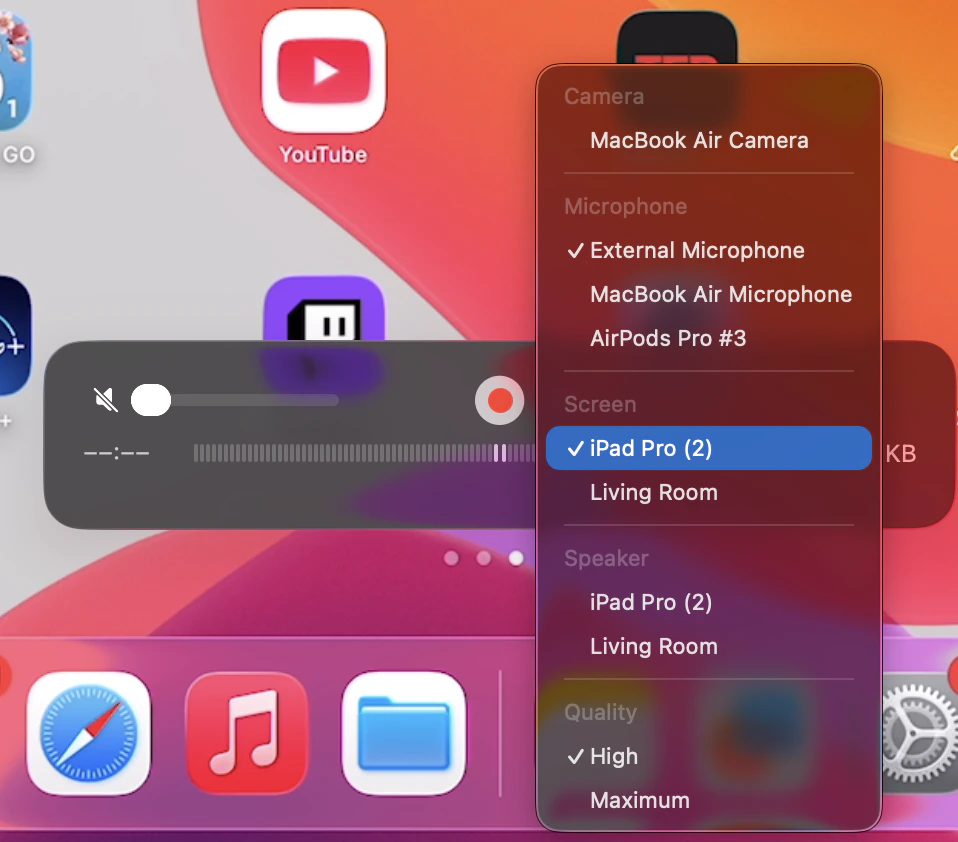 You do not need to actually record. The goal is to display your iPad screen on the Mac so it can be screen-shared.
## Screen-share the QuickTime window
In BigBlueButton, select **Share screen** in the media bar. Choose **Window**, then **Movie Recording**, then **Share**.
You do not need to actually record. The goal is to display your iPad screen on the Mac so it can be screen-shared.
## Screen-share the QuickTime window
In BigBlueButton, select **Share screen** in the media bar. Choose **Window**, then **Movie Recording**, then **Share**.
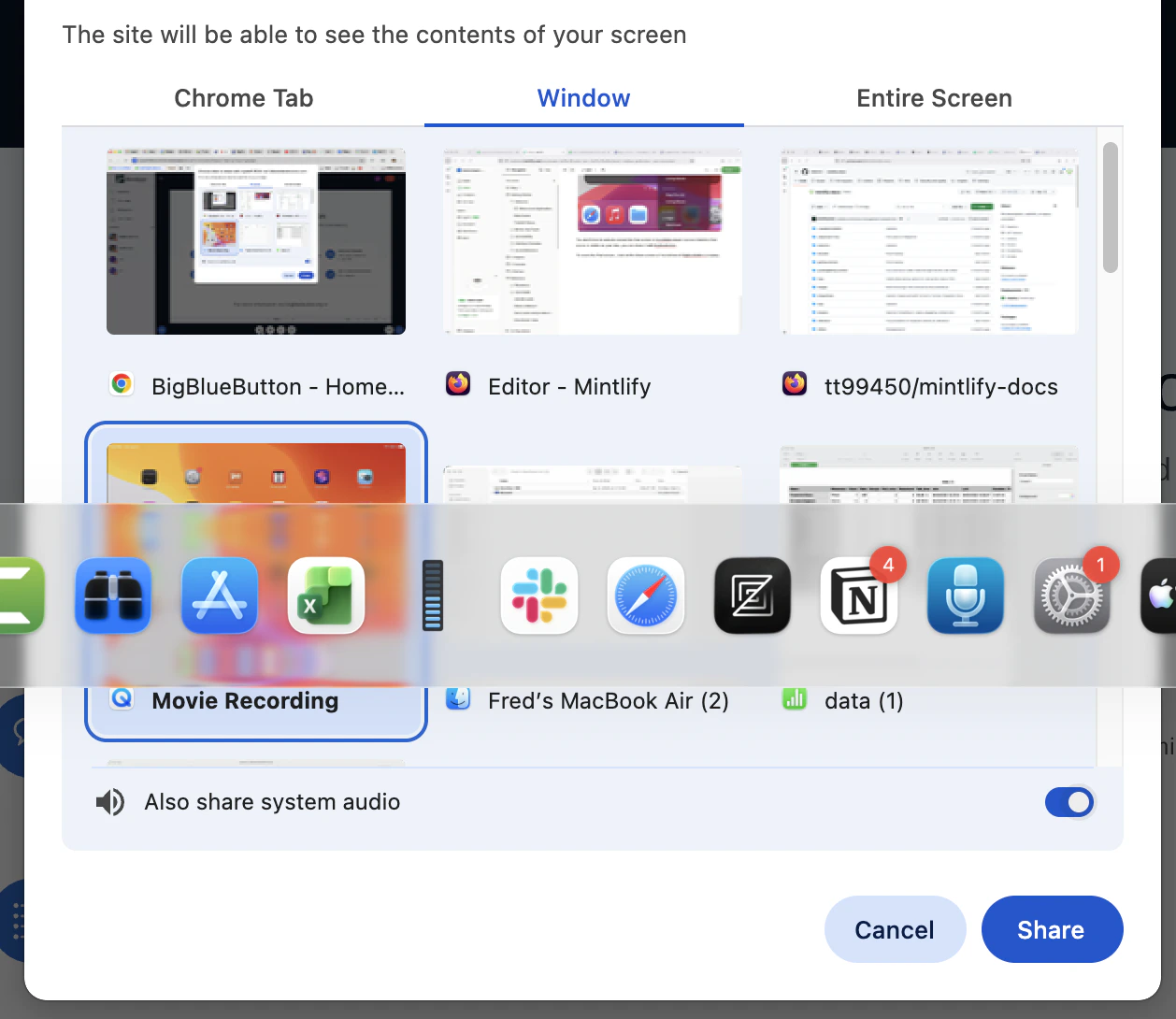 BigBlueButton shares the iPad screen to all users in the session. Anything you do on the iPad is visible to everyone live.