> ## Documentation Index
> Fetch the complete documentation index at: https://bigbluebutton.com/docs/llms.txt
> Use this file to discover all available pages before exploring further.
# Use shared notes
> Anyone in a session can contribute to the Shared Notes panel and export the notes to a file.
In addition to public and private chats, anyone in a BigBlueButton session can [contribute to Shared Notes](#contribute-to-shared-notes) and [export the notes](#export-the-notes-to-a-file) to a file. Shared Notes is a common text file that everyone in the session can edit at the same time.
## New Shared Notes Editor
In [March 2026](/docs/hosting-updates#march-2026) we released a modern shared notes editor. This is a markdown aware editor that provides support for markdown styles and tables.
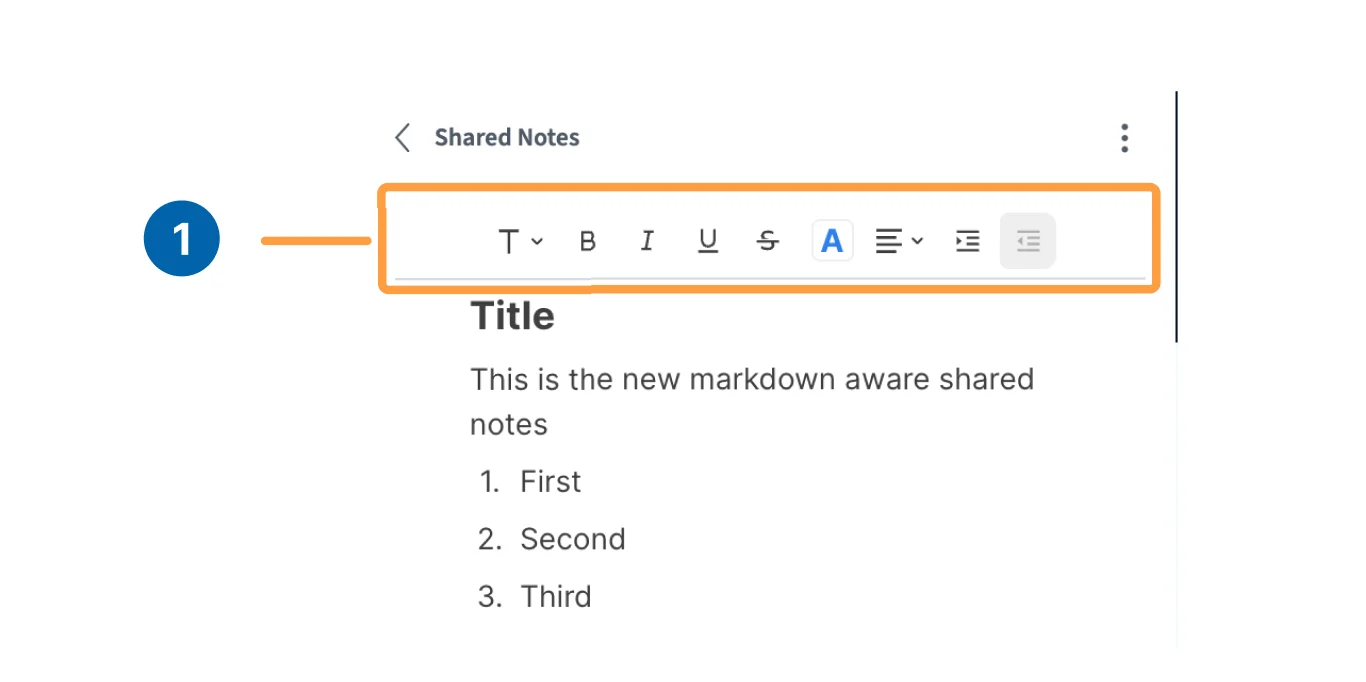 You can apply styles to any by highlighting the text and choosing a **Style \[1]** which will show a drop-down menu of available styles.
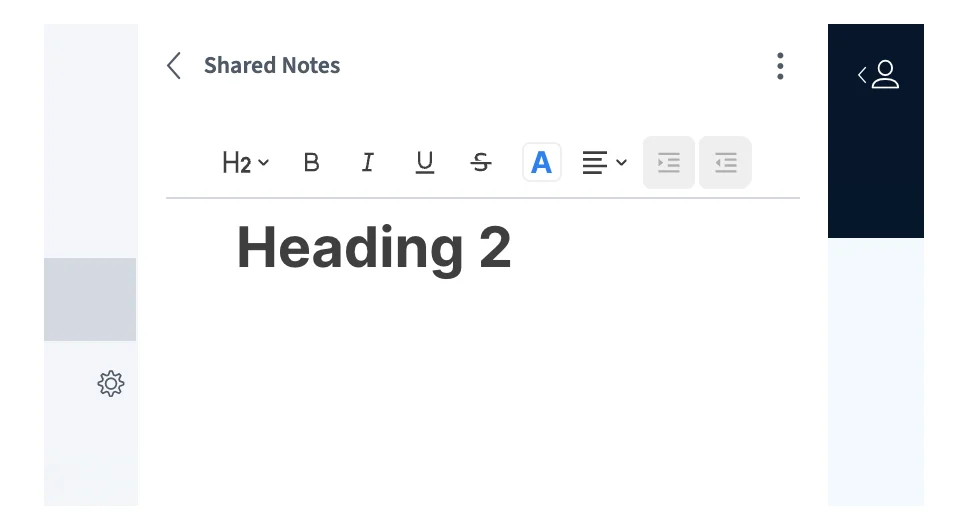
 You an apply a style while editing if you enter markdown prefix. For example, typing ## before text will apply the Heading 2 style.
 ### Insert menu '/'
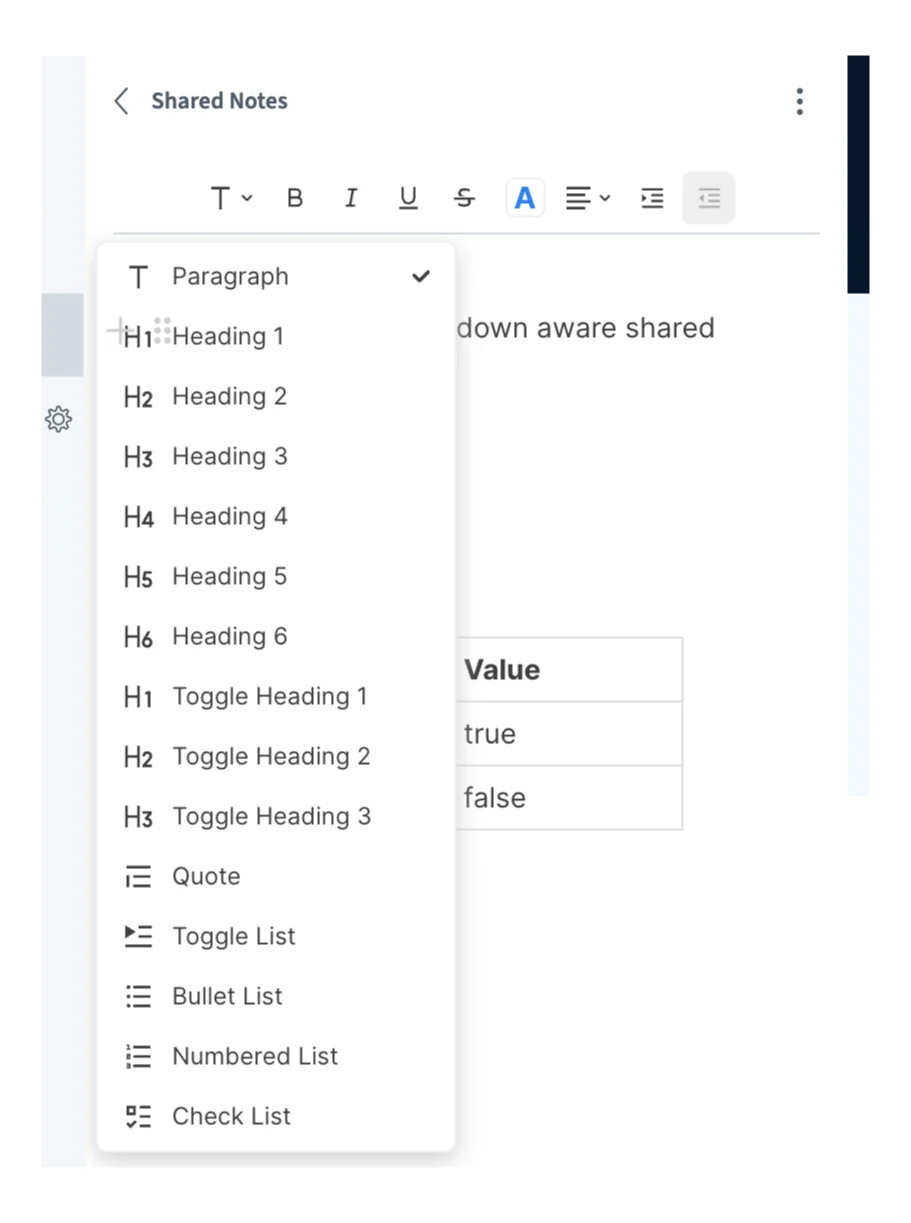
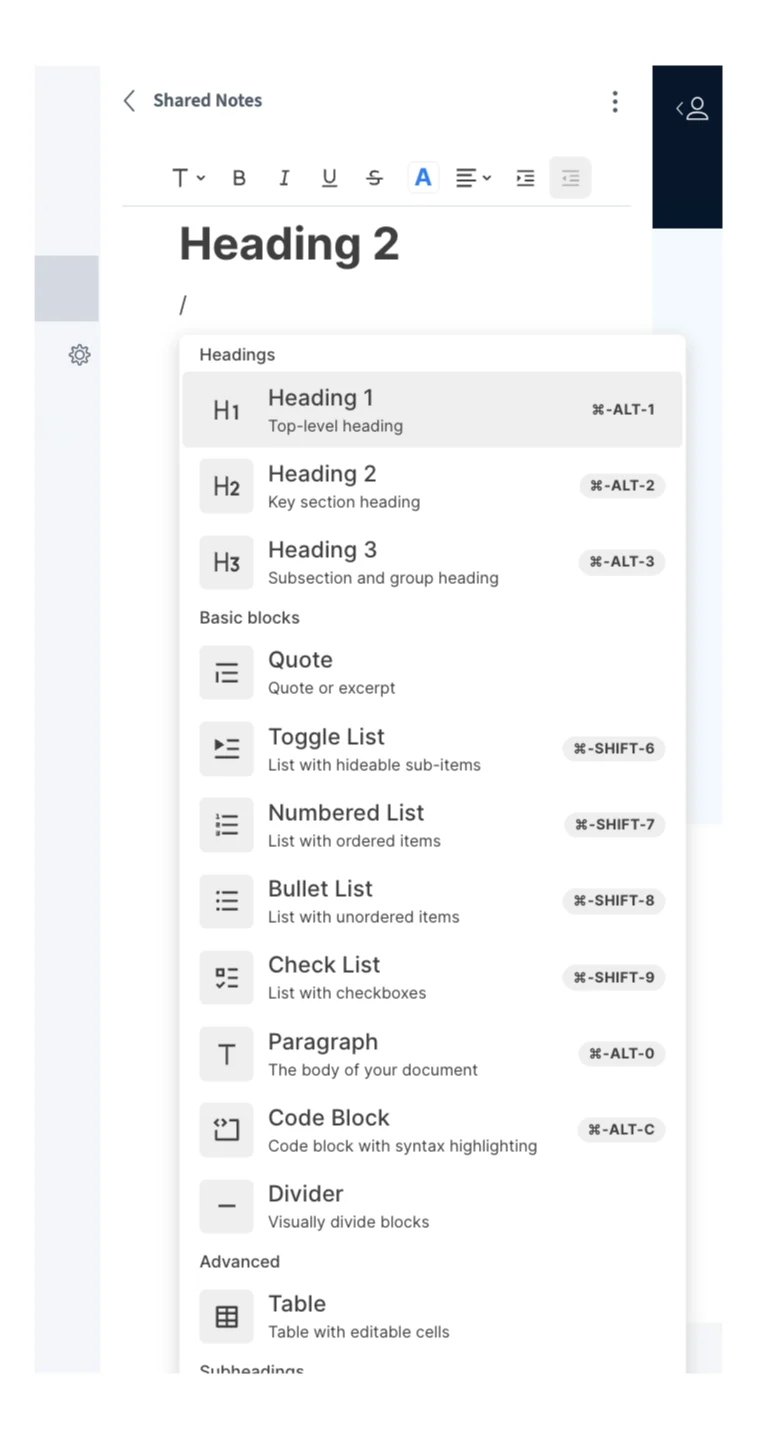
You can also open an insert menu by typing the '/' key.
### Insert menu '/'
You can also open an insert menu by typing the '/' key.
 ### Shared Notes Options
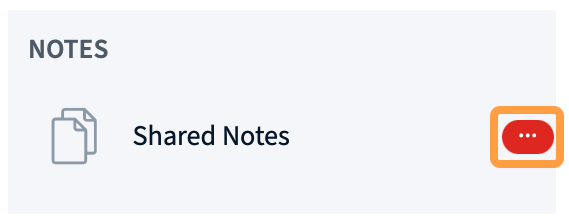
You can **Convert notes to presentation \[1]** which will convert the notes to a PDF and upload them to the presentation area. Letting you annotate the shared notes with the whiteboard.
### Shared Notes Options
You can **Convert notes to presentation \[1]** which will convert the notes to a PDF and upload them to the presentation area. Letting you annotate the shared notes with the whiteboard.
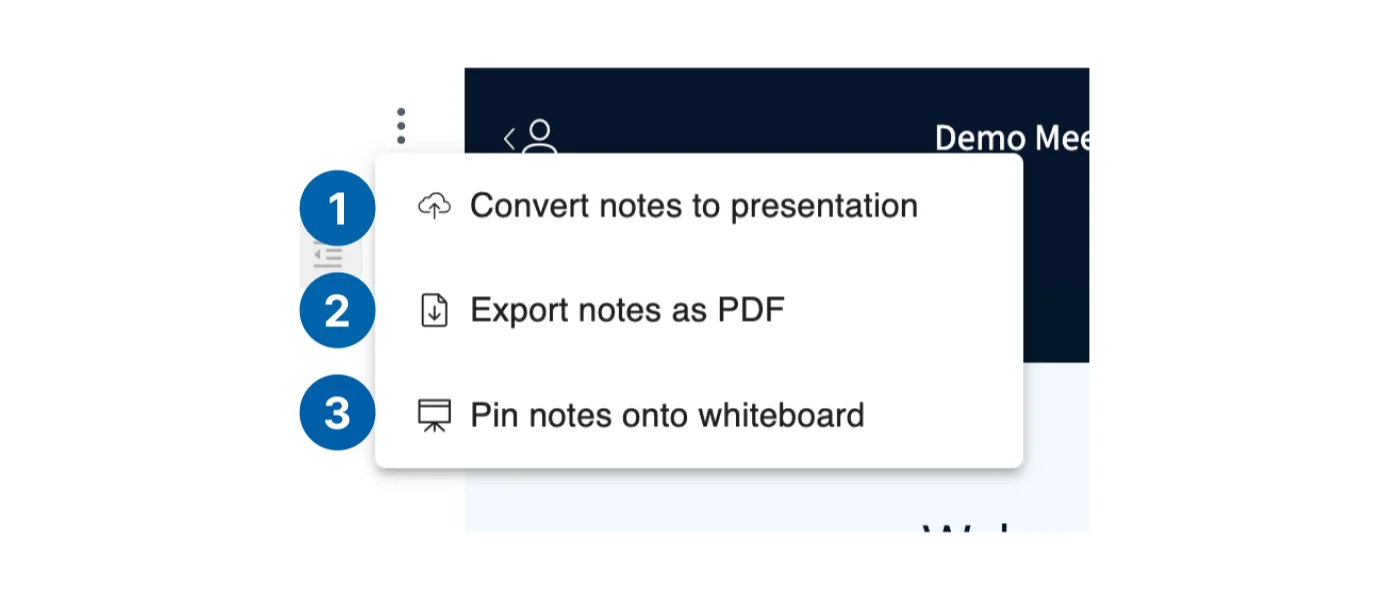 You an **Export notes as PDF \[2]** which will download the notes. You can also **Pin notes onto whiteboard \[3]** which will move the Shared notes from the panel to the main presentation area.
## Legacy Shared Notes Editor
On some installations, the older shared notes editor may still be available.
You an **Export notes as PDF \[2]** which will download the notes. You can also **Pin notes onto whiteboard \[3]** which will move the Shared notes from the panel to the main presentation area.
## Legacy Shared Notes Editor
On some installations, the older shared notes editor may still be available.
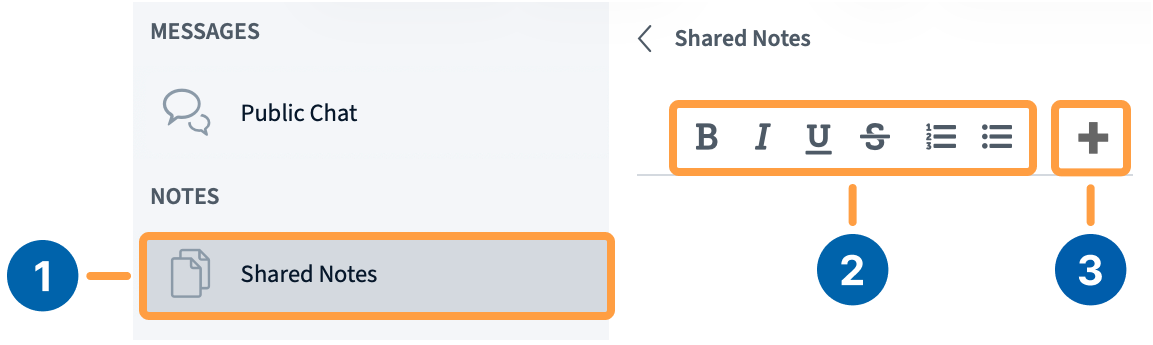 To open the notes panel, select **Shared Notes** **\[1]** in the left sidebar. **Formatting Options** **\[2]** such as **Bold** and **Italic** appear at the top of the panel. To reveal undo, redo, and download buttons, select the **'+'** **\[3]** button.
When another user edits the notes, an alert appears on the **Shared Notes** icon.
### Export the notes to a file
To download the current notes, select the **Export** **\[4]** button.
To open the notes panel, select **Shared Notes** **\[1]** in the left sidebar. **Formatting Options** **\[2]** such as **Bold** and **Italic** appear at the top of the panel. To reveal undo, redo, and download buttons, select the **'+'** **\[3]** button.
When another user edits the notes, an alert appears on the **Shared Notes** icon.
### Export the notes to a file
To download the current notes, select the **Export** **\[4]** button.
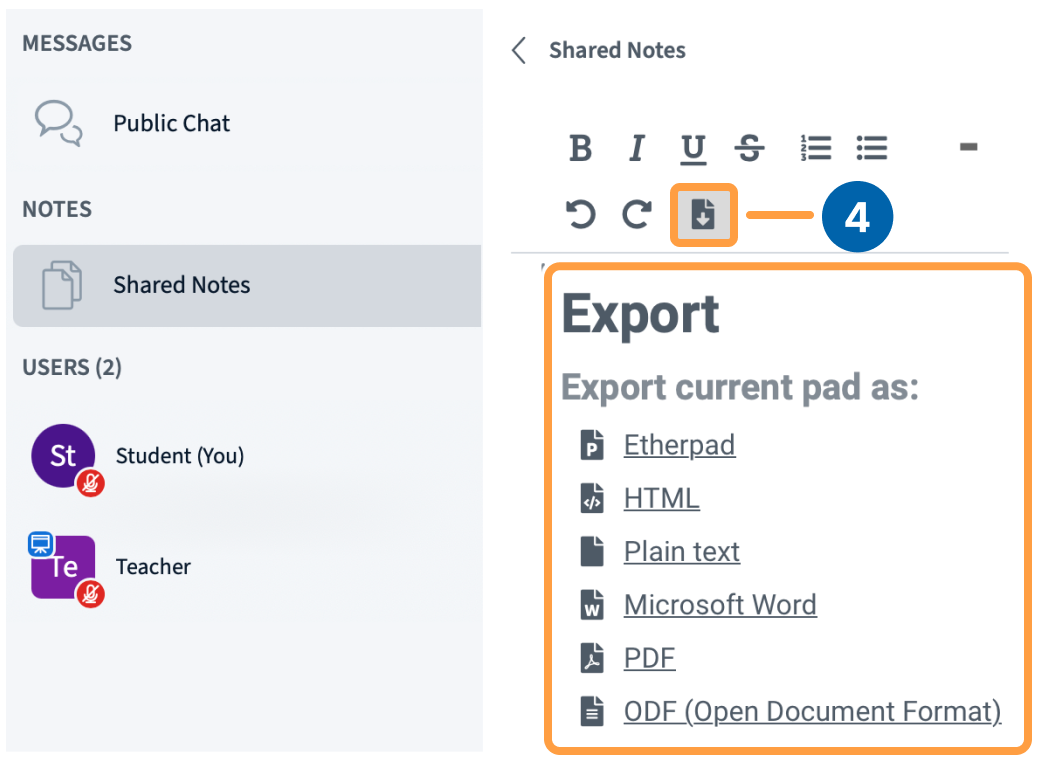 A list of available formats appears. Select your preferred format and save the file to your device.