> ## Documentation Index
> Fetch the complete documentation index at: https://bigbluebutton.com/docs/llms.txt
> Use this file to discover all available pages before exploring further.
# Creating and starting a Conference
> Canvas has BigBlueButton built into the core, making it easy to start a virtual class, invite students, and manage recordings.
Instructors can create a Conference in a Canvas course to host virtual lectures, run virtual office hours, and meet with student groups. You can [create a new Conference](#create-a-new-conference) and [start a created Conference](#start-a-created-conference).
Creating a Conference is a course permission. If you cannot create a Conference, your institution has restricted this feature; contact your Canvas administrator for more information.
Conference invitations are sent when you create the Conference in Canvas. We recommend creating a course event in the Calendar to alert invitees of an upcoming Conference, then creating the Conference 30 minutes before the host time.
## Create a new Conference
BigBlueButton is available within the course menu.
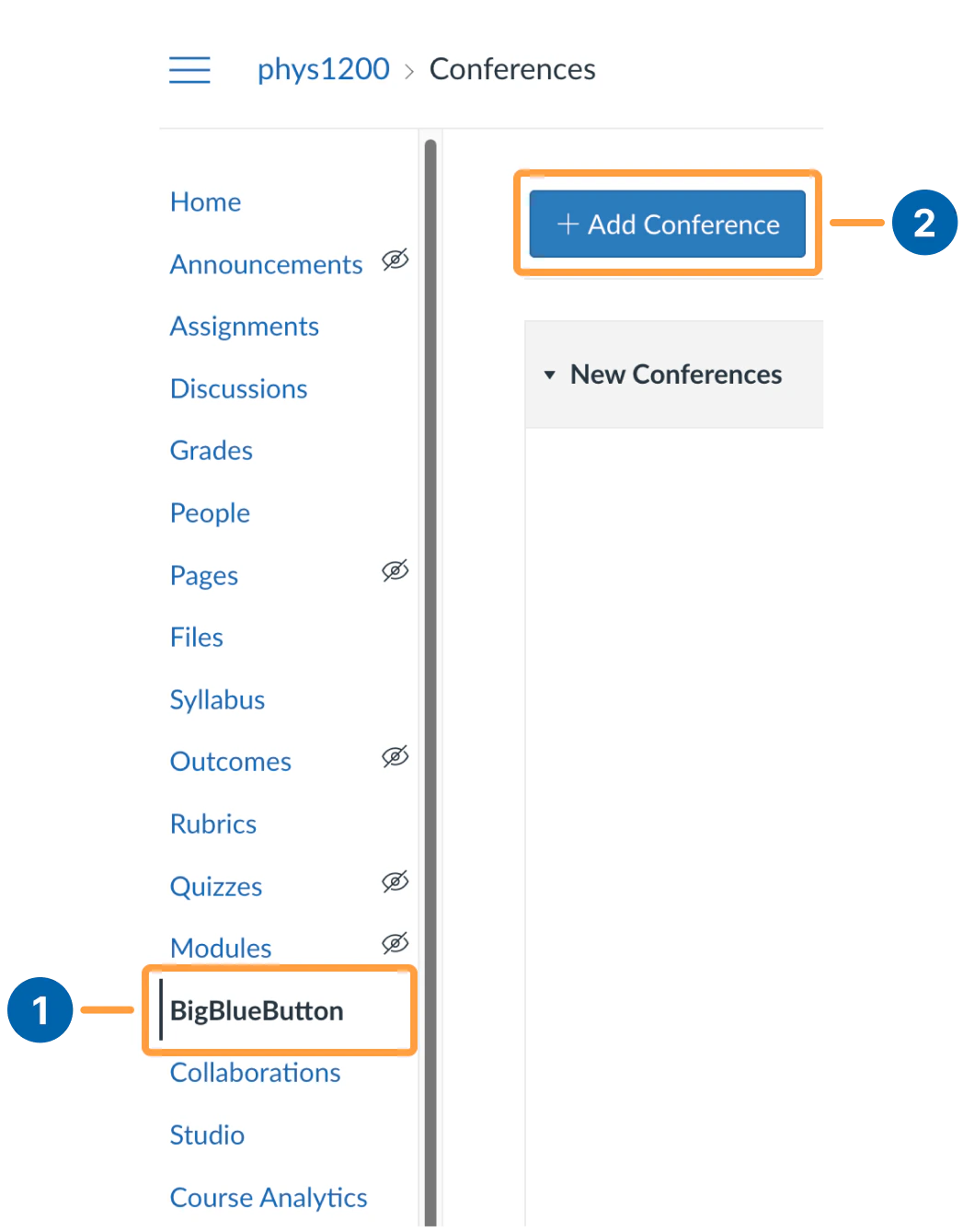 To create a Conference, select **BigBlueButton \[1]** in your course navigation, then select the **Add Conference \[2]** button.
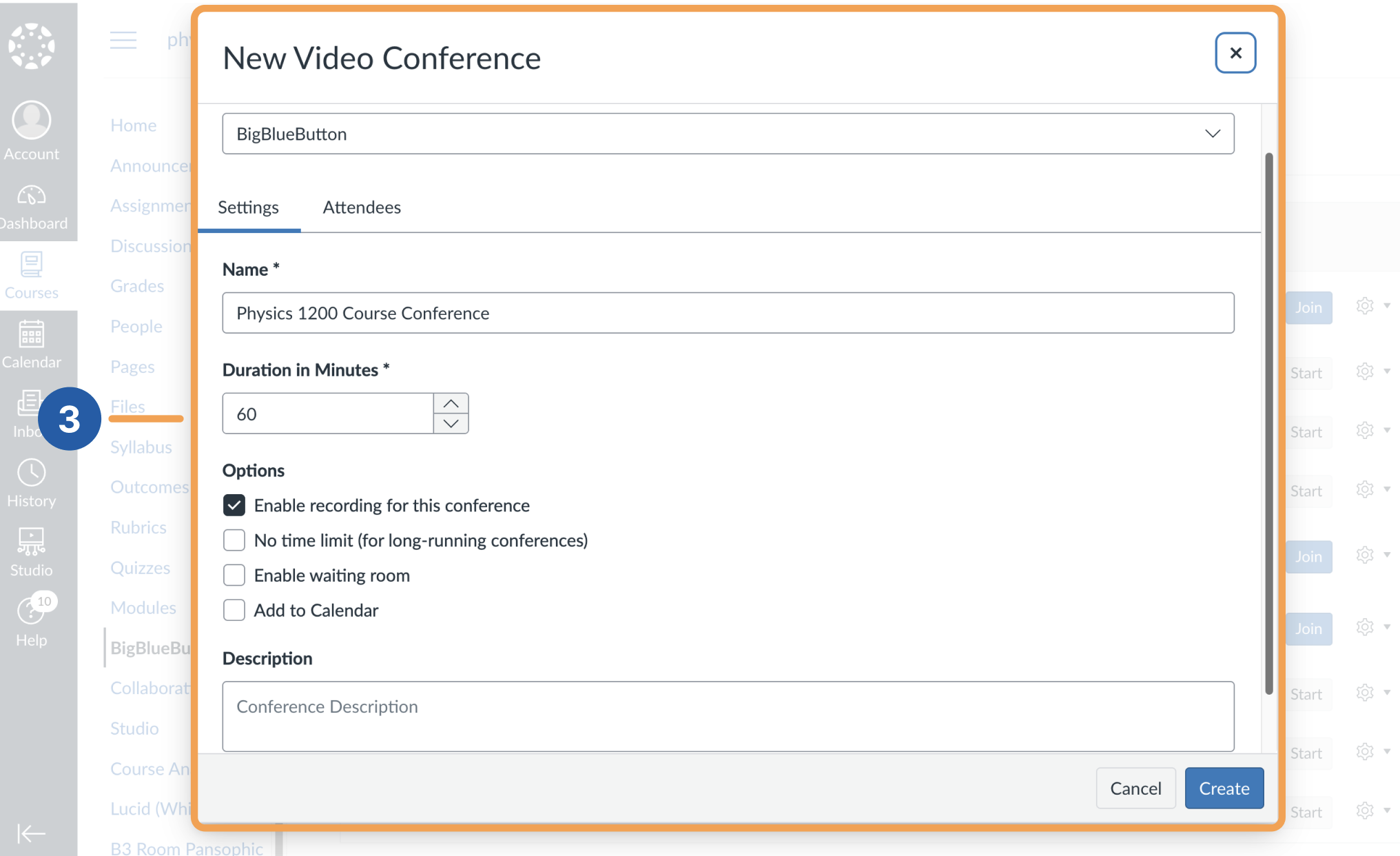 The **New Video Conference Setting \[3]** window appears and prompts you to add your Conference details.
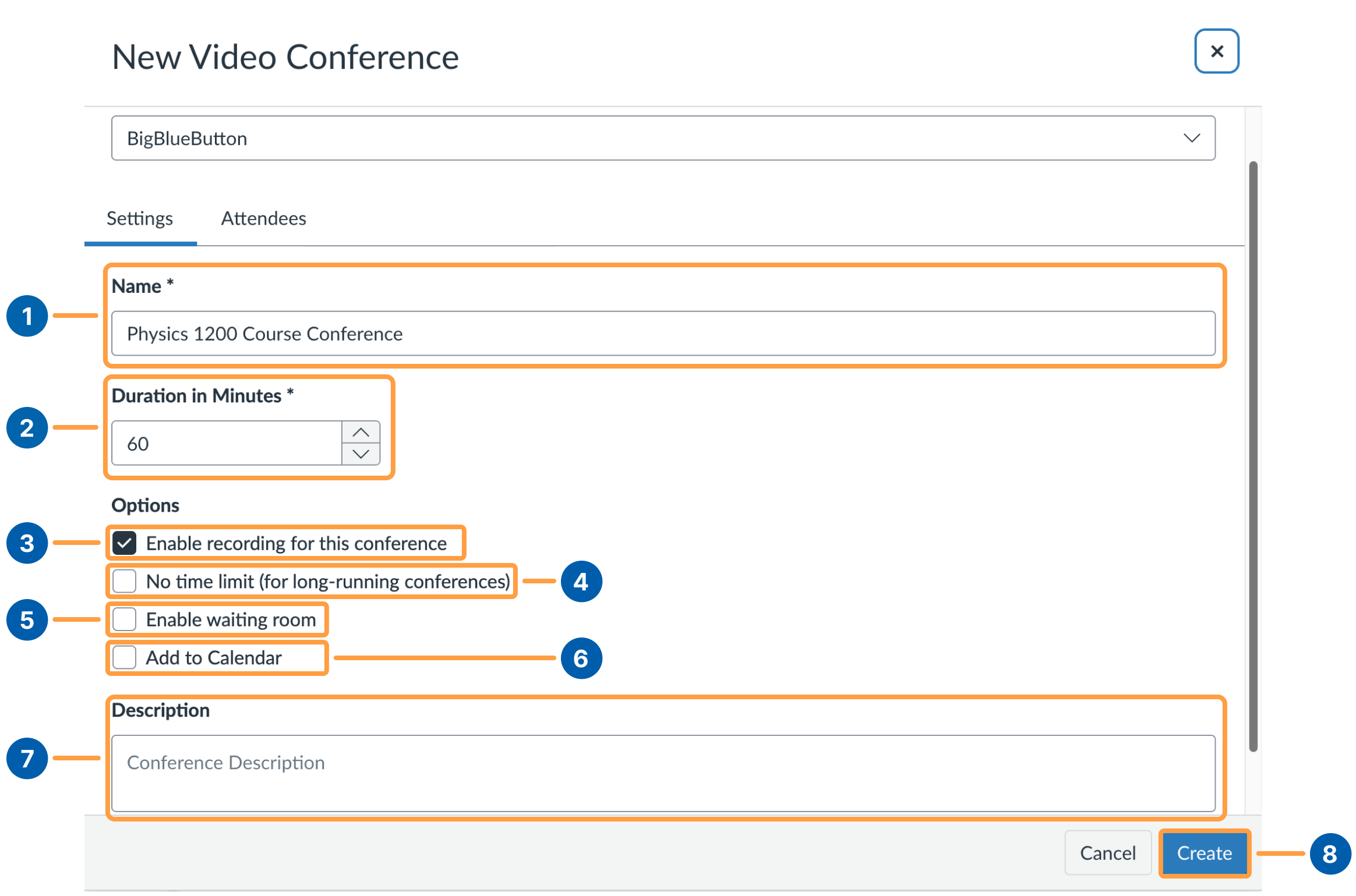 1. **Name:** The title of the Conference you are creating.
2. **Duration in Minutes:** How long students can join after the Conference starts, after which the session closes its doors.
3. **Enable recording for this conference:** Check this to enable start, pause, and stop recording, along with recording recovery.
4. **No time limit:** Keeps the Conference open after starting, so the join option is always visible.
5. **Enable waiting room:** Creates a waiting room so you can admit selected students or everyone when you are ready.
6. **Add to calendar:** Adds the Conference to the course calendar.
7. **Description:** Add details about your Conference.
8. **Create:** Confirms creation of the Conference with these settings.
## Start a created Conference
1. **Name:** The title of the Conference you are creating.
2. **Duration in Minutes:** How long students can join after the Conference starts, after which the session closes its doors.
3. **Enable recording for this conference:** Check this to enable start, pause, and stop recording, along with recording recovery.
4. **No time limit:** Keeps the Conference open after starting, so the join option is always visible.
5. **Enable waiting room:** Creates a waiting room so you can admit selected students or everyone when you are ready.
6. **Add to calendar:** Adds the Conference to the course calendar.
7. **Description:** Add details about your Conference.
8. **Create:** Confirms creation of the Conference with these settings.
## Start a created Conference
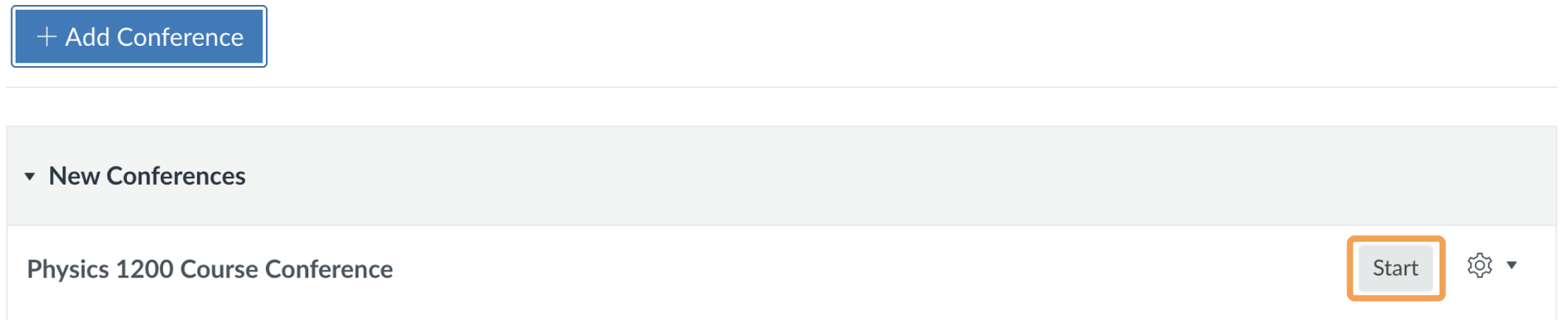 To launch the Conference, select **Start**. Canvas redirects you to your BigBlueButton Conference.