> ## Documentation Index
> Fetch the complete documentation index at: https://bigbluebutton.com/docs/llms.txt
> Use this file to discover all available pages before exploring further.
# Locating & deleting recordings
> Instructors can find and delete recordings of concluded Canvas Conferences, and premium-tier customers can also view recording statistics and notes.
If you enabled recording when you created the Conference and used the start/stop record button during the live session, a recording is available afterward.
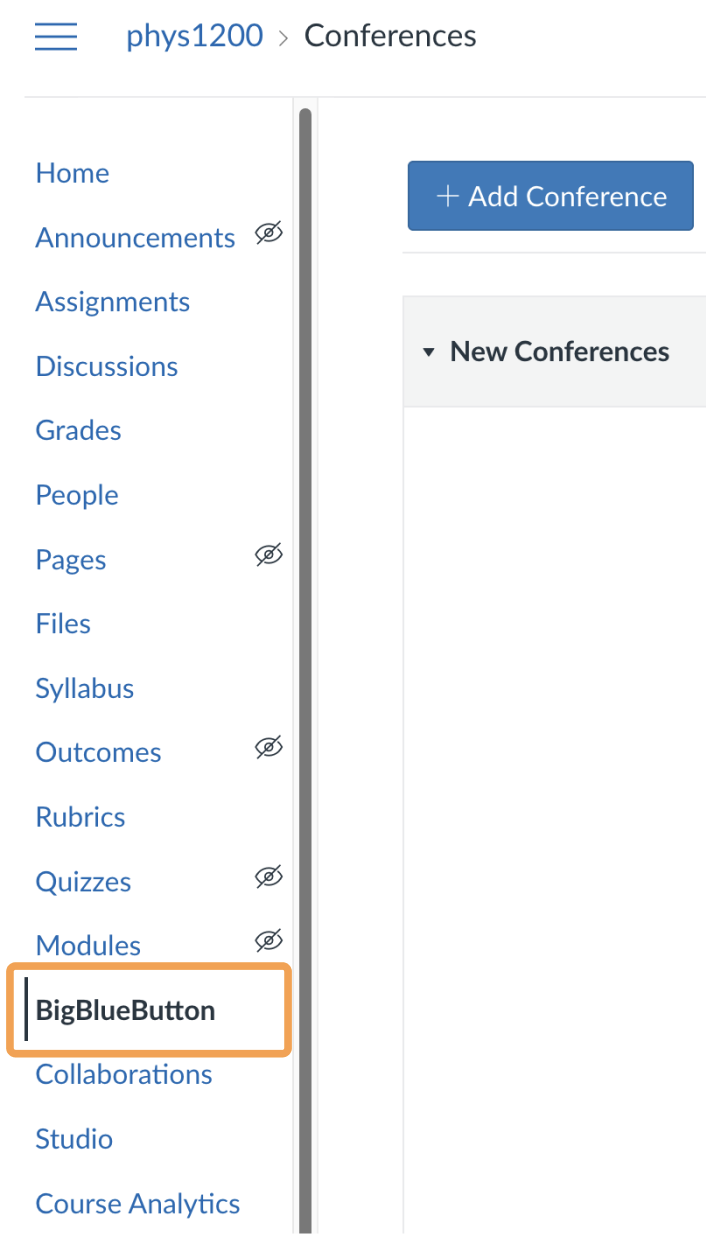
To locate a recording, select **BigBlueButton** in the course navigation.
 Under **Concluded Conferences**, locate the Conference activity to view its available recordings.
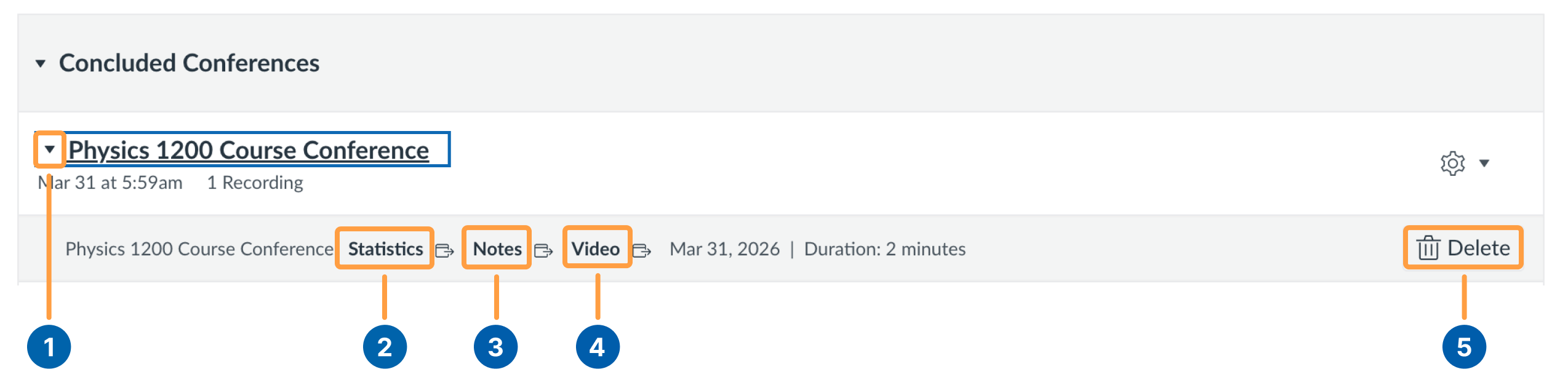 You may need to expand the **Concluded Conference Activity Menu \[1]** to reach the recording **Video Link \[4]**. From here you can also **Delete \[5]** a recording.
If you are a premium tier Canvas Customer you will also have access to recorded meeting **Statistics \[2] and Notes \[3]**. If you are a premium-tier Canvas customer, you also have access to recorded meeting **Statistics \[2]** and **Notes \[3]**.
A recording takes approximately the same amount of time to process as the duration of the live session.
You may need to expand the **Concluded Conference Activity Menu \[1]** to reach the recording **Video Link \[4]**. From here you can also **Delete \[5]** a recording.
If you are a premium tier Canvas Customer you will also have access to recorded meeting **Statistics \[2] and Notes \[3]**. If you are a premium-tier Canvas customer, you also have access to recorded meeting **Statistics \[2]** and **Notes \[3]**.
A recording takes approximately the same amount of time to process as the duration of the live session.