> ## Documentation Index
> Fetch the complete documentation index at: https://bigbluebutton.com/docs/llms.txt
> Use this file to discover all available pages before exploring further.
# Using BigBlueButton with Appointments
> Instructors can link Canvas appointment time slots to a BigBlueButton Conference so students who sign up can join the session with a single click.
Canvas has a calendar feature called [Appointment Group](https://community.canvaslms.com/t5/Canvas-Basics-Guide/How-do-I-add-an-appointment-group-in-a-course-calendar/ta-p/617602), which lets you set a range of time slots where students can sign up.
You can link these time slots directly to a BigBlueButton Conference, so students who sign up for an appointment join you in a BigBlueButton session with a single click.
## Create the Conference
First, create a BigBlueButton Conference in your course. Select **No time limit** so you can re-use the Conference, and select **Enable waiting room** so students cannot join unless you are present.
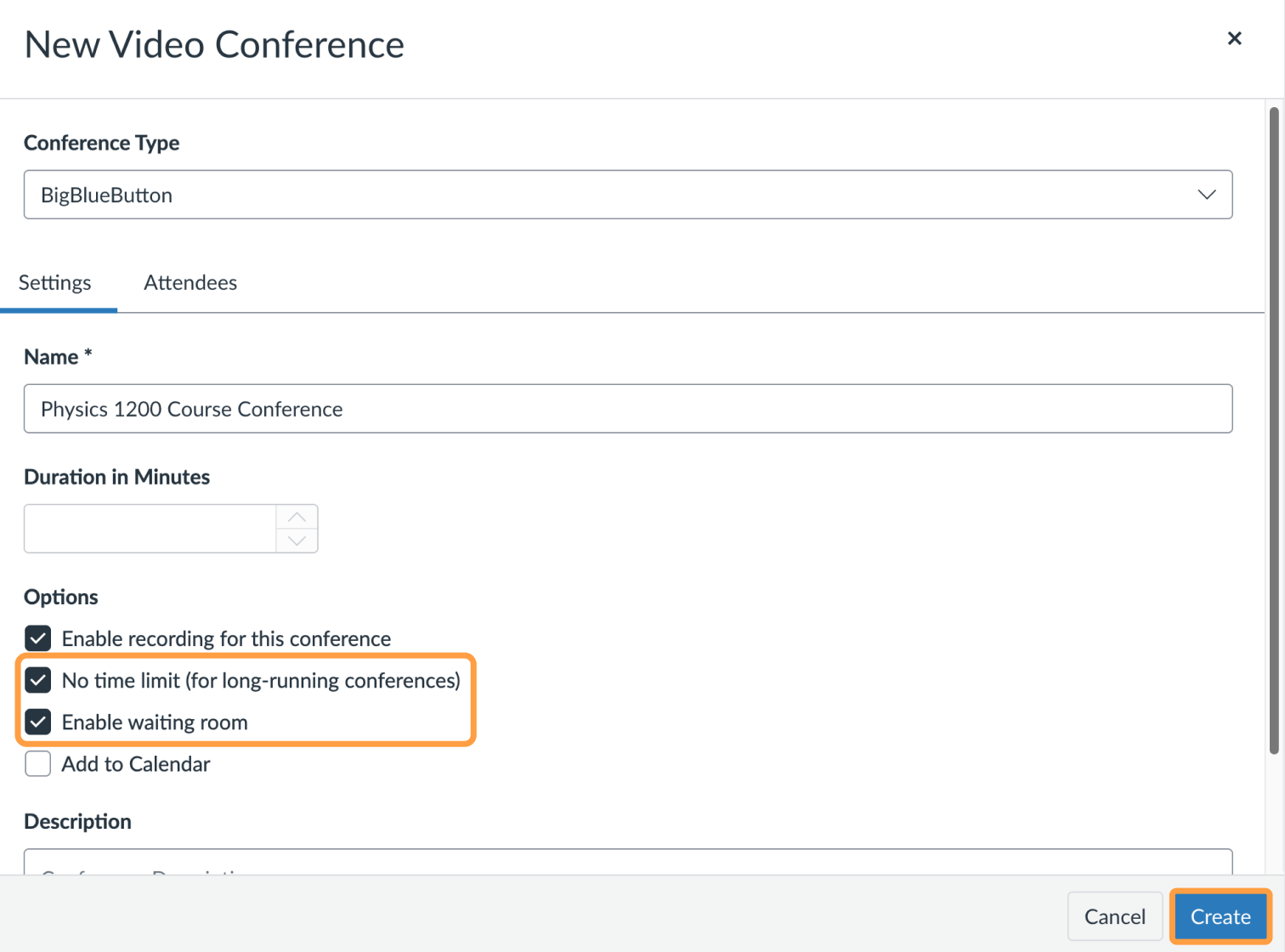 Select **Create** to create the Conference. You can also use an existing Conference.
## Copy the join link
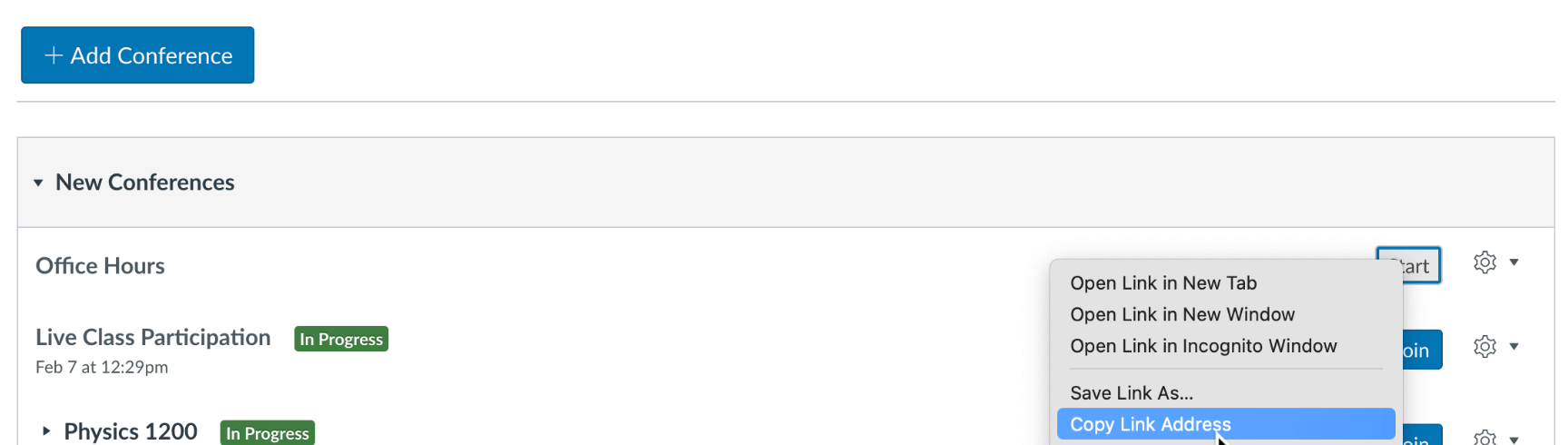
Once the Conference is created, copy the URL that students use to start or join it. To copy it to the clipboard, point at the **Start/Join** link, right-click, and choose **Copy Link address**.
Select **Create** to create the Conference. You can also use an existing Conference.
## Copy the join link
Once the Conference is created, copy the URL that students use to start or join it. To copy it to the clipboard, point at the **Start/Join** link, right-click, and choose **Copy Link address**.
 The copied URL looks like this:
[https://blindside.instructure.com/courses/9/conferences/1009/join](https://blindside.instructure.com/courses/9/conferences/1009/join)
This is a static join URL. Whenever a student selects the **Join** button, Canvas opens this URL to join this specific Conference.
## Add the link to an appointment group
Next, create an **Appointment Group** in your course calendar. The example below adds two appointments, at 9:00 AM and 9:30 AM.
The copied URL looks like this:
[https://blindside.instructure.com/courses/9/conferences/1009/join](https://blindside.instructure.com/courses/9/conferences/1009/join)
This is a static join URL. Whenever a student selects the **Join** button, Canvas opens this URL to join this specific Conference.
## Add the link to an appointment group
Next, create an **Appointment Group** in your course calendar. The example below adds two appointments, at 9:00 AM and 9:30 AM.
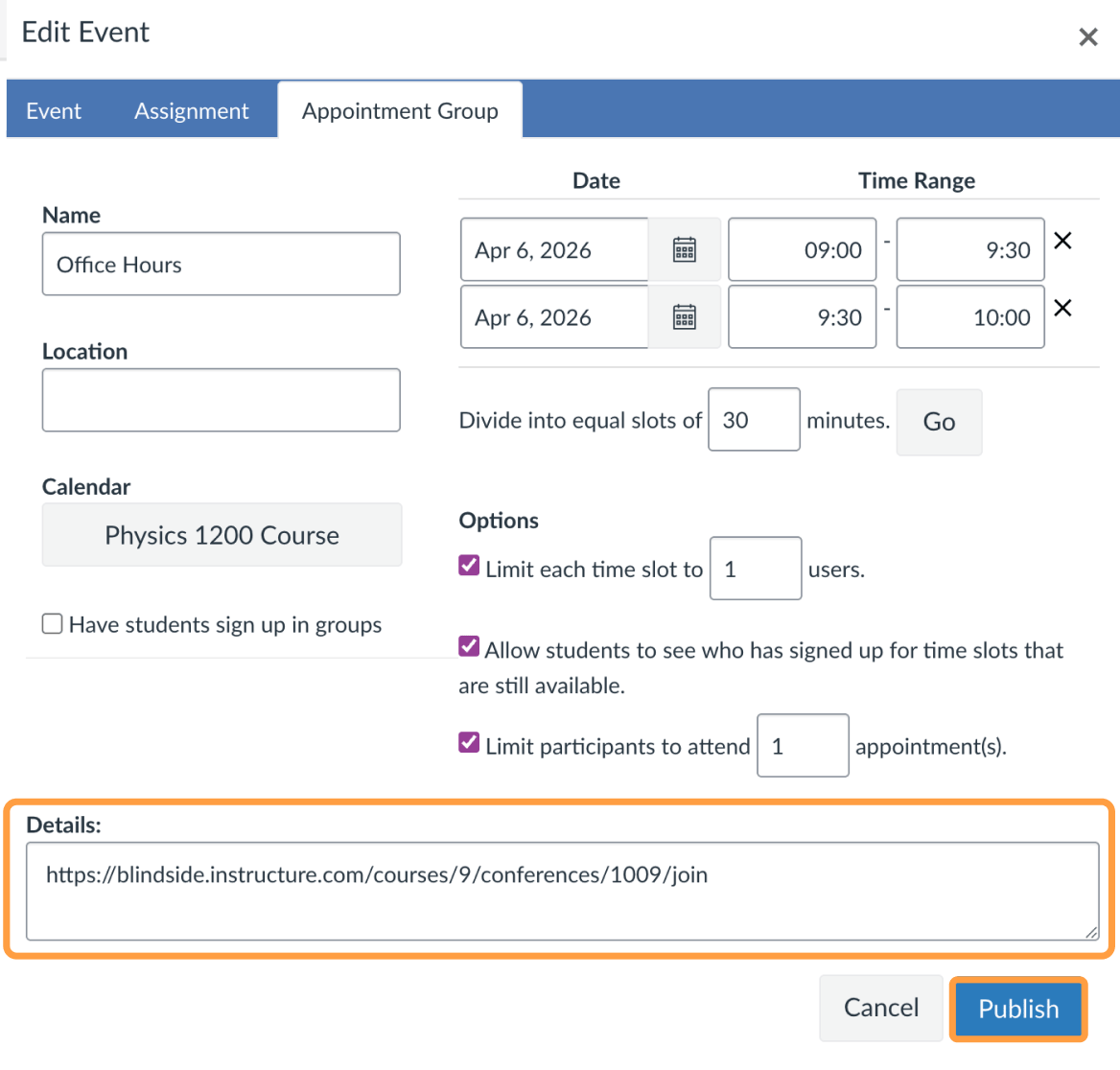 In the screenshot above, the copied join link is pasted into the **Details** field. Select **Publish**.
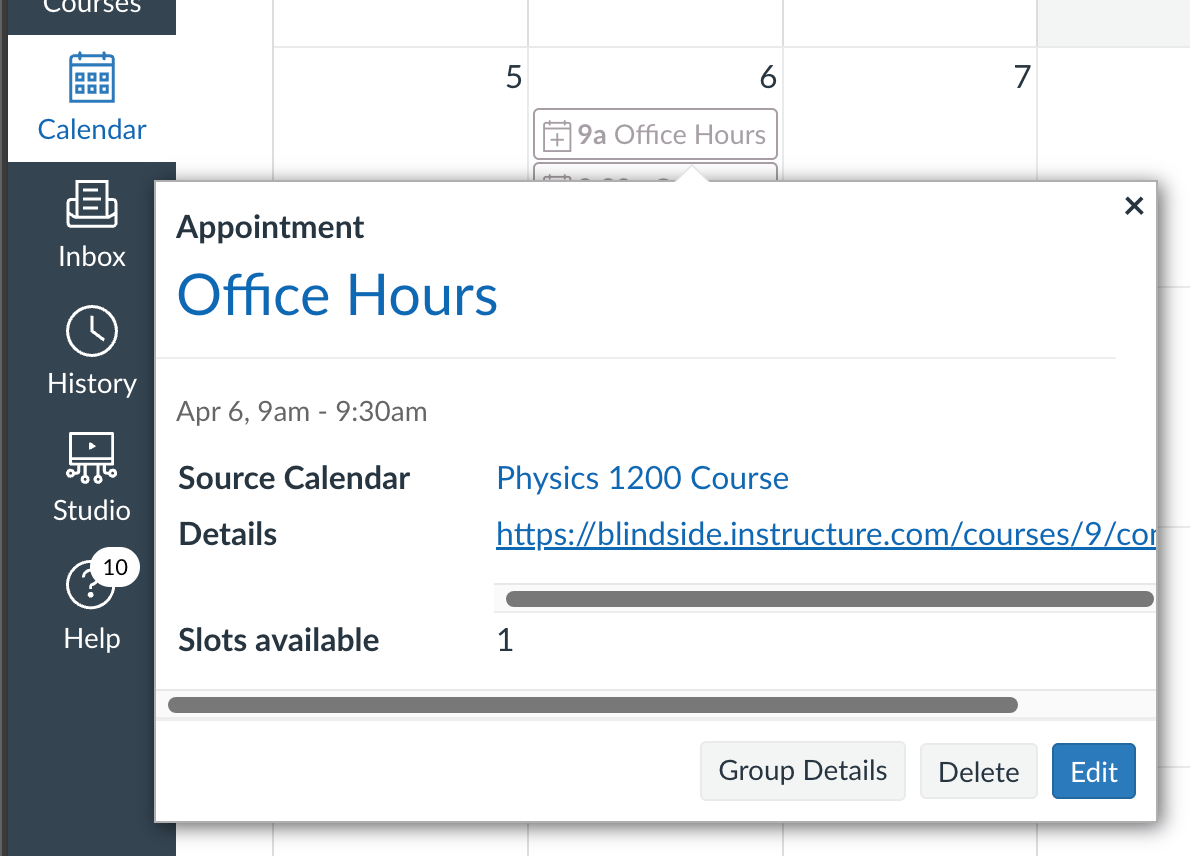
Now, whenever students sign up for an Office Hours appointment, they see a clickable link to join. Canvas turns the pasted link into a clickable link automatically.
In the screenshot above, the copied join link is pasted into the **Details** field. Select **Publish**.
Now, whenever students sign up for an Office Hours appointment, they see a clickable link to join. Canvas turns the pasted link into a clickable link automatically.
 ## Admit students with the waiting room
When you start the BigBlueButton Conference at the appointment time, use the **guest policy** to enable BigBlueButton's built-in waiting room. The waiting room lets you manage students as they join.
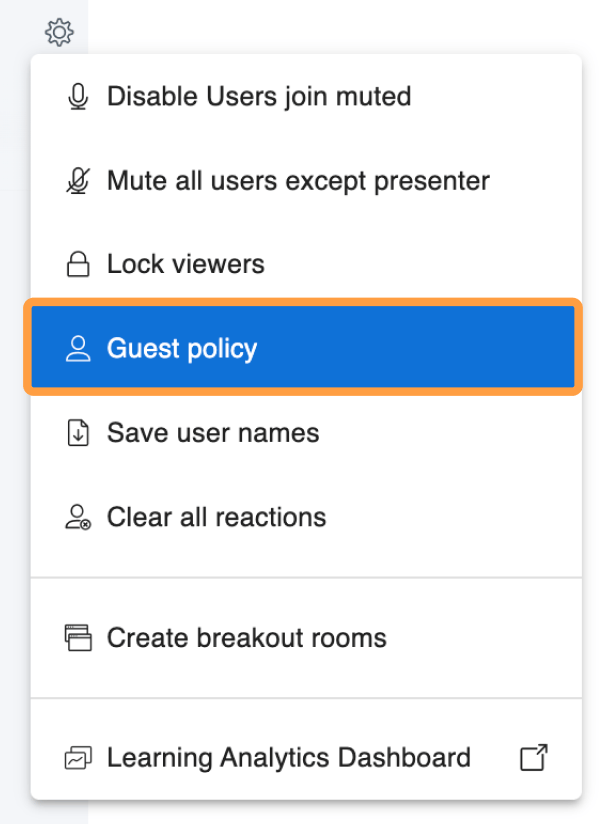
To set up the waiting room, select the gear icon and choose **Guest policy**.
## Admit students with the waiting room
When you start the BigBlueButton Conference at the appointment time, use the **guest policy** to enable BigBlueButton's built-in waiting room. The waiting room lets you manage students as they join.
To set up the waiting room, select the gear icon and choose **Guest policy**.
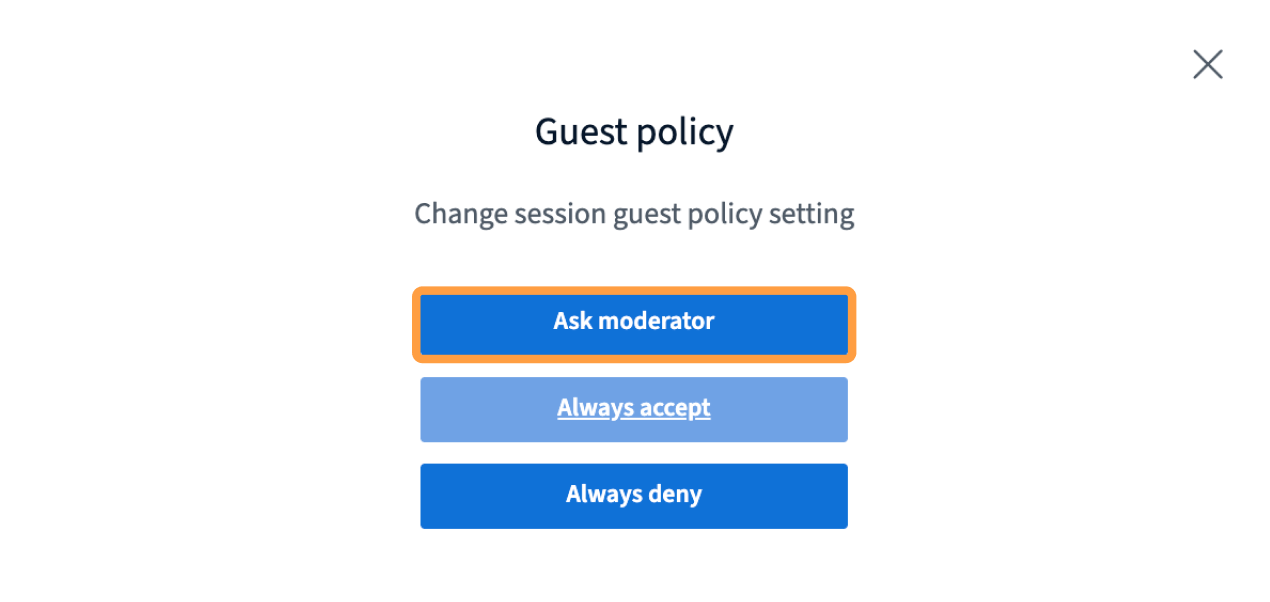
 Select **Ask Moderator**.
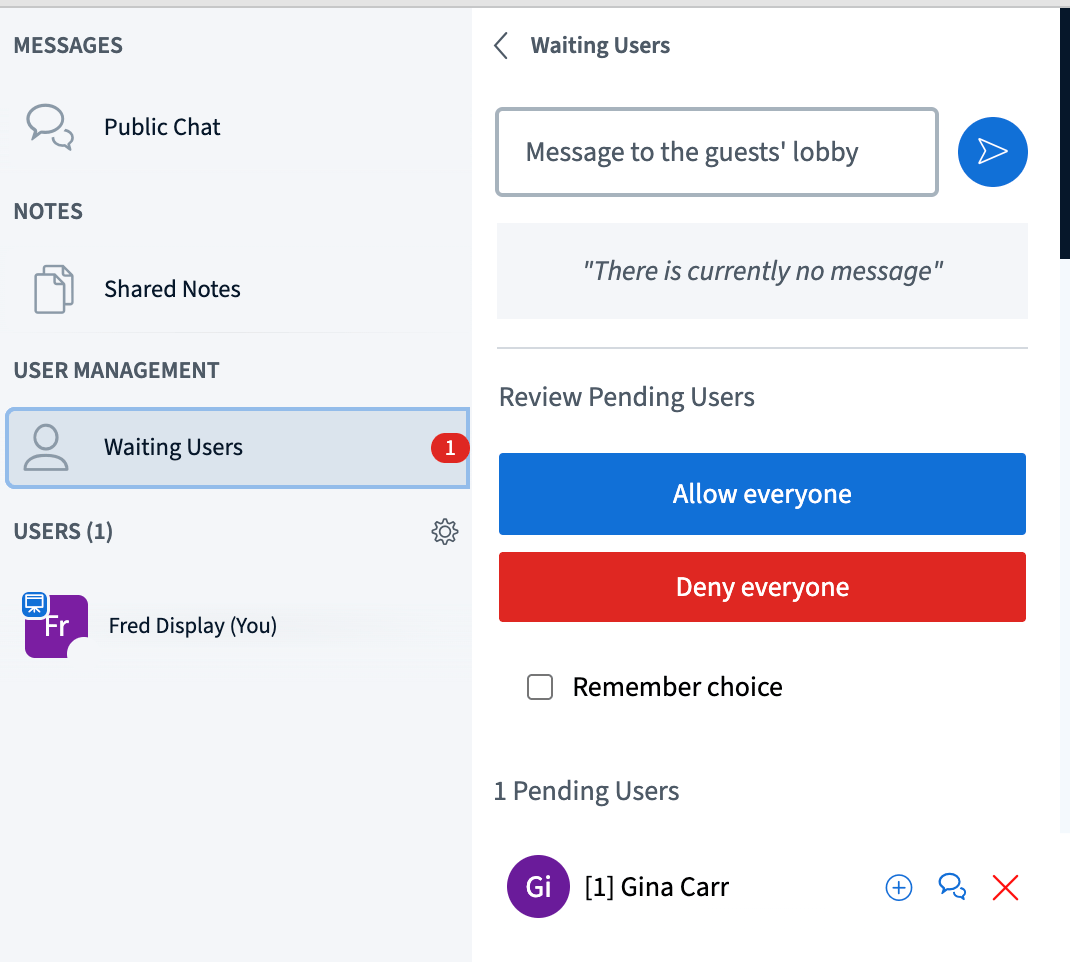
 Now, when a student wants to join, you hear a sound and BigBlueButton shows the student in the **Waiting Users** panel.
You can message waiting users, then select the **(+)** button when you want them to join.
Now, when a student wants to join, you hear a sound and BigBlueButton shows the student in the **Waiting Users** panel.
You can message waiting users, then select the **(+)** button when you want them to join.
 The waiting room helps when you are running a few moments late with the previous student. Once you finish, you can admit the next waiting student.