> ## Documentation Index
> Fetch the complete documentation index at: https://bigbluebutton.com/docs/llms.txt
> Use this file to discover all available pages before exploring further.
# Create your first activity
> Create your first BigBlueButton activity in Moodle and configure the core options needed to launch a live session.
Use BigBlueButton activities to host virtual lectures, hold office hours, and coordinate student groups from inside Moodle.
## Before you begin
Make sure:
* your Moodle administrator has installed and configured the BigBlueButton activity module
* you have permission to add activities to the course
If you cannot create a BigBlueButton activity, your institution has likely restricted that feature. Contact your Moodle administrator.
## Create the activity
1. Open the Moodle course where you want to add the activity.
2. Turn editing on.
3. Select **Add an activity or resource** in the topic or week where you want the room.
4. Choose **BigBlueButton**.
5. Enter a room name.
6. Optionally add a description that appears on the course page.
7. Review any room, recording, participant, and schedule settings you want to change.
8. Save the activity.


 ## What to configure first
For a good first setup, review these areas:
* [Room settings](/docs/integrations/moodle/teachers/room-settings)
* [Schedule a session](/docs/integrations/moodle/teachers/schedule-session)
* [Recording settings](/docs/integrations/moodle/teachers/recording-settings)
* [Participants and roles](/docs/integrations/moodle/teachers/participants-and-roles)
## General setup fields
The activity form usually starts with:
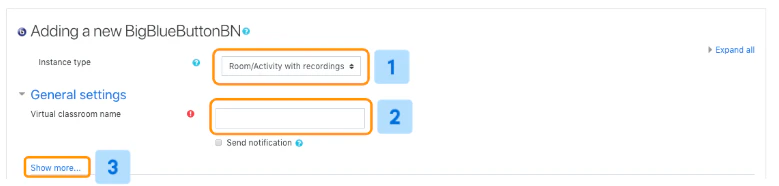
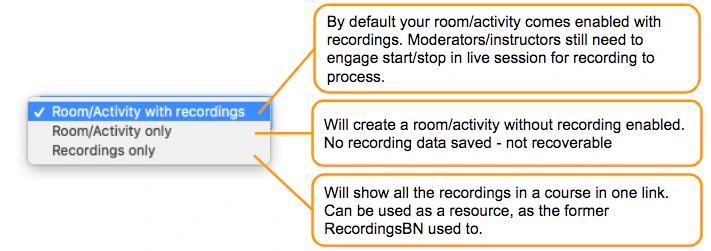
* an **Instance Type** selector
* a room or activity name
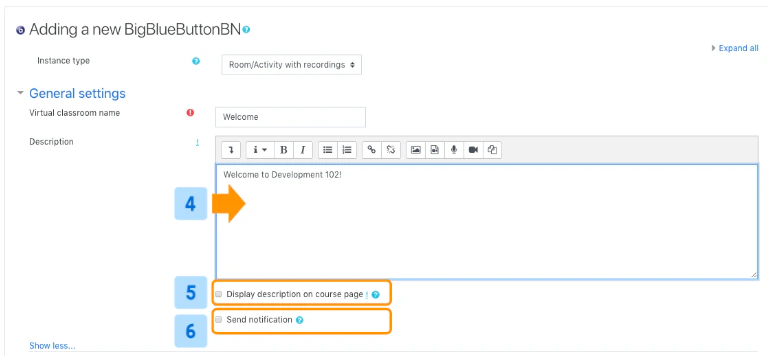
* optional description and notification settings
## What to configure first
For a good first setup, review these areas:
* [Room settings](/docs/integrations/moodle/teachers/room-settings)
* [Schedule a session](/docs/integrations/moodle/teachers/schedule-session)
* [Recording settings](/docs/integrations/moodle/teachers/recording-settings)
* [Participants and roles](/docs/integrations/moodle/teachers/participants-and-roles)
## General setup fields
The activity form usually starts with:
* an **Instance Type** selector
* a room or activity name
* optional description and notification settings
 ## Save options
When you finish, you can usually choose:
* **Save and return to course**
* **Save and display**
If you save and display, Moodle takes you directly to the activity page where you can launch the session.
## Save options
When you finish, you can usually choose:
* **Save and return to course**
* **Save and display**
If you save and display, Moodle takes you directly to the activity page where you can launch the session.
