> ## Documentation Index
> Fetch the complete documentation index at: https://bigbluebutton.com/docs/llms.txt
> Use this file to discover all available pages before exploring further.
# Find and play recordings
> Find processed BigBlueButton recordings in Moodle and play them back using the available recording formats.
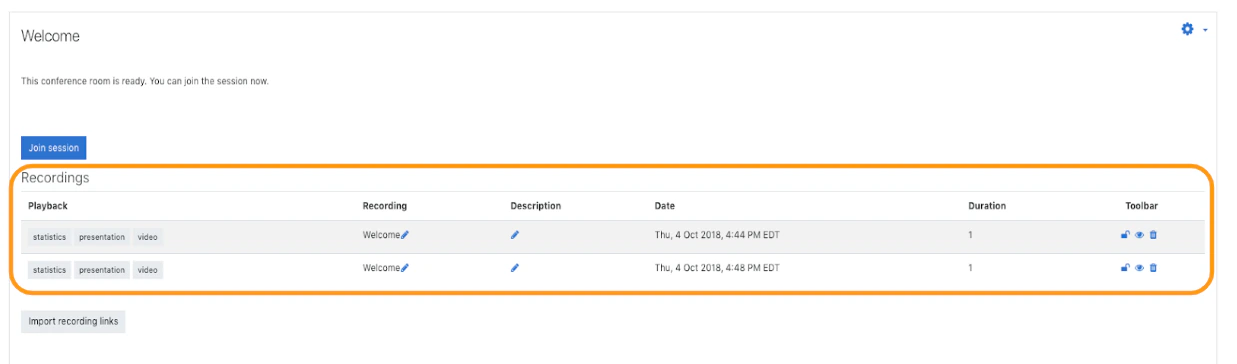
If recording is enabled for a BigBlueButton activity, processed recordings appear below the activity after the session concludes.
## Find recordings
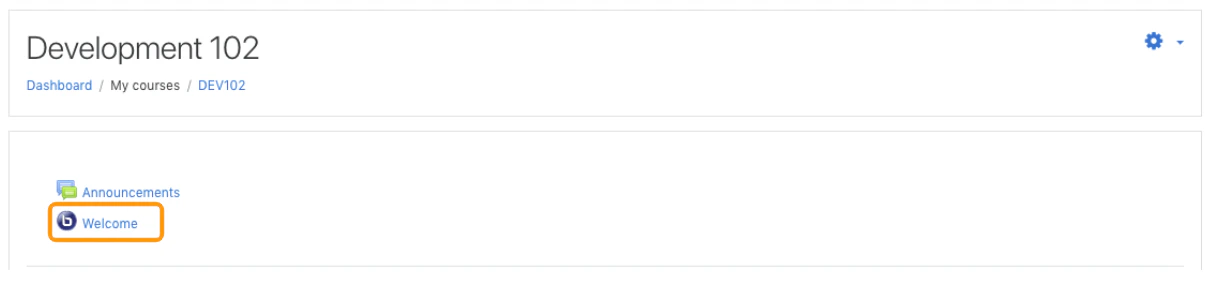
1. Open the course.
2. Select the BigBlueButton activity.
3. Scroll to the recordings section below the room details.
Recordings normally appear in chronological order.
 ## Play a recording
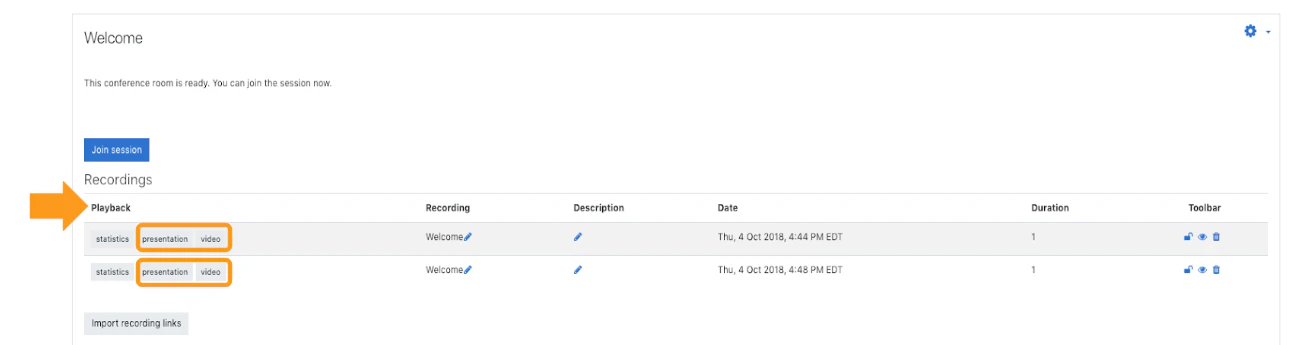
Look in the playback column and choose one of the available formats, such as:
* **Presentation**
* **Video**
The recording opens in a separate browser tab.
## Play a recording
Look in the playback column and choose one of the available formats, such as:
* **Presentation**
* **Video**
The recording opens in a separate browser tab.
 ## Download behavior
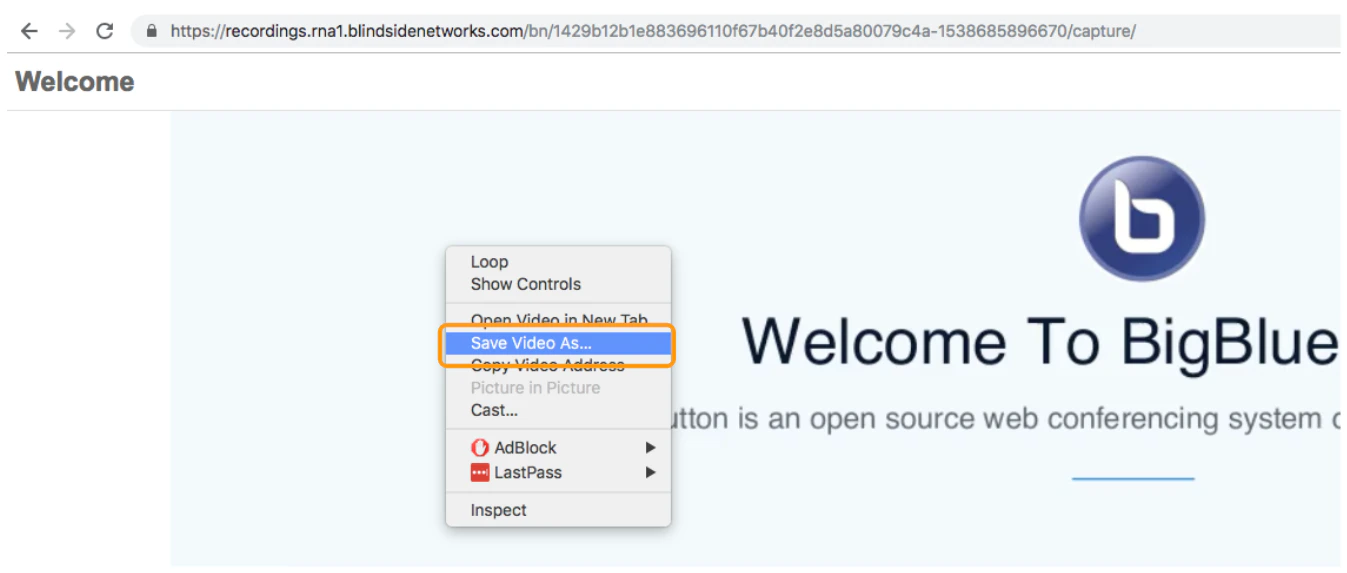
Some playback formats may also allow download or saving through the browser, depending on the format and the user’s permissions.
## Next steps
* Want to control who can view a recording? See [Manage recordings](/docs/integrations/moodle/teachers/recordings).
* Want to import a recording link from another course? See [Import recording links](/docs/integrations/moodle/teachers/import-recording-links).
## Download behavior
Some playback formats may also allow download or saving through the browser, depending on the format and the user’s permissions.
## Next steps
* Want to control who can view a recording? See [Manage recordings](/docs/integrations/moodle/teachers/recordings).
* Want to import a recording link from another course? See [Import recording links](/docs/integrations/moodle/teachers/import-recording-links).