> ## Documentation Index
> Fetch the complete documentation index at: https://bigbluebutton.com/docs/llms.txt
> Use this file to discover all available pages before exploring further.
# Join your first session
> Open a BigBlueButton activity in Moodle and understand what students and teachers see before joining a live session.
Once a BigBlueButton activity has been added to a course, joining the live room is simple.
## Join a session
1. Open the course.
2. Select the BigBlueButton activity.
3. Review the session status on the activity page.
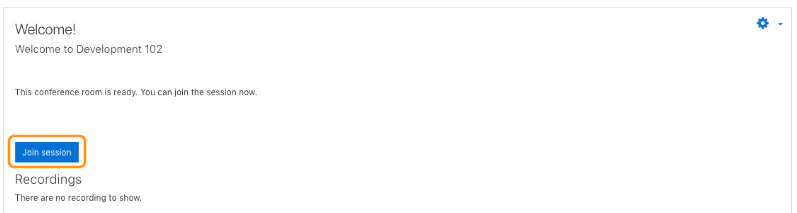
4. Select **Join session** when it becomes available.
The session opens in a separate browser tab or window.
 ## What you may see before joining
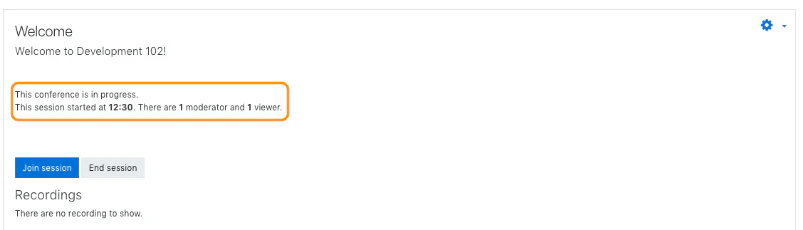
Depending on the settings, Moodle may show that:
* the room is ready
* the session has not started yet
* you are waiting for a moderator
* the session is closed
* the session is full
If the activity is scheduled, the join option may not appear until the session opens.
## When groups are enabled
If the course uses groups, the join flow can behave differently:
* some users will be sent directly to their group room
* some users will be able to choose from one or more rooms
* teachers may see more room options than students
See [Groups and grouping](/docs/integrations/moodle/teachers/groups-and-grouping).
## What you may see before joining
Depending on the settings, Moodle may show that:
* the room is ready
* the session has not started yet
* you are waiting for a moderator
* the session is closed
* the session is full
If the activity is scheduled, the join option may not appear until the session opens.
## When groups are enabled
If the course uses groups, the join flow can behave differently:
* some users will be sent directly to their group room
* some users will be able to choose from one or more rooms
* teachers may see more room options than students
See [Groups and grouping](/docs/integrations/moodle/teachers/groups-and-grouping).