> ## Documentation Index
> Fetch the complete documentation index at: https://bigbluebutton.com/docs/llms.txt
> Use this file to discover all available pages before exploring further.
# Participants and roles
> Customize which users enter a BigBlueButton activity and whether they join as viewers or moderators.
BigBlueButton activities in Moodle let you customize the participant list beyond the default behavior.
## Default behavior
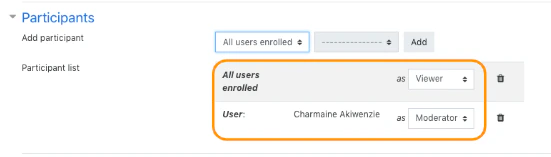
By default:
* all enrolled course users enter as **viewers**
* the owner of the activity enters as a **moderator**
 ## Add participants
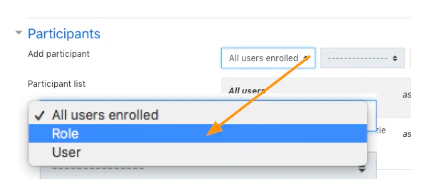
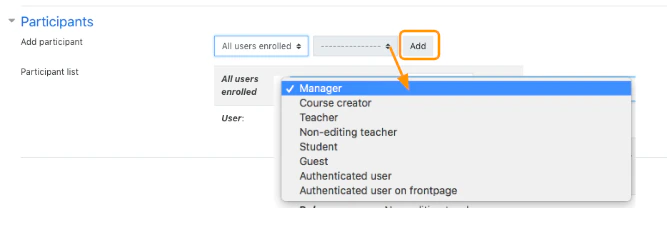
You can add participants based on:
* a Moodle role
* an individual enrolled user
When adding users manually, only users enrolled in the course will appear in the list.
## Add participants
You can add participants based on:
* a Moodle role
* an individual enrolled user
When adding users manually, only users enrolled in the course will appear in the list.
 ## Change entry role
For each participant mapping, you can choose whether the user or role enters as:
* **Viewer**
* **Moderator**
Moderators have more controls in the live BigBlueButton session than viewers.
## Change entry role
For each participant mapping, you can choose whether the user or role enters as:
* **Viewer**
* **Moderator**
Moderators have more controls in the live BigBlueButton session than viewers.

 ## Remove participants
To remove an added participant mapping, use the delete or trash icon in the participant list.
## Important note
Role-based behavior still depends on how Moodle roles and permissions are configured on your site.
## Remove participants
To remove an added participant mapping, use the delete or trash icon in the participant list.
## Important note
Role-based behavior still depends on how Moodle roles and permissions are configured on your site.