> ## Documentation Index
> Fetch the complete documentation index at: https://bigbluebutton.com/docs/llms.txt
> Use this file to discover all available pages before exploring further.
# Manage recordings
> View, play, edit, protect, publish, unpublish, delete, and control access to BigBlueButton recordings in Moodle.
Once a recording has processed, it becomes available in the recordings table under the BigBlueButton activity.
## What you can do
Depending on your permissions, you can:
* play a recording
* edit the recording name
* edit the recording description
* make a recording private
* publish or unpublish the recording link
* delete the recording
## Edit recording names and descriptions
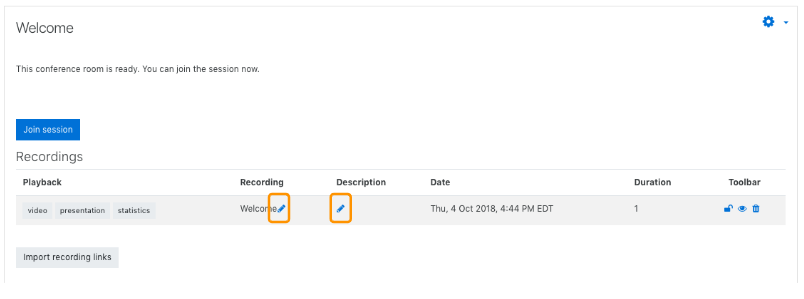
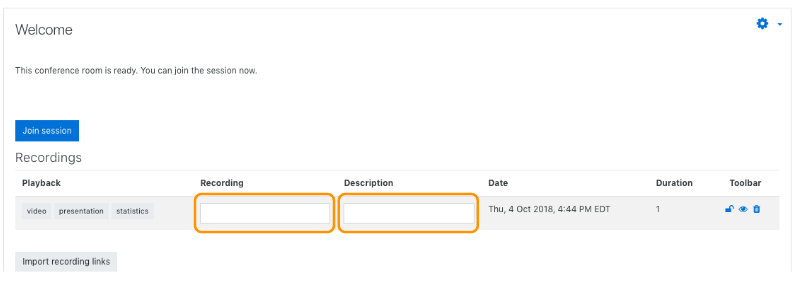
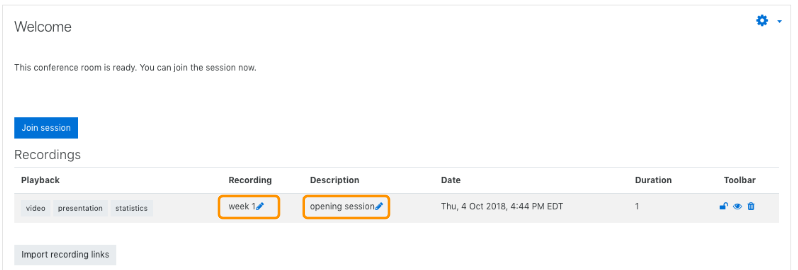
To edit the displayed name or description:
1. Find the recording in the recordings table.
2. Select the edit or pencil control next to the field you want to update.
3. Enter the new value.
4. Confirm the change.
 ## Control visibility and access
Teachers or administrators can often control who can access a recording.
Common actions include:
* **Private / protected**: the recording remains visible only through Moodle
* **Published / unpublished**: the recording link is either available for viewing or turned off
If a recording is unpublished, bookmarked direct links should no longer allow playback.
## Control visibility and access
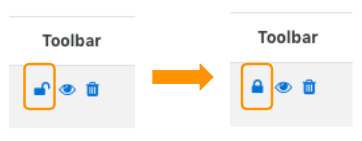
Teachers or administrators can often control who can access a recording.
Common actions include:
* **Private / protected**: the recording remains visible only through Moodle
* **Published / unpublished**: the recording link is either available for viewing or turned off
If a recording is unpublished, bookmarked direct links should no longer allow playback.

 ## Delete a recording
Deleting a recording removes the recording link and related reporting data exposed through the Moodle interface.
## Related pages
* [Find and play recordings](/docs/integrations/moodle/get-started/find-and-play-recordings)
* [Recording settings](/docs/integrations/moodle/teachers/recording-settings)
* [Import recording links](/docs/integrations/moodle/teachers/import-recording-links)
## Delete a recording
Deleting a recording removes the recording link and related reporting data exposed through the Moodle interface.
## Related pages
* [Find and play recordings](/docs/integrations/moodle/get-started/find-and-play-recordings)
* [Recording settings](/docs/integrations/moodle/teachers/recording-settings)
* [Import recording links](/docs/integrations/moodle/teachers/import-recording-links)