> ## Documentation Index
> Fetch the complete documentation index at: https://bigbluebutton.com/docs/llms.txt
> Use this file to discover all available pages before exploring further.
# Creating a BigBlueButton meeting
> You can use BigBlueButton meetings to host one-on-one tutoring, virtual lectures, and hold online office hours. Once successfully installed,...
## You can use BigBlueButton meetings to host one-on-one tutoring, virtual lectures, and hold online office hours.
Once successfully installed, instructors and their students will have full access to BigBlueButton’s capabilities from within their Sakai interface.
## To create a new conference
Navigate to the course you wish to add a meeting to.
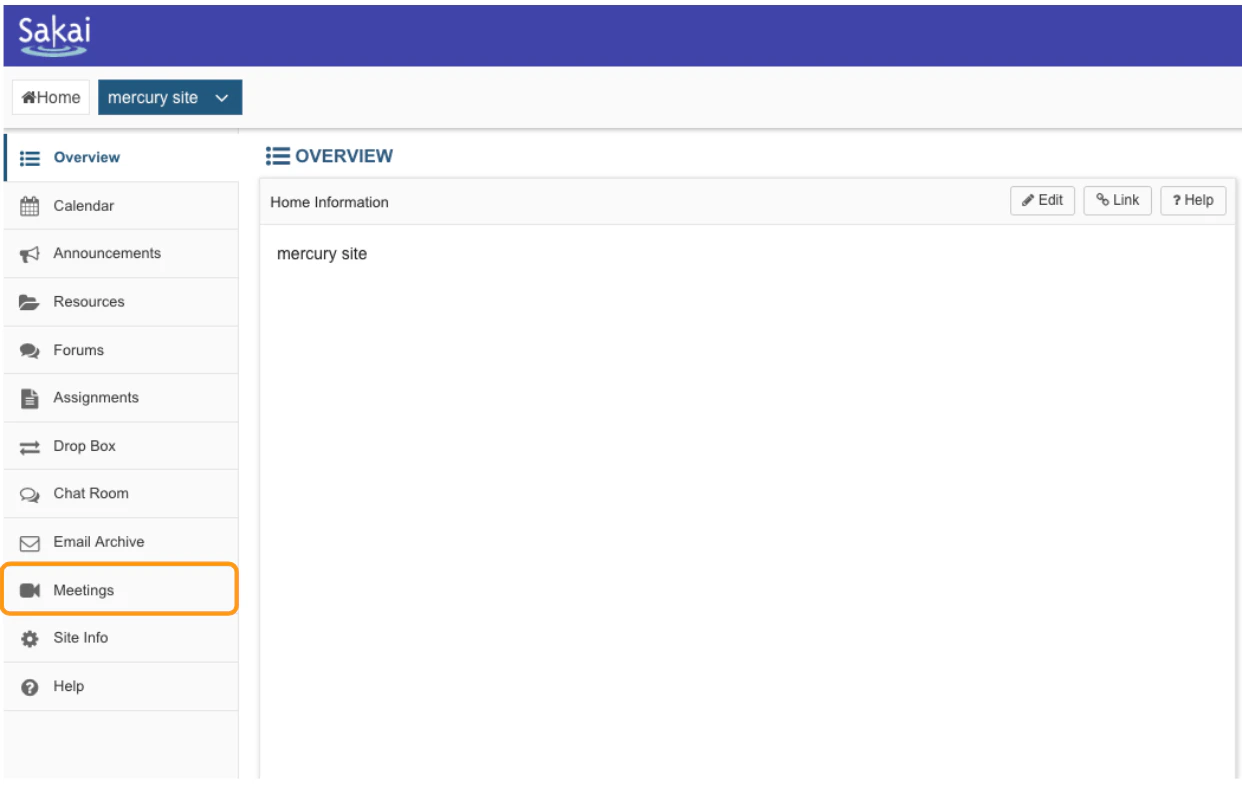 Select **meetings** from the menu options available
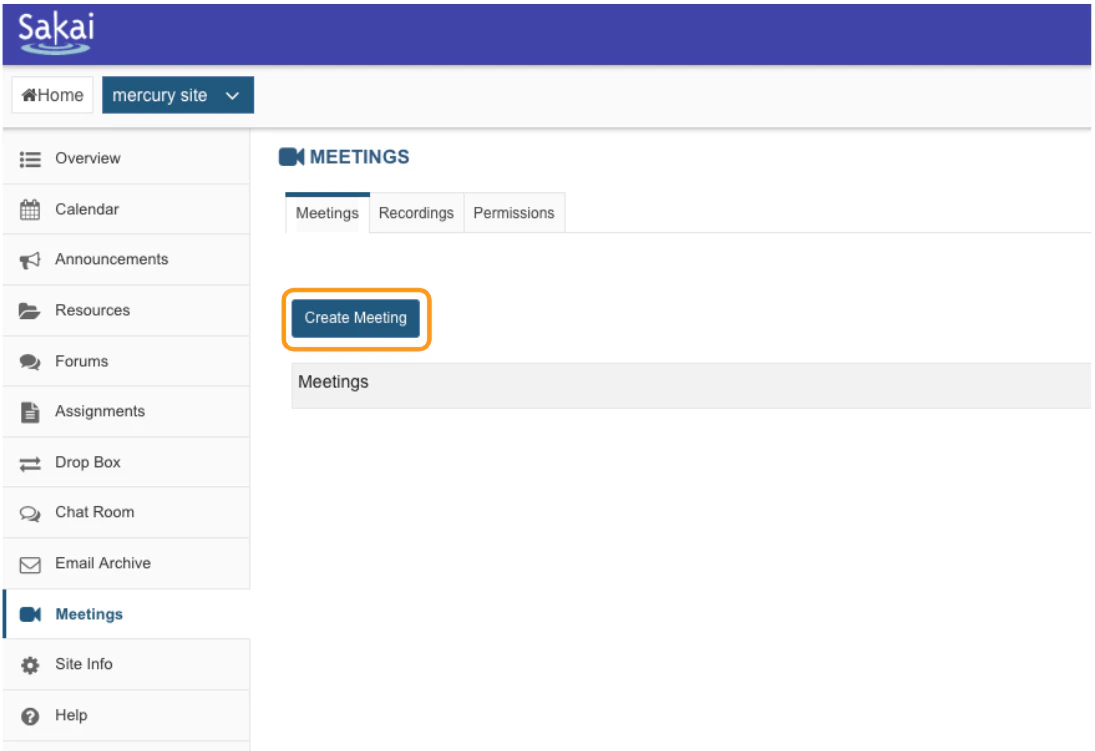 Then choose **create meeting.**
Once created, the meeting's settings page will display the different configuration options that can be applied or edited to create your preferred virtual classroom setting.
## Meeting information
Under the meeting information settings you can add a name and description to the virtual classroom, enable recording, engage the wait for moderator setting, and pre-upload a presentation.
Then choose **create meeting.**
Once created, the meeting's settings page will display the different configuration options that can be applied or edited to create your preferred virtual classroom setting.
## Meeting information
Under the meeting information settings you can add a name and description to the virtual classroom, enable recording, engage the wait for moderator setting, and pre-upload a presentation.
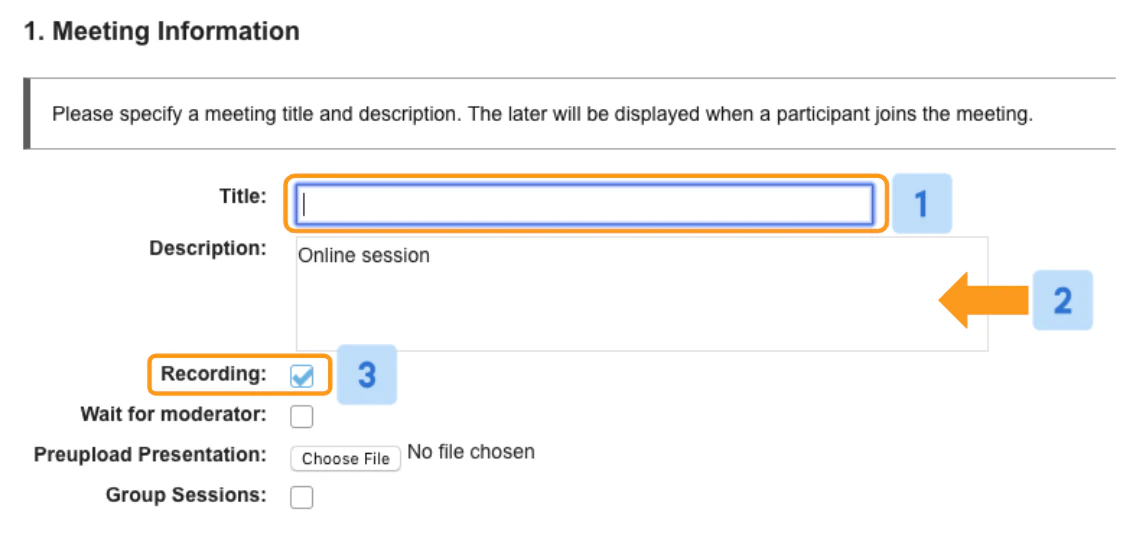 The meeting \*\*title \[1]\*\*and \*\*description \[2]\*\*are displayed when users join the session. We recommend assigning a unique meeting title to each new meeting created.
When \*\*recording \[3]\*\*is enabled, the start/stop record button in the live session will be available for a moderator to engage to generate a viewable, shareable recording link.
It is important to note that the recording option must be enabled for recording recovery in the event the moderator does not engage the start/stop during the live session.
The meeting \*\*title \[1]\*\*and \*\*description \[2]\*\*are displayed when users join the session. We recommend assigning a unique meeting title to each new meeting created.
When \*\*recording \[3]\*\*is enabled, the start/stop record button in the live session will be available for a moderator to engage to generate a viewable, shareable recording link.
It is important to note that the recording option must be enabled for recording recovery in the event the moderator does not engage the start/stop during the live session.
 Checking the **wait for moderator** **\[4]** box restricts a viewer's ability to enter a session until a moderator joins.
When this setting is enabled, any viewer attempting to join your session will see the message **"\*\*\*\*waiting for moderator to join"**. Once you (or the moderator) have joined, those users will automatically join the meeting.
The \*\*pre-upload presentation \[5]\*\*option enables you to load a document that will be available in the live BigBlueButton session.
## Participants
Checking the **wait for moderator** **\[4]** box restricts a viewer's ability to enter a session until a moderator joins.
When this setting is enabled, any viewer attempting to join your session will see the message **"\*\*\*\*waiting for moderator to join"**. Once you (or the moderator) have joined, those users will automatically join the meeting.
The \*\*pre-upload presentation \[5]\*\*option enables you to load a document that will be available in the live BigBlueButton session.
## Participants
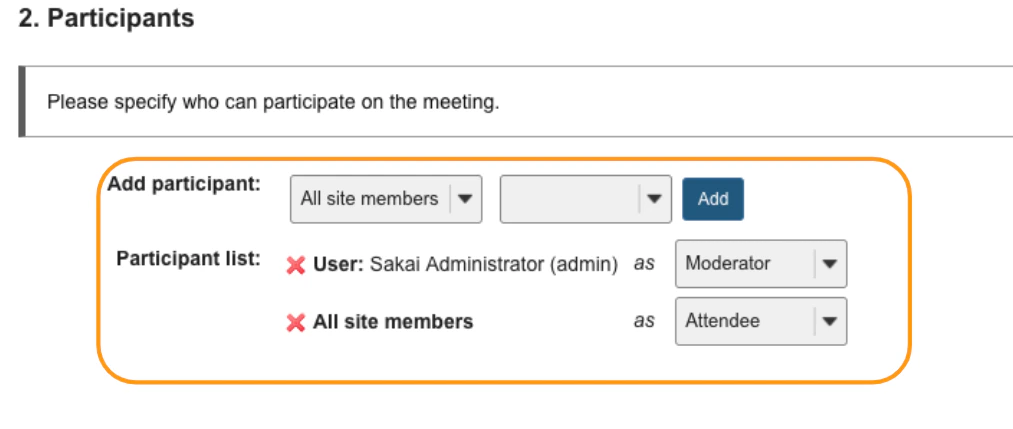 By default, meeting participants are set to the above configuration; where all users enrolled in the course are set to enter as **viewers** and the owner or Sakai Administrator is set to enter as a **moderator.**
Participants can be added to the room/activity based on their assigned **roles** or by individual enrolled **user**.
Be sure to save any changes made to your activity.
By default, meeting participants are set to the above configuration; where all users enrolled in the course are set to enter as **viewers** and the owner or Sakai Administrator is set to enter as a **moderator.**
Participants can be added to the room/activity based on their assigned **roles** or by individual enrolled **user**.
Be sure to save any changes made to your activity.
 To **save** your meeting settings, scroll to the very bottom of the page and select **save.**
## To join the meeting
To **save** your meeting settings, scroll to the very bottom of the page and select **save.**
## To join the meeting
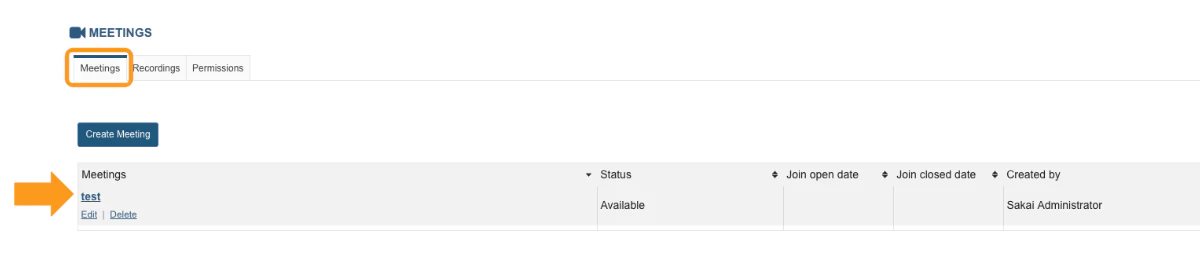 Navigate back to the meetings tab to display the created meeting. Select the meeting you would like to enter from the list of available meetings.
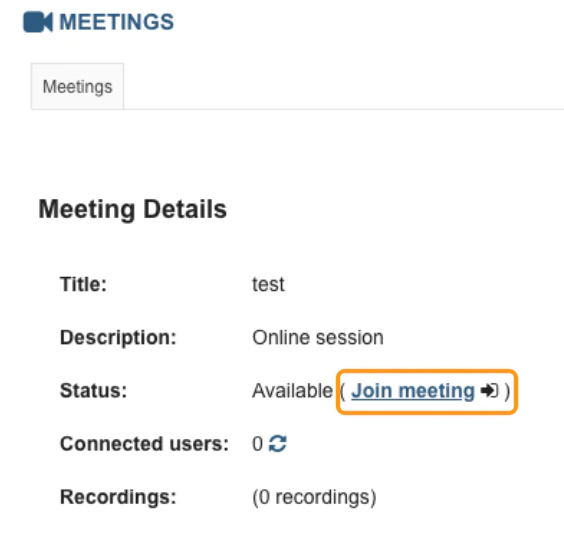 Select **Join Session** to enter your BigBlueButton meeting.
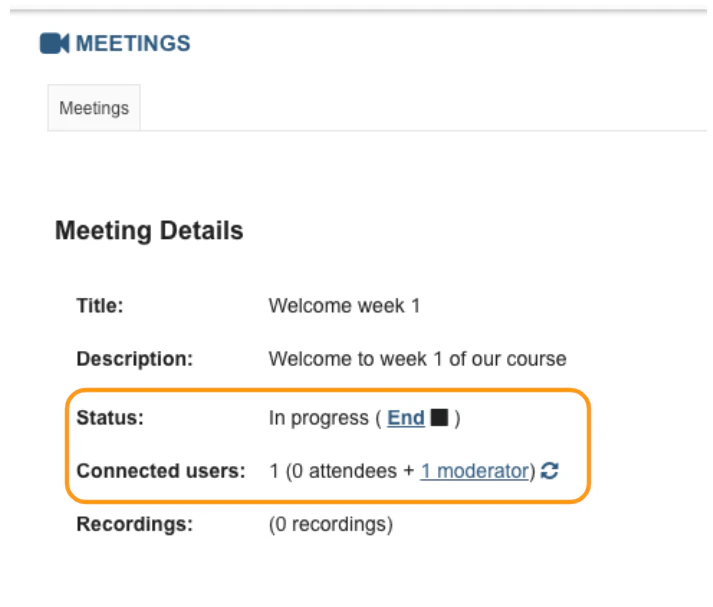 When active, the meeting home page will provide an overview of the conference in progress including the start time and number of current participants, including their roles.