Moderators on BigBlueButton Enhanced can invite a guest into the active session by sharing a per-session invite link.
If your account has been upgraded to BigBlueButton Enhanced from Blindside Networks, moderators can invite a guest into a live session using a per-session invite link.
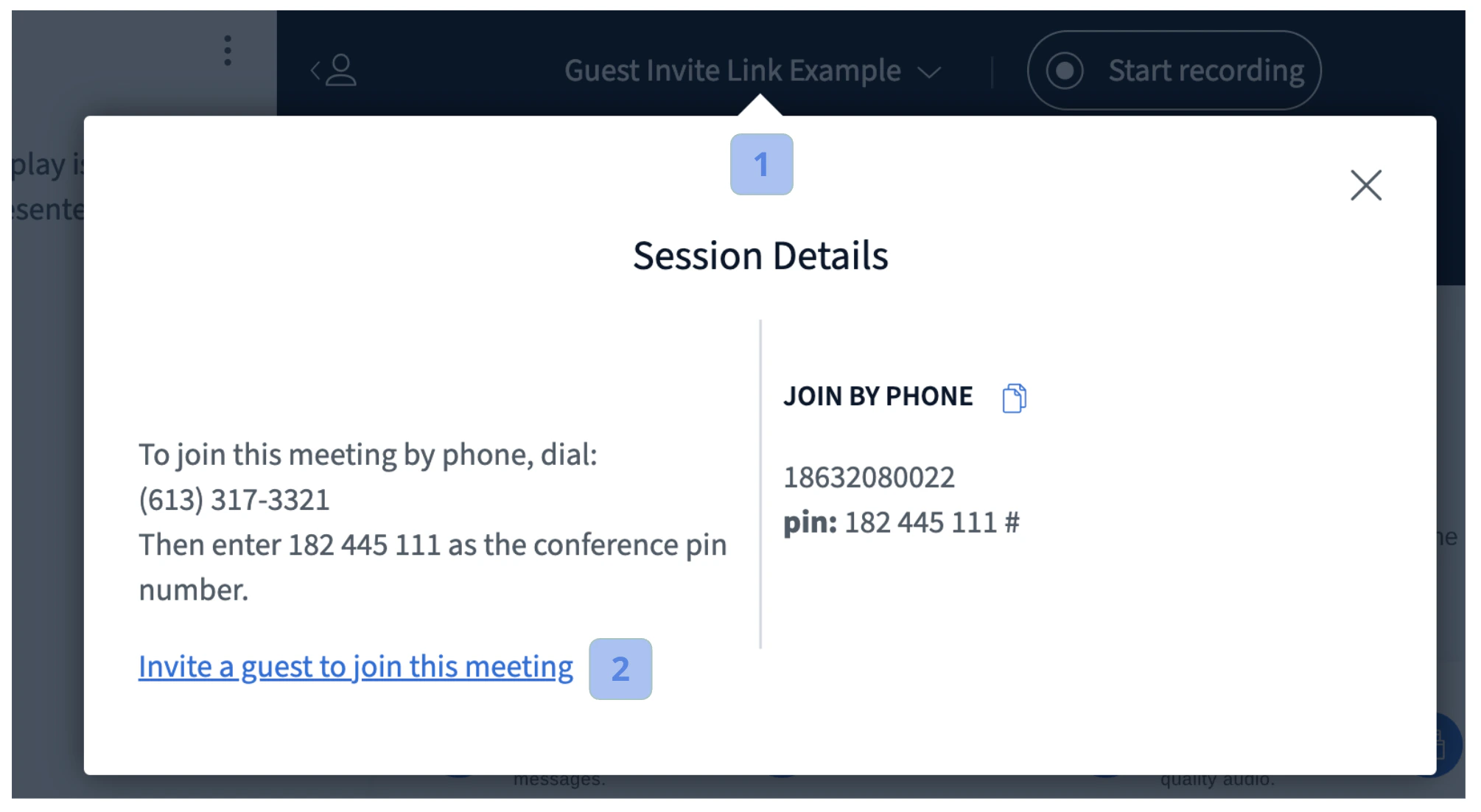
When you join a BigBlueButton session, the Session Details window appears automatically.
To re-open the Session Details window later, select the Meeting Title[1].
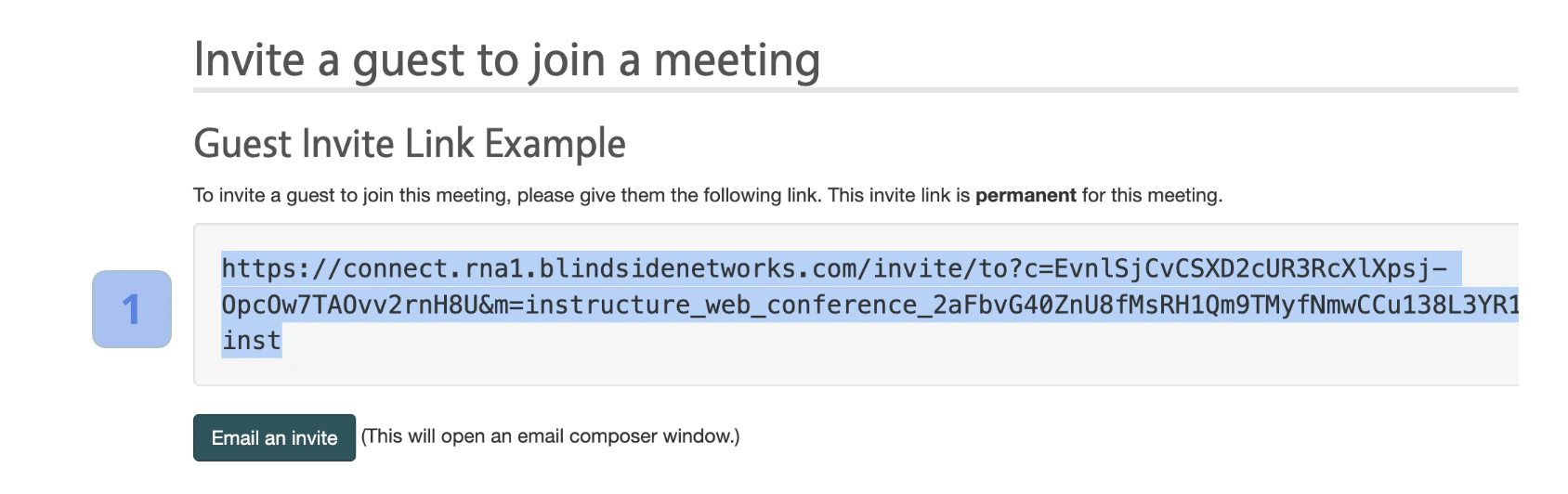
If you joined as a moderator, the guest invite option is available. Select Invite a guest to join this meeting[2] to open a new tab containing the invite link.Copy the invite link[1] and email it to your guest so they can join directly.
By default, the invite link is only valid for the current active session. To make the link valid for the current session and all future sessions for this meeting, contact Blindside Networks.
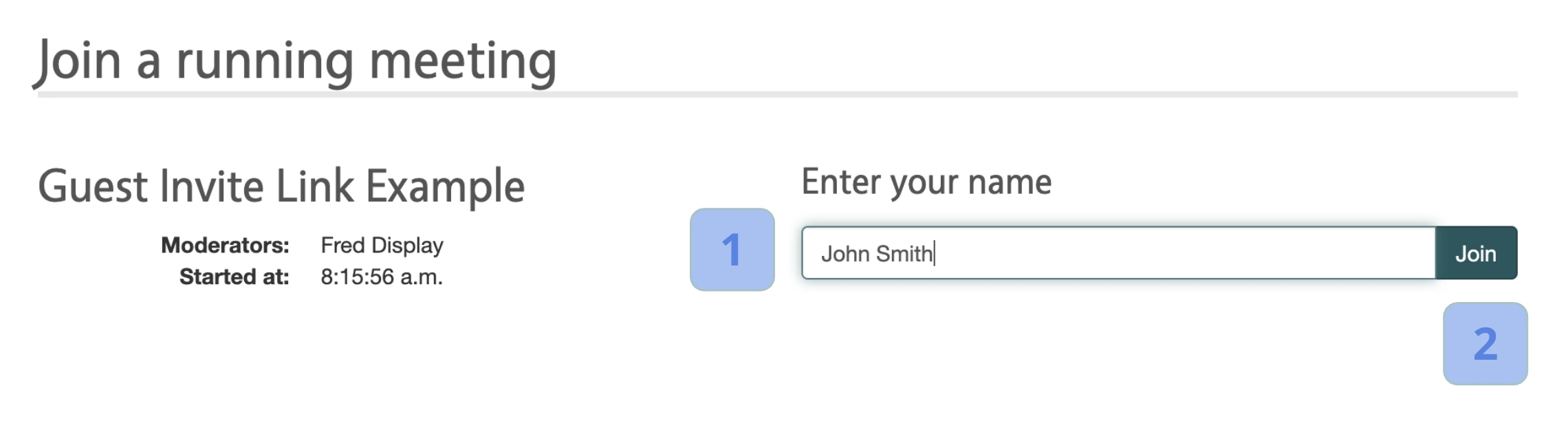
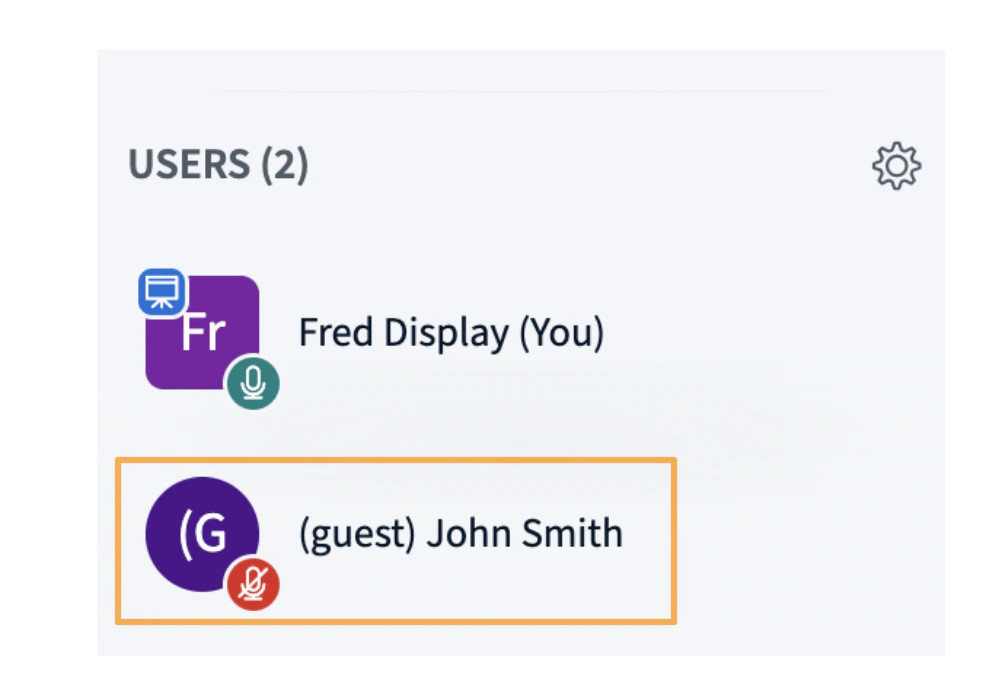
When a guest opens the invite link, the Join a running meeting prompt appears.To join, enter your name[1] and select Join[2]. The guest enters the session as a viewer with the (guest) prefix on their name.
Was this page helpful?
Assistant
Responses are generated using AI and may contain mistakes.