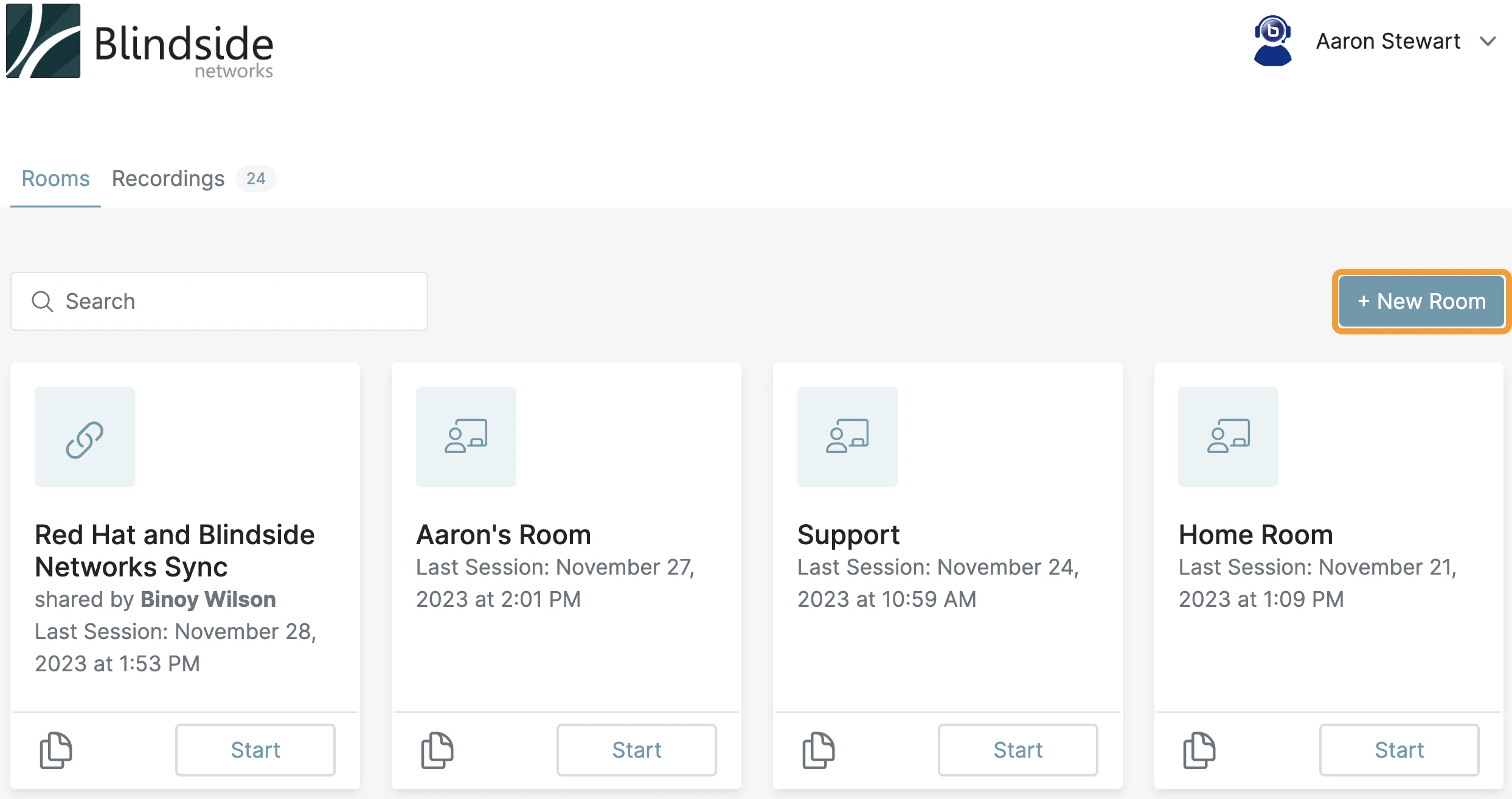
By default Personal Rooms come with a Home Page.

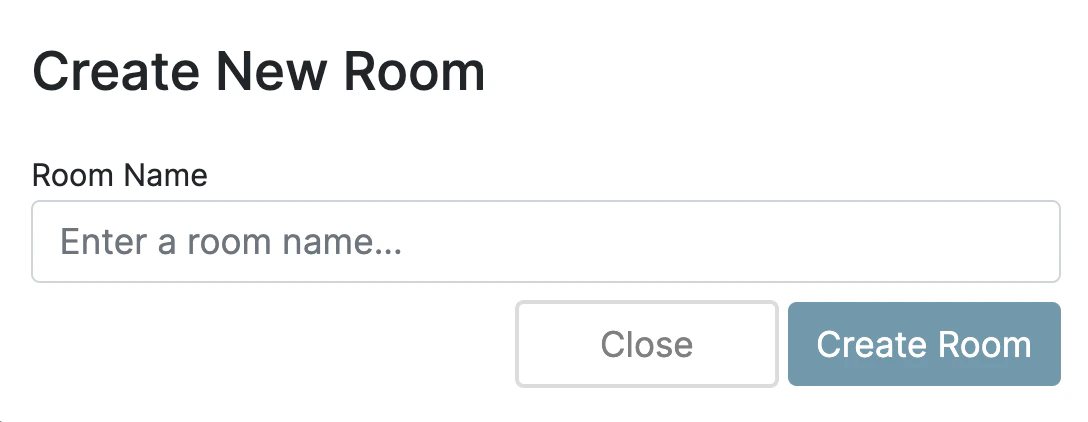
The Home Page will display by default each time you log into your Personal Rooms account.  Personal Rooms Home Page after logging in To create additional rooms select the + New Room button. You will then be prompted to Enter a room name for your new room. Prompt to enter a room name when creating a new room All newly created rooms will appear in the Room Manager section of the interface and are listed and ordered based on the date they were created.  

Modifying Room Settings

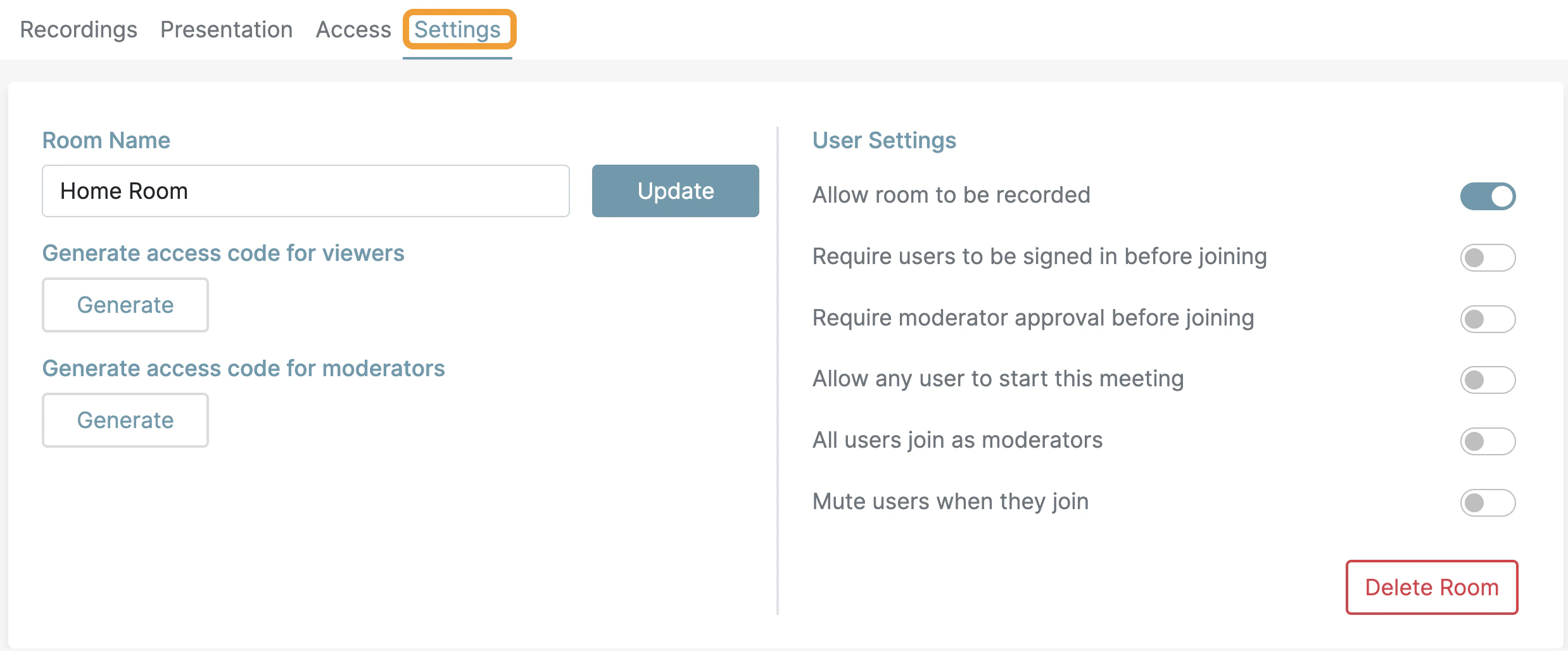
To modify the settings of a room select the settings tab Settings tab on a personal room Room settings panel for changing the room name and generating room and moderator access codes
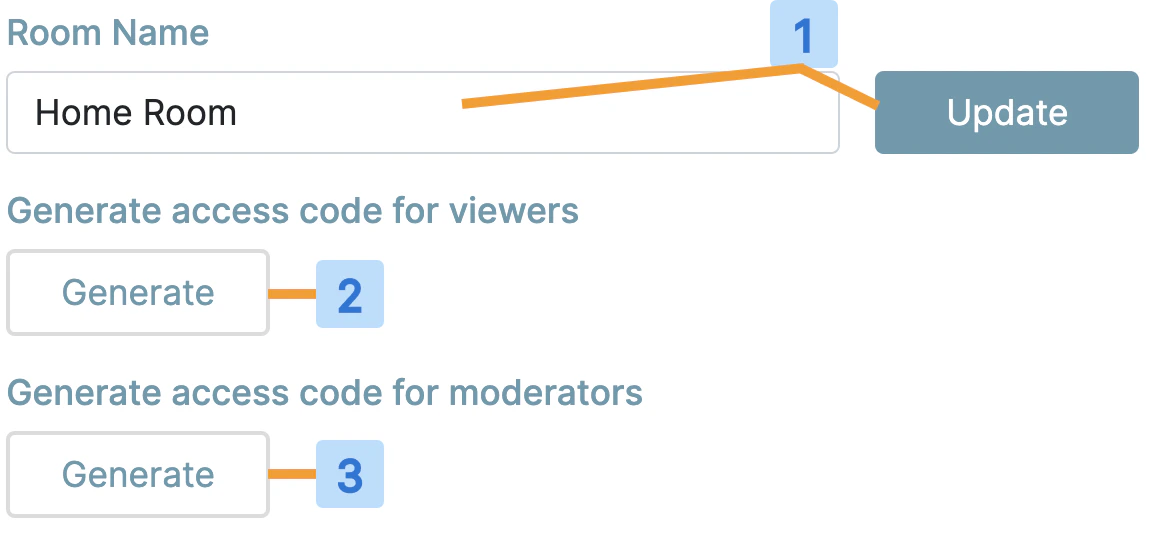
1Change the name of the room and press update to take effect
2Generate an optional room access code: To generate a room access code, select the Generate button. An access code will appear, and this access code can be copied and pasted into an e-mail or direct message with the room join link. To delete or remove the access code select the trash bin icon.
3Generate an optional code for moderators: To generate a moderator access code, select the Generate button. This setting generates an access code that allows users to join as moderators in the live session. To delete or remove the access code select the trash bin icon.

Modify Room - User Settings

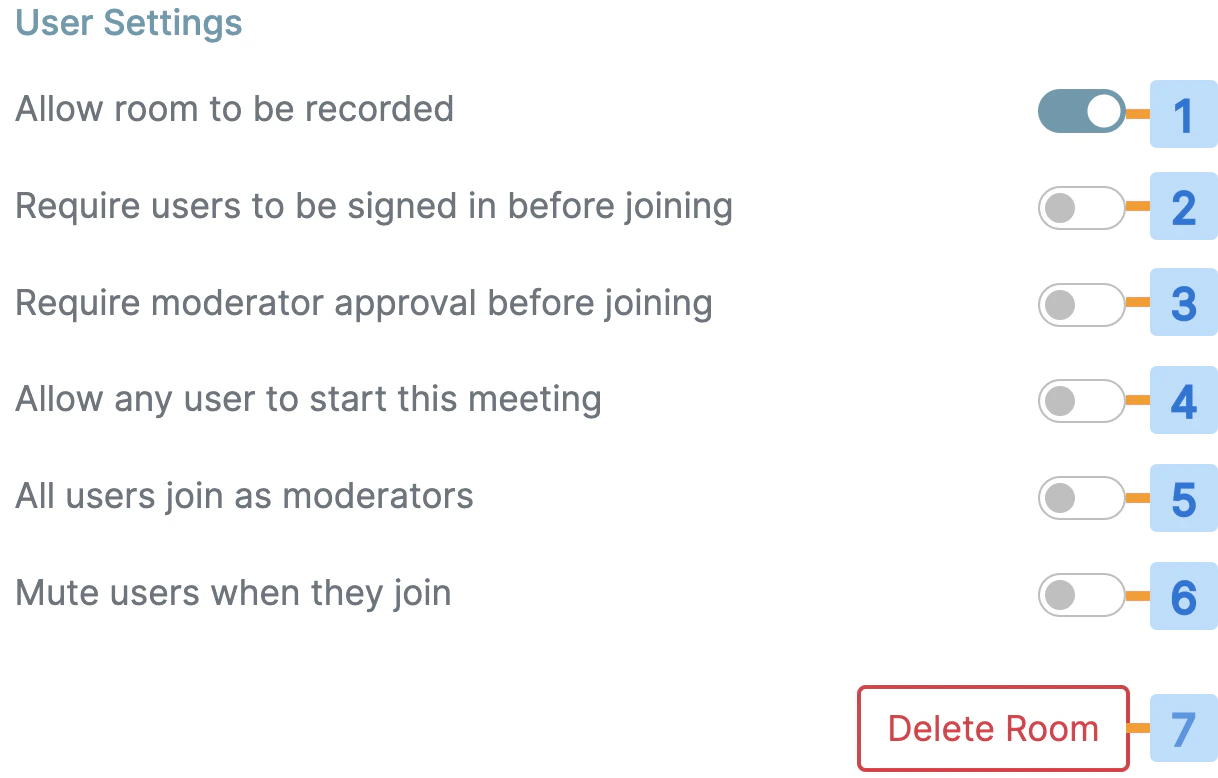
User settings panel with toggles for recording, sign-in, moderator approval, mute on join, and delete room You can also configure your room with custom settings to meet differing use cases.
  • Allow room to be recorded [1]: By default, the room is not recorded or recordable. Selecting this will allow the moderator to record the meeting.
  • **Require users to be signed in before joining [2]: **This setting if enabled requires users to be signed in to Personal Rooms before they can join.
  • Require moderator approval before joining [3]: This setting will prompt the moderator to approve the join request of a user.
  • Allow any user to start this meeting [4]: By default, only the room owner can start a room. When this setting is enabled all users who have access to the room link can start the room.
  • All users join as moderators [5]: By default, only the room owner enters the room as a moderator. This setting allows you to assign moderator privileges to all users who have the room link.
  • Mute users when they join [6]: This setting when enabled will automatically mute any user who joins with a microphone; it does not restrict their ability to unmute once in the live meeting.
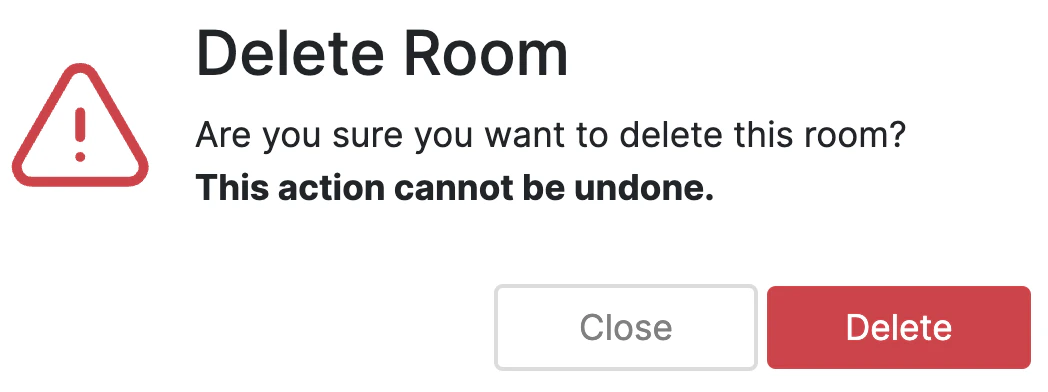
  • Delete Room [7]: Use this button to delete an unwanted room. You will be prompted to confirm the deletion. Deletion is permanent and cannot be undone.
    21857807949965
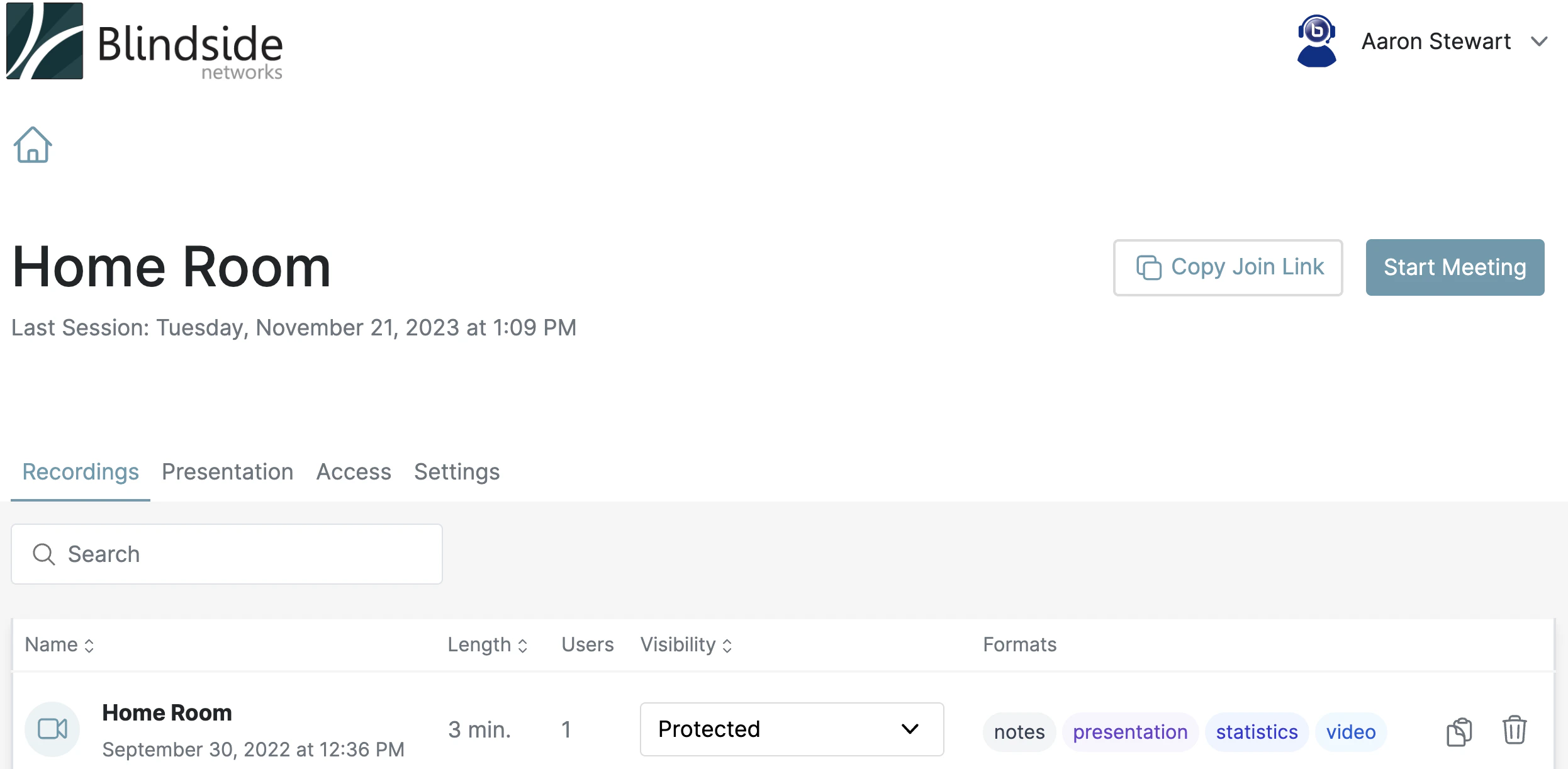
To enter a personal room that was already created or to manage a personal room, locate it in the room manager section and select it. Room manager listing existing personal rooms to enter or manage