Recordings for the selected room
When you log in, the currently selected room is your Home Room. The bottom panel lists all recordings for the selected room.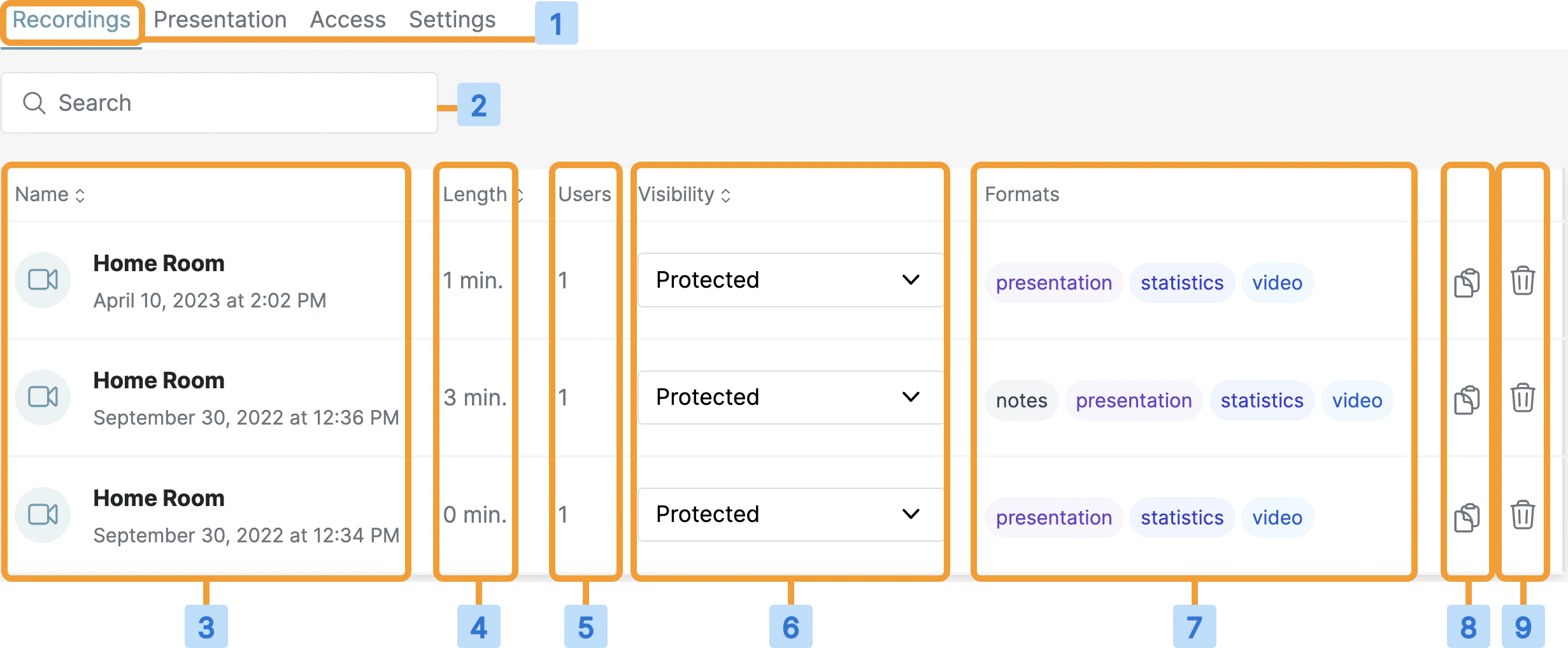
Recording visibility
By default, recordings are unlisted — only the room owner can access them. To allow attendees with the room link to access a recording, change visibility from the dropdown.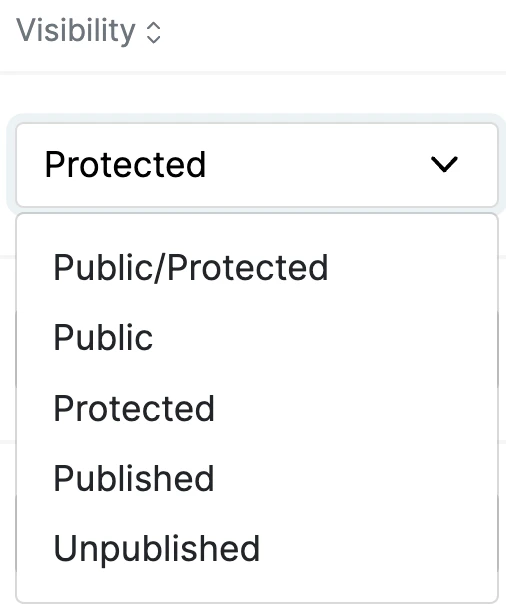
- Public — appears on the Public Recordings page on the Room Join page. The link can be shared with anyone.
- Protected — must be viewed from within Personal Rooms.
- Published — accessible to anyone who has the link.
- Unpublished — not accessible to anyone.
Setting a recording to Public also makes the meeting statistics available.An Unpublished recording can still be viewed by anyone given the playback URL directly, even without access to the room link.
Recording formats
Up to four formats are produced for each processed recording. Selecting presentation or video opens the playback in a new tab. Selecting statistics or notes also opens in a new tab. Anyone with access to the room can view the available recording formats. The statistics format provides an overview of attendance, participation, and engagement.If you use Blindside Networks hosting, deleted recordings can be recovered up to 14 days after the live session.
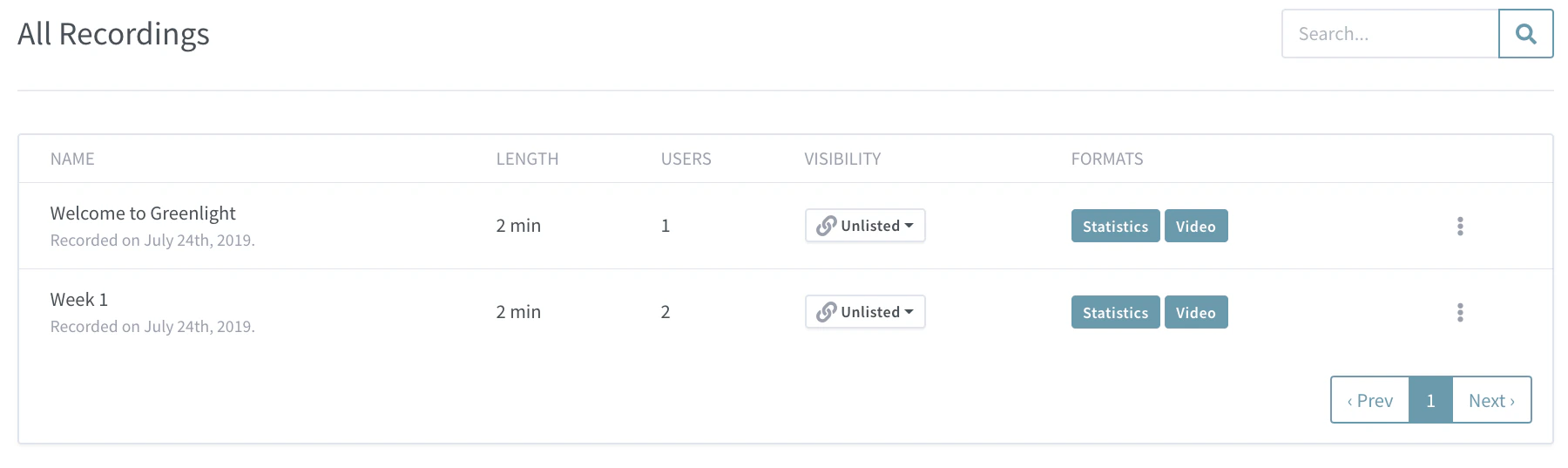
All recordings
To view every recording across your account, select the home icon, then the Recordings tab.