You can use BigBlueButtonBN activities to host virtual lectures, hold online office hours, and coordinate student groups.

Once an administrator has successfully installed the latest version of the BigBlueButtonBN Activity Module, instructors and their students will have full access to BigBlueButton’s capabilities from within their Moodle interface.  If you cannot create a BigBlueButtonBN activity, your institution has restricted this feature. Contact your Moodle Administrator for more information.

To create a new conference

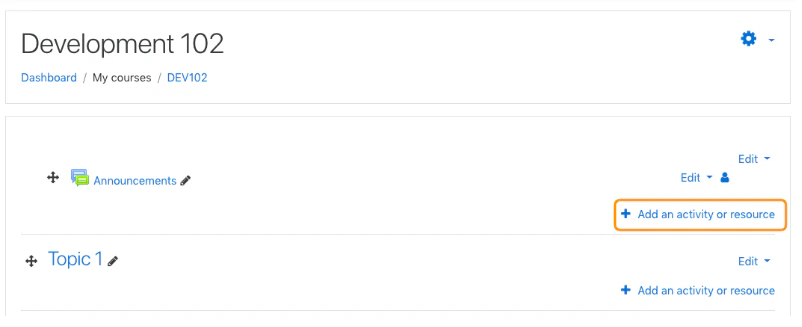
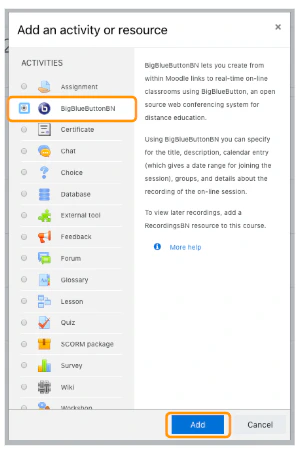
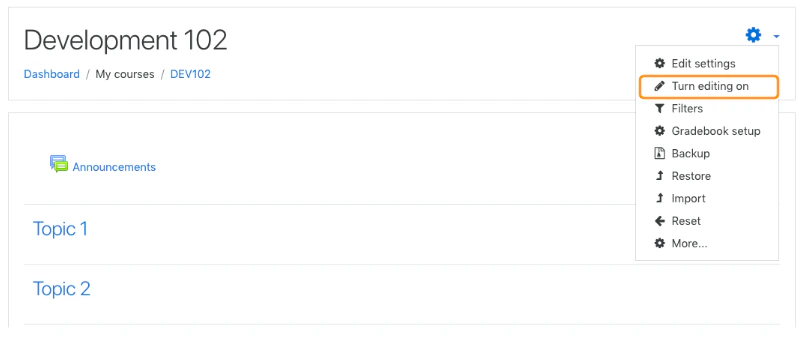
Navigate to the course you wish to add your BigBlueButtonBN activity to.  Screen_Shot_2018-09-27_at_1.07.42_PM.png Open the Course Settings located in the upper right hand corner Screen_Shot_2018-09-27_at_1.07.51_PM.png Select Turn Editing On Screen_Shot_2018-09-27_at_1.08.01_PM.png Then select Add an Activity or Resourcenext to the week or topic you wish to add a BigBlueButtonBN activity to. Screen_Shot_2018-09-27_at_1.08.08_PM.png From the list of available options choose BigBlueButtonBN and click Add Once added, the BigBlueButtonBN Activity Module settings page will display the different configuration options that can be applied or edited to create your preferred virtual classroom setting.

General / default settings

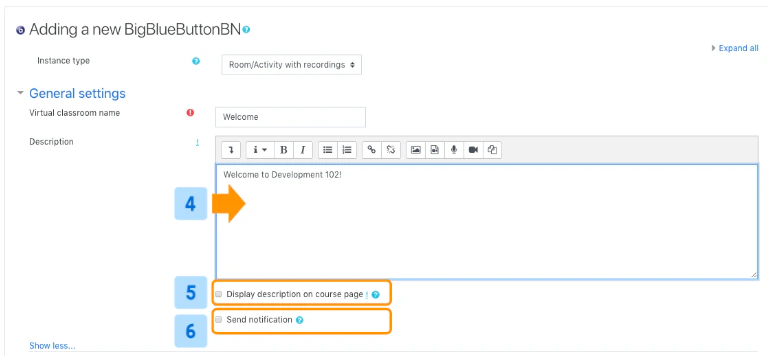
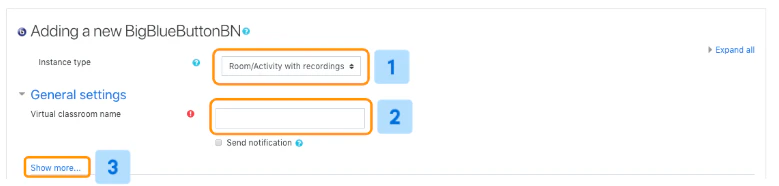
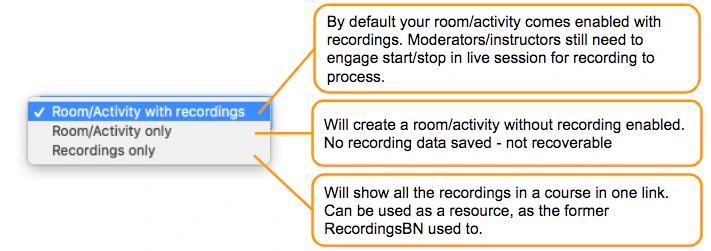
Under the general or default settings you can choose the instance type, add a name to the virtual classroom, enable notifications, and add an activity description that will display on the course page. Screen_Shot_2018-09-27_at_2.27.21_PM.png  The Instance Type [1] drop down provides three options: Screen_Shot_2018-09-27_at_2.29.52_PM.png The **Virtual Classroom Name [2]**is the title of the activity and will be displayed in the Moodle interface and the processed recording. We recommend using unique names for each BigBlueButtonBN activity that is added. Select **Show More [3]**to display additional activity settings: Screen_Shot_2018-09-27_at_2.35.29_PM.png You can create an additional Description [4] of the activity. To display this description on the course page be sure to click Display Description on Course Page [5]. Checking the Send Notification [6] box will send a notification to enrolled users to let them know that the activity has been created or when it is modified.
Adding Participants

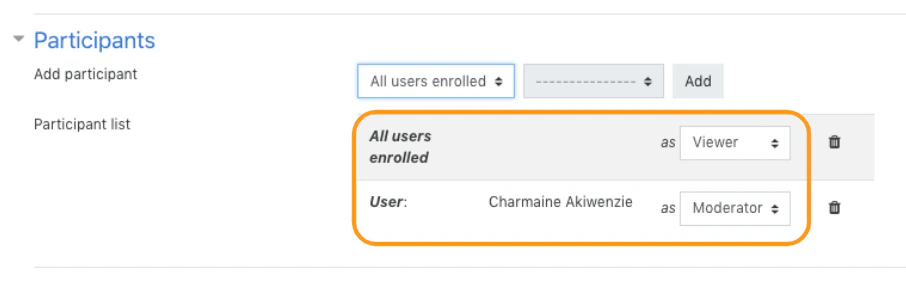
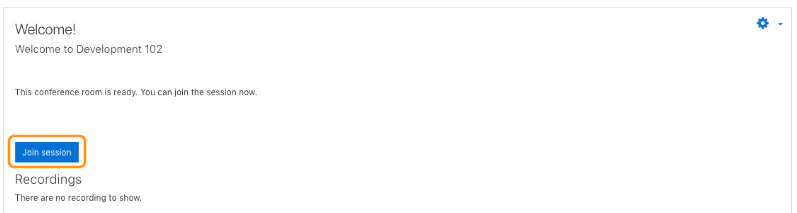
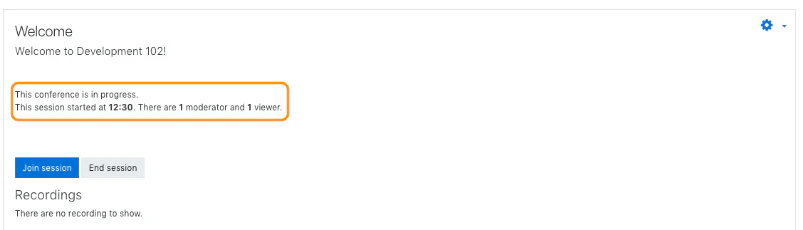
Screen_Shot_2018-10-10_at_11.26.25_AM.png By default, the participants in BigBlueButtonBN activity are set to the above configuration; all users enrolled in the course are set to enter as viewers and the owner is set to enter as a moderator. Be sure to save any changes made to your activity. Screen_Shot_2018-10-10_at_11.26.30_AM.png To save your BigBlueButtonBN activity settings, scroll to the very bottom of the page and select save and return to course to continue editing your respective course or save and display to display and join the session. Screen_Shot_2018-10-11_at_4.48.52_PM.png Select Join Session to enter your BigBlueButtonBN room/activity. Screen_Shot_2018-10-11_at_4.55.01_PM.png When active, the room/activity home page will provide an overview of the conference in progress including the start time, number of current participants, and their roles.