

Any administrator or owner of a BigBlueButtonBN room/activity can control who can and cannot view recordings.
Once a recording has processed and is available for viewing, its visibility and access permissions can be customized.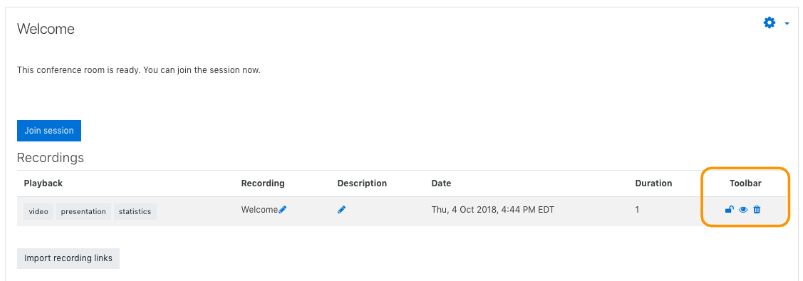
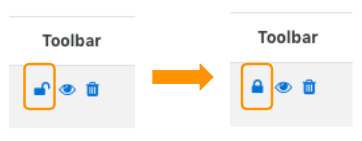
 Selecting the eye icon willunpublish/publishthe recording link.
When a recording is unpublished it means that even if someone bookmarks the link when viewing a recording, that bookmarked link will no longer be able to access the recording for viewing.
Selecting the eye icon willunpublish/publishthe recording link.
When a recording is unpublished it means that even if someone bookmarks the link when viewing a recording, that bookmarked link will no longer be able to access the recording for viewing.
 To Deletea recording select the trash can icon. Deleting a recording will delete the viewing links and statistics report tied to the recording.