Groups work the same way they do for all plugins in Moodle. When the activity is assigned to be available to the people in a group, it may look the same but it behaves differently for the users in those groups. With BigBlueButtonBN the only difference is that the there will be a unique room per group, which means that the “Join” button will take users to a room linked to the group they belong (for most cases) or the one they choose to get in (depending on the settings for the course or that particular activity) .

Group options

Groups can be configured as “Separate groups” or “Visible groups”. Screen_Shot_2018-06-22_at_11.33.15_AM.png
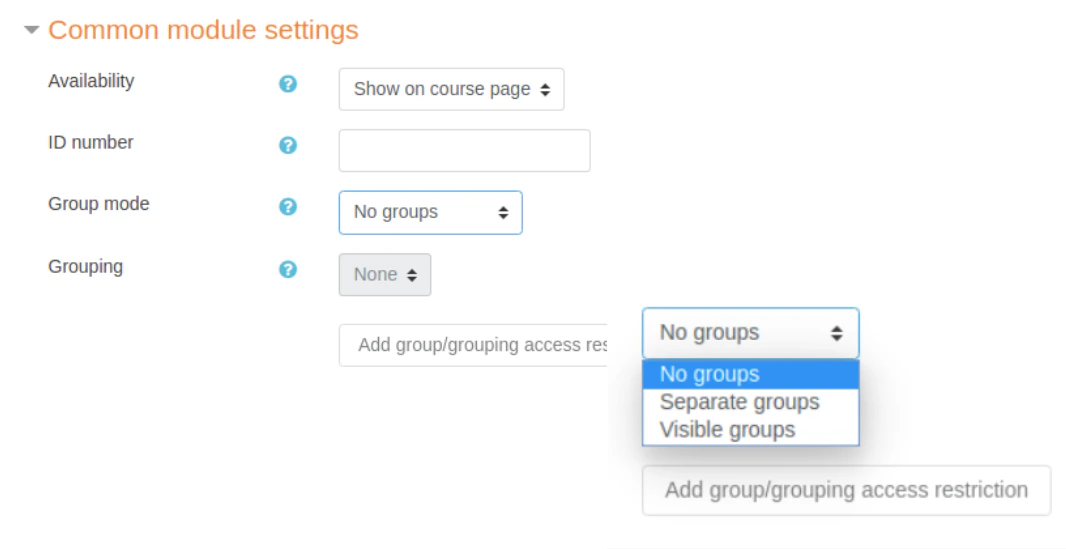
Separate groups

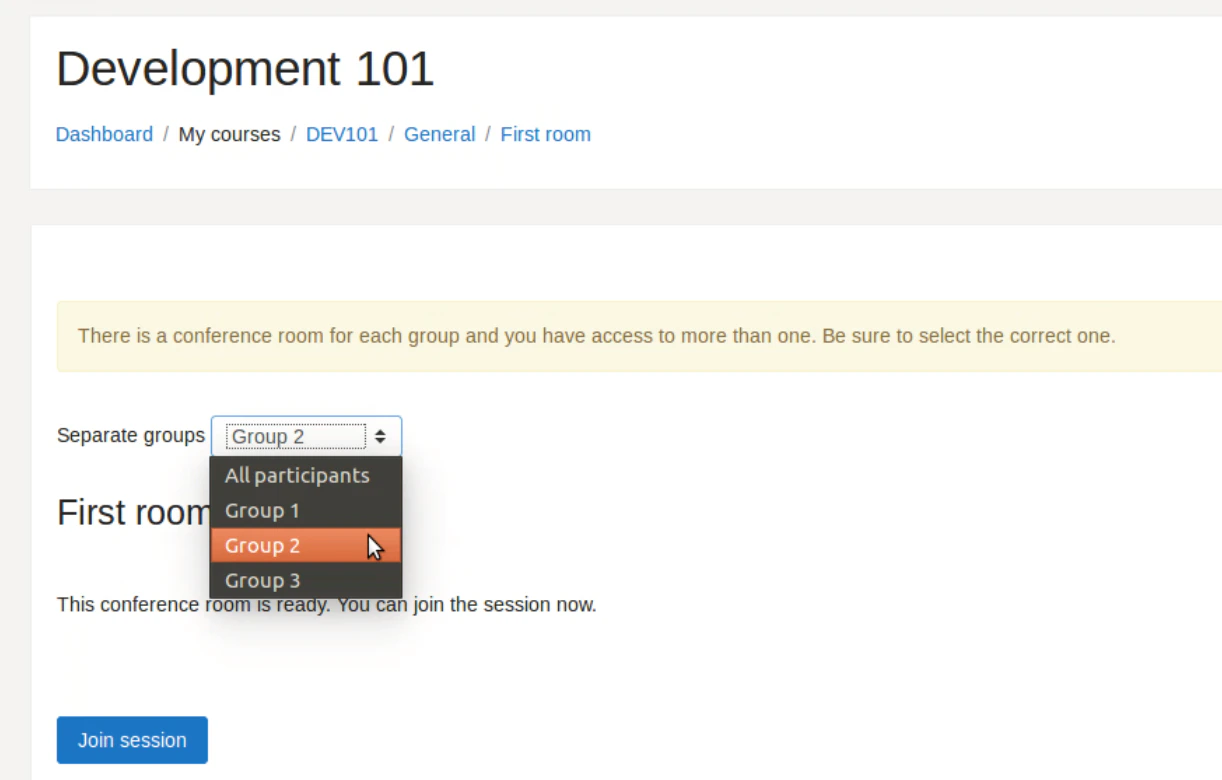
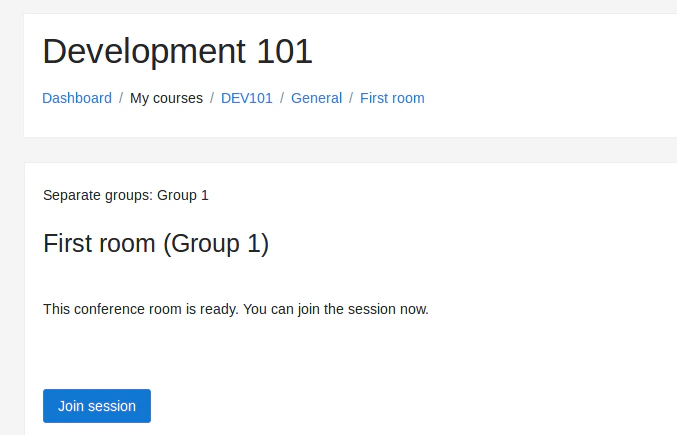
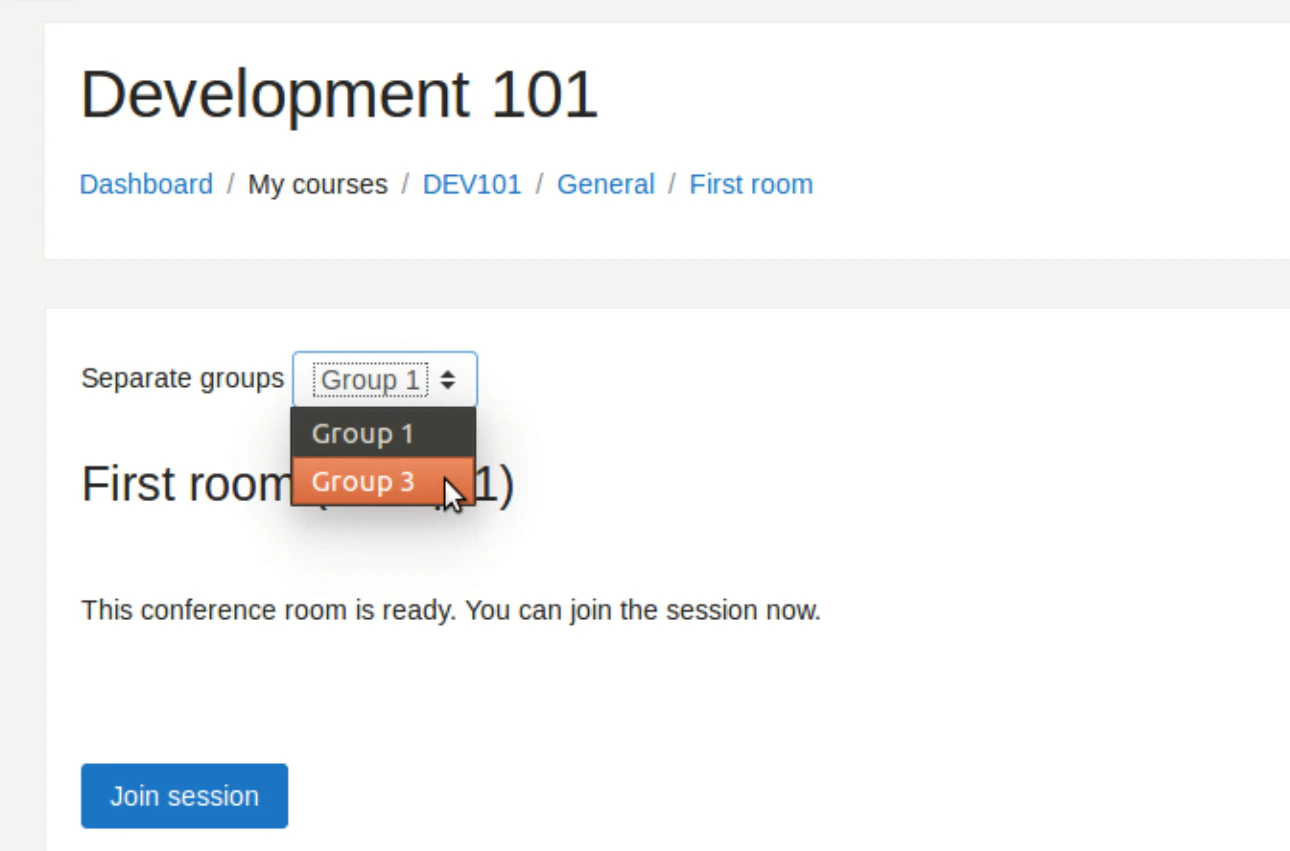
This is the most restrictive option. It will normally show only the group the user has been assigned to. Separate groups view showing only the group the user has been assigned to It may also let users choose the room they want to get in, but from a list that shows only the groups they belong to. Room selector limited to the groups the user belongs to under Separate groups mode Educators will always be able to choose the room they want to join. But keep in mind that while “All participants” will lead the access to a general room (as if there were no groups), only the users who are not assigned to any of the groups will have access to that one. Educators may need to navigate between rooms to meet with the students who have joined each room. Educator's room selector with All participants and individual group options
Visible groups

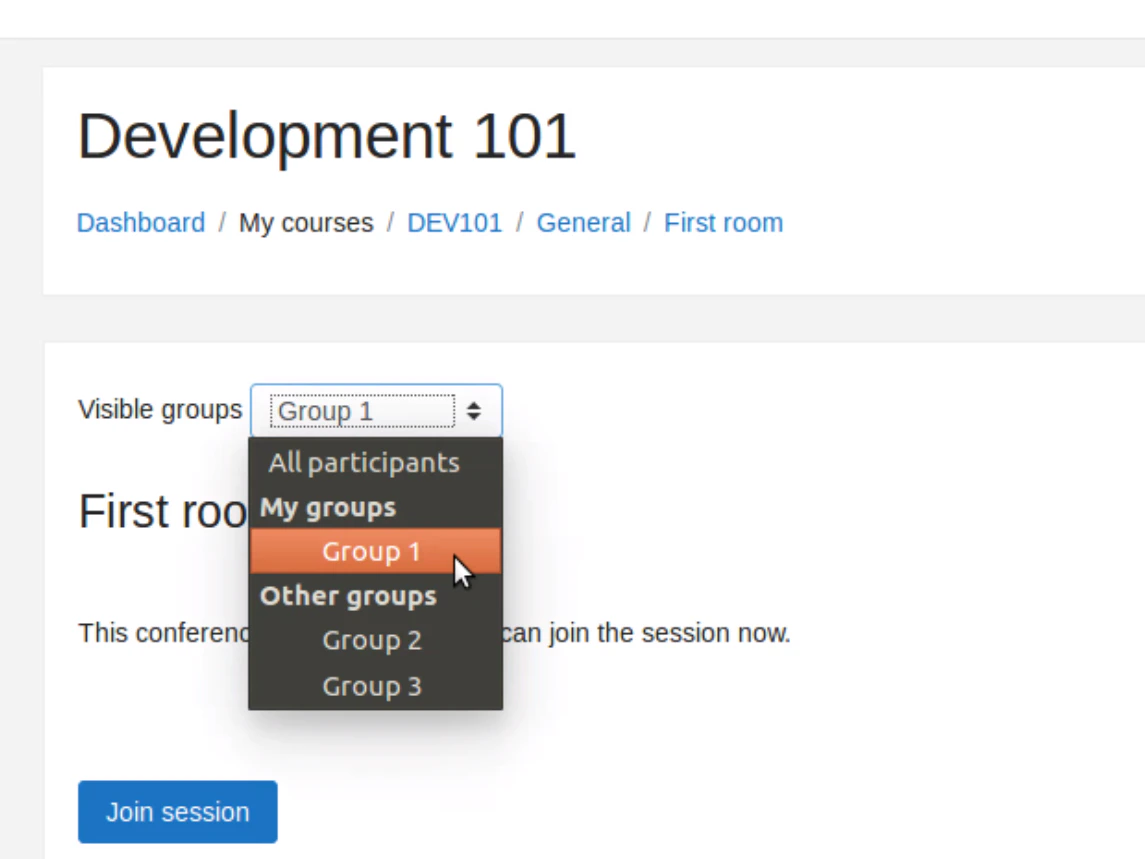
This is a more permissive option. It will let users choose the room they want to get in from a list that shows all the groups available in the course. Visible groups view letting users pick a room from all groups available in the course
See this article for a more general description of how groups work in Moodle.