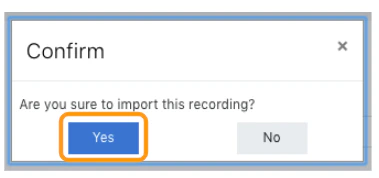
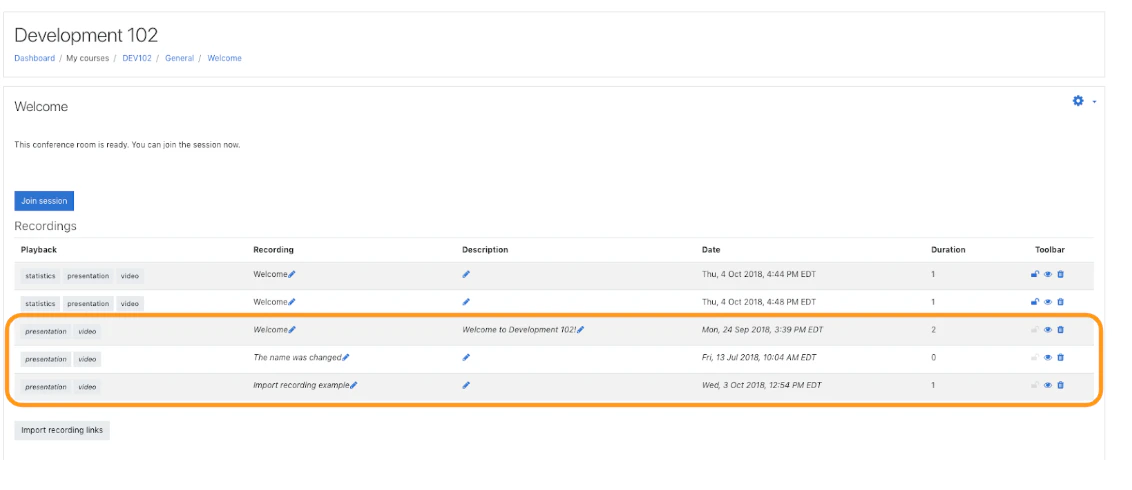
Administrator or owners can import recording links from other courses into a specific BigBluButtonBN room/activity recordings table.
By default, the BigBlueButtonBN plugin hides this option - it must be enabled by an administrator.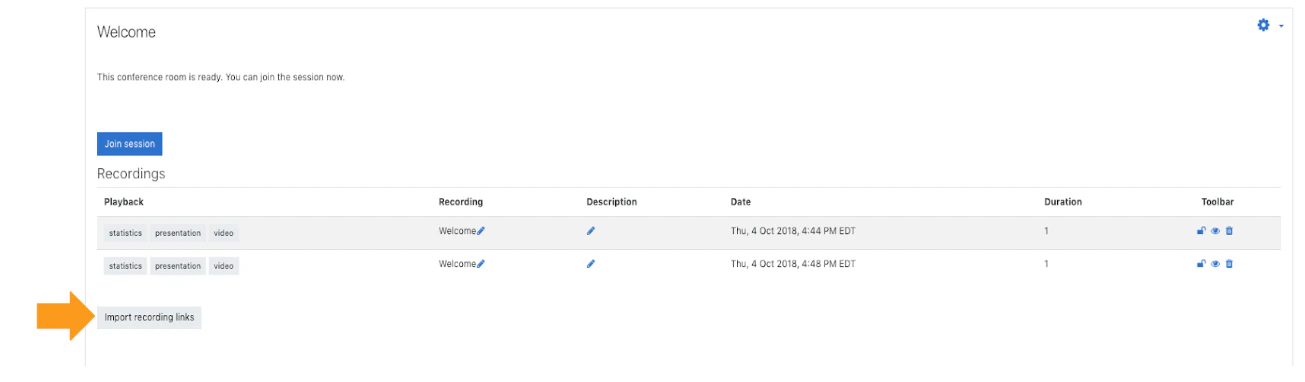
 Locate and select the course you would like to import recordings from.
IT IS IMPORTANT TO NOTE: Only courses that have been enabled for import will display in the drop down.
Locate and select the course you would like to import recordings from.
IT IS IMPORTANT TO NOTE: Only courses that have been enabled for import will display in the drop down.
 Select from the list of available recordings which link(s) you would like to import.