Yes - you can save a presentation that will be uploaded into the BigBlueButtonBN room/activity when the conference is live.

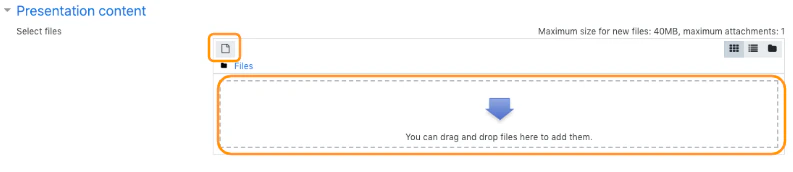
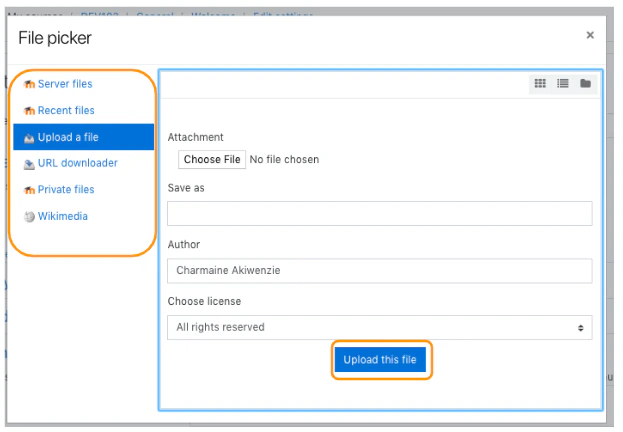
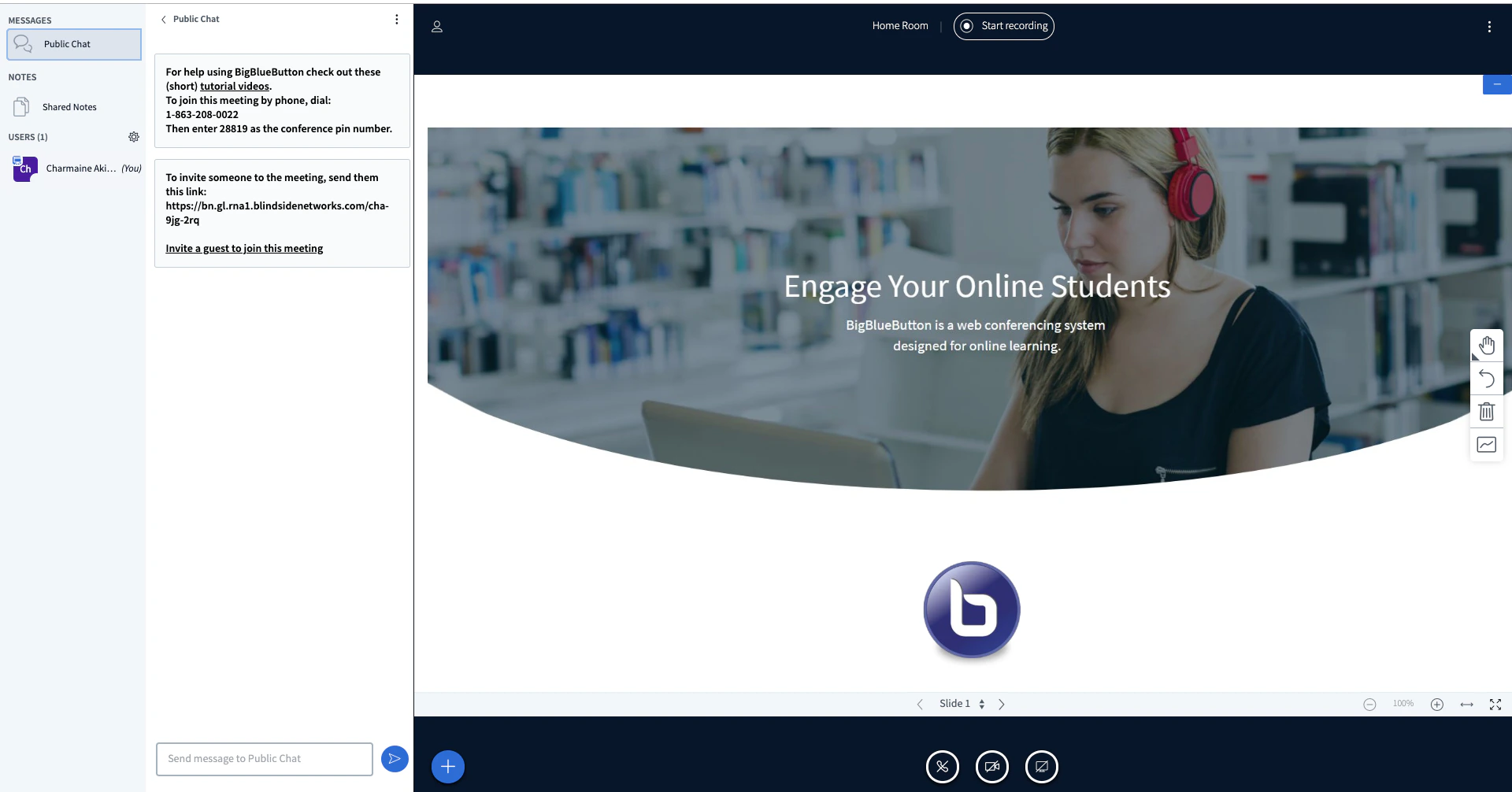
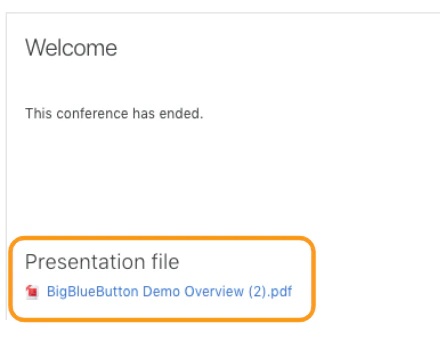
As the owner or administrator of a course, when you create or edit a BigBlueButtonBN room/activity with a document, that will be available in the live BigBlueButton session. Screen_Shot_2018-10-12_at_2.28.45_PM.png To upload a document, navigate to the presentation content menu. Next, drag and drop your file into the uploader window or select the file upload icon. Screen_Shot_2018-10-12_at_2.40.04_PM.png The file picker provides several different sources/options to access your content from. Once you have chosen a document, choose upload file. Important: the specific options within the file picker will vary based on the Moodle course settings. Screen_Shot_2019-11-05_at_2.22.45_PM.png When the BigBlueButtonBN room/activity is live, the uploaded content will be displayed as the default presentation. Screen_Shot_2018-10-23_at_3.16.06_PM.png When the conference has concluded, the uploaded presentation content will be available for download under the BigBlueButtonBN activity, which is located above the recordings table.