What scheduling does
Scheduling effectively controls when users can enter the room. This is different from Wait for moderator:- Wait for moderator delays entry until a moderator arrives
- scheduling can block entry before the room opens or after it closes
Configure schedule settings
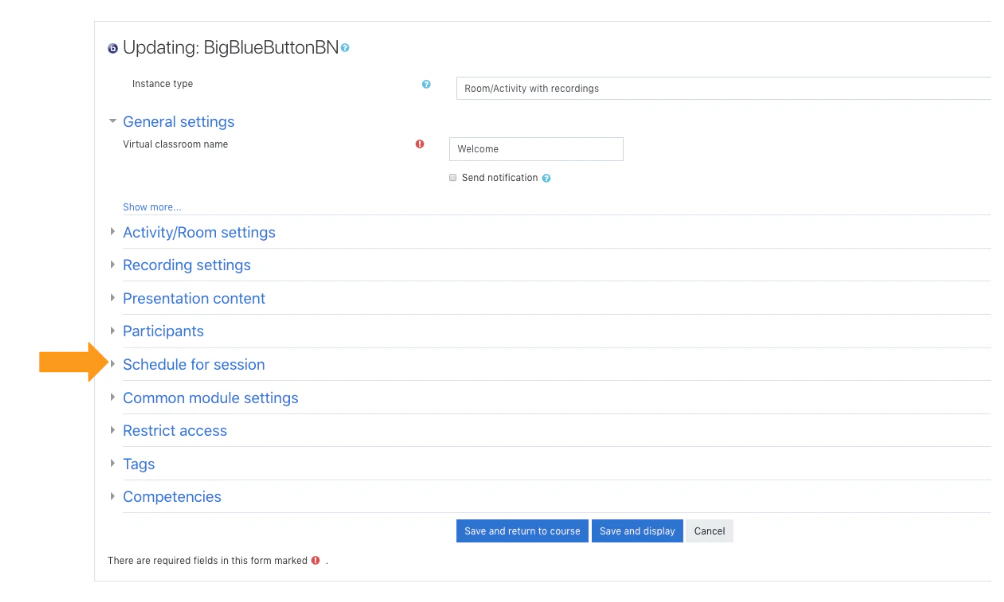
- Open the activity settings.
- Expand the schedule section.
- Enable the schedule options you want.
- Set a start time, an end time, or both.
- Save the activity.

Common patterns
You can configure:- a start time only
- an end time only
- both a start and end time
What users see
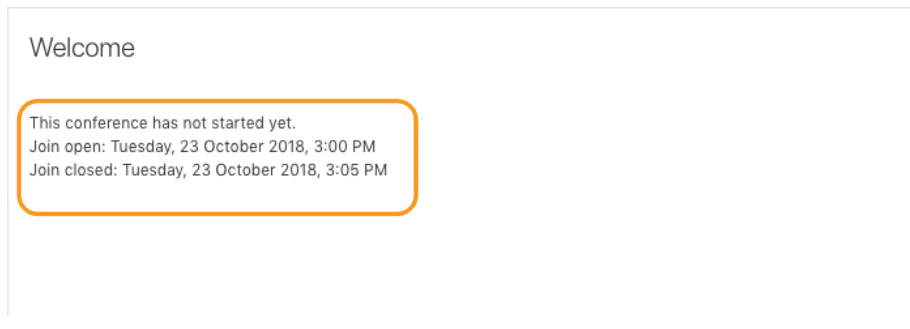
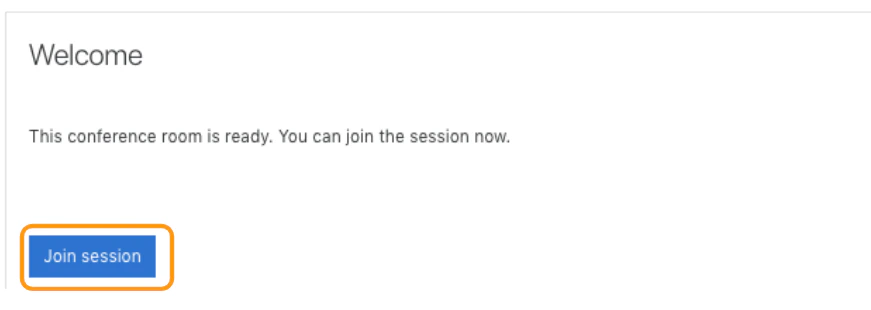
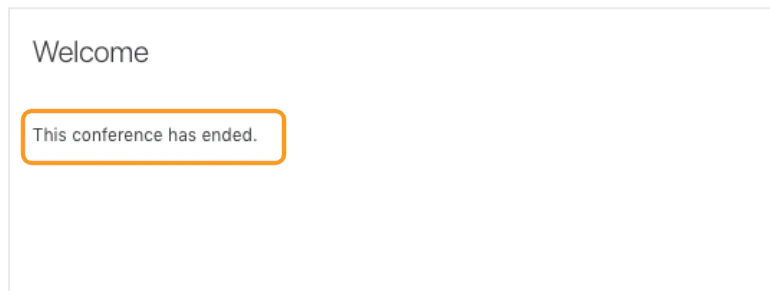
Before the room opens, enrolled users will not see the join button. Instead, Moodle shows that the conference has not started yet. Once the room is open, invited users can join until the close time. After that, the join option is no longer available.