What you can do
Depending on your permissions, you can:- play a recording
- edit the recording name
- edit the recording description
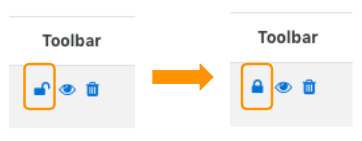
- make a recording private
- publish or unpublish the recording link
- delete the recording
Edit recording names and descriptions
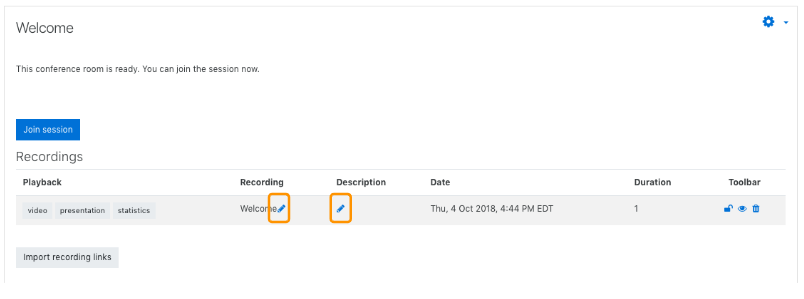
To edit the displayed name or description:- Find the recording in the recordings table.
- Select the edit or pencil control next to the field you want to update.
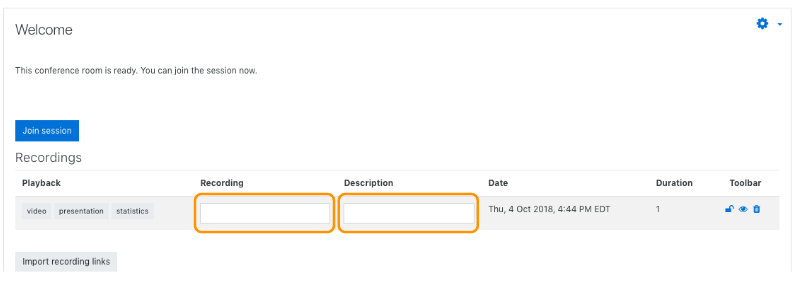
- Enter the new value.
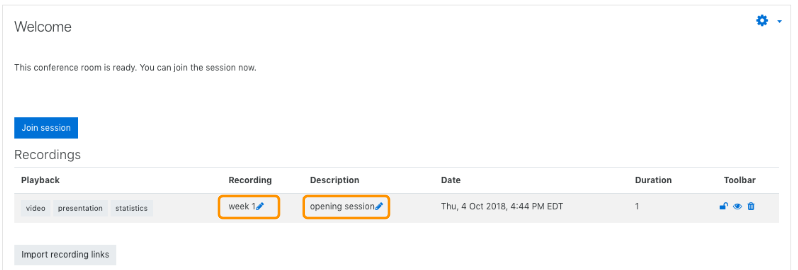
- Confirm the change.
Control visibility and access
Teachers or administrators can often control who can access a recording. Common actions include:- Private / protected: the recording remains visible only through Moodle
- Published / unpublished: the recording link is either available for viewing or turned off