

Before you begin
Make sure:- your Moodle administrator has installed and configured the BigBlueButton activity module
- you have permission to add activities to the course
Create the activity
- Open the Moodle course where you want to add the activity.
- Turn editing on.
- Select Add an activity or resource in the topic or week where you want the room.
- Choose BigBlueButton.
- Enter a room name.
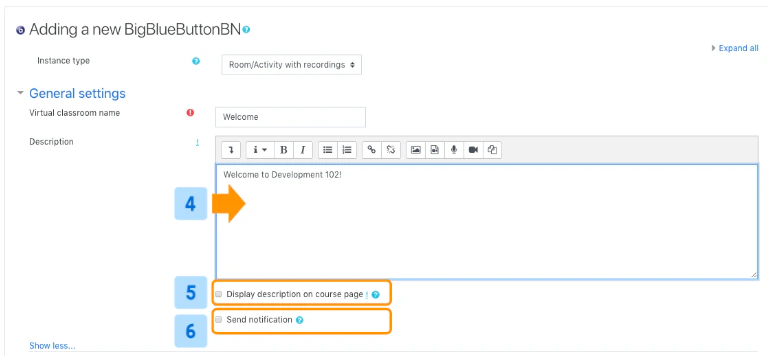
- Optionally add a description that appears on the course page.
- Review any room, recording, participant, and schedule settings you want to change.
- Save the activity.


What to configure first
For a good first setup, review these areas:General setup fields
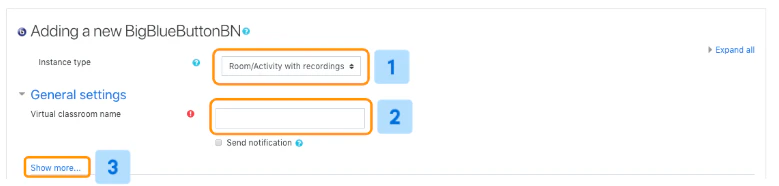
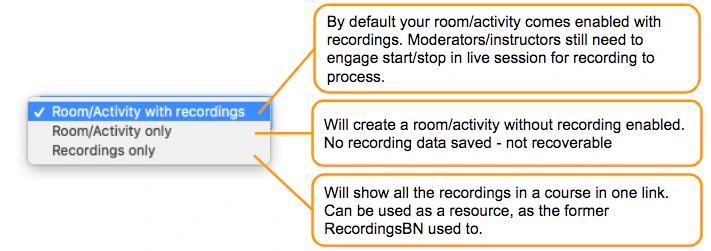
The activity form usually starts with:- an Instance Type selector
- a room or activity name
- optional description and notification settings
Save options
When you finish, you can usually choose:- Save and return to course
- Save and display
