Documentation Index

Fetch the complete documentation index at: https://bigbluebutton.com/docs/llms.txt

Use this file to discover all available pages before exploring further.

You can upload a presentation or document ahead of time when creating or editing a BigBlueButton activity.

Upload a presentation

  1. Open the activity settings.
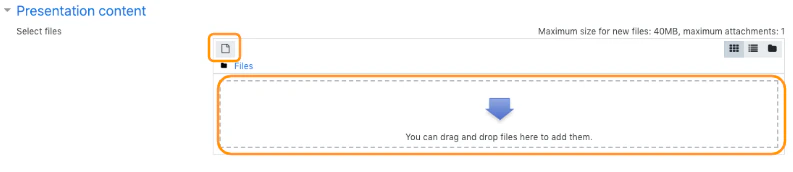
  2. Find the Presentation content section.
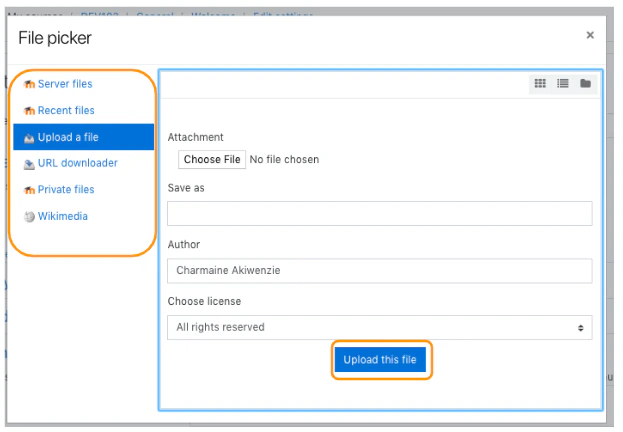
  3. Drag and drop the file into the uploader, or use the file picker.
  4. Save the activity.
The file picker options may vary depending on your Moodle site configuration. Presentation content area in the activity settings Upload a file into the presentation content area Moodle file picker used to upload a presentation

How it is used

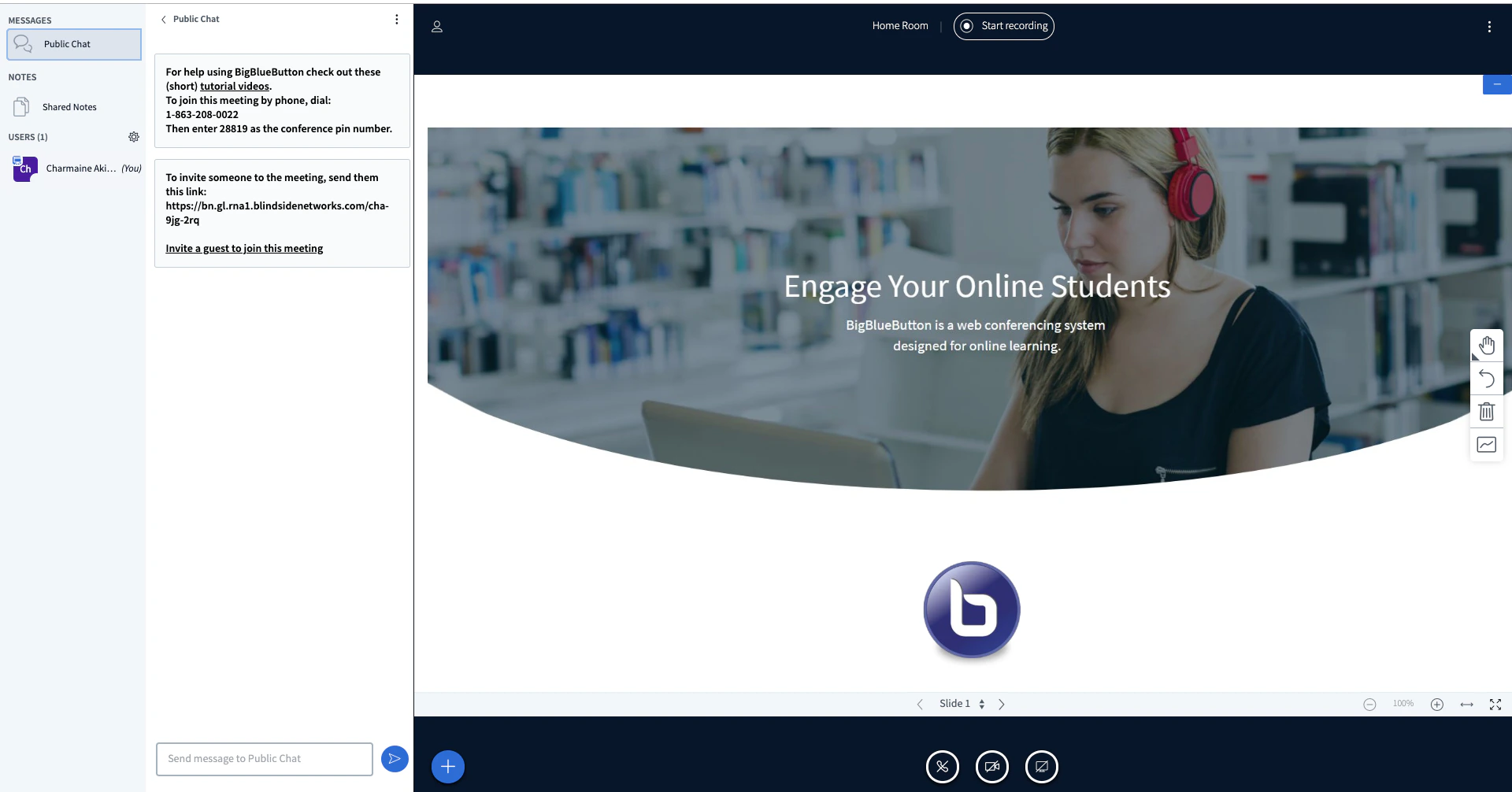
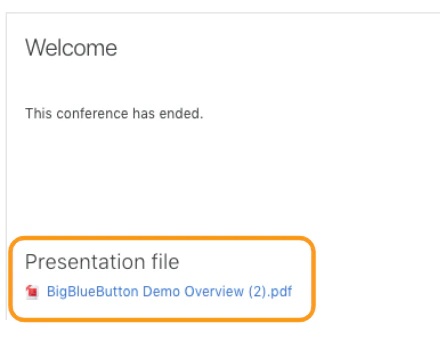
When the live session starts, the uploaded content appears as the default presentation inside BigBlueButton. After the conference ends, the uploaded presentation may also remain available for download from the Moodle activity page. Uploaded presentation shown as the default presentation in the live room