

What BNX changes
BNX does not replace the standard Moodle course navigation or activity structure. It builds on it, introducing targeted improvements across the activity header, recordings table, and navigation elements. Key improvements introduced by BNX:- Modernised recordings table layout with improved readability and spacing
- Inline editing controls for recording metadata
- Recording search functionality
- Cleaner pagination controls
- Better toolbar organisation
- Improved navigation presentation
- AI Features menu when AI providers are configured
Activity header
The header shows the activity name, type label, scheduled dates, and course breadcrumb navigation. Navigation tabs such as BigBlueButton, Settings, Validate completion, and a More menu appear based on the user’s role and activity configuration. Depending on the installed BNX sidecars and Moodle version, additional indicators or integration options may appear here.AI features menu
When Moodle AI providers are configured and enabled, an AI features menu appears in the activity header. Available actions depend on the AI providers installed and user permissions. Examples include:- recording summarisation
- transcript analysis
- content indexing
- AI-generated insights
- learning assistance tools
Session status and join button
The activity page shows a status message that reflects whether the room is open, scheduled, or waiting for a moderator. When the session is ready, the Join session button launches the virtual classroom in a new tab. BNX replaces the traditional Wait for Moderator experience with PreSession Lobby access. Participants can enter a moderated lobby and wait for moderator approval rather than being blocked from the session. Teachers typically join as moderators and students as viewers, following the role mappings configured in the activity settings.Enhanced recordings management
The recordings table is one of the most visible improvements BNX introduces. It adds a searchable interface, improved pagination, a cleaner column layout, and inline editing — making it more practical for activities with large recording collections.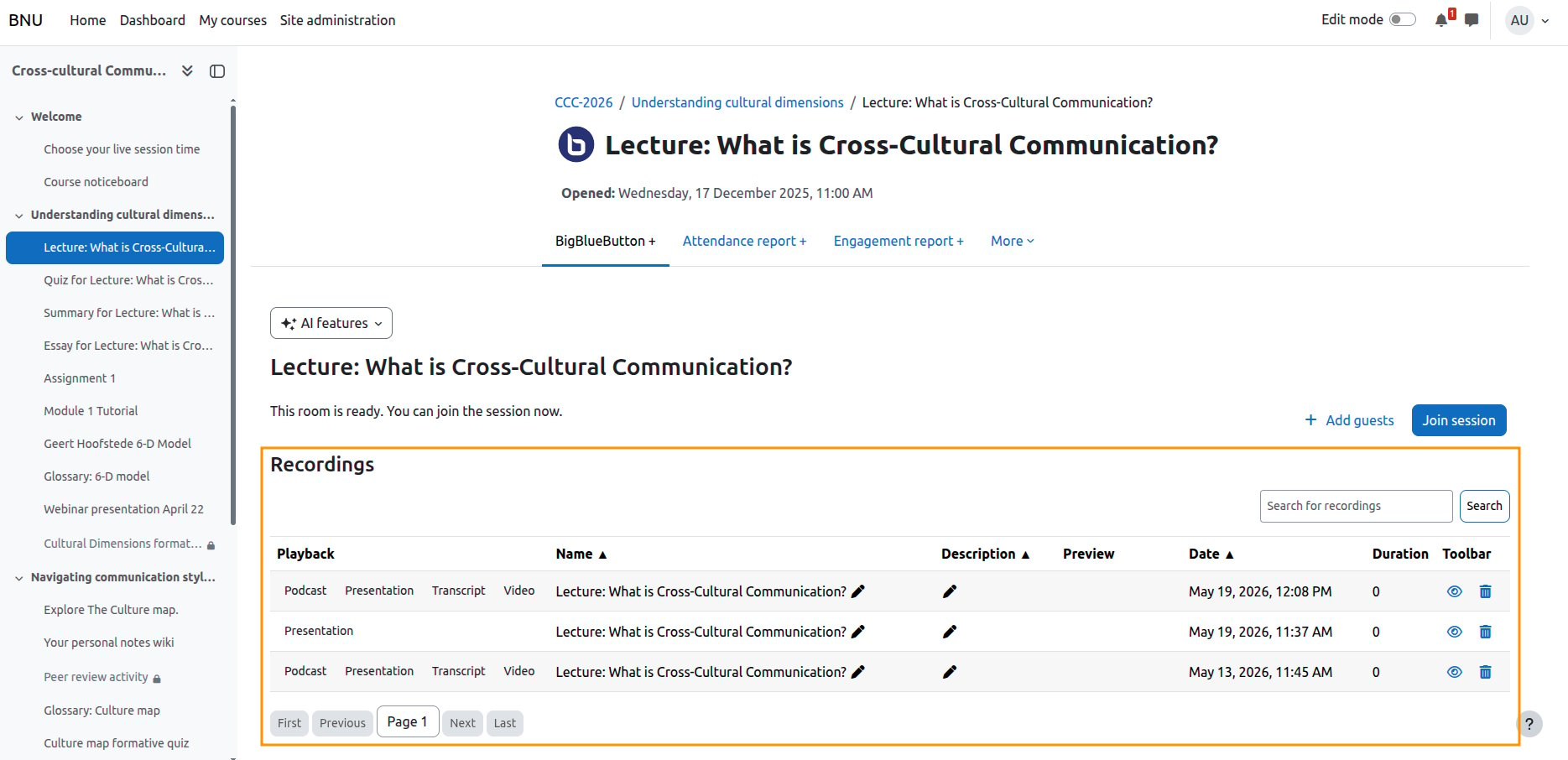
Recordings table columns
Playback formats
Recordings may be available in more than one format. Common formats include:- Presentation — slides with audio and video from the session
- Video — full video recording
- Podcast — audio-only playback
- Transcript — text transcript, when available
Inline editing
Teachers can rename a recording or update its description directly in the table without navigating to a separate form. Select the field to activate the inline editor, enter the new value, and confirm.Search and pagination
BNX adds a search field above the recordings table. Use it to filter recordings by name or other metadata. Pagination controls let you move between pages and set the number of rows visible at once. These controls are particularly useful for activities with large recording collections.Toolbar actions
The toolbar column shows actions available for each recording. Depending on permissions, actions may include viewing, editing, publishing, unpublishing, and deleting. See Manage recordings for the full workflow.Import recording links
Some sites show an Import recording links button above the table. This lets teachers link external recordings into the activity, which is useful for migrated or externally hosted content. See Import recording links.Overall UX improvements
Compared to Moodle core, BNX reduces visual clutter and makes the recordings experience faster and more scalable. Benefits include:- better scalability for activities with many recordings
- faster editing and management workflows
- improved discoverability of recordings and actions
- more consistent usability across Moodle versions
The exact features, tabs, and actions visible on the activity page depend on the Moodle version, installed BNX sidecars, user permissions, configured AI integrations, active theme, and BigBlueButton server capabilities.