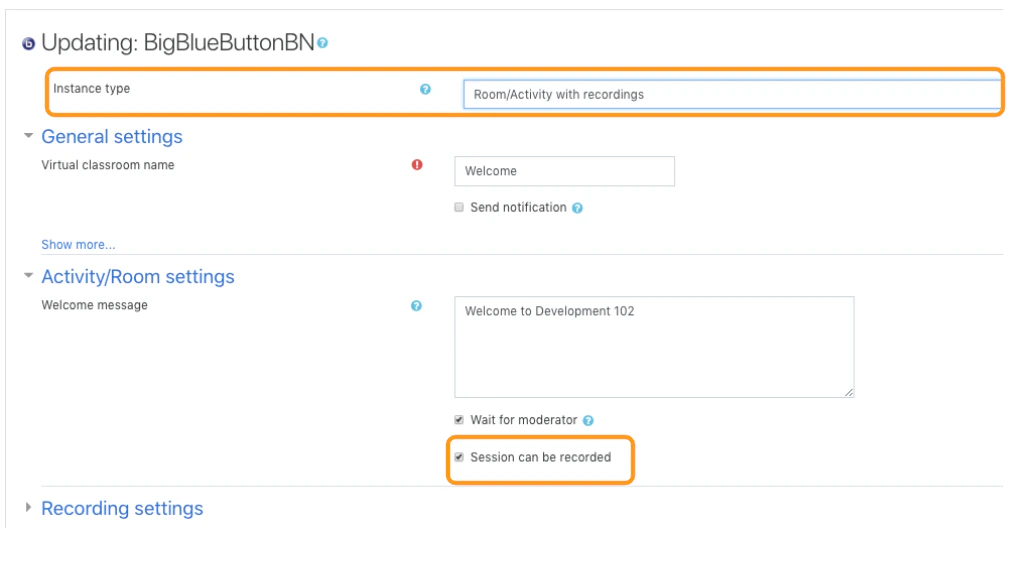
BigBlueButtonBN activities can be enabled to provide a recording option during a live virtual session.

When enabled, the Room/Activity will allow the moderator to engage the start/stop record button in the live session to generate a viewable and shareable recording link. Screen_Shot_2018-10-10_at_11.21.11_AM.png By default, BigBlueButtonBN Activities are enabled to be recorded when the instance type chosen is Room/Activity with recordings or when session can be recorded is checked.
Locating Processed Recordings

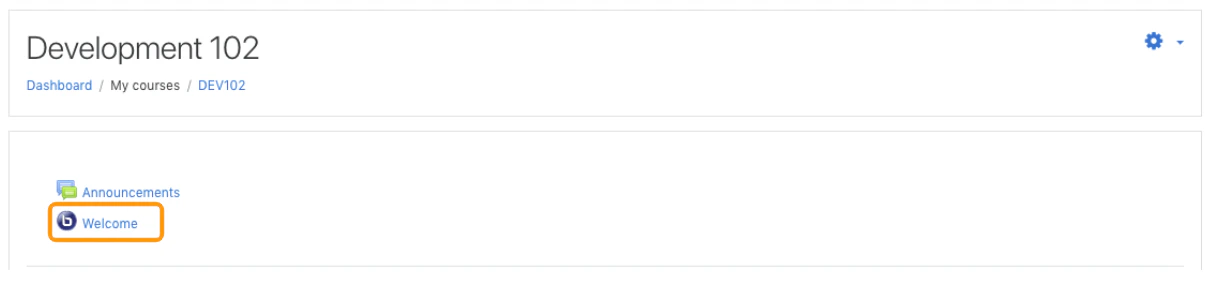
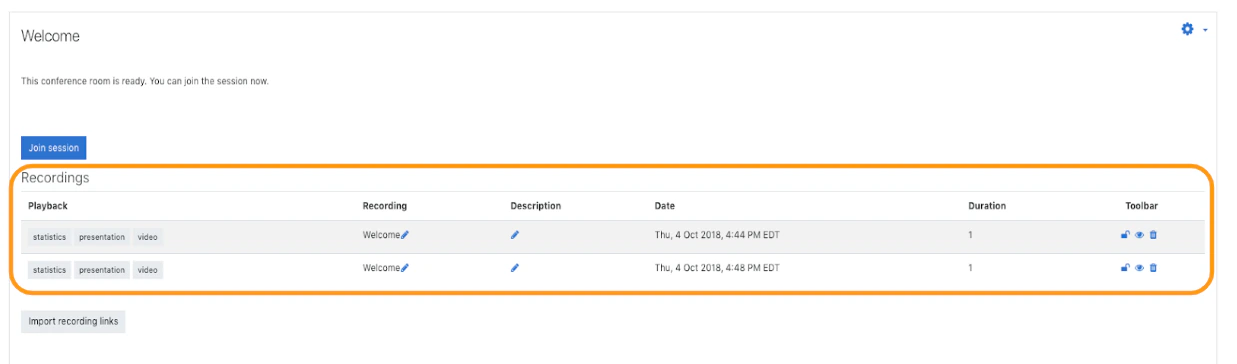
Recordings appear below the Room/Activity under which it was created. Screen_Shot_2018-10-10_at_12.05.11_PM.png To access processed recording links, navigate to the course where the room/activity was added and select the specific session you wish to view the recordings for. Screen_Shot_2018-10-10_at_12.05.15_PM.png Processed recording links and statistics will appear in chronological order in a plain HTML table.
Recording Playback

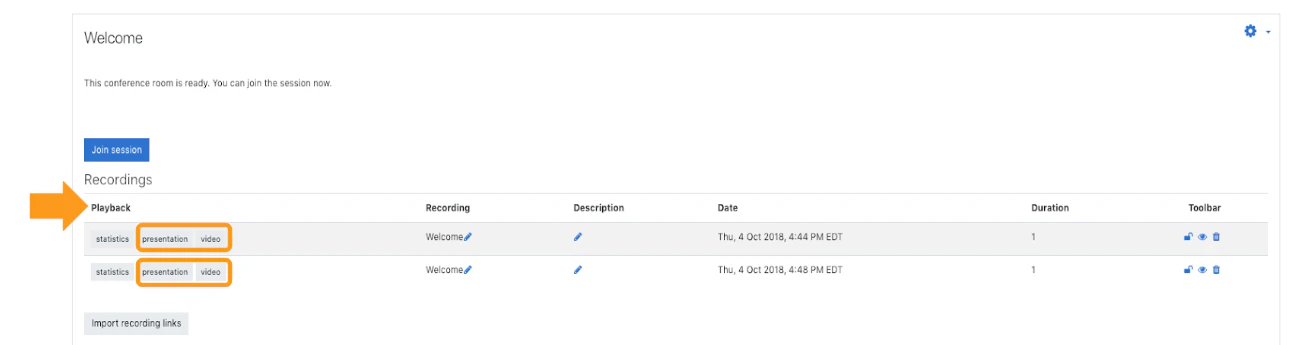
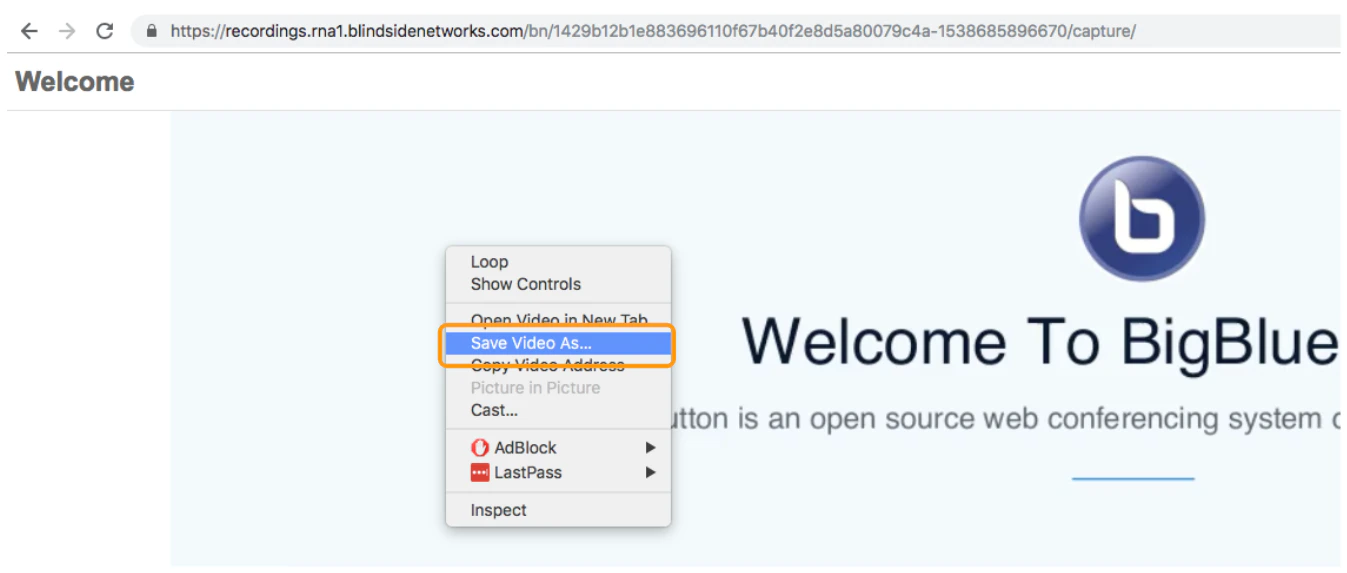
Screen_Shot_2018-10-10_at_12.10.51_PM.png To view a recording, look under the playback column and select either the Presentationor Video option. Your recording will load in a separate tab for viewing. Screen_Shot_2018-10-10_at_12.13.59_PM.png The Video format is a video file format that can be saved as an mp4 when right clicking anywhere in the recording playback and choosing “save as” to save to a desired location on your local system.