The schedule for a session enables you to create a BigBlueButtonBN Activity that has specific open and close times.

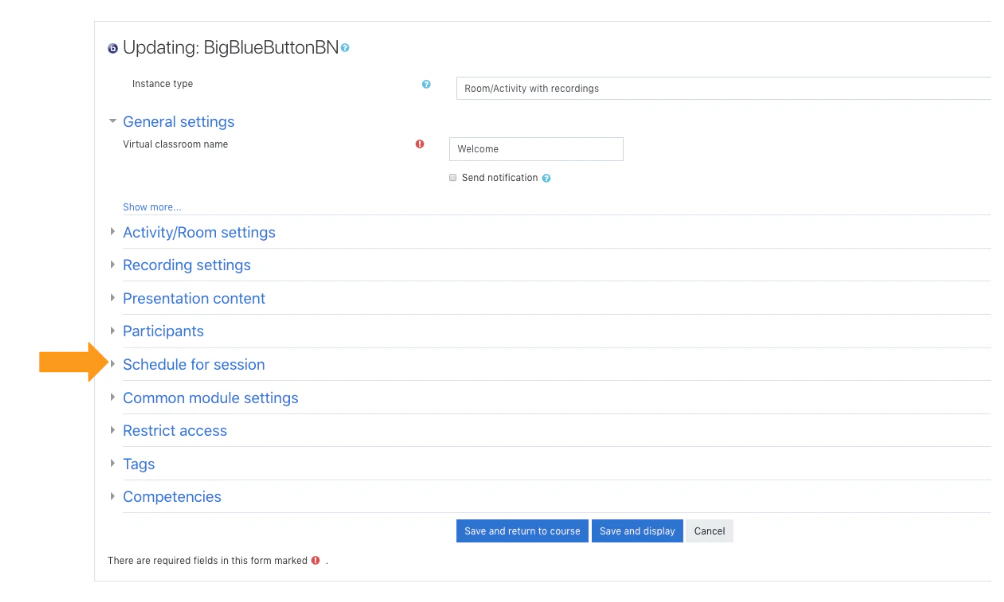
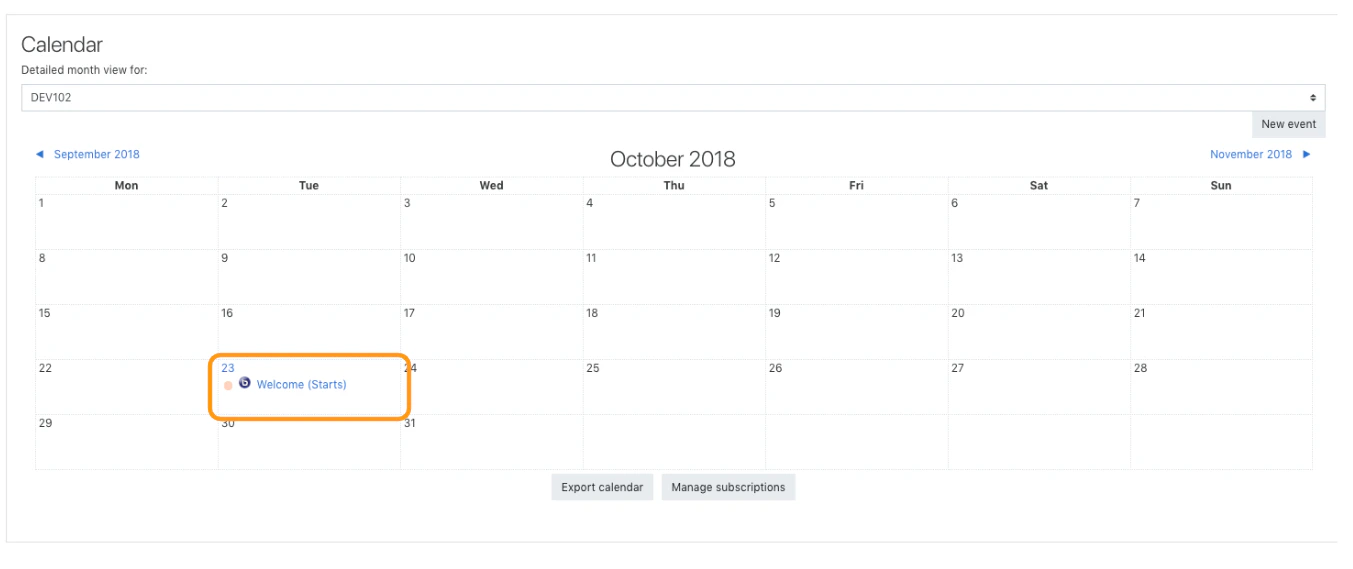
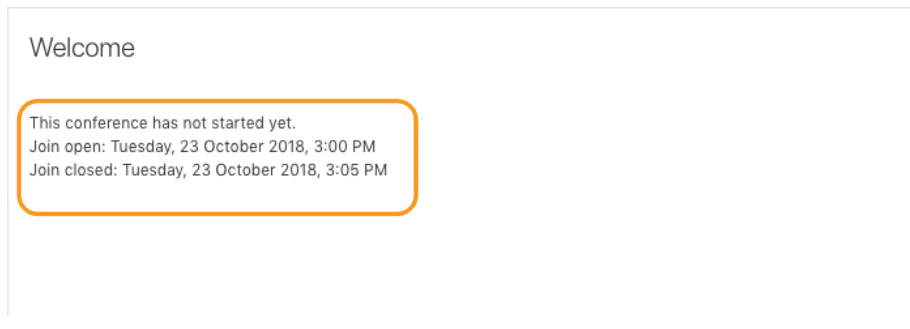
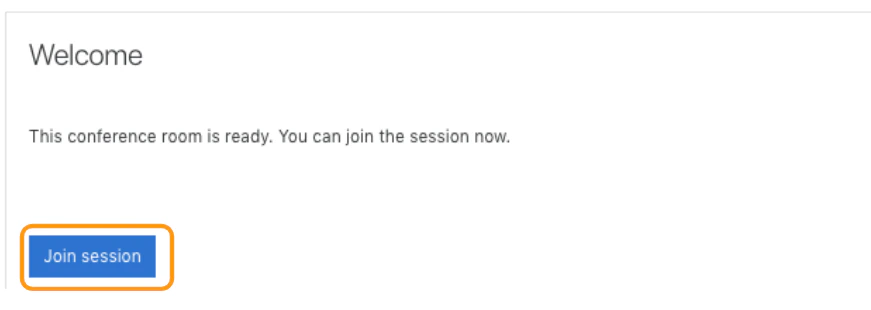
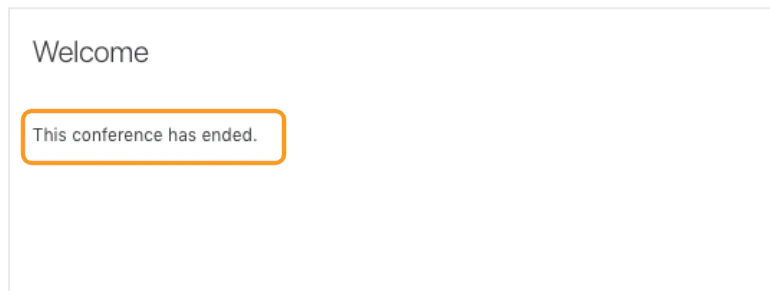
In Moodle you can schedule your BigBlueButtonBN activity or room, which “locks the door” to your conference before and/or after a specific date and time. Screen_Shot_2018-10-23_at_2.50.41_PM.png To view the scheduling options, expand the schedule for sessionmenu. Screen_Shot_2018-10-23_at_2.56.48_PM.png By default, the BigBlueButtonBN activity plug in has the schedule function disabled. To schedule a start or end time be sure to check enable The session can be scheduled to have a start time only, an **end time only,**or both. IMPORTANT TO NOTE: Unlike the “wait for moderator” setting, adding and enabling an open/close date and time restricts a user’s ability to join a session before the join open time or after the join closed time. Screen_Shot_2018-10-23_at_3.23.21_PM.png Once saved, the scheduled session will also appear in the calendar view of the respective course.  Screen_Shot_2018-10-23_at_2.51.58_PM.png Enrolled users will not see a join session button until the scheduled activity time. They will instead see a message that the conference has not started yet, including the scheduled join open/close date and time. Screen_Shot_2018-10-23_at_3.22.48_PM.png Once the conference is open, invitees will see the join option available until the close time.  Screen_Shot_2018-10-23_at_3.23.14_PM.png Any invited attendees attempting to join after the close date and time will no longer be presented with a joinoption.