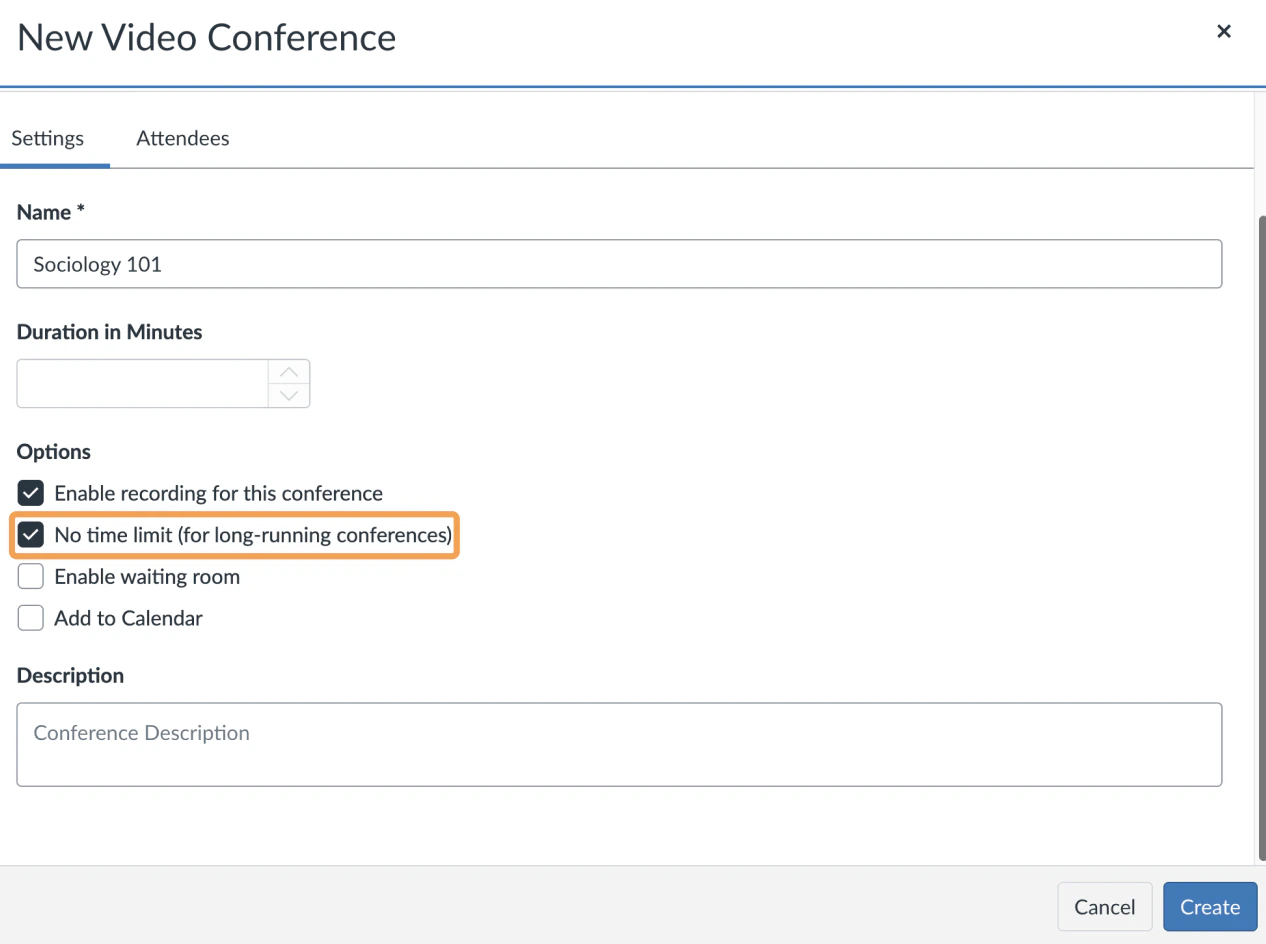

When you create a session in Canvas, it can have a time limit you can check No time limit (for long-running conferences).
Screenshot 2026 03 31 At 9 11 29 AM
Regardless of which way you choose, it will appear under New Conferences.
Screenshot 2026 03 31 At 9 11 42 AM
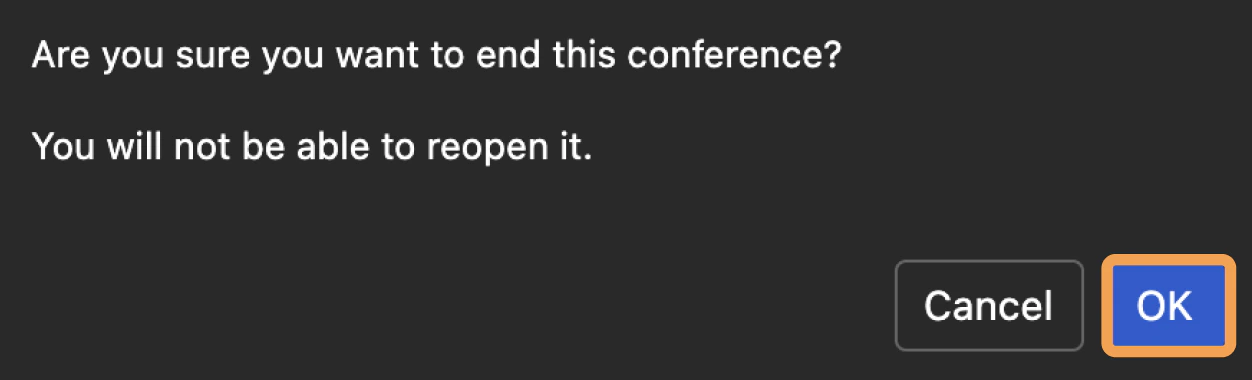
At any time you can select End to end the conference.  A pop up message will appear to confirm you would like to end this conference. Selecting End will remove users’ ability to join the conference and ends the live conference.
Screenshot 2026 03 31 At 9 13 01 AM
Select Ok to end the conference.
Screenshot 2026 03 31 At 9 08 34 AM
The conference will now appear under Concluded Conferencesalong with any associated recordings.

The second is through the BigBlueButton meeting interface.

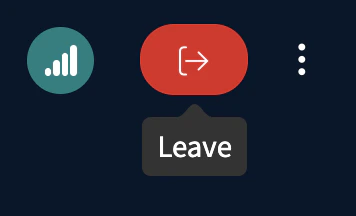
As a moderator, you are able to end the meeting on log out of the BigBlueButton. Open the settings menu, located in the upper right hand corner of the interface (the three vertical ellipsis).
Screenshot 2026 03 16 At 9 13 52 PM
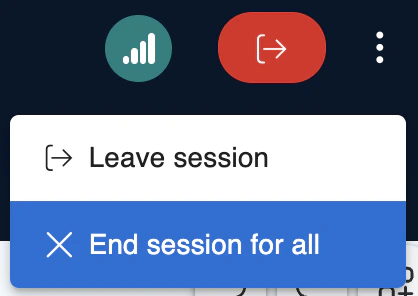
Press the Leave button and select End session for all.
Screenshot 2026 03 16 At 9 14 30 PM
You will be prompted “Are you sure you want to end this session?”, then select “End session for all users”.
Screenshot 2026 03 16 At 9 15 19 PM