Canvas has a calendar feature called Appointment Group, which lets you set a range of time slots where students can sign up. You can link these time slots directly to a BigBlueButton Conference, so students who sign up for an appointment join you in a BigBlueButton session with a single click.

Create the Conference

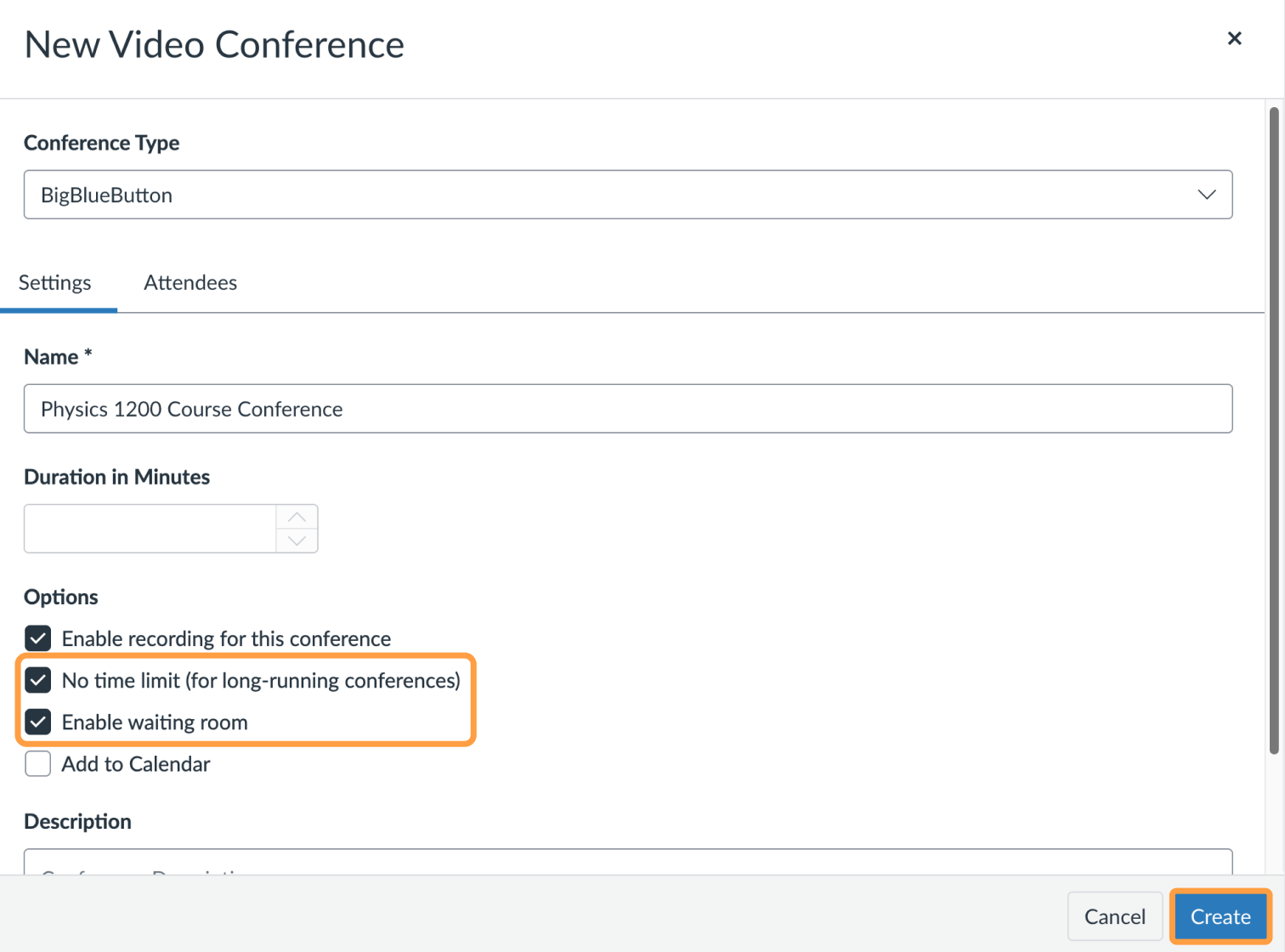
First, create a BigBlueButton Conference in your course. Select No time limit so you can re-use the Conference, and select Enable waiting room so students cannot join unless you are present.
Screenshot 2026 04 01 At 1 20 08 PM
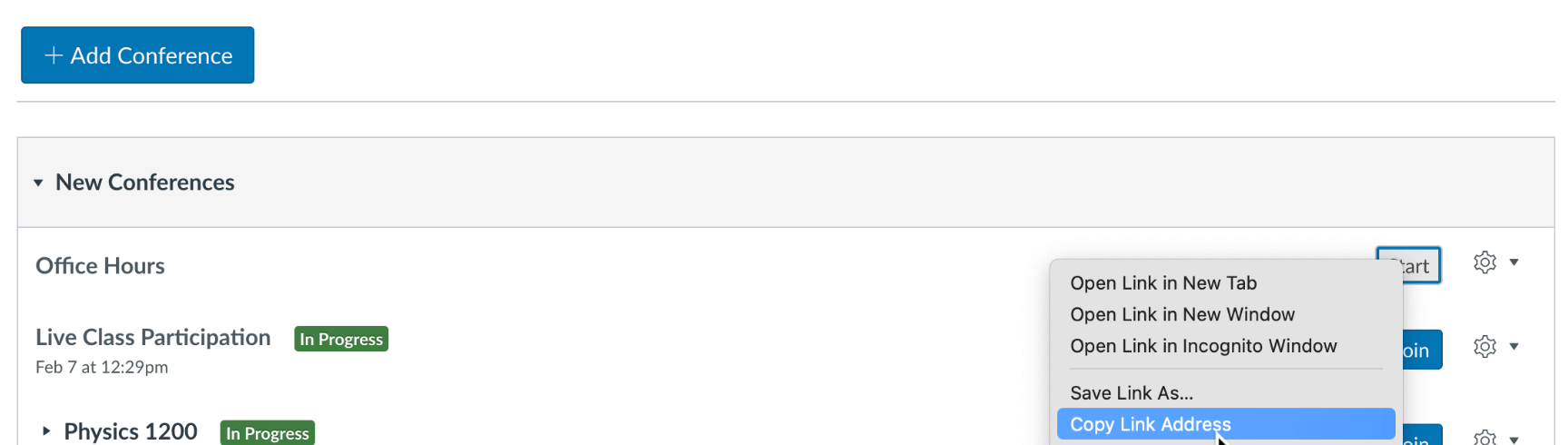
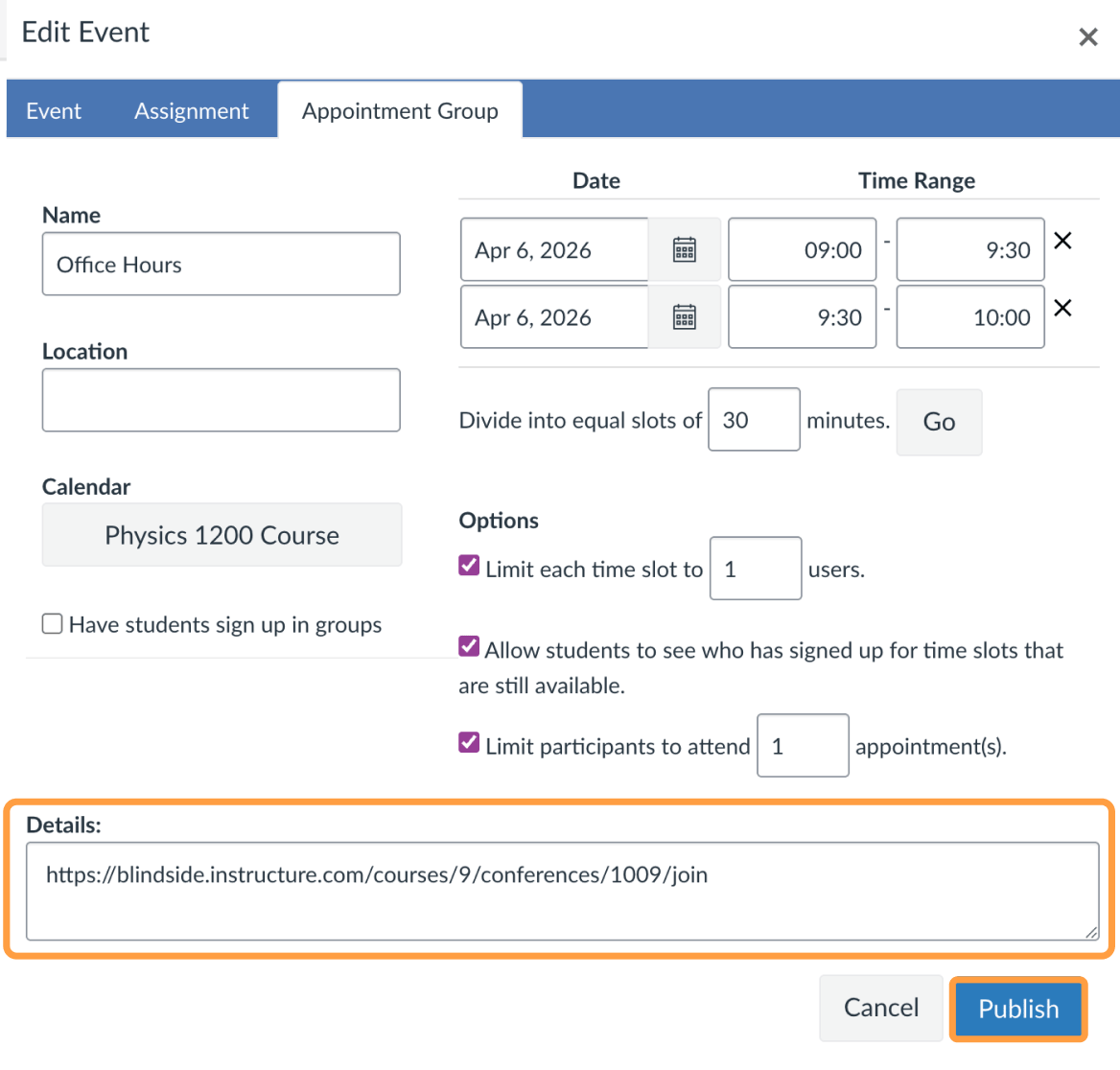
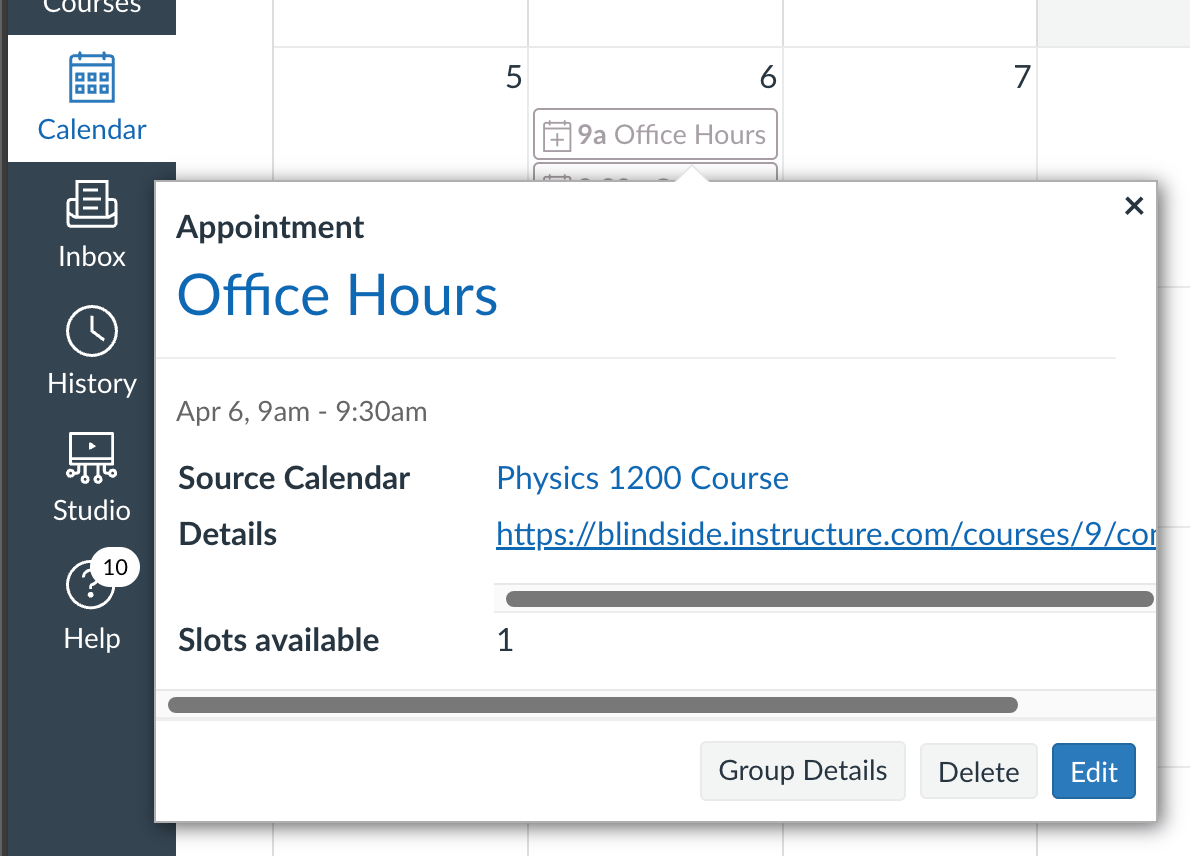
Select Create to create the Conference. You can also use an existing Conference. Once the Conference is created, copy the URL that students use to start or join it. To copy it to the clipboard, point at the Start/Join link, right-click, and choose Copy Link address. Right-click context menu on the Start/Join link with Copy Link address highlighted The copied URL looks like this: https://blindside.instructure.com/courses/9/conferences/1009/join This is a static join URL. Whenever a student selects the Join button, Canvas opens this URL to join this specific Conference. Next, create an Appointment Group in your course calendar. The example below adds two appointments, at 9:00 AM and 9:30 AM.
Screenshot 2026 04 01 At 1 31 03 PM
In the screenshot above, the copied join link is pasted into the Details field. Select Publish. Now, whenever students sign up for an Office Hours appointment, they see a clickable link to join. Canvas turns the pasted link into a clickable link automatically.
Screenshot 2026 04 01 At 1 28 21 PM

Admit students with the waiting room

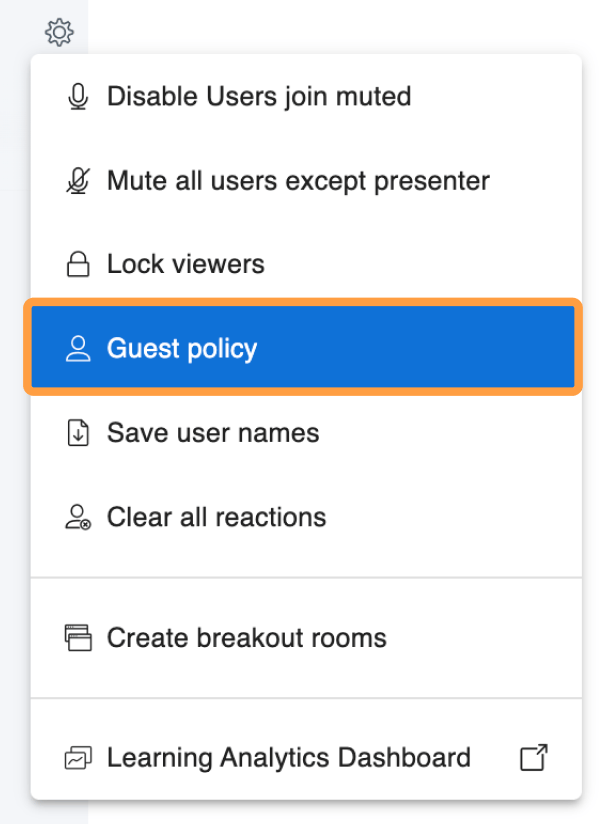
When you start the BigBlueButton Conference at the appointment time, use the guest policy to enable BigBlueButton’s built-in waiting room. The waiting room lets you manage students as they join. To set up the waiting room, select the gear icon and choose Guest policy.
Screenshot 2026 04 01 At 1 35 18 PM
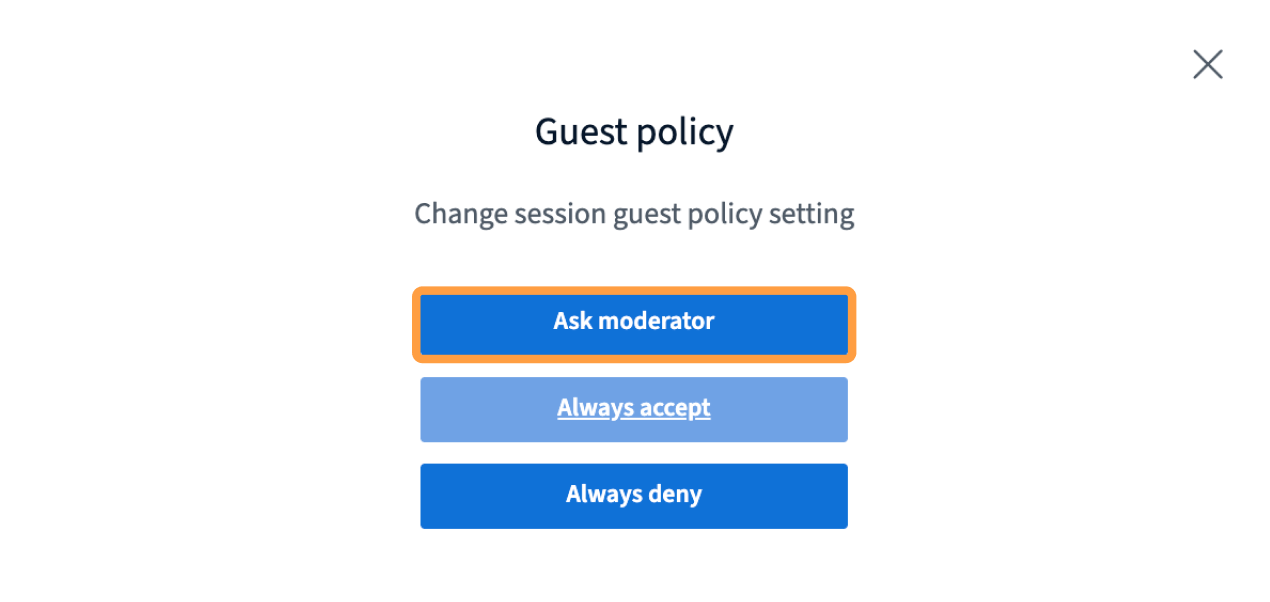
Select Ask Moderator.
Screenshot 2026 04 01 At 1 35 25 PM
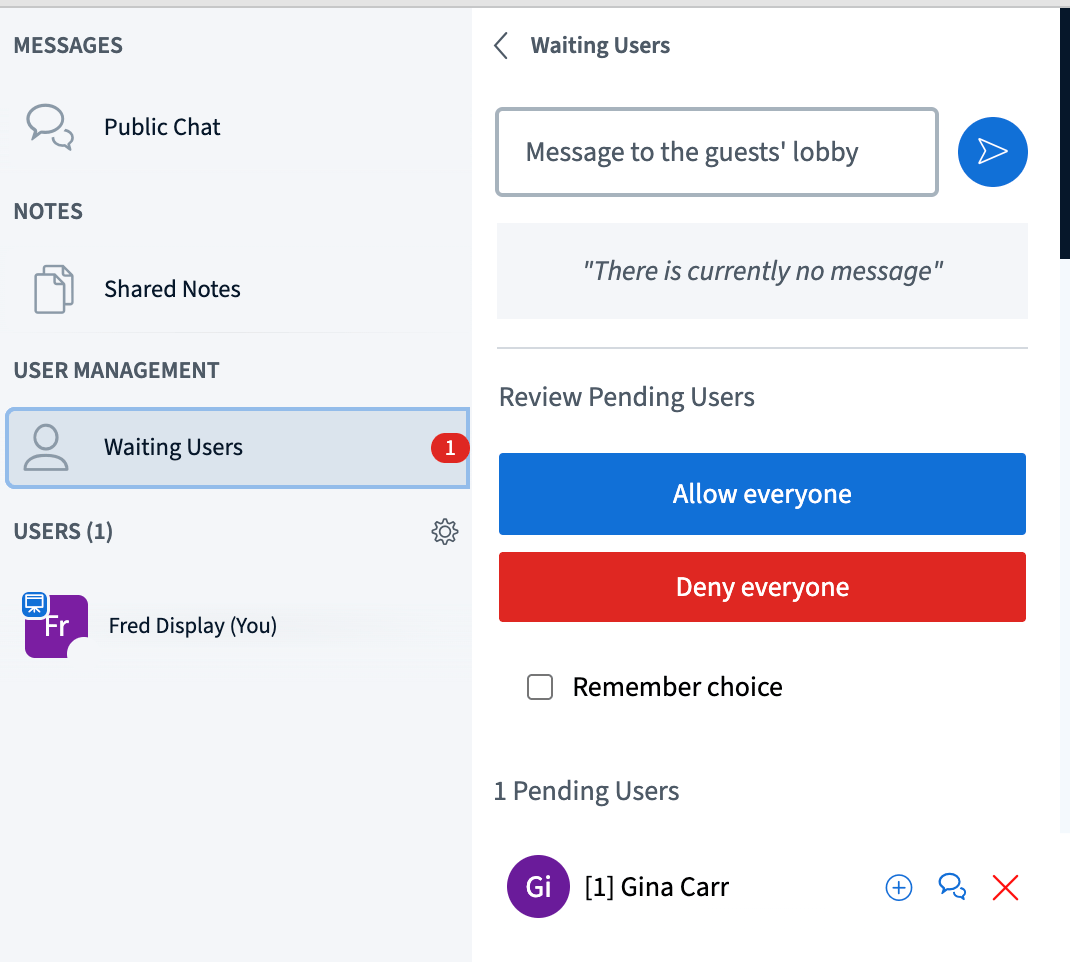
Now, when a student wants to join, you hear a sound and BigBlueButton shows the student in the Waiting Users panel. You can message waiting users, then select the (+) button when you want them to join. Waiting Users panel showing students requesting to join, with a (+) button to admit them The waiting room helps when you are running a few moments late with the previous student. Once you finish, you can admit the next waiting student.